> ## Documentation Index
> Fetch the complete documentation index at: https://docs.cognigy.com/llms.txt
> Use this file to discover all available pages before exploring further.
# Admin Center Dashboard
Updated in 4.89
The *Admin Center Dashboard* allows you to track the number of billable conversations, Knowledge Chunks, and Queries within your organization. Additionally, you can activate other Cognigy products, such as Live Agent and Voice Gateway, as well as delete organizations if necessary.
On the Admin Center Dashboard, you can perform the following actions:
* [View Charts](#charts)
* [Set up Cognigy Products](#set-up-cognigy-products)
* [Delete Organizations](#delete-organizations)
You can access the **Dashboard** page using one of the following options:
* Click **User Menu > Admin Center** on the **Main** page, then select **Dashboard** from the left-side menu.
* Select **Admin Center** from the User Menu in the bottom-left corner of the **Project** page, then select **Dashboard** from the left-side menu.
## Charts
Charts display key metrics, such as billable conversations and Knowledge AI usage, to help manage costs within the organization. Data can be filtered by month and year.
The chart shows the number of [billable conversations](/ai/administer/billing) for the organization.
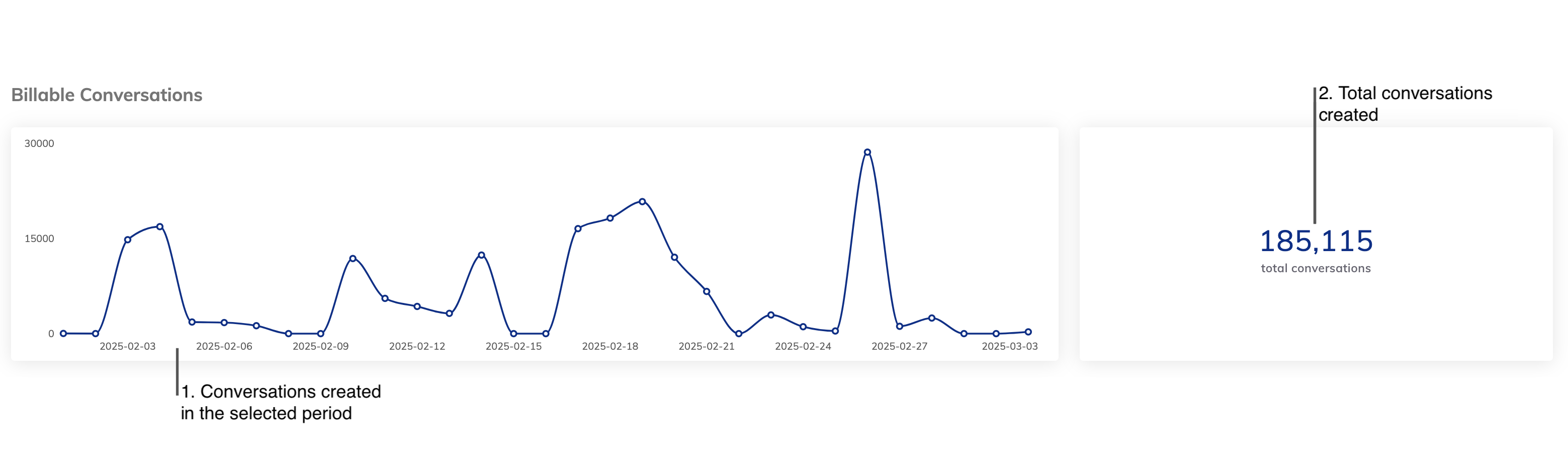 The billable conversations metrics include the following:
1. The number of billable conversations created within the selected period.
2. The total number of billable conversations created overall.
Within each organization, if the Knowledge AI feature is used, you can monitor the number of Knowledge Queries and Knowledge Chunks.
Knowledge Chunks and Knowledge Queries are billable units. Tracking their usage helps manage costs and optimize resource allocation.
The billable conversations metrics include the following:
1. The number of billable conversations created within the selected period.
2. The total number of billable conversations created overall.
Within each organization, if the Knowledge AI feature is used, you can monitor the number of Knowledge Queries and Knowledge Chunks.
Knowledge Chunks and Knowledge Queries are billable units. Tracking their usage helps manage costs and optimize resource allocation.
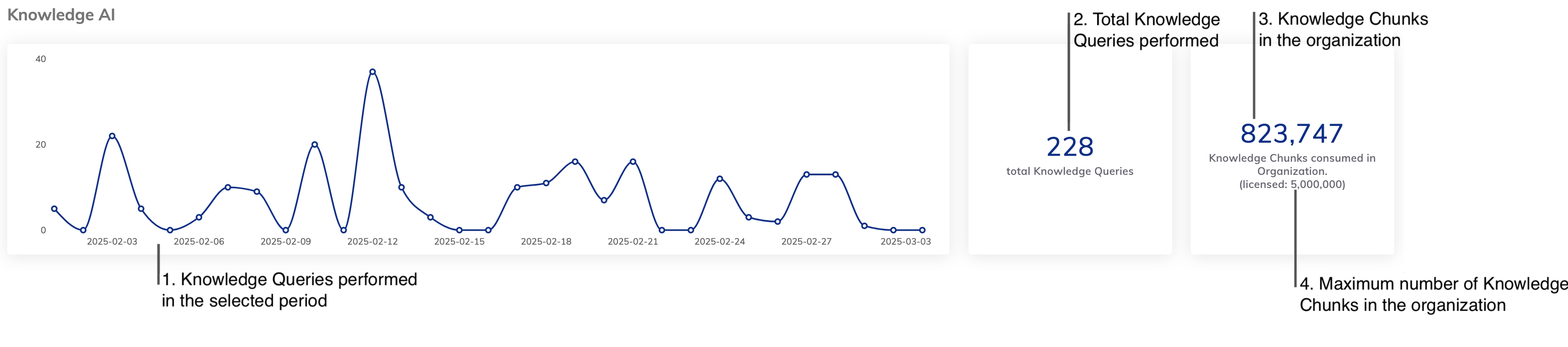 The Knowledge AI metrics include the following:
1. The number of Knowledge Queries performed within the selected period.
2. The total number of Knowledge Queries performed.
3. The number of Knowledge Chunks currently available in the organization.
4. The maximum number of Knowledge Chunks allocated to the organization.
For more information on how to activate Knowledge AI for your organization, read the [Knowledge AI](/ai/agents/develop/knowledge-ai/activate) documentation.
## Set up Cognigy Products
The **Cognigy Products** section allows you to activate additional Cognigy products for your organization, such as [Live Agent](/live-agent/index) and [Voice Gateway](/voice-gateway/index).
## Delete Organizations
Deleting an organization is irreversible and permanently erases all associated data.
Before the organization deletion, you need to set up:
* Valid system administrator emails in the environment variable `SYS_ADMINISTRATOR_EMAIL` of the `values.yaml` file. For example, `SYS_ADMINISTRATOR_EMAIL: "admin1@domain.com,admin2@domain.com"`. Your administrators receive a notification at these email addresses regarding the organization deletion request. By following the link provided in the email, the administrators can proceed with the organization deletion.
* The Cognigy.AI [Management UI](/ai/administer/access/management-ui) is installed, and its path is set in the `MANAGEMENTUI_BASE_URL_WITH_PROTOCOL` variable of the `values.yaml` file. For example, `MANAGEMENTUI_BASE_URL_WITH_PROTOCOL: http://management-ui`.
This process contains the following steps:
1. On the **Dashboard** page, a user with the admin role requests to delete the organization by clicking **Delete Organization**. This request is sent to the system administrator's email.
2. The system administrator receives the email and follows the link to the [Management UI](/ai/administer/access/management-ui).
3. The system administrator deletes the organization in the Management UI and then receives a confirmation email.
The Knowledge AI metrics include the following:
1. The number of Knowledge Queries performed within the selected period.
2. The total number of Knowledge Queries performed.
3. The number of Knowledge Chunks currently available in the organization.
4. The maximum number of Knowledge Chunks allocated to the organization.
For more information on how to activate Knowledge AI for your organization, read the [Knowledge AI](/ai/agents/develop/knowledge-ai/activate) documentation.
## Set up Cognigy Products
The **Cognigy Products** section allows you to activate additional Cognigy products for your organization, such as [Live Agent](/live-agent/index) and [Voice Gateway](/voice-gateway/index).
## Delete Organizations
Deleting an organization is irreversible and permanently erases all associated data.
Before the organization deletion, you need to set up:
* Valid system administrator emails in the environment variable `SYS_ADMINISTRATOR_EMAIL` of the `values.yaml` file. For example, `SYS_ADMINISTRATOR_EMAIL: "admin1@domain.com,admin2@domain.com"`. Your administrators receive a notification at these email addresses regarding the organization deletion request. By following the link provided in the email, the administrators can proceed with the organization deletion.
* The Cognigy.AI [Management UI](/ai/administer/access/management-ui) is installed, and its path is set in the `MANAGEMENTUI_BASE_URL_WITH_PROTOCOL` variable of the `values.yaml` file. For example, `MANAGEMENTUI_BASE_URL_WITH_PROTOCOL: http://management-ui`.
This process contains the following steps:
1. On the **Dashboard** page, a user with the admin role requests to delete the organization by clicking **Delete Organization**. This request is sent to the system administrator's email.
2. The system administrator receives the email and follows the link to the [Management UI](/ai/administer/access/management-ui).
3. The system administrator deletes the organization in the Management UI and then receives a confirmation email.