> ## Documentation Index
> Fetch the complete documentation index at: https://docs.cognigy.com/llms.txt
> Use this file to discover all available pages before exploring further.
# Blind Mode
 ## Description
Cognigy.AI logs conversations to operate, maintain, and improve the service, but user inputs can sometimes contain sensitive information, such as names, addresses, phone numbers, or other private details. To protect this information, you can mask or exclude it from logs or analytics by using a Blind Mode Node.
The Node lets you control when sensitive data is masked or excluded, ensuring it isn't exposed.
## How to Use the Blind Mode Node
In the Flow editor, add two Blind Mode Nodes:
1. Add a Blind Mode Node before the Node where the sensitive input is expected. Rename the Blind Mode Node to `Blind Mode On`.
2. Add a Blind Mode Node after the Node with the sensitive input. Rename the Blind Mode Node to `Blind Mode Off`.
## Description
Cognigy.AI logs conversations to operate, maintain, and improve the service, but user inputs can sometimes contain sensitive information, such as names, addresses, phone numbers, or other private details. To protect this information, you can mask or exclude it from logs or analytics by using a Blind Mode Node.
The Node lets you control when sensitive data is masked or excluded, ensuring it isn't exposed.
## How to Use the Blind Mode Node
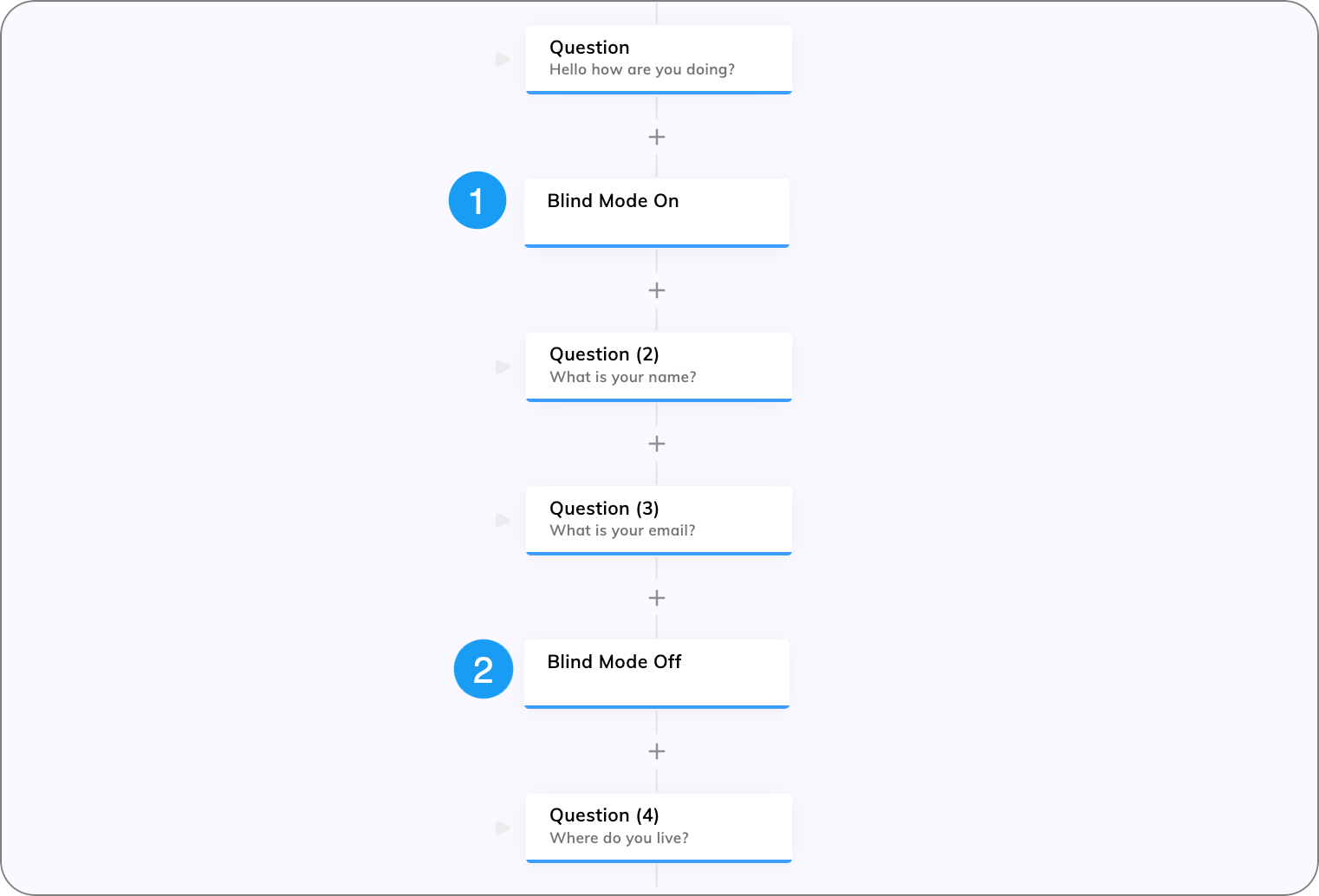
In the Flow editor, add two Blind Mode Nodes:
1. Add a Blind Mode Node before the Node where the sensitive input is expected. Rename the Blind Mode Node to `Blind Mode On`.
2. Add a Blind Mode Node after the Node with the sensitive input. Rename the Blind Mode Node to `Blind Mode Off`.
 Next, choose whether you want to mask or exclude sensitive data:
To mask sensitive data in the Conversations explorer:
1. In the **Blind Mode On** Node editor, activate the **Mask Analytics** option.
2. Go to the Conversations explorer to explore the conversation transcript:
* For inputs – the message right before the **Blind Mode On** Node will be masked (replaced with `****`). The message right before the **Blind Mode Off** Node will remain unmasked.
* For outputs – the messages between the **Blind Mode On** and **Blind Mode Off** Nodes are masked.
To mask sensitive data on the [Logs](/ai/agents/test/logs) page:
1. In the **Blind Mode On** Node editor, activate the **Mask Logging** option.
On the **Logs** page, the following data between the **Blind Mode On** and **Blind Mode Off** Nodes will be masked (replaced with `****`): `userId`, `input`, and `output`.
To prevent storing user inputs in the Intent Trainer:
1. In the **Blind Mode On** Node editor, activate the **Disable Intent Trainer Records** option.
Any user input between the **Blind Mode On** and **Blind Mode Off** Nodes won't be stored in the Intent Trainer.
To stop recording part of conversation:
1. In the Blind Mode On Node editor, activate the **Disable Conversations** option.
2. Go to the **Logs** page to view the logs:
* For inputs – recording will stop one message before the **Blind Mode On** Node and resume one message before the **Blind Mode Off** Node.
* For outputs – only the messages between the **Blind Mode On** and **Blind Mode Off** Nodes will be excluded from logging.
When both **Mask Analytics** and **Disable Conversations** options are activated, the **Disable Conversations** option takes precedence.
## Best Practices for Using Blind Mode Nodes
By applying these steps, you can ensure that sensitive user information is protected and that your AI Agent adheres to privacy standards:
* Always add a second Blind Mode Node with the options turned off to signal when data masking is no longer needed and normal data handling can resume.
* For entire Flow masking, enable data masking at the [Endpoint](/ai/agents/deploy/endpoints/data-protection-and-analytics) level.
Next, choose whether you want to mask or exclude sensitive data:
To mask sensitive data in the Conversations explorer:
1. In the **Blind Mode On** Node editor, activate the **Mask Analytics** option.
2. Go to the Conversations explorer to explore the conversation transcript:
* For inputs – the message right before the **Blind Mode On** Node will be masked (replaced with `****`). The message right before the **Blind Mode Off** Node will remain unmasked.
* For outputs – the messages between the **Blind Mode On** and **Blind Mode Off** Nodes are masked.
To mask sensitive data on the [Logs](/ai/agents/test/logs) page:
1. In the **Blind Mode On** Node editor, activate the **Mask Logging** option.
On the **Logs** page, the following data between the **Blind Mode On** and **Blind Mode Off** Nodes will be masked (replaced with `****`): `userId`, `input`, and `output`.
To prevent storing user inputs in the Intent Trainer:
1. In the **Blind Mode On** Node editor, activate the **Disable Intent Trainer Records** option.
Any user input between the **Blind Mode On** and **Blind Mode Off** Nodes won't be stored in the Intent Trainer.
To stop recording part of conversation:
1. In the Blind Mode On Node editor, activate the **Disable Conversations** option.
2. Go to the **Logs** page to view the logs:
* For inputs – recording will stop one message before the **Blind Mode On** Node and resume one message before the **Blind Mode Off** Node.
* For outputs – only the messages between the **Blind Mode On** and **Blind Mode Off** Nodes will be excluded from logging.
When both **Mask Analytics** and **Disable Conversations** options are activated, the **Disable Conversations** option takes precedence.
## Best Practices for Using Blind Mode Nodes
By applying these steps, you can ensure that sensitive user information is protected and that your AI Agent adheres to privacy standards:
* Always add a second Blind Mode Node with the options turned off to signal when data masking is no longer needed and normal data handling can resume.
* For entire Flow masking, enable data masking at the [Endpoint](/ai/agents/deploy/endpoints/data-protection-and-analytics) level.