> ## Documentation Index
> Fetch the complete documentation index at: https://docs.cognigy.com/llms.txt
> Use this file to discover all available pages before exploring further.
# Set State
 ## Description
As of Cognigy.AI 2026.9.0, the Set State Node is deprecated and will be removed from the Node selector in Cognigy.AI 2026.16.0. This deprecation doesn't affect runtime behavior. After the removal, existing Flows containing this Node will remain fully supported and continue to run as expected. As an alternative, you can use [Intent Conditions](/ai/platform-features/nlu/intents/conditions) for controlling Intent recognition.
This Node allows you to control Intent recognition within your Flow by using States.
The Node can restrict the Flow from recognizing either all Intents or only specific ones.
In **NLU > States**, you can manage Intents within a specific State using:
* **Whitelist** — only the specified Intents are recognized.
* **Blacklist** — the specified Intents are blocked, while all others remain available.
To restore full Intent recognition to the default State, use the [Reset State](/ai/agents/develop/node-reference/logic/reset-state) Node.
## Parameters
| Parameter | Type | Description |
| --------- | ------------- | --------------------------------------------------------------------------------------------------------------------------------------------------------------------------------------------------- |
| State | Select | Select a State that you created in **NLU > States** in your Flow. The `default` State is used by default. |
| Text | CognigyScript | The provided text serves as a message to emulate user input. This custom data will be available in the `input.text` object. |
| Data | JSON | The provided data serves as a message to emulate user input. This custom data will be available in the `input.data` object and can include any additional information that is relevant to the Flow. |
## Example
### Configure Intents and States
1. In the **Flow**, navigate to **NLU > Intents**.
2. Create a new Intent named `Access` and add the following Intent sentences:
* `I need access to Cognigy.AI`
* `I need to log in to Cognigy.AI`
3. Go to the **States** tab and click **+ Create State** to create a new State. Name it **Block Intent Mapping**.
4. Add the previously created `Access` Intent to this new State, and select **Blacklist** to exclude it from recognition in the Flow.
### Configure your Flow
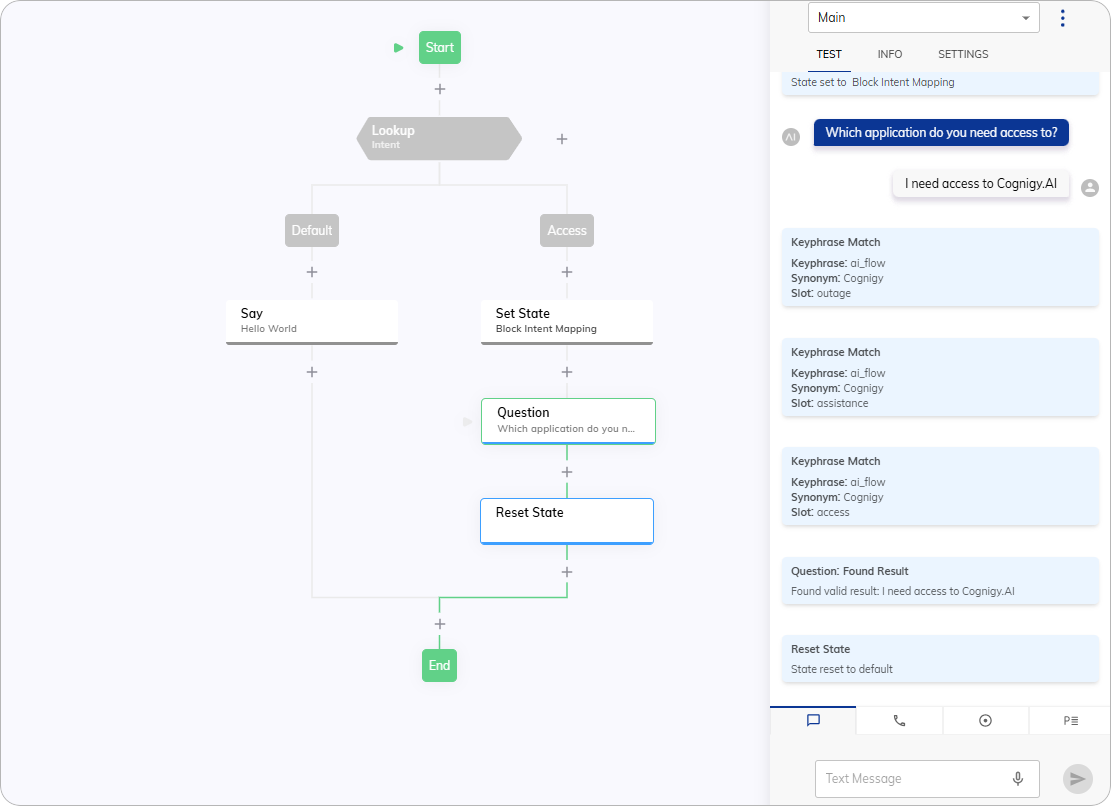
1. Add a **Lookup Node** to your Flow and select the **Intent** type in the Node editor.
2. In the **Case Node**, enter `Access` in the **Value** field to specify that this case should trigger when the `Access` Intent is detected.
3. Below the **Case Node**, add a **Set State Node**. From the **State** list, select the **Block Intent Mapping** State to restrict recognition of the `Access` Intent.
4. Below the **Set State Node**, add a **Question Node**. Set the **Question Type** to **Text** and enter the question: `Which application do you need access to?`.
5. Below the **Question Node**, add a **Reset State Node** to restore full Intent recognition.
### Test your Flow
Once you've configured the Flow, test it using the Interaction Panel to ensure everything works as expected.
## Description
As of Cognigy.AI 2026.9.0, the Set State Node is deprecated and will be removed from the Node selector in Cognigy.AI 2026.16.0. This deprecation doesn't affect runtime behavior. After the removal, existing Flows containing this Node will remain fully supported and continue to run as expected. As an alternative, you can use [Intent Conditions](/ai/platform-features/nlu/intents/conditions) for controlling Intent recognition.
This Node allows you to control Intent recognition within your Flow by using States.
The Node can restrict the Flow from recognizing either all Intents or only specific ones.
In **NLU > States**, you can manage Intents within a specific State using:
* **Whitelist** — only the specified Intents are recognized.
* **Blacklist** — the specified Intents are blocked, while all others remain available.
To restore full Intent recognition to the default State, use the [Reset State](/ai/agents/develop/node-reference/logic/reset-state) Node.
## Parameters
| Parameter | Type | Description |
| --------- | ------------- | --------------------------------------------------------------------------------------------------------------------------------------------------------------------------------------------------- |
| State | Select | Select a State that you created in **NLU > States** in your Flow. The `default` State is used by default. |
| Text | CognigyScript | The provided text serves as a message to emulate user input. This custom data will be available in the `input.text` object. |
| Data | JSON | The provided data serves as a message to emulate user input. This custom data will be available in the `input.data` object and can include any additional information that is relevant to the Flow. |
## Example
### Configure Intents and States
1. In the **Flow**, navigate to **NLU > Intents**.
2. Create a new Intent named `Access` and add the following Intent sentences:
* `I need access to Cognigy.AI`
* `I need to log in to Cognigy.AI`
3. Go to the **States** tab and click **+ Create State** to create a new State. Name it **Block Intent Mapping**.
4. Add the previously created `Access` Intent to this new State, and select **Blacklist** to exclude it from recognition in the Flow.
### Configure your Flow
1. Add a **Lookup Node** to your Flow and select the **Intent** type in the Node editor.
2. In the **Case Node**, enter `Access` in the **Value** field to specify that this case should trigger when the `Access` Intent is detected.
3. Below the **Case Node**, add a **Set State Node**. From the **State** list, select the **Block Intent Mapping** State to restrict recognition of the `Access` Intent.
4. Below the **Set State Node**, add a **Question Node**. Set the **Question Type** to **Text** and enter the question: `Which application do you need access to?`.
5. Below the **Question Node**, add a **Reset State Node** to restore full Intent recognition.
### Test your Flow
Once you've configured the Flow, test it using the Interaction Panel to ensure everything works as expected.
 ## More Information
* [Reset State](/ai/agents/develop/node-reference/logic/reset-state)
* [Intent Conditions](/ai/platform-features/nlu/intents/conditions)
## More Information
* [Reset State](/ai/agents/develop/node-reference/logic/reset-state)
* [Intent Conditions](/ai/platform-features/nlu/intents/conditions)