> ## Documentation Index
> Fetch the complete documentation index at: https://docs.cognigy.com/llms.txt
> Use this file to discover all available pages before exploring further.
# Set Handover Inactivity
 ## Description
This Node detects and handles user inactivity, freeing up capacity for the human agent team. To configure this Node, specify the time in minutes during which the user can be inactive.
## Parameters
| Parameter | Type | Description |
| --------- | ------ | ---------------------------------------------------------- |
| Timer | Number | The time in minutes during which the user can be inactive. |
## How to Use
To use the Node, first configure the [Lookup](/ai/agents/develop/node-reference/logic/lookup) Node to enable different inactivity behaviors.
## Description
This Node detects and handles user inactivity, freeing up capacity for the human agent team. To configure this Node, specify the time in minutes during which the user can be inactive.
## Parameters
| Parameter | Type | Description |
| --------- | ------ | ---------------------------------------------------------- |
| Timer | Number | The time in minutes during which the user can be inactive. |
## How to Use
To use the Node, first configure the [Lookup](/ai/agents/develop/node-reference/logic/lookup) Node to enable different inactivity behaviors.
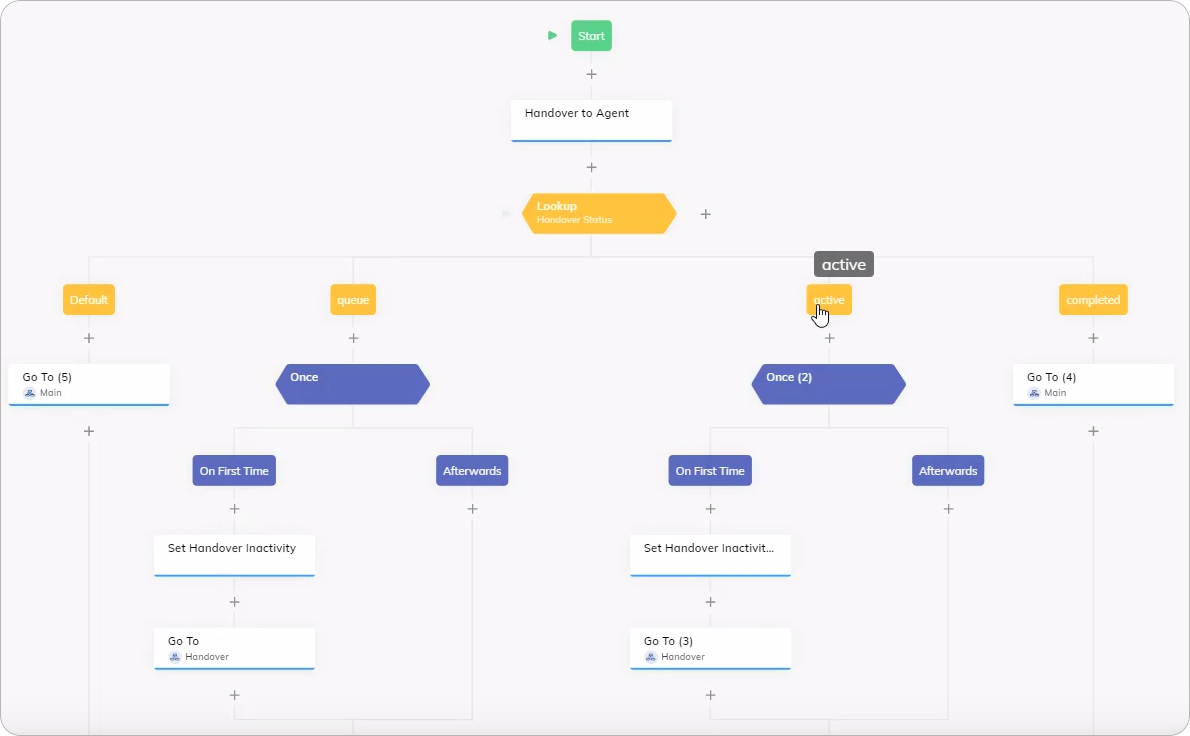 To manage the user inactivity time, use the `input.handover.inactivityCount >= ` condition in the **Condition** field of the [If](/ai/agents/develop/node-reference/logic/if) Node. For example, `input.handover.inactivityCount >= 2`. You can also adjust the count value as needed.
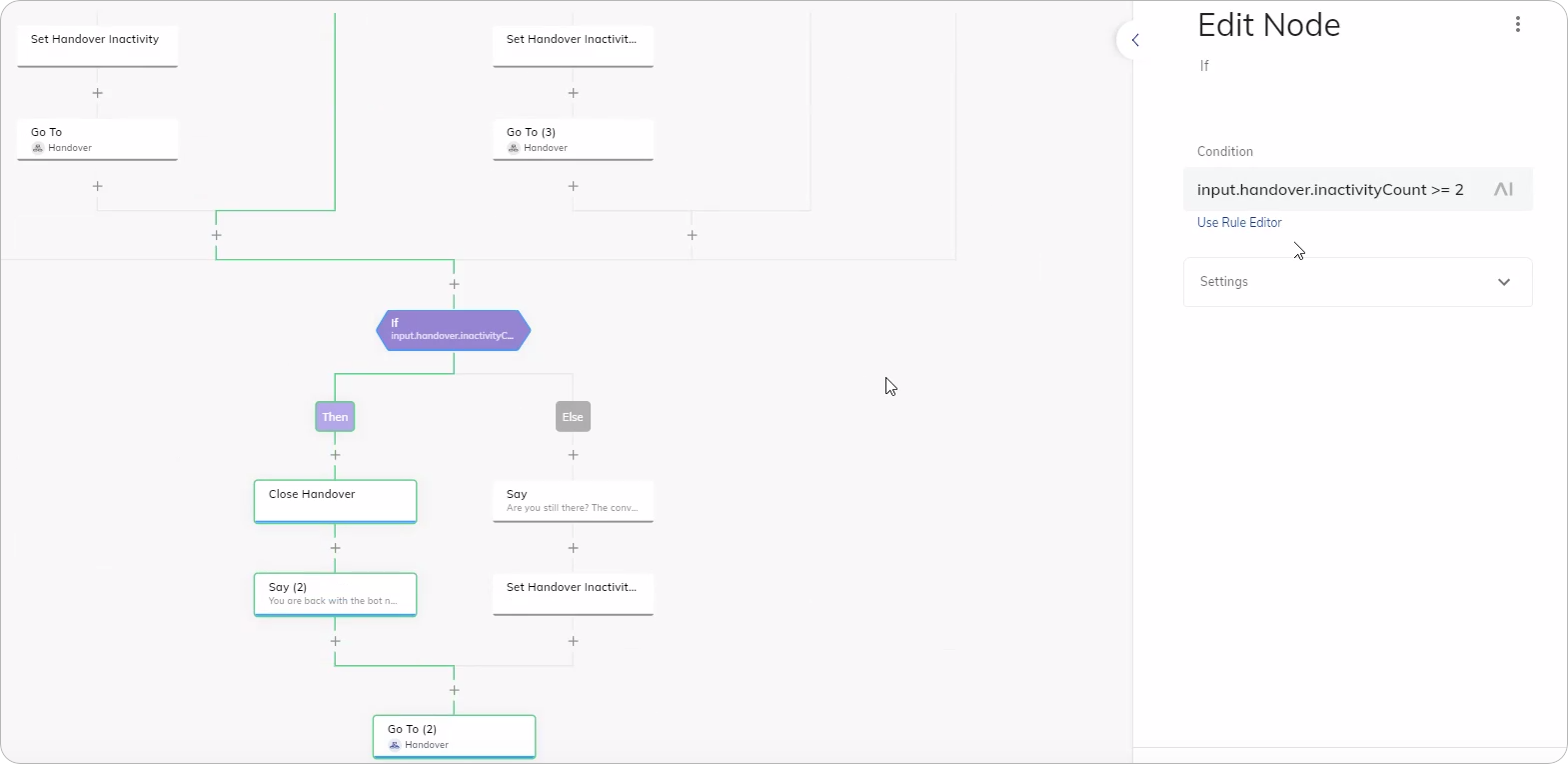 To improve the user experience, after the Set Handover Inactivity Node, add a [Say](/ai/agents/develop/node-reference/basic/say) Node message that prompts the user with a message such as `Are you still there? The conversation will be automatically closed soon`.
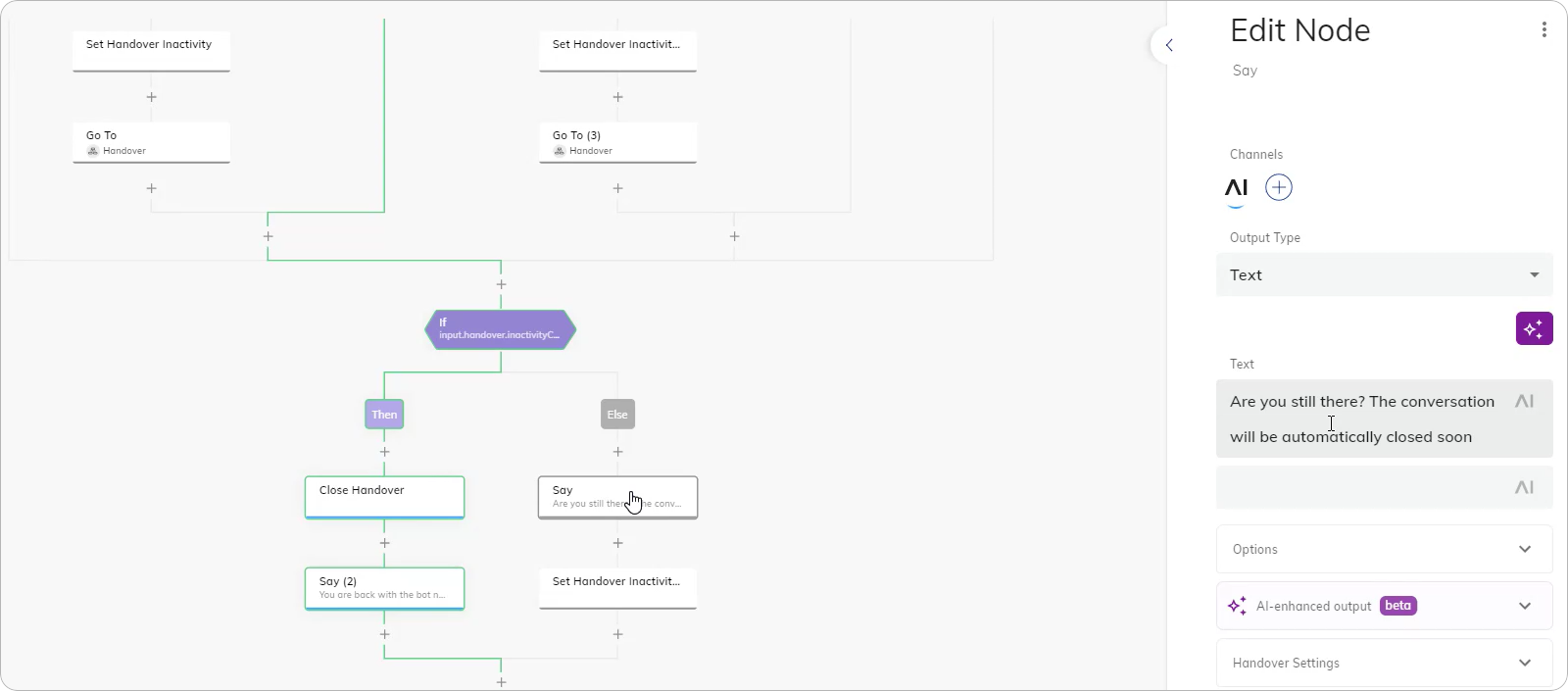 Using the [Say](/ai/agents/develop/node-reference/basic/say#handover-settings) Node, you can determine if the agent, user, or both receive messages from the AI Agent after the time has expired.
To close a handover based on the inactivity event, use the [Close Handover](/ai/agents/develop/node-reference/service/close-handover) Node. Alternatively, you can initiate another inactivity behavior if necessary.
## More Information
* [User Inactivity Detection and Handling](/ai/escalate/handover-features/user-inactivity-detection)
* [Agent Handover](/ai/agents/develop/node-reference/service/handover-to-agent)
* [Set Handover Inactivity](/ai/agents/develop/node-reference/service/set-handover-inactivity)
* [Close Handover](/ai/agents/develop/node-reference/service/close-handover)
Using the [Say](/ai/agents/develop/node-reference/basic/say#handover-settings) Node, you can determine if the agent, user, or both receive messages from the AI Agent after the time has expired.
To close a handover based on the inactivity event, use the [Close Handover](/ai/agents/develop/node-reference/service/close-handover) Node. Alternatively, you can initiate another inactivity behavior if necessary.
## More Information
* [User Inactivity Detection and Handling](/ai/escalate/handover-features/user-inactivity-detection)
* [Agent Handover](/ai/agents/develop/node-reference/service/handover-to-agent)
* [Set Handover Inactivity](/ai/agents/develop/node-reference/service/set-handover-inactivity)
* [Close Handover](/ai/agents/develop/node-reference/service/close-handover)