> ## Documentation Index
> Fetch the complete documentation index at: https://docs.cognigy.com/llms.txt
> Use this file to discover all available pages before exploring further.

# Node Search

export const ExpandableTable = ({headers = [], rows = [], initialRowsToShow, showMoreRowsText = "Show more", showLessRowsText = "Hide"}) => {
  const [isExpanded, setIsExpanded] = useState(false);
  const [columnWidths, setColumnWidths] = useState([]);
  const hiddenTableRef = useRef(null);
  const visibleTableRef = useRef(null);
  const shouldLimitRows = initialRowsToShow !== undefined && initialRowsToShow < rows.length;
  const hasMoreRows = shouldLimitRows;
  useEffect(() => {
    if (hiddenTableRef.current && visibleTableRef.current && rows.length > 0) {
      const hiddenTable = hiddenTableRef.current;
      const visibleTable = visibleTableRef.current;
      const hiddenHeaders = hiddenTable.querySelectorAll('th');
      const visibleHeaders = visibleTable.querySelectorAll('th');
      const widths = Array.from(hiddenHeaders).map(th => th.offsetWidth);
      setColumnWidths(widths);
      visibleHeaders.forEach((th, index) => {
        if (widths[index]) {
          th.style.width = `${widths[index]}px`;
          th.style.minWidth = `${widths[index]}px`;
        }
      });
    }
  }, [rows.length, headers.length]);
  const renderContent = content => {
    if (content && typeof content === 'object' && content.$$typeof) {
      return content;
    }
    if (typeof content === 'string' && content.includes('<')) {
      return <span dangerouslySetInnerHTML={{
        __html: content
      }} />;
    }
    return content;
  };
  const renderCell = cell => renderContent(cell);
  return <>
      {}
      <div style={{
    position: 'absolute',
    visibility: 'hidden',
    height: 0,
    overflow: 'hidden',
    width: '100%'
  }}>
        <table ref={hiddenTableRef} className="bg-card dark:bg-muted min-w-full divide-y divide-neutral-200 dark:divide-neutral-700">
          <thead className="dark:text-neutral-300">
            <tr>
              {headers.map((header, index) => <th key={index} className="cursor-pointer whitespace-nowrap px-4 py-3 text-left text-xs font-medium" scope="col" style={header.minWidth ? {
    minWidth: header.minWidth
  } : {}}>
                  {typeof header === 'object' && header.content !== undefined ? renderContent(header.content) : renderContent(header)}
                </th>)}
            </tr>
          </thead>
          <tbody className="bg-background dark:bg-card divide-y divide-neutral-200 dark:divide-neutral-700">
            {rows.map((row, rowIndex) => <tr key={rowIndex}>
                {row.map((cell, cellIndex) => <td key={cellIndex} className="px-4 py-3 text-sm text-neutral-900 dark:text-neutral-100">
                    {renderCell(cell)}
                  </td>)}
              </tr>)}
          </tbody>
        </table>
      </div>
      
      <div className="overflow-x-auto rounded-md">
        <table ref={visibleTableRef} className="bg-card dark:bg-muted min-w-full divide-y divide-neutral-200 dark:divide-neutral-700">
          <thead className="dark:text-neutral-300">
            <tr>
              {headers.map((header, index) => <th key={index} className="cursor-pointer whitespace-nowrap px-4 py-3 text-left text-xs font-medium" scope="col" style={header.minWidth ? {
    minWidth: header.minWidth
  } : {}}>
                  {typeof header === 'object' && header.content !== undefined ? renderContent(header.content) : renderContent(header)}
                </th>)}
            </tr>
          </thead>
          <tbody className="bg-background dark:bg-card divide-y divide-neutral-200 dark:divide-neutral-700">
            {rows.map((row, rowIndex) => {
    const shouldShow = isExpanded || !shouldLimitRows || rowIndex < initialRowsToShow;
    return <tr key={rowIndex} style={{
      display: shouldShow ? 'table-row' : 'none'
    }}>
                  {row.map((cell, cellIndex) => <td key={cellIndex} className="px-4 py-3 text-sm text-neutral-900 dark:text-neutral-100">
                      {renderCell(cell)}
                    </td>)}
                </tr>;
  })}
          </tbody>
        </table>
        {hasMoreRows && <div className="flex justify-center" style={{
    marginTop: '-0.5em',
    marginBottom: '1em'
  }}>
            <button className="rounded-full border border-neutral-200 px-3 py-1 text-sm text-neutral-800 transition-colors hover:bg-neutral-300 dark:border-neutral-500 dark:text-neutral-200 dark:hover:bg-neutral-600" type="button" onClick={() => setIsExpanded(!isExpanded)}>
              {isExpanded ? showLessRowsText : showMoreRowsText}
            </button>
          </div>}
      </div>
    </>;
};

With the *Node Search* field, you can search through the Nodes in the [Flow editor](/ai/agents/develop/projects-and-flows/editor).

## Restrictions

* The Node Search field applies only to [specific content](#how-to-use) and doesn't match expressions in the following fields:

<Accordion title="Non-searchable fields">
  | Field                                                    | Node                                                                                                                      |
  | -------------------------------------------------------- | ------------------------------------------------------------------------------------------------------------------------- |
  | **Condition**                                            | [If Node](/ai/agents/develop/node-reference/logic/if)                                                                     |
  | **Operator**                                             | [Lookup Node](/ai/agents/develop/node-reference/logic/lookup), when **CognigyScript** is selected from the **Type** list. |
  | **Locale**                                               | [Switch Locale Node](/ai/agents/develop/node-reference/logic/switch-locale)                                               |
  | **System Prompt**                                        | [LLM Prompt Node](/ai/agents/develop/node-reference/service/llm-prompt)                                                   |
  | **Instructions and Context**                             | [AI Agent Node](/ai/agents/develop/node-reference/ai/ai-agent)                                                            |
  | **Headers** and **Parameters**                           | [HTTP Request Node](/ai/agents/develop/node-reference/service/http-request)                                               |
  | **Key** and **Value** in the **Webhook Headers** section | AI Agent and [LLM Prompt](/ai/agents/develop/node-reference/service/llm-prompt) Nodes                                     |
  | **Mock Code**                                            | All Nodes                                                                                                                 |
</Accordion>

## How to Use

To open the Node Search field, click <img src="https://mintcdn.com/cognigy-15abf2ba/5slHxSGMF_1jCrjV/_assets/icons/blue/search.svg?fit=max&auto=format&n=5slHxSGMF_1jCrjV&q=85&s=1b4aca58ed3c845bd8f2ac021f0060e2" alt="search icon" width="30" height="30" data-path="_assets/icons/blue/search.svg" /> in the lower-left corner of the Flow editor.

<ExpandableTable
  headers={["Searchable Content", "Description"]}
  rows={[
["Label", "The label displayed on a Node, configured in the Settings section of the Node editor."],
["Comment", "The comment made on a Node."],
["Analytics Step", "The <a href=\"/ai/agents/analyze/analytics-steps\">Analytics Step</a> configured in a Node."],
["Type", "The Node type, for example, Say Node or AI Agent Node."],
["ID", "The unique database ID of a Node. You can obtain the Node ID number via <a href=\"/ai/agents/analyze/odata#steps\">OData</a>."],
["Reference ID", "The ID you can use for setting a Node, for example, as an Entrypoint or for manipulating Nodes via the <a href=\"https://api-trial.cognigy.ai/openapi\">Cognigy.AI API</a>. You can copy the Reference ID from the <img src=\"/_assets/icons/black-and-white/vertical-ellipsis.svg\" alt=\"vertical ellipsis\" /> menu in the Node editor."],
["JSON editor content", "Code, keys, or values in the JSON editor inside a Node, for example, inside a Code Node or POST data object in an HTTP Request Node."],
["Output types", "Any text in the Output type settings in configured <a href=\"/ai/agents/develop/nodes/channels\">channels</a>."],
["Button labels", "Button labels and values you have configured in Say, Question, and Optional Question Nodes."],
["Settings fields", "Fields in the Settings section of a Node or Extension."]
]}
  initialRowsToShow={3}
/>

### Search Matches in the Flow Editor

When you enter a text into the Node Search field, the Flow editor highlights matching Nodes in yellow and scrolls to the first match. Use <img src="https://mintcdn.com/cognigy-15abf2ba/FQ3zXISbl1jRGkQS/_assets/icons/black-and-white/arrow-up.svg?fit=max&auto=format&n=FQ3zXISbl1jRGkQS&q=85&s=590b84dbd302450030705e08ca7734d6" alt="up arrow" width="12" height="8" data-path="_assets/icons/black-and-white/arrow-up.svg" /> and <img src="https://mintcdn.com/cognigy-15abf2ba/FQ3zXISbl1jRGkQS/_assets/icons/black-and-white/arrow-down.svg?fit=max&auto=format&n=FQ3zXISbl1jRGkQS&q=85&s=7617e8f26c77c436e83fea6a690b1c25" alt="down arrow" width="12" height="8" data-path="_assets/icons/black-and-white/arrow-down.svg" /> to navigate between matches. Click <img src="https://mintcdn.com/cognigy-15abf2ba/FQ3zXISbl1jRGkQS/_assets/icons/black-and-white/close-button.svg?fit=max&auto=format&n=FQ3zXISbl1jRGkQS&q=85&s=83e60fd47df1e694c2ec99ed6a294668" alt="close button" width="12" height="12" data-path="_assets/icons/black-and-white/close-button.svg" /> to reset the search.

<Accordion title="Toggle Search Results">
  To close the Node Search field but keep the matching Nodes highlighted, click
  <img src="https://mintcdn.com/cognigy-15abf2ba/5slHxSGMF_1jCrjV/_assets/icons/blue/search.svg?fit=max&auto=format&n=5slHxSGMF_1jCrjV&q=85&s=1b4aca58ed3c845bd8f2ac021f0060e2" alt="search icon" width="30" height="30" data-path="_assets/icons/blue/search.svg" /> again.
</Accordion>

### Search Matches in the Node Editor

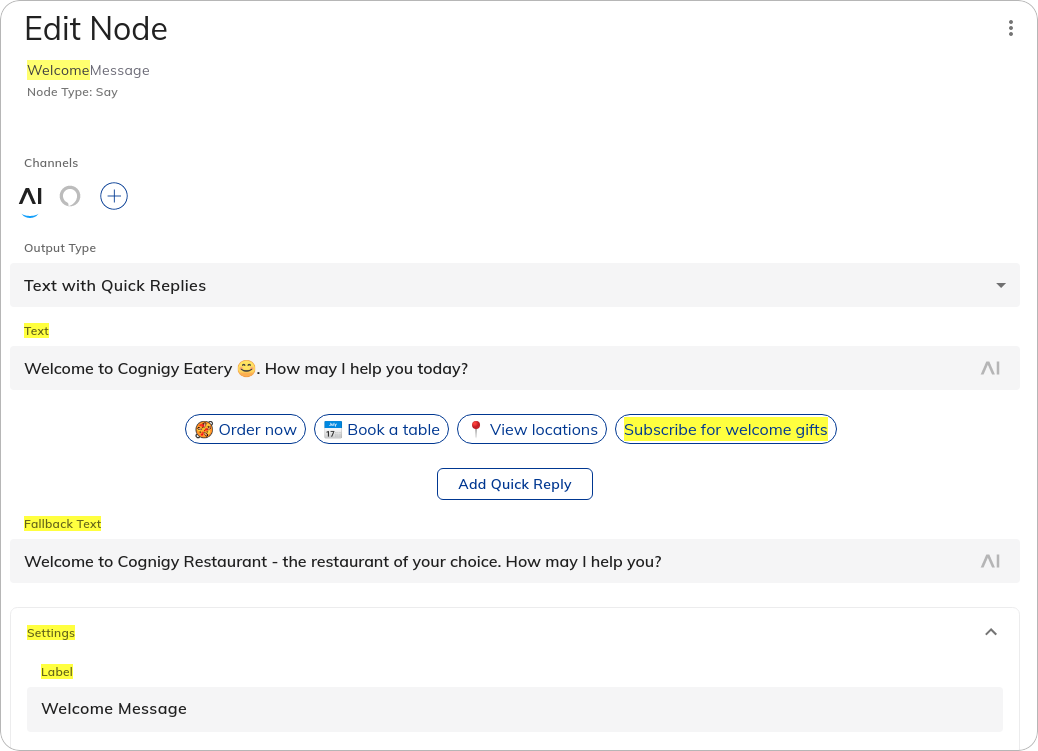
The Node search also matches text in the Node editor. When you open a matching Node, the field, section, or tab that matches the search text is highlighted.

<Frame>
  <img class="image-center" src="https://mintcdn.com/cognigy-15abf2ba/xzKKSVUQG5P2_fcS/_assets/ai/develop/nodes/node-editor-with-highlighting.png?fit=max&auto=format&n=xzKKSVUQG5P2_fcS&q=85&s=09217981e74c62ae91fd05f586e561e9" alt="Node editor with a highlighted field matching the Node search text" style={{ width: 'auto' }} width="1038" height="751" data-path="_assets/ai/develop/nodes/node-editor-with-highlighting.png" />
</Frame>

## More Information

* [Nodes](/ai/agents/develop/nodes/overview)
* [Flows](/ai/agents/develop/projects-and-flows/overview)
* [Node Editor](/ai/agents/develop/nodes/overview#working-with-nodes)