> ## Documentation Index
> Fetch the complete documentation index at: https://docs.cognigy.com/llms.txt
> Use this file to discover all available pages before exploring further.
# Logs
*Logs* are system records that contain information about input and output messages that AI Agents receive and send. The primary purpose of the logs is to debug workflows by observing if and where errors are occurring.
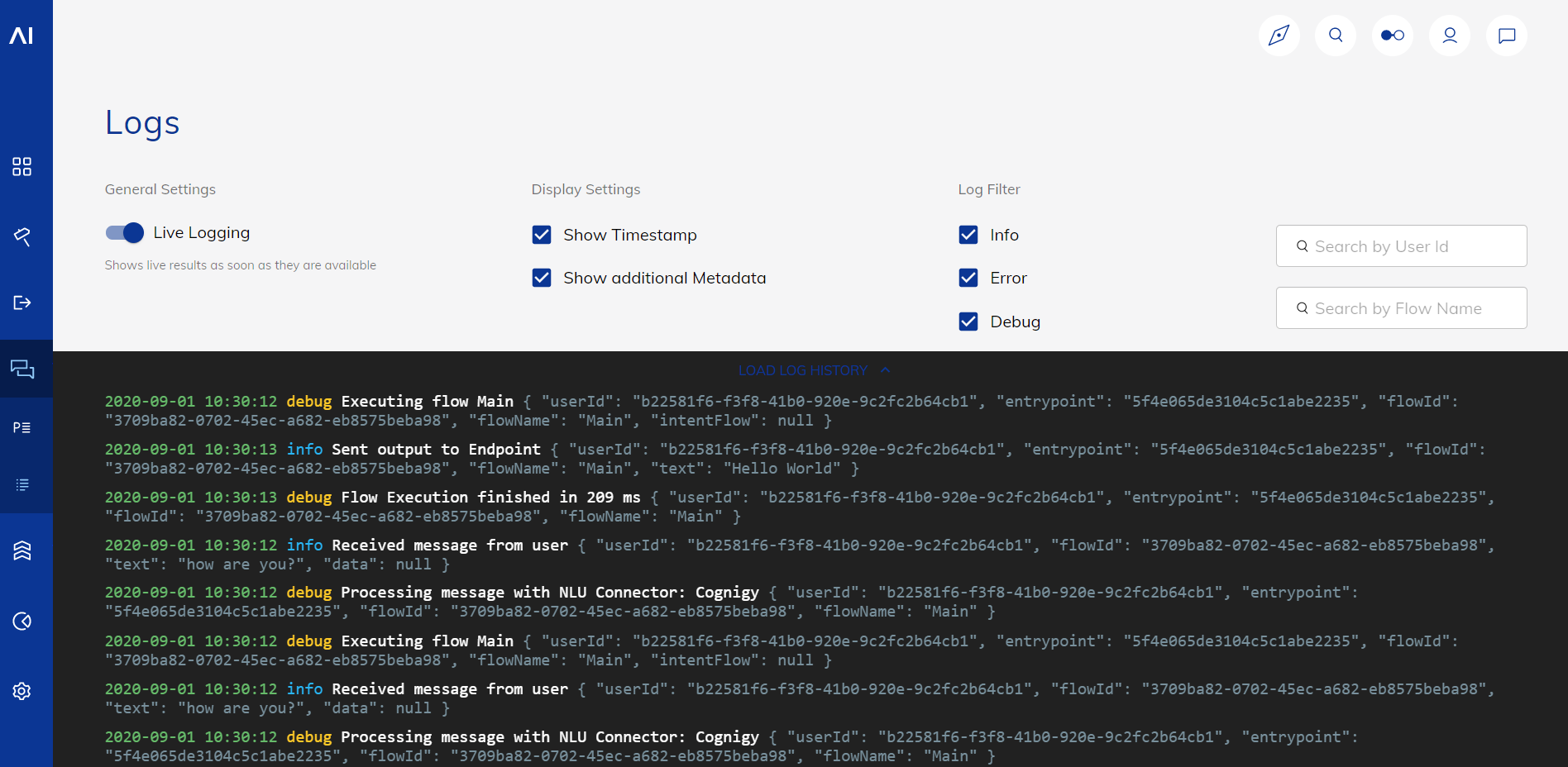 You can track logs in real time or load the log history to review outputs that occurred in the past.
## Limitations
* Log entries on the Logs page are retained for up to 24 hours. By default, the Logs page displays the logs of the last 2 hours. To change this value, contact [Cognigy technical support](/help/get-help). Alternatively, use the [GET Log Entries](/api-reference/logs/get-log-entries) API method to view all retained logs.
### Log entries
The following table provides an overview of the log entries.
| Field | Description |
| ----------- | ----------------------------------------------------------------------------------------------------------------------------------------------------------------------------------------------------------------------------------------------------------------------------------------------------------------- |
| `timestamp` | The date and time of the log entry. The format is `YYYY-MM-DD HH:MM:SS`. |
| `log type` | One of the following log levels:
You can track logs in real time or load the log history to review outputs that occurred in the past.
## Limitations
* Log entries on the Logs page are retained for up to 24 hours. By default, the Logs page displays the logs of the last 2 hours. To change this value, contact [Cognigy technical support](/help/get-help). Alternatively, use the [GET Log Entries](/api-reference/logs/get-log-entries) API method to view all retained logs.
### Log entries
The following table provides an overview of the log entries.
| Field | Description |
| ----------- | ----------------------------------------------------------------------------------------------------------------------------------------------------------------------------------------------------------------------------------------------------------------------------------------------------------------- |
| `timestamp` | The date and time of the log entry. The format is `YYYY-MM-DD HH:MM:SS`. |
| `log type` | One of the following log levels: - `info` — contains general information about the normal operation of a Flow.
- `error` — contains information about errors that occur during Flow execution.
- `debug` — contains detailed information about Flow execution for debugging purposes.
|
| `message` | Describes the event of the log entry. |
| `metadata` | Additional data associated with the log entry, for example, `organisationID`, `flowID`, `text`, and other. |
## Working with Logs
### View Logs
To improve browser performance, the log list uses virtualization. This means your browser loads only the log entries visible on your screen at any given time. As a result, you can't copy more lines than what's currently visible.
In **Test > Logs**, you can view and filter Project logs as well as search them by user ID and Flow name.
**Settings**
To configure the log entries displayed in the log list, use the following settings:
| Setting Name | Function |
| ------------------------ | --------------------------------------------------------------------------------------------- |
| Live Logging | Activates real-time log updates. This setting is activated by default. |
| Show Timestamp | Includes the timestamp of the log entries. This setting is activated by default. |
| Show Additional Metadata | Includes metadata related to input and output messages. This setting is activated by default. |
| Info | Includes log entries of the `info` type. This setting is activated by default. |
| Error | Includes log entries of the `error` type. This setting is activated by default. |
| Debug | Includes log entries of the `debug` type. This setting is deactivated by default. |
You can view the logs of a Project with the [Cognigy.AI API](https://api-trial.cognigy.ai/openapi#tag--Logs-v2.0).
### Write Logs
Use a [Code Node](/ai/for-developers/code/overview) to write logs with [api.log](/ai/for-developers/code/api-functions#api-log):
```javascript theme={null}
api.log("info", "This is an informational log message.");
api.log("error", "An error occurred during execution.");
api.log("debug", "Detailed debug information.");
```
The recorded logs are available on the [Logs page and via API](#view-logs).