> ## Documentation Index
> Fetch the complete documentation index at: https://docs.cognigy.com/llms.txt
> Use this file to discover all available pages before exploring further.
# Real-Time Queue Notifications
> Real-Time Queue Notifications provide end users with live updates on their queue position and estimated wait time, enhancing transparency and reducing anxiety during handovers to human agents.
Updated in 2026.13.0
*Real-Time Queue Notifications* keeps end users informed about queue updates by providing real-time information on their position and estimated wait time. This feature helps reduce anxiety and creates transparency, making end users feel valued and respected.
By analyzing the data collected from the queue, you can identify patterns and trends for further analysis. For example, you might identify peak times when the queue is longest or determine the typical wait time for a response from a human agent.
## Key Benefits
* **Reduced User Anxiety**. End users receive continuous updates about their queue position and estimated wait time.
* **Increased Transparency**. Real-time visibility into queue status builds trust and sets clear expectations.
* **Alternative Messaging**. Automatically sends a customized message when queue conditions exceed defined thresholds.
* **Pattern Analysis**. Collected queue data helps identify peak times and typical response times.
## Prerequisites
* A [handover provider](/ai/escalate/handover-reference/overview), either [Cognigy Live Agent](/ai/escalate/handover-reference/live-agent) or [Salesforce MIAW](/ai/escalate/handover-reference/salesforce-miaw), is configured.
* The Endpoint that supports the selected handover provider is configured. For testing purposes, you can use the [Webchat v3 Endpoint](/webchat/v3/overview) with [Demo Webchat](/webchat/demo).
## How It Works
To set up Real-Time Queue Notifications, follow these steps:
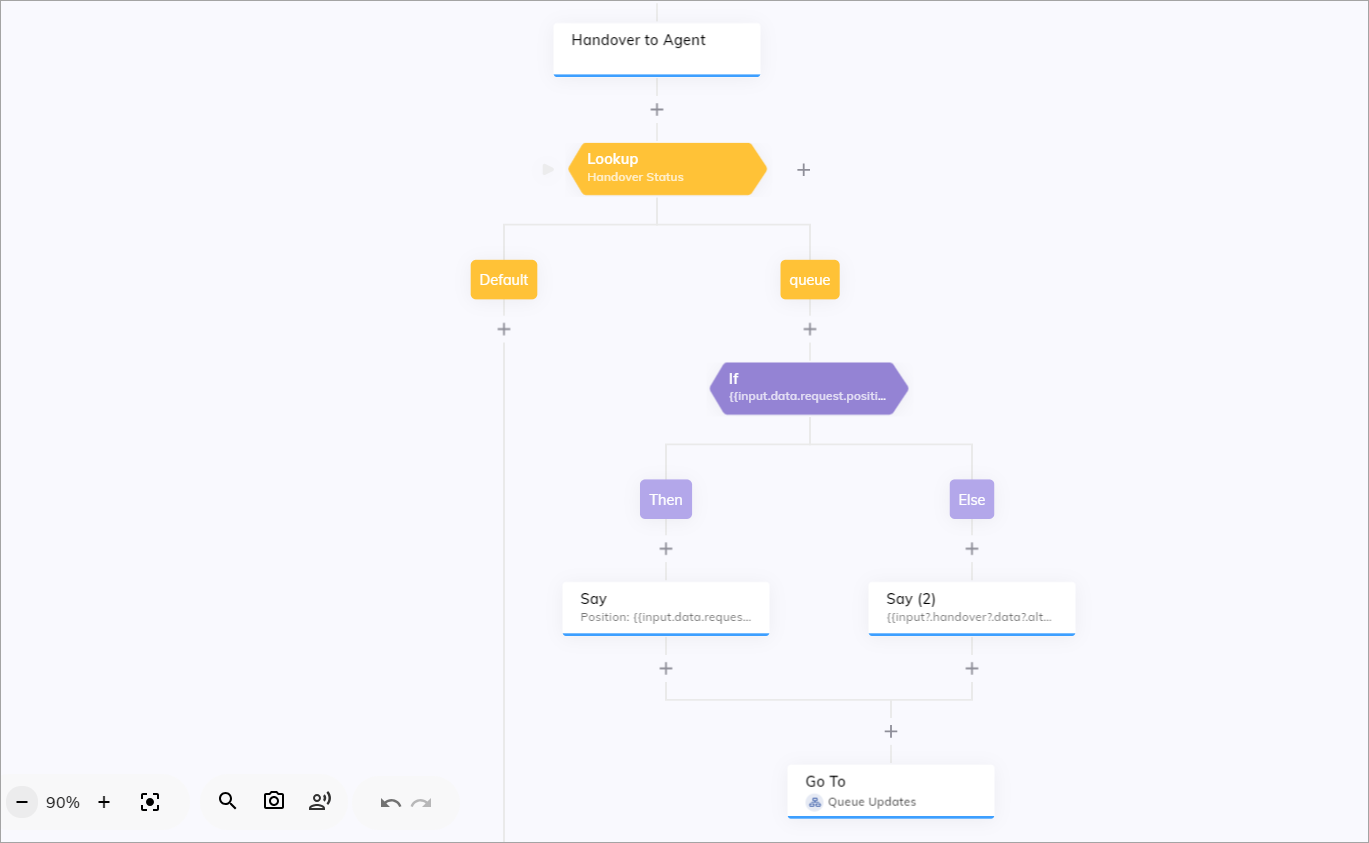
1. Configure the following Nodes in your Flow:
1. [Handover to Human Agent](#configure-settings-for-a-handover-to-human-agent-node) — enables queue position and wait time tracking.
2. [Lookup](#add-a-lookup-node) — routes the Flow based on handover status.
3. [If](#add-an-if-node) — evaluates queue conditions.
4. [Say](#add-say-nodes) — displays queue updates or alternative messages to the user.
5. [Go To](#add-a-go-to-node) — loops back to continue monitoring the queue.
2. Configure [settings in Salesforce MIAW](#configure-settings-in-salesforce-miaw) if you use it as your handover provider to enable queue notifications on the provider's side.
3. *(Optional)* Configure the [Agent Copilot workspace](/live-agent/assistants/agent-copilot).
## Configure Settings for a Handover to Human Agent Node
1. In the Flow editor, add the [Handover to Human Agent](/ai/agents/develop/node-reference/service/handover-to-agent) Node or use an existing one if you already added it earlier.
2. Open the Node editor by clicking the Handover to Human Agent Node.
3. From the **Handover Provider** list, select Cognigy Live Agent or Salesforce MIAW.
4. For the queue position, configure the following settings:
* **Get Queue Position** — activate the setting to retrieve the end user's current queue position.
* **Update Interval** — specify how often (in seconds) to receive updates on the queue status. For example, set the interval to `30` seconds to receive updates every half-minute. This setting is applicable only to Live Agent.
5. For estimated wait time, configure the following settings:
* **Get Estimated Wait Time** — activate the setting to retrieve the estimated wait time for the end user.
* **Wait Time Update Interval** — specify how often (in seconds) to receive updates on the wait time. For example, set the interval to `30` seconds to receive updates every half-minute. This setting is applicable only to Live Agent.
6. Configure alternative update options:
* **Alternative Update** — activate the alternative update options that trigger when certain conditions are met, such as reaching the maximum queue position or maximum estimated wait time.
* **Maximum Queue Position** — specify the maximum queue position. If you set this to `5`, the system will send an alternative message when the user's position exceeds 5.
* **Maximum Estimated Wait Time** — specify the maximum estimated wait time in milliseconds. Set this to `300000` milliseconds (5 minutes). If the estimated wait time exceeds this time, the system will send an alternative message from the **Alternative Text** field.
* **Alternative Text** — specify the message that should be sent when either the maximum queue position or maximum wait time is reached. For example, `Thank you for your patience. We are experiencing higher than usual wait times. Please hold on, and an agent will assist you shortly.`
7. Click **Save Node**.
When the settings are configured, you can test this configuration by creating a handover via [Demo Webchat](/webchat/demo).
In the chat, as an end user, you will receive the message in the following format:
```json theme={null}
{
"request": {
"position": 3,
"estimatedWaitTime": 300000
}
}
```
To change the appearance of this message and make it more accessible, as well as to configure the **Alternative Text** message output, follow the instructions below.
## Add a Lookup Node
1. Below the Handover to Human Agent Node, add a [Lookup](/ai/agents/develop/node-reference/logic/lookup) Node.
2. Open the Node editor by clicking the Lookup Node.
3. From the **Type** list, select **Handover Status**.
4. Click **Save Node**.
5. In the Case Node of the Lookup Node, select **Queue** from the **Handover Status** list and click **Select**.
6. Click **Save Node**.
7. Remove the second Case Node.
## Add an If Node
1. Below the **Case** Node, add an [If](/ai/agents/develop/node-reference/logic/if) Node.
2. Open the If Node editor and add the following condition:
```txt theme={null}
{{input.data.request.position}} < 2 && {{input.data.request.estimatedWaitTime / (1000 * 60)}} < 200
```
where:
* `{{input.data.request.position}} < 2` — checks if the customer's position in the queue is less than 2. If true, it means the customer is either in first place or second place in the queue.
* `{{input.data.request.estimatedWaitTime / (1000 * 60)}} < 200` — calculates the estimated wait time in minutes. The estimated wait time is provided in milliseconds, dividing by `(1000 * 60)` converts it to minutes. It then checks if this wait time is less than 200 minutes. If true, it means the estimated wait time is manageable.
3. Click **Save Node**.
## Add Say Nodes
1. Below the condition **Then**, add a [Say](/ai/agents/develop/node-reference/basic/say) Node.
2. Open the Say Node editor and paste the following text into the **Text** field:
```txt theme={null}
Position: {{input.data.request.position}}
Estimated time: {{input.data.request.estimatedWaitTime / (1000 * 60)}} minutes
```
where:
* `input.data.request.position` — the user's current position in the queue.
* `input.data.request.estimatedWaitTime / (1000 * 60)` minutes — the estimated wait time in minutes. The `estimatedWaitTime` is initially provided in milliseconds. It is divided by 1000 to convert it to seconds, and then by 60 to convert it to minutes.
3. Click **Save Node**.
4. Below the condition **Else**, add another Say Node and paste the following text into the **Text** field to display the text from the **Alternative Text** field of the Handover to Human Agent Node that [you configured earlier](#configure-settings-for-a-handover-to-human-agent-node):
```txt theme={null}
{{input.handover.data.alternativeText}}
```
5. Click **Save Node**.
## Add a Go To Node
1. Below the Say Nodes, add a [Go To](/ai/agents/develop/node-reference/logic/go-to) Node.
2. In the Go To Node, select the current Flow from the **Select Flow** list and **Lookup** Node from the **Select Node** list.
3. In the **Advanced** section, select **Go to Node and wait for Input** from the **Execution Mode** list.
4. Click **Save Node**.
 ## Configure Settings in Salesforce MIAW
If you use [Salesforce MIAW](/ai/escalate/handover-reference/salesforce-miaw) as your handover provider, enable queue notifications in the Salesforce settings:
1. In Salesforce, go to the **Setup** page, enter `Messaging Settings` in the **Quick Find** box, and click **Messaging Settings**. Alternatively, go to **Feature Settings > Service > Messaging > Messaging Settings** in the navigation menu.
2. In the **Channels** section, find the channel you want to configure, click the arrow-down icon, and select **Edit**.
3. Go to the **Queue Wait Time and Position** section.
4. From the **Notification** list, select one of the following options:
* **Estimated Wait Time** — sends the estimated wait time to the end user.
* **Queue Position** — sends the user's current position in the queue.
5. Click **Save**.
## (Optional) Agent Copilot
If you use the [Agent Copilot workspace](/live-agent/assistants/agent-copilot), include additional Nodes in your Agent Copilot Flow: the [Handover to Human Agent](#configure-settings-for-a-handover-to-human-agent-node) and [Lookup](#add-a-lookup-node) with the Queue status, followed by the [Say Nodes](#add-say-nodes).
In the Main Flow, below the Case Node with the Queue status,
add a [Go To Node](/ai/agents/develop/node-reference/logic/go-to) that leads to the Agent Copilot Flow and its Lookup Node.
## More Information
* [Handover Status](/ai/escalate/handover-features/handover-status)
* [User Inactivity Detection and Handling](/ai/escalate/handover-features/user-inactivity-detection)
* [Lookup](/ai/agents/develop/node-reference/logic/lookup)
* [Agent Handover](/ai/agents/develop/node-reference/service/handover-to-agent)
## Configure Settings in Salesforce MIAW
If you use [Salesforce MIAW](/ai/escalate/handover-reference/salesforce-miaw) as your handover provider, enable queue notifications in the Salesforce settings:
1. In Salesforce, go to the **Setup** page, enter `Messaging Settings` in the **Quick Find** box, and click **Messaging Settings**. Alternatively, go to **Feature Settings > Service > Messaging > Messaging Settings** in the navigation menu.
2. In the **Channels** section, find the channel you want to configure, click the arrow-down icon, and select **Edit**.
3. Go to the **Queue Wait Time and Position** section.
4. From the **Notification** list, select one of the following options:
* **Estimated Wait Time** — sends the estimated wait time to the end user.
* **Queue Position** — sends the user's current position in the queue.
5. Click **Save**.
## (Optional) Agent Copilot
If you use the [Agent Copilot workspace](/live-agent/assistants/agent-copilot), include additional Nodes in your Agent Copilot Flow: the [Handover to Human Agent](#configure-settings-for-a-handover-to-human-agent-node) and [Lookup](#add-a-lookup-node) with the Queue status, followed by the [Say Nodes](#add-say-nodes).
In the Main Flow, below the Case Node with the Queue status,
add a [Go To Node](/ai/agents/develop/node-reference/logic/go-to) that leads to the Agent Copilot Flow and its Lookup Node.
## More Information
* [Handover Status](/ai/escalate/handover-features/handover-status)
* [User Inactivity Detection and Handling](/ai/escalate/handover-features/user-inactivity-detection)
* [Lookup](/ai/agents/develop/node-reference/logic/lookup)
* [Agent Handover](/ai/agents/develop/node-reference/service/handover-to-agent)