> ## Documentation Index
> Fetch the complete documentation index at: https://docs.cognigy.com/llms.txt
> Use this file to discover all available pages before exploring further.
# User Inactivity Detection and Handling
Updated in 4.53
The *Inactivity Detection and Handling* feature detects user inactivity during handovers
and enables automated responses,
handover closures, or custom actions to optimize human agent efficiency.
## Key Benefits
* **Efficient Resource Use**. Automatically frees human agents from inactive conversations.
* **Improved User Experience**. Sends timely prompts or closes stalled handovers smoothly.
## Prerequisites
* A [handover provider](/ai/escalate/handover-reference/overview), for example, [Cognigy Live Agent](/ai/escalate/handover-reference/live-agent), is configured.
* The Endpoint that supports a selected handover provider is configured. For testing purposes, you can use the [Webchat v3 Endpoint](/webchat/v3/overview) with [Demo Webchat](/webchat/demo).
## Restrictions
* This feature triggers Flows via inactivity timeouts only when the handover status is `queue` or `active`. User inputs won't trigger Flows after a handover begins, except for [Agent Copilot](/agent-copilot/index) Flows.
## How to Use
To use this feature, add Nodes to your Flow, then test your Flow via Demo Webchat and any handover providers, for example, Cognigy Live Agent.
### How to Set Up
To ensure proper detection and handling of inactivity during queue time or active handovers, follow these steps:
1. In the Flow editor, add the **Handover to Human Agent** Node.
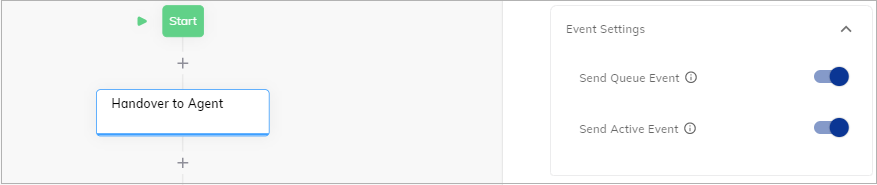
2. Open a Node editor by clicking the **Handover to Human Agent** Node, then go to the **Event Settings** section.
3. Toggle on the **Send Queue Event** and **Send Active Event** settings:
* **Send Queue Event** — triggers an event when the user enters the queue. This option allows tracking inactivity while waiting for a human agent.
* **Send Active Event** — triggers an event when the human agent sends the first message. This option allows tracking inactivity during an active conversation.
4. Save changes.
 Set up the Lookup Node with handover statuses:
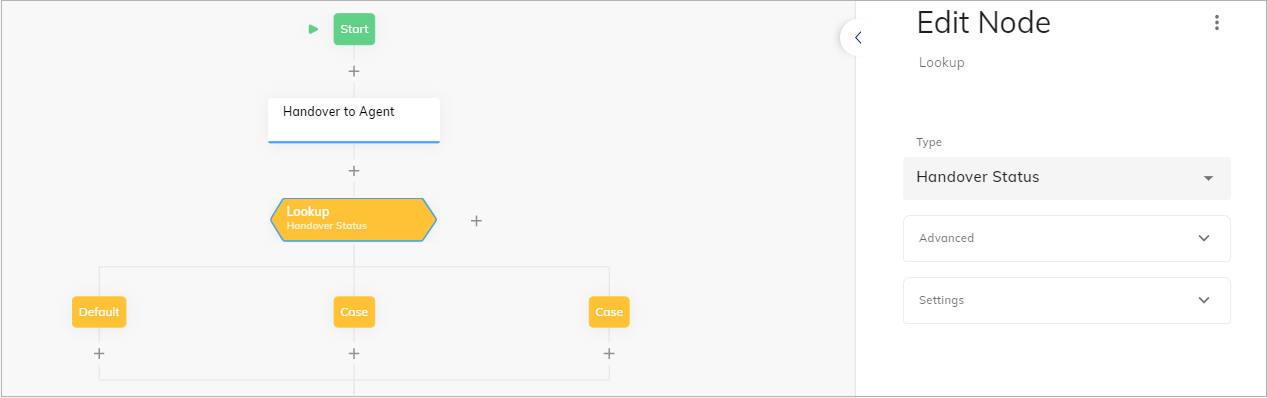
1. In the Flow editor, below the **Handover to Human Agent** Node, add the **Lookup** Node.
2. Open a Node editor by clicking the Node, then go to the **Type** setting, select **Handover Status** from the list. Save changes.
Set up the Lookup Node with handover statuses:
1. In the Flow editor, below the **Handover to Human Agent** Node, add the **Lookup** Node.
2. Open a Node editor by clicking the Node, then go to the **Type** setting, select **Handover Status** from the list. Save changes.
 3. Go to the child Nodes:
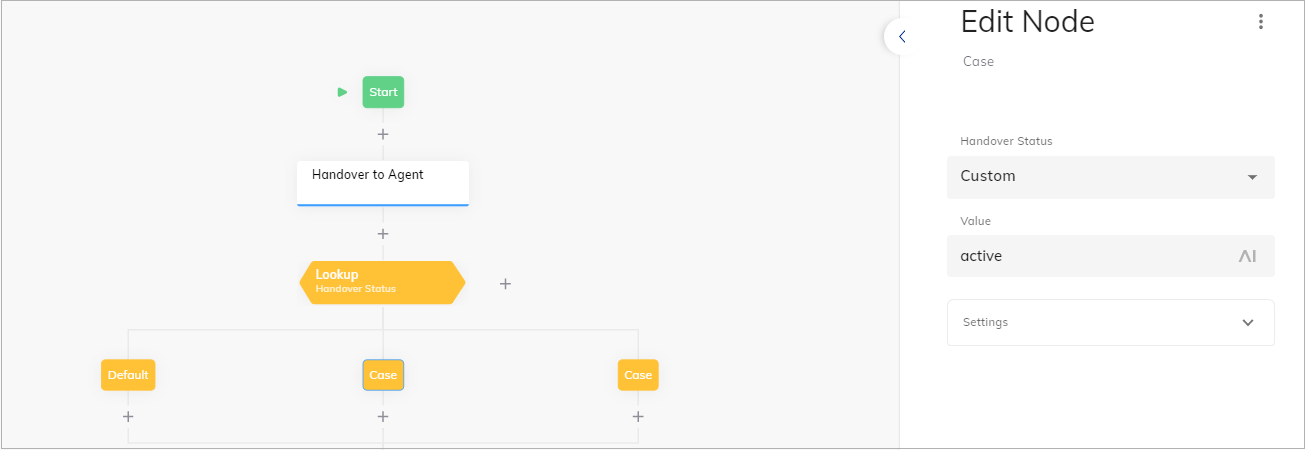
1. Click the **Case** Node.
2. In the **Value** field, specify the `active` handover status if you want to detect and handle inactivity while the end users are in the queue. Save changes.
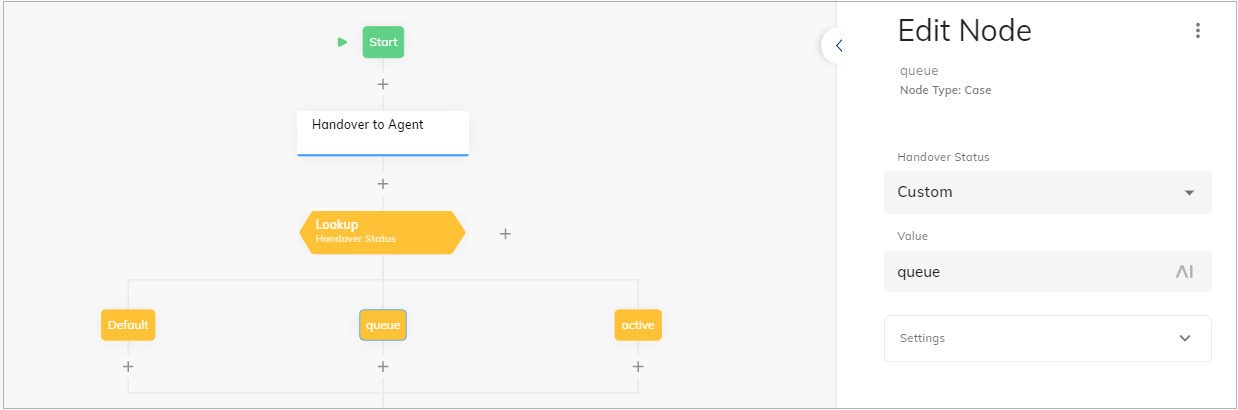
 3. Click the second **Case** Node.
4. In the **Value** field, specify the `queue` handover status if you want to detect and handle inactivity while the end users are in the queue.
5. Click **Save Node**.
 4. Add **completed** and **error** child Nodes by analogy.
If you want to detect inactivity during the queue time, the first timer should be started once the end user enters the queue.
To do this, add the Once Node to start the inactivity timer when you receive the queue event:
1. Below the **queue** child Node, add **Once** Node.
2. Below the **On First Time** child Node, add the **Set Handover Inactivity** Node.
3. In the **Set Handover Inactivity** Node, specify the inactivity timeout in minutes, for example, `1`. On each incoming user input, the timer is automatically reset and starts from the beginning. Once the timer expires, an inactivity event is sent to the Flow. Save changes.
4. Repeat the same steps for the **active** child Node in case you want to detect and handle inactivity during active handovers.
4. Add **completed** and **error** child Nodes by analogy.
If you want to detect inactivity during the queue time, the first timer should be started once the end user enters the queue.
To do this, add the Once Node to start the inactivity timer when you receive the queue event:
1. Below the **queue** child Node, add **Once** Node.
2. Below the **On First Time** child Node, add the **Set Handover Inactivity** Node.
3. In the **Set Handover Inactivity** Node, specify the inactivity timeout in minutes, for example, `1`. On each incoming user input, the timer is automatically reset and starts from the beginning. Once the timer expires, an inactivity event is sent to the Flow. Save changes.
4. Repeat the same steps for the **active** child Node in case you want to detect and handle inactivity during active handovers.
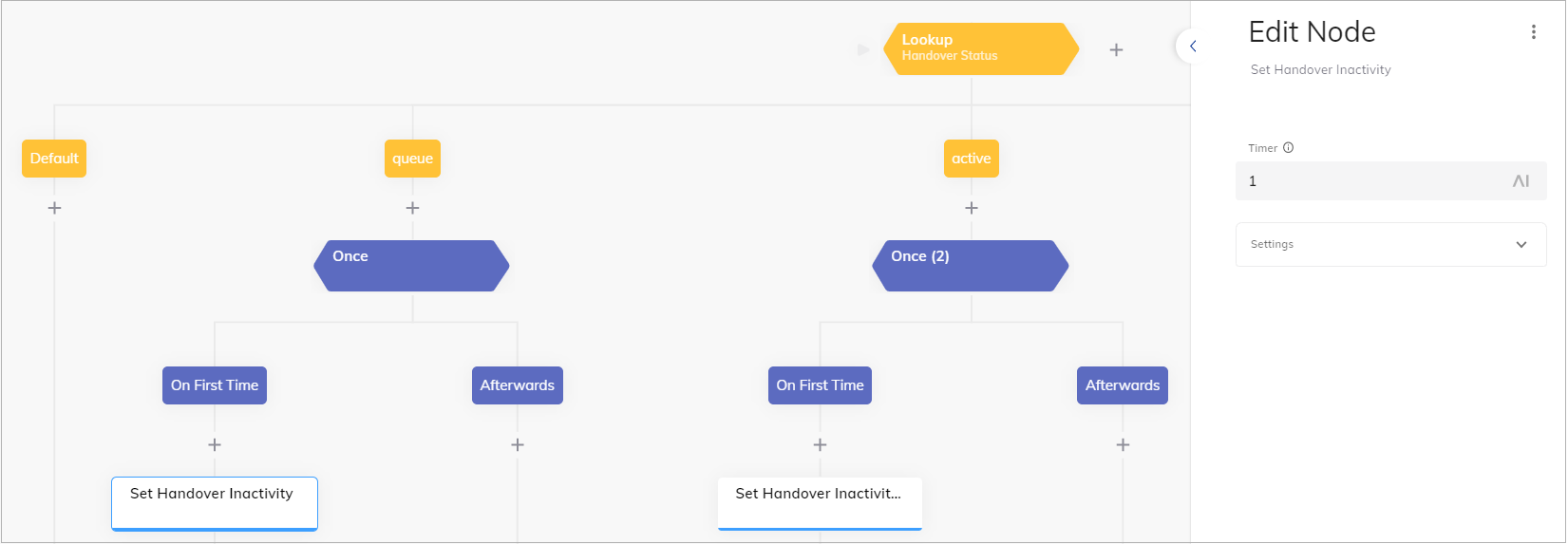 The timer is set in minutes and may vary by up to one minute. If there is no end user input, the timer will expire after the specified time. If an end user input is received before the timeout, the timer will automatically reset and start from the beginning.
Set the **Go To** Node to return to the Lookup Node.
This moves the entrypoint to the Lookup Node, allowing the Flow to execute the correct Lookup child branch based on incoming events.
In the **Go To** Node editor, select **Lookup** from the **Select Node** list and **Go To Node and wait for Input** from the **Execution Mode** list in the **Advanced** section.
The timer is set in minutes and may vary by up to one minute. If there is no end user input, the timer will expire after the specified time. If an end user input is received before the timeout, the timer will automatically reset and start from the beginning.
Set the **Go To** Node to return to the Lookup Node.
This moves the entrypoint to the Lookup Node, allowing the Flow to execute the correct Lookup child branch based on incoming events.
In the **Go To** Node editor, select **Lookup** from the **Select Node** list and **Go To Node and wait for Input** from the **Execution Mode** list in the **Advanced** section.
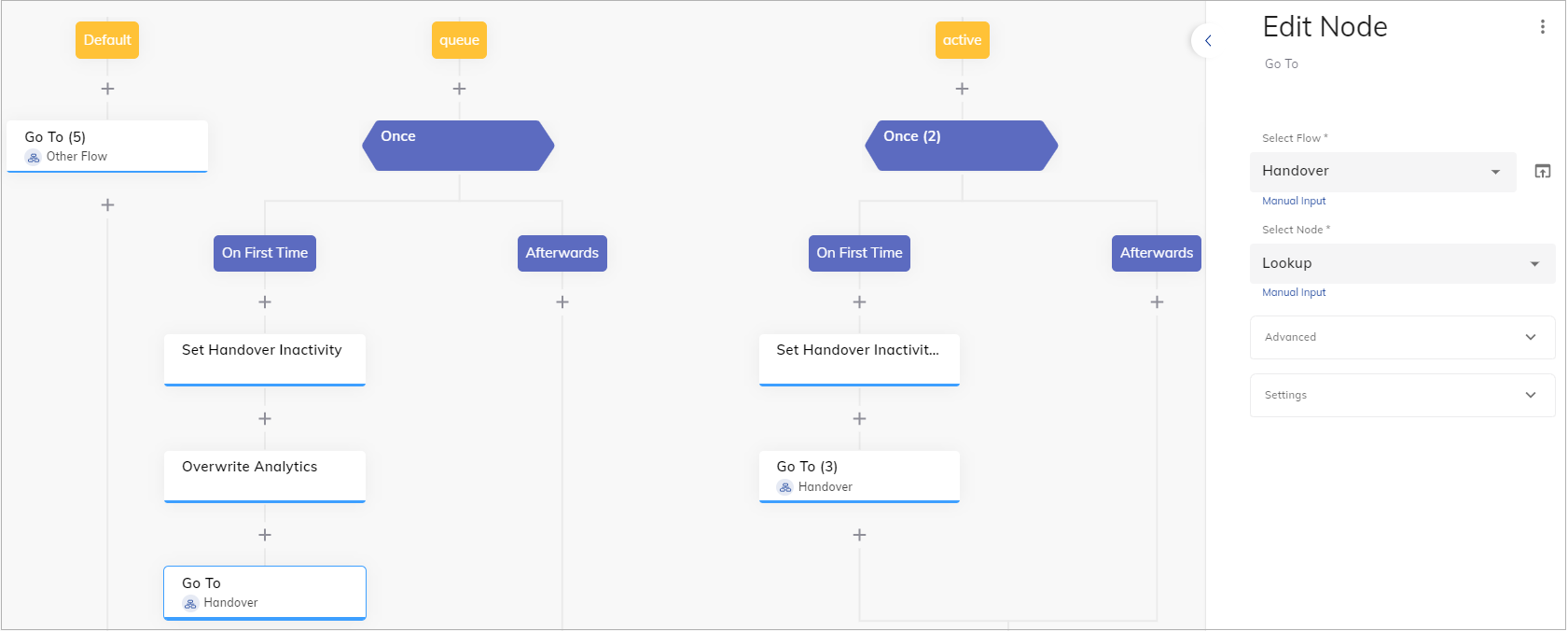 An example of how detected inactivity could be handled is explained here:
1. Add the **If** Node at the end of the Flow.
2. In the Node editor, specify `input.handover.inactivityCount >= 2`. This allows handling the second detected inactivity differently from the first one. Note that the `input.handover.inactivityCount` is reset to 0 once the end user sends a message.
3. Below the **If** Node and its **Else** child Node, do the following to ask the end user, based on detected inactivity, if they are still there.
An example of how detected inactivity could be handled is explained here:
1. Add the **If** Node at the end of the Flow.
2. In the Node editor, specify `input.handover.inactivityCount >= 2`. This allows handling the second detected inactivity differently from the first one. Note that the `input.handover.inactivityCount` is reset to 0 once the end user sends a message.
3. Below the **If** Node and its **Else** child Node, do the following to ask the end user, based on detected inactivity, if they are still there.
1. Add the **Say** Node.
2. In the **Say** Node editor, in the text field, specify `Are you still there? The conversation will be automatically closed soon`.
3. In **Handover Settings > Handover Output Destination**, select **User** to only show the message to the user and not the human agent. Save changes.
4. Add the **Set Handover Inactivity** Node to start a subsequent inactivity timer.
If the inactivity count is greater than two, it triggers the close handover process, which can close the handover on both the user and human agent sides.
4. Below the **If** Node and its **Then** child Node, do the following to auto-close the handover after the inactivity timer expired the second time in direct succession:
1. Add the **Close Handover** Node to auto-close the handover.
2. Add the **Say** Node.
3. In the **Say** Node editor, in the text field, specify `You are back with the bot now!`.
4. In **Handover Settings > Handover Output Destination**, select **User and Agent**. Save changes.
If the inactivity count is less than two, it prompts the user to respond to prevent the conversation from being automatically closed. The Set Handover Inactivity Node will set the time period for inactivity after which the conversation will be closed or restart a Flow from the beginning.
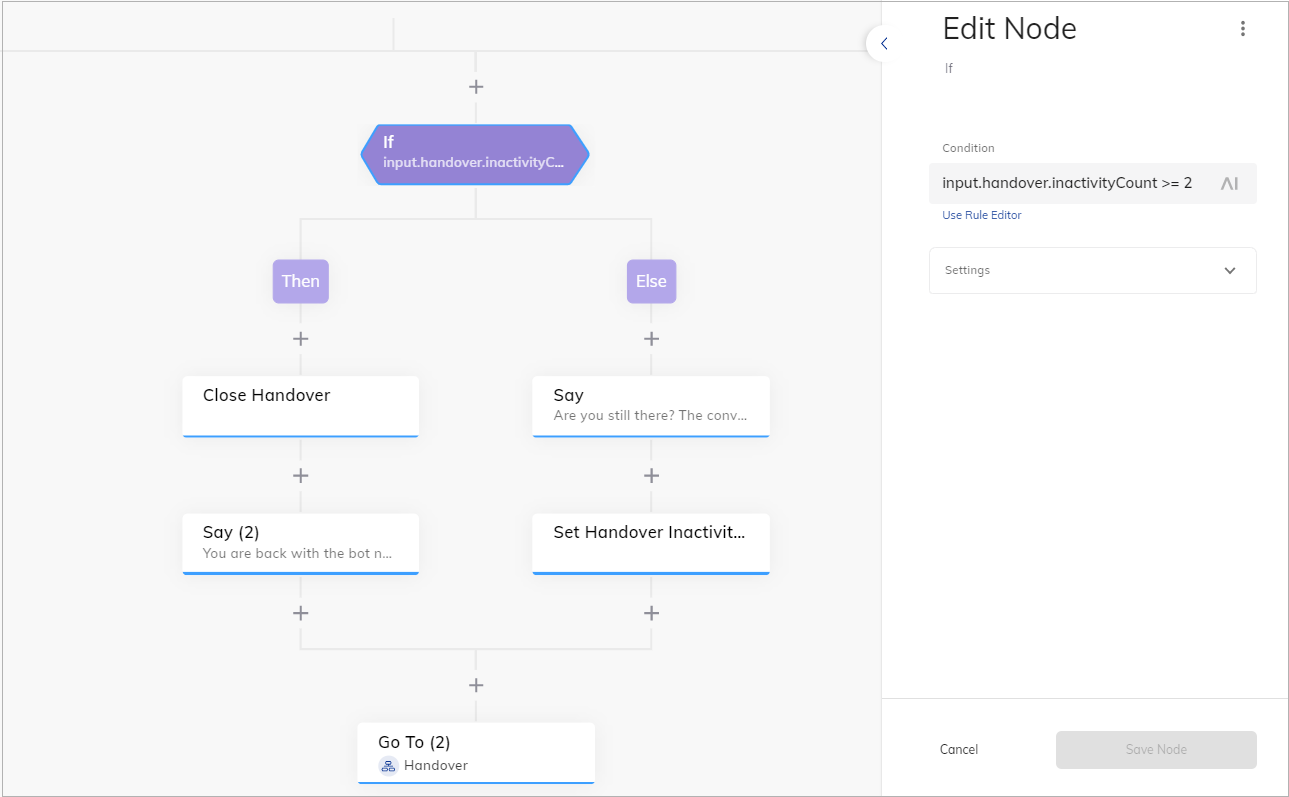 Finally, add the **Go To** Node to return to the **Lookup** Node as you did before. In the **Go To** Node editor,
select **Lookup** from the **Select Node** list
and **Go To Node and wait for Input** from the **Execution Mode** list in the **Advanced** section.
### How to Test
1. Use Demo Webchat to initiate a handover.
2. Wait past the set timeout, for example, 1 minute, without responding.
3. Check for the `Are you still there?` message after the first timeout and handover closure after the second timeout.
## Example
Imagine a user in a queue stops responding.
After 1 minute,
they see
`Are you still there? The conversation will close soon`. If they remain inactive for another minute, the handover closes, and they get `You're back with the bot!`
— freeing the human agent and keeping the chat flowing.
## More Information
* [Set Handover Inactivity](/ai/agents/develop/node-reference/service/set-handover-inactivity)
* [Close Handover](/ai/agents/develop/node-reference/service/close-handover)
* [Handover Providers](/ai/escalate/handover-reference/overview)
* [Agent Handover](/ai/agents/develop/node-reference/service/handover-to-agent)
* [Real-Time Queue Notifications](/ai/escalate/handover-features/real-time-queue-notifications)
Finally, add the **Go To** Node to return to the **Lookup** Node as you did before. In the **Go To** Node editor,
select **Lookup** from the **Select Node** list
and **Go To Node and wait for Input** from the **Execution Mode** list in the **Advanced** section.
### How to Test
1. Use Demo Webchat to initiate a handover.
2. Wait past the set timeout, for example, 1 minute, without responding.
3. Check for the `Are you still there?` message after the first timeout and handover closure after the second timeout.
## Example
Imagine a user in a queue stops responding.
After 1 minute,
they see
`Are you still there? The conversation will close soon`. If they remain inactive for another minute, the handover closes, and they get `You're back with the bot!`
— freeing the human agent and keeping the chat flowing.
## More Information
* [Set Handover Inactivity](/ai/agents/develop/node-reference/service/set-handover-inactivity)
* [Close Handover](/ai/agents/develop/node-reference/service/close-handover)
* [Handover Providers](/ai/escalate/handover-reference/overview)
* [Agent Handover](/ai/agents/develop/node-reference/service/handover-to-agent)
* [Real-Time Queue Notifications](/ai/escalate/handover-features/real-time-queue-notifications)