> ## Documentation Index
> Fetch the complete documentation index at: https://docs.cognigy.com/llms.txt
> Use this file to discover all available pages before exploring further.
# Real-Time Translation
The *Real-Time Translation* feature translates conversations in real time, eliminating the need for pre-translation, as in typical [localization](/ai/platform-features/translation-and-localization/localization) scenarios.
With real-time translation, you don't need human agents for every language nor to localize your Flow beforehand. You can focus on a few key languages while still serving customers in many others.
## Key Features
* [Multilingual AI](#users-and-ai-agents). Your voice and chat [AI Agents](/ai/agents/quickstart) can switch languages in real time, even if you only have configured your Flow in English. With this approach, you can reach a greater audience in their native language with low effort.
* [Real-time translation between users and human agents](#users-and-human-agents). Users and human agents can write in their languages after a [handover](/ai/escalate/handovers), but they receive messages translated into their own language.
## Prerequisites
* You have configured a [machine translation provider](#configure-machine-translation-providers).
## Compatibility with Machine Translation Providers
Cognigy.AI supports the following machine translation providers:
* Microsoft Translator
* Microsoft Azure Cognitive Services Translator1
* Google Cloud Translation
* DeepL Translation Pro
## Configure Machine Translation Providers
You can configure a machine translation provider in **Manage > Settings > Translation Settings**. To do so, you need the following information:
| Information | Description |
| ---------------------------- | ----------------------------------------------------------------------------------------------------------------------------------------------------------------------------------------------------------------------------------------------------------------------------------------------------------------------------------------------------------------------------------------------------------------------------------------------------------------- |
| Translation Provider API Key | The API key provided by Microsoft Translator. |
| Custom API Base URL | This setting is optional. If you have specific requirements or need to connect to a custom instance of the Microsoft Translator API different from the default one `https://api.cognitive.microsofttranslator.com/`, you can use this field to specify a custom base URL. This setting allows you to define the URL, including the protocol scheme, for example, `https://api-eur.cognitive.microsofttranslator.com`, to tailor the API connection to your needs. |
| Custom Subscription Region | This setting is optional. It represents the region of your Azure MS Translator resource. You may need to use this setting when calling this API, especially if you have set a specific region in your Azure account. |
| Information | Description |
| ---------------------------- | ------------------------------------------------- |
| Translation Provider API Key | The API key provided by Google Cloud Translation. |
| Information | Description |
| ---------------------------- | ---------------------------------------------------------------------------------------------------------------------------------------------------------------------------------------------------------------------------------------------------------------------------------------------------------------------------------------------------------- |
| Translation Provider API Key | The API key provided by DeepL Translate Pro. |
| Custom API Base URL | This setting is optional. If you have specific requirements or need to connect to a custom instance of the DeepL Translate Pro API, you can use this field to specify a custom base URL. This setting allows you to define the URL, including the protocol scheme, for example, `https://api-free.deepl.com/`, to tailor the API connection to your needs. |
## How to Use Real-Time Translation
You can configure the real-time translation feature in the [Real Time Translation](/ai/agents/deploy/endpoints/real-time-translation-settings) settings in the Endpoint editor. All Endpoints, including voice Endpoints, such as Voice Gateway, support real-time translation.
### Users and AI Agents
Real-time translation between a user and an AI Agent works for text-based and voice conversations.
### Users and Human Agents
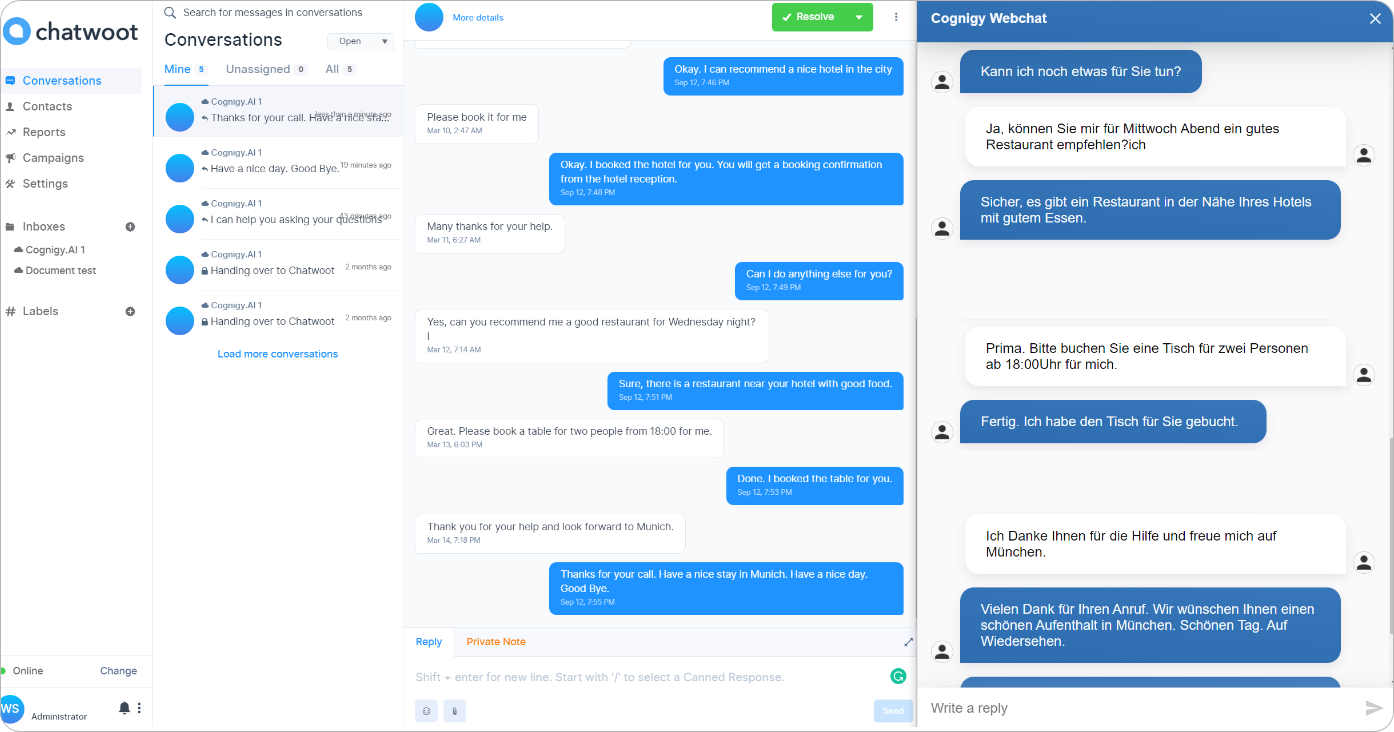
Real-time translation between a user and a human agent works for text-based conversations after a user triggers a [Handover to Human Agent Node](/ai/agents/develop/node-reference/service/handover-to-agent) in the [Flow](/ai/agents/develop/projects-and-flows/overview). Conversations with real-time translation between the user and the human agent are recorded for compliance purposes.
After the human agent takes over the conversation, the user can keep writing in their original language while the human agent receives real-time translation of the user input. The human agent can respond in their language, and the user receives real-time translation of the human agent's response. The following image shows real-time translation example, where the user is writing in German and the human agent is responding in English.
 ## Supported Languages by Machine Translation Provider
The following tables show which languages are supported by the supported machine translation providers and the respective language code to use when configuring Nodes:
| Language | Language Code |
| ----------------------- | ------------- |
| Afrikaans | `af` |
| Albanian | `sq` |
| Amharic | `am` |
| Arabic | `ar` |
| Armenian | `hy` |
| Assamese | `as` |
| Azerbaijani | `az` |
| Bangla | `bn` |
| Bosnian (Latin) | `bs` |
| Bulgarian | `bg` |
| Cantonese (Traditional) | `yue` |
| Catalan | `ca` |
| Chinese Simplified | `zh-Hans` |
| Chinese Traditional | `zh-Hant` |
| Croatian | `hr` |
| Czech | `cs` |
| Danish | `da` |
| Dari | `prs` |
| Dutch | `nl` |
| English | `en` |
| Estonian | `et` |
| Fijian | `fj` |
| Filipino | `fil` |
| Finnish | `fi` |
| French | `fr` |
| French (Canada) | `fr-ca` |
| German | `de` |
| Greek | `el` |
| Gujarati | `gu` |
| Haitian Creole | `ht` |
| Hebrew | `he` |
| Hindi | `hi` |
| Hmong Daw | `mww` |
| Hungarian | `hu` |
| Icelandic | `is` |
| Indonesian | `id` |
| Inuktitut | `iu` |
| Irish | `ga` |
| Italian | `it` |
| Japanese | `ja` |
| Kannada | `kn` |
| Kazakh | `kk` |
| Khmer | `km` |
| Klingon | `tlh-Latn` |
| Klingon (plqaD) | `tlh-Piqd` |
| Korean | `ko` |
| Kurdish (Central) | `ku` |
| Kurdish (Northern) | `kmr` |
| Lao | `lo` |
| Latvian | `lv` |
| Lithuanian | `lt` |
| Macedonian | `mk` |
| Malagasy | `mg` |
| Malay | `ms` |
| Malayalam | `ml` |
| Maltese | `mt` |
| Maori | `mi` |
| Marathi | `mr` |
| Myanmar | `my` |
| Nepali | `ne` |
| Norwegian | `nb` |
| Odia | `or` |
| Pashto | `ps` |
| Persian | `fa` |
| Polish | `pl` |
| Portuguese (Brazil) | `pt` |
| Portuguese (Portugal) | `pt-pt` |
| Punjabi | `pa` |
| Queretaro Otomi | `otq` |
| Romanian | `ro` |
| Russian | `ru` |
| Samoan | `sm` |
| Serbian (Cyrillic) | `sr-Cyrl` |
| Serbian (Latin) | `sr-Latn` |
| Slovak | `sk` |
| Slovenian | `sl` |
| Spanish | `es` |
| Swahili | `sw` |
| Swedish | `sv` |
| Tahitian | `ty` |
| Tamil | `ta` |
| Telugu | `te` |
| Thai | `th` |
| Tigrinya | `ti` |
| Tongan | `to` |
| Turkish | `tr` |
| Ukrainian | `uk` |
| Urdu | `ur` |
| Vietnamese | `vi` |
| Welsh | `cy` |
| Yucatec Maya | `yua` |
| Language | Language Code |
| ----------------------------- | ------------- |
| Afrikaans | `af` |
| Albanian | `sq` |
| Amharic | `am` |
| Arabic | `ar` |
| Armenian | `hy` |
| Azerbaijani | `az` |
| Basque | `eu` |
| Belarusian | `be` |
| Bengali | `bn` |
| Bosnian | `bs` |
| Bulgarian | `bg` |
| Catalan | `ca` |
| Chinese (Simplified) | `zh-CN` |
| Chinese (Traditional) | `zh` |
| Chinese (Traditional) | `zh-TW` |
| Corsican | `co` |
| Croatian | `hr` |
| Czech | `cs` |
| Danish | `da` |
| Dutch | `nl` |
| English | `en` |
| Esperanto | `eo` |
| Estonian | `et` |
| Finnish | `fi` |
| French | `fr` |
| Frisian | `fy` |
| Galician | `gl` |
| Georgian | `ka` |
| German | `de` |
| Greek | `el` |
| Gujarati | `gu` |
| Haitian Creole | `ht` |
| Hausa | `ha` |
| Hawaiian | `haw` |
| Hebrew | `he` |
| Hebrew | `iw` |
| Hindi | `hi` |
| Hmong | `hmn` |
| Hungarian | `hu` |
| Icelandic | `is` |
| Igbo | `ig` |
| Indonesian | `id` |
| Irish | `ga` |
| Italian | `it` |
| Japanese | `ja` |
| Javanese | `jv` |
| Kannada | `kn` |
| Kazakh | `kk` |
| Khmer | `km` |
| Kinyarwanda | `rw` |
| Korean | `ko` |
| Kurdish | `ku` |
| Kyrgyz | `ky` |
| Lao | `lo` |
| Latin | `la` |
| Latvian | `lv` |
| Lithuanian | `lt` |
| Luxembourgish | `lb` |
| Macedonian | `mk` |
| Malagasy | `mg` |
| Malay | `ms` |
| Malayalam | `ml` |
| Maltese | `mt` |
| Maori | `mi` |
| Marathi | `mr` |
| Mongolian | `mn` |
| Myanmar (Burmese) | `my` |
| Nepali | `ne` |
| Norwegian | `no` |
| Nyanja (Chichewa) | `ny` |
| Odia (Oriya) | `or` |
| Pashto | `ps` |
| Persian | `fa` |
| Polish | `pl` |
| Portuguese (Portugal, Brazil) | `pt` |
| Punjabi | `pa` |
| Romanian | `ro` |
| Russian | `ru` |
| Samoan | `sm` |
| Scots Gaelic | `gd` |
| Serbian | `sr` |
| Sesotho | `st` |
| Shona | `sn` |
| Sindhi | `sd` |
| Sinhala (Sinhalese) | `si` |
| Slovak | `sk` |
| Slovenian | `sl` |
| Somali | `so` |
| Spanish | `es` |
| Sundanese | `su` |
| Swahili | `sw` |
| Swedish | `sv` |
| Tagalog (Filipino) | `tl` |
| Tajik | `tg` |
| Tamil | `ta` |
| Tatar | `tt` |
| Telugu | `te` |
| Thai | `th` |
| Turkish | `tr` |
| Turkmen | `tk` |
| Ukrainian | `uk` |
| Urdu | `ur` |
| Uyghur | `ug` |
| Uzbek | `uz` |
| Vietnamese | `vi` |
| Welsh | `cy` |
| Xhosa | `xh` |
| Yiddish | `yi` |
| Yoruba | `yo` |
| Zulu | `zu` |
| Language | Language Code |
| ---------------------- | ------------- |
| Arabic | `AR` |
| Bulgarian | `BG` |
| Czech | `CS` |
| Danish | `DA` |
| German | `DE` |
| Greek | `EL` |
| English (British) | `EN-GB` |
| English (American) | `EN-US` |
| Spanish | `ES` |
| Estonian | `ET` |
| Finnish | `FI` |
| French | `FR` |
| Hungarian | `HU` |
| Indonesian | `ID` |
| Italian | `IT` |
| Japanese | `JA` |
| Korean | `KO` |
| Lithuanian | `LT` |
| Latvian | `LV` |
| Norwegian | `NB` |
| Dutch | `NL` |
| Polish | `PL` |
| Portuguese (Brazilian) | `PT-BR` |
| Portuguese (European) | `PT-PT` |
| Romanian | `RO` |
| Russian | `RU` |
| Slovak | `SK` |
| Slovenian | `SL` |
| Swedish | `SV` |
| Turkish | `TR` |
| Ukrainian | `UK` |
| Chinese | `ZH` |
## More Information
* [Real-Time Translation Settings](/ai/agents/deploy/endpoints/real-time-translation-settings)
* [Automatic Translation](/ai/platform-features/translation-and-localization/auto-translation)
* [Localization](/ai/platform-features/translation-and-localization/localization)
***
To use **Azure Cognitive Services Translator**, select Microsoft Translator in **Manage > Settings > Translation Settings**.
## Supported Languages by Machine Translation Provider
The following tables show which languages are supported by the supported machine translation providers and the respective language code to use when configuring Nodes:
| Language | Language Code |
| ----------------------- | ------------- |
| Afrikaans | `af` |
| Albanian | `sq` |
| Amharic | `am` |
| Arabic | `ar` |
| Armenian | `hy` |
| Assamese | `as` |
| Azerbaijani | `az` |
| Bangla | `bn` |
| Bosnian (Latin) | `bs` |
| Bulgarian | `bg` |
| Cantonese (Traditional) | `yue` |
| Catalan | `ca` |
| Chinese Simplified | `zh-Hans` |
| Chinese Traditional | `zh-Hant` |
| Croatian | `hr` |
| Czech | `cs` |
| Danish | `da` |
| Dari | `prs` |
| Dutch | `nl` |
| English | `en` |
| Estonian | `et` |
| Fijian | `fj` |
| Filipino | `fil` |
| Finnish | `fi` |
| French | `fr` |
| French (Canada) | `fr-ca` |
| German | `de` |
| Greek | `el` |
| Gujarati | `gu` |
| Haitian Creole | `ht` |
| Hebrew | `he` |
| Hindi | `hi` |
| Hmong Daw | `mww` |
| Hungarian | `hu` |
| Icelandic | `is` |
| Indonesian | `id` |
| Inuktitut | `iu` |
| Irish | `ga` |
| Italian | `it` |
| Japanese | `ja` |
| Kannada | `kn` |
| Kazakh | `kk` |
| Khmer | `km` |
| Klingon | `tlh-Latn` |
| Klingon (plqaD) | `tlh-Piqd` |
| Korean | `ko` |
| Kurdish (Central) | `ku` |
| Kurdish (Northern) | `kmr` |
| Lao | `lo` |
| Latvian | `lv` |
| Lithuanian | `lt` |
| Macedonian | `mk` |
| Malagasy | `mg` |
| Malay | `ms` |
| Malayalam | `ml` |
| Maltese | `mt` |
| Maori | `mi` |
| Marathi | `mr` |
| Myanmar | `my` |
| Nepali | `ne` |
| Norwegian | `nb` |
| Odia | `or` |
| Pashto | `ps` |
| Persian | `fa` |
| Polish | `pl` |
| Portuguese (Brazil) | `pt` |
| Portuguese (Portugal) | `pt-pt` |
| Punjabi | `pa` |
| Queretaro Otomi | `otq` |
| Romanian | `ro` |
| Russian | `ru` |
| Samoan | `sm` |
| Serbian (Cyrillic) | `sr-Cyrl` |
| Serbian (Latin) | `sr-Latn` |
| Slovak | `sk` |
| Slovenian | `sl` |
| Spanish | `es` |
| Swahili | `sw` |
| Swedish | `sv` |
| Tahitian | `ty` |
| Tamil | `ta` |
| Telugu | `te` |
| Thai | `th` |
| Tigrinya | `ti` |
| Tongan | `to` |
| Turkish | `tr` |
| Ukrainian | `uk` |
| Urdu | `ur` |
| Vietnamese | `vi` |
| Welsh | `cy` |
| Yucatec Maya | `yua` |
| Language | Language Code |
| ----------------------------- | ------------- |
| Afrikaans | `af` |
| Albanian | `sq` |
| Amharic | `am` |
| Arabic | `ar` |
| Armenian | `hy` |
| Azerbaijani | `az` |
| Basque | `eu` |
| Belarusian | `be` |
| Bengali | `bn` |
| Bosnian | `bs` |
| Bulgarian | `bg` |
| Catalan | `ca` |
| Chinese (Simplified) | `zh-CN` |
| Chinese (Traditional) | `zh` |
| Chinese (Traditional) | `zh-TW` |
| Corsican | `co` |
| Croatian | `hr` |
| Czech | `cs` |
| Danish | `da` |
| Dutch | `nl` |
| English | `en` |
| Esperanto | `eo` |
| Estonian | `et` |
| Finnish | `fi` |
| French | `fr` |
| Frisian | `fy` |
| Galician | `gl` |
| Georgian | `ka` |
| German | `de` |
| Greek | `el` |
| Gujarati | `gu` |
| Haitian Creole | `ht` |
| Hausa | `ha` |
| Hawaiian | `haw` |
| Hebrew | `he` |
| Hebrew | `iw` |
| Hindi | `hi` |
| Hmong | `hmn` |
| Hungarian | `hu` |
| Icelandic | `is` |
| Igbo | `ig` |
| Indonesian | `id` |
| Irish | `ga` |
| Italian | `it` |
| Japanese | `ja` |
| Javanese | `jv` |
| Kannada | `kn` |
| Kazakh | `kk` |
| Khmer | `km` |
| Kinyarwanda | `rw` |
| Korean | `ko` |
| Kurdish | `ku` |
| Kyrgyz | `ky` |
| Lao | `lo` |
| Latin | `la` |
| Latvian | `lv` |
| Lithuanian | `lt` |
| Luxembourgish | `lb` |
| Macedonian | `mk` |
| Malagasy | `mg` |
| Malay | `ms` |
| Malayalam | `ml` |
| Maltese | `mt` |
| Maori | `mi` |
| Marathi | `mr` |
| Mongolian | `mn` |
| Myanmar (Burmese) | `my` |
| Nepali | `ne` |
| Norwegian | `no` |
| Nyanja (Chichewa) | `ny` |
| Odia (Oriya) | `or` |
| Pashto | `ps` |
| Persian | `fa` |
| Polish | `pl` |
| Portuguese (Portugal, Brazil) | `pt` |
| Punjabi | `pa` |
| Romanian | `ro` |
| Russian | `ru` |
| Samoan | `sm` |
| Scots Gaelic | `gd` |
| Serbian | `sr` |
| Sesotho | `st` |
| Shona | `sn` |
| Sindhi | `sd` |
| Sinhala (Sinhalese) | `si` |
| Slovak | `sk` |
| Slovenian | `sl` |
| Somali | `so` |
| Spanish | `es` |
| Sundanese | `su` |
| Swahili | `sw` |
| Swedish | `sv` |
| Tagalog (Filipino) | `tl` |
| Tajik | `tg` |
| Tamil | `ta` |
| Tatar | `tt` |
| Telugu | `te` |
| Thai | `th` |
| Turkish | `tr` |
| Turkmen | `tk` |
| Ukrainian | `uk` |
| Urdu | `ur` |
| Uyghur | `ug` |
| Uzbek | `uz` |
| Vietnamese | `vi` |
| Welsh | `cy` |
| Xhosa | `xh` |
| Yiddish | `yi` |
| Yoruba | `yo` |
| Zulu | `zu` |
| Language | Language Code |
| ---------------------- | ------------- |
| Arabic | `AR` |
| Bulgarian | `BG` |
| Czech | `CS` |
| Danish | `DA` |
| German | `DE` |
| Greek | `EL` |
| English (British) | `EN-GB` |
| English (American) | `EN-US` |
| Spanish | `ES` |
| Estonian | `ET` |
| Finnish | `FI` |
| French | `FR` |
| Hungarian | `HU` |
| Indonesian | `ID` |
| Italian | `IT` |
| Japanese | `JA` |
| Korean | `KO` |
| Lithuanian | `LT` |
| Latvian | `LV` |
| Norwegian | `NB` |
| Dutch | `NL` |
| Polish | `PL` |
| Portuguese (Brazilian) | `PT-BR` |
| Portuguese (European) | `PT-PT` |
| Romanian | `RO` |
| Russian | `RU` |
| Slovak | `SK` |
| Slovenian | `SL` |
| Swedish | `SV` |
| Turkish | `TR` |
| Ukrainian | `UK` |
| Chinese | `ZH` |
## More Information
* [Real-Time Translation Settings](/ai/agents/deploy/endpoints/real-time-translation-settings)
* [Automatic Translation](/ai/platform-features/translation-and-localization/auto-translation)
* [Localization](/ai/platform-features/translation-and-localization/localization)
***
To use **Azure Cognitive Services Translator**, select Microsoft Translator in **Manage > Settings > Translation Settings**.