> ## Documentation Index
> Fetch the complete documentation index at: https://docs.cognigy.com/llms.txt
> Use this file to discover all available pages before exploring further.
# Click To Call with a Selector Field
By the end of this guide, you will have learned how to set up a [Click To Call widget](/click-to-call/overview) that includes a selector field. The selector field will be displayed as an alternative to the voice input field to select predefined options. A selector field can be useful during voice conversations when the end user needs to select from a set of options, for example, when choosing a menu in a cantina setting.
## Prerequisites
* Configure an [AI Agent](/ai/agents/develop/manage-ai-agents).
* Configure a [speech provider](/ai/agents/test/voice-preview#set-up-a-speech-provider) in the [Voice Preview Settings](/ai/administer/access/project-settings#voice-preview-settings) section of the [Project settings](/ai/administer/access/project-settings).
* [Voice Gateway](/voice-gateway/getting-started#set-up-voice-gateway-for-your-organization) set up for your organization.
* Edit access to the HTML of the page where you will embed the widget.
* For testing purposes, allow microphone access in your browser and, if needed, in your device settings.
## Setup Overview
1. Configure a [Flow](/ai/agents/develop/projects-and-flows/overview) with an AI Agent Node and a Question Node. The Flow handles the conversation and opens the selector field on the Click To Call widget.
2. Configure a Voice Gateway Endpoint. The Voice Gateway Endpoint connects the Flow to Voice Gateway and activates the Click To Call widget.
3. Embed and test the widget. Add the widget script to your page and see the Click To Call widget working.
## Set Up Click To Call Widget with Selector Field
1. Go to **Build > Flows** and click **+ New Flow**.
2. On the **New Flow** panel, configure the following:
* **Name** — add a unique name, for example, `Click To Call Assistant`.
* (Optional) **Description** — add a relevant description, for example, `This Flow supports a Click To Call widget and a selector field`.
1. In the Flow editor, add an AI Agent Node and configure the following:
* **AI Agent** — select the AI Agent you've previously created, for example, `Cantina Assistant`.
* **Job Name** — `Cantina Specialist`. Save the Node.
2. Next to the AI Agent Node, click **+** and select **Tool**.
3. Configure the Tool Node as follows:
* **Tool ID** — enter `select_menu`.
* **Description** — enter `Trigger this tool as soon as the customer needs help selecting a menu`. Save the Node.
1. Below the `select_menu` child Node of the AI Agent Node, add a Say Node.
2. Configure the Say Node as follows:
* In the **Options** section, add the following code in the **Data** field:
```json theme={null}
{
"openInput": true
}
```
* In the **Settings** section, enter `Open selector` in the **Label** field. This label allows you to better identify the function of this Node.
This Node triggers the event to open the selector field on the Click To Call widget.
3. Add a Wait for Input Node to wait for the user to select or say an option.
1. Below the Wait for Input Node, add a Say Node and configure the following:
* In the **Options** section, add the following code in the **Data** field:
```json theme={null}
{
"closeInput": true
}
```
* *(Optional)* In the **Settings** section, enter `Close selector` in the **Label** field.
This Node closes the selector field on the widget after the user has answered.
Below the Wait for Input Node, add a Resolve Tool Node and configure the following:
* **Answer Text** — enter `The user selected the following menu: {{ci.text}}`.
This Node returns the user's menu to the AI Agent.
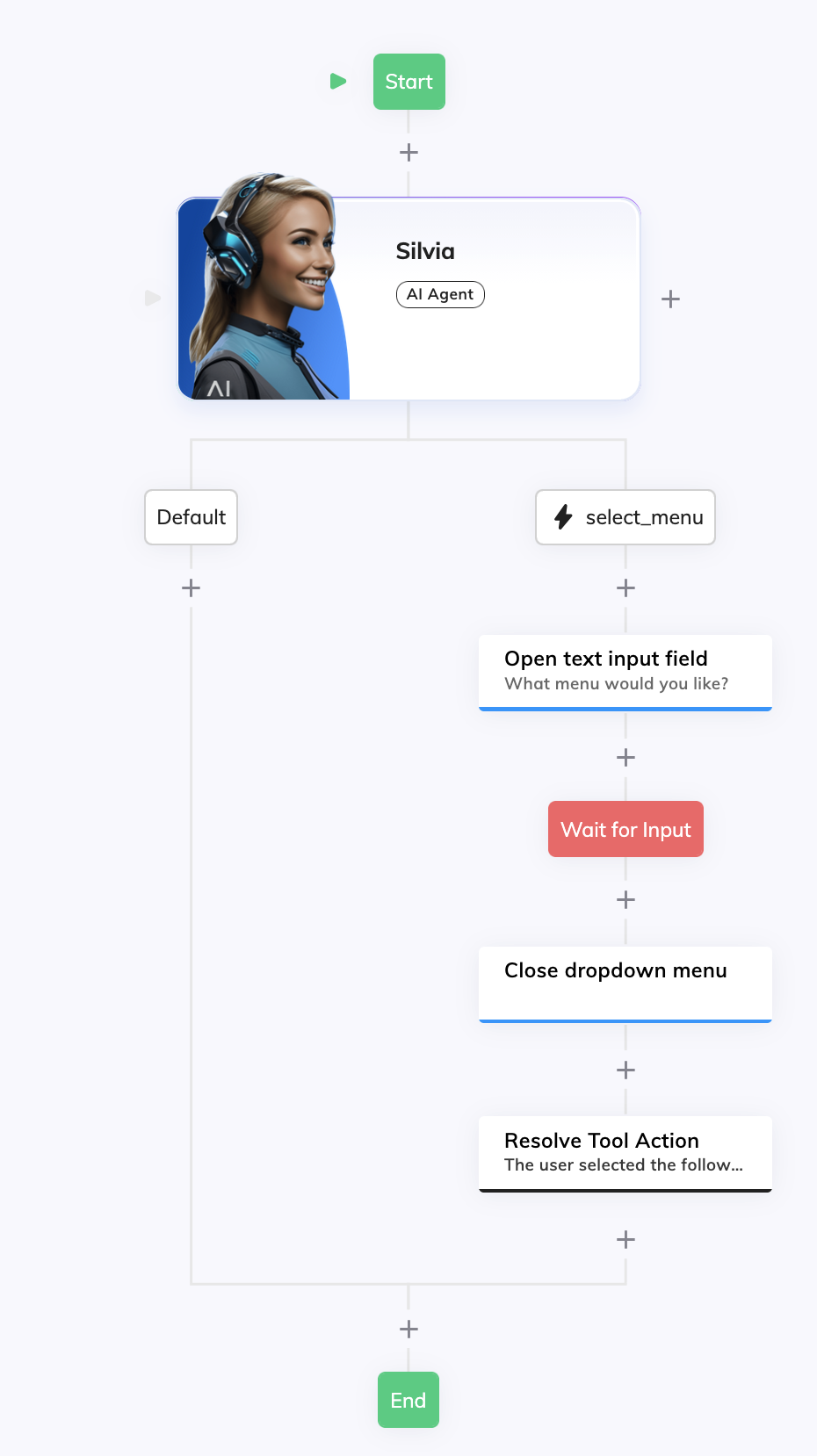
After completing these steps, your Flow should look like the following:
 ## Configure a Voice Gateway Endpoint
1. Go to **Deploy > Endpoints**.
2. Click **+ New Endpoint**, select **Voice Gateway** and configure the following:
* **Name** — for example, `Click To Call Cantina Support`.
* **Flow** — Select the Flow you previously configured, in this example, `Click To Call Assistant`.
3. Click **Save**.
1. In the Endpoint settings, find **Click To Call Embedding HTML**.
2. Click the **Set Up Click To Call Integration** button in that field to generate the embedding code in the code editor. Hover over the code editor and click the **Copy to clipboard** button. You will use this code to embed the Click To Call widget in your website.
1. In **Click To Call Widget Settings**:
* **Enable Click To Call Widget** — activate the toggle.
* **AI Agent Name** — Name shown on the widget, for example, `Cantina Support`.
* **Tagline** — Short text under the name, for example, `Let me know what you want to eat!`.
* *(Optional)* **AI Agent Avatar Logo URL** — Add a URL of the image shown on the widget, for example, `https://www..com/logo.png`. If empty, the Cognigy.AI logo is used.
* *(Optional)* **Theme** — select the color theme of the widget.
2. Save the Endpoint.
## Embed and Test Widget
1. Paste the code you copied previously from the Endpoint settings into your page's `` or before ``. The code looks similar to the following:
```html expandable theme={null}
```
Where `` and `` are the URL and the Endpoint configuration token, respectively. For example, `https://endpoint-dev.cognigy.ai/ab8b929039b427fed7ee84bb799acd7f254fc9254be27c87a78fc8a70fb048ec` for the development environment or `https://endpoint.cognigy.ai/ab8b929039b427fed7ee84bb799acd7f254fc9254be27c87a78fc8a70fb048ec` for the production environment.
2. Make sure the actual Endpoint configuration URL is the same as the one you copied from **Click To Call Embedding HTML** in the Voice Gateway Endpoint.
3. Edit the widget script to add the dropdown menu and events to open and close the selector when the Flow sends `openInput: true` or `closeInput: true` in the Say Nodes. The following code is an example of how to do this:
```html expandable theme={null}
```
1. Open the page in a browser, allow microphone access when prompted, and click
## Configure a Voice Gateway Endpoint
1. Go to **Deploy > Endpoints**.
2. Click **+ New Endpoint**, select **Voice Gateway** and configure the following:
* **Name** — for example, `Click To Call Cantina Support`.
* **Flow** — Select the Flow you previously configured, in this example, `Click To Call Assistant`.
3. Click **Save**.
1. In the Endpoint settings, find **Click To Call Embedding HTML**.
2. Click the **Set Up Click To Call Integration** button in that field to generate the embedding code in the code editor. Hover over the code editor and click the **Copy to clipboard** button. You will use this code to embed the Click To Call widget in your website.
1. In **Click To Call Widget Settings**:
* **Enable Click To Call Widget** — activate the toggle.
* **AI Agent Name** — Name shown on the widget, for example, `Cantina Support`.
* **Tagline** — Short text under the name, for example, `Let me know what you want to eat!`.
* *(Optional)* **AI Agent Avatar Logo URL** — Add a URL of the image shown on the widget, for example, `https://www..com/logo.png`. If empty, the Cognigy.AI logo is used.
* *(Optional)* **Theme** — select the color theme of the widget.
2. Save the Endpoint.
## Embed and Test Widget
1. Paste the code you copied previously from the Endpoint settings into your page's `` or before ``. The code looks similar to the following:
```html expandable theme={null}
```
Where `` and `` are the URL and the Endpoint configuration token, respectively. For example, `https://endpoint-dev.cognigy.ai/ab8b929039b427fed7ee84bb799acd7f254fc9254be27c87a78fc8a70fb048ec` for the development environment or `https://endpoint.cognigy.ai/ab8b929039b427fed7ee84bb799acd7f254fc9254be27c87a78fc8a70fb048ec` for the production environment.
2. Make sure the actual Endpoint configuration URL is the same as the one you copied from **Click To Call Embedding HTML** in the Voice Gateway Endpoint.
3. Edit the widget script to add the dropdown menu and events to open and close the selector when the Flow sends `openInput: true` or `closeInput: true` in the Say Nodes. The following code is an example of how to do this:
```html expandable theme={null}
```
1. Open the page in a browser, allow microphone access when prompted, and click  on the widget to start a voice conversation with your AI Agent.
2. After the AI Agent greets you, say you want to select a menu. The selector field opens on the widget.
3. Try answering the question using the dropdown (Mediterranean, Light, Comfort, Vegetarian) and by voice.
## See Also
* [Click To Call](/click-to-call/overview)
* [Voice Gateway Endpoint](/ai/agents/deploy/endpoint-reference/voice-gateway)
* [Flows](/ai/agents/develop/projects-and-flows/overview)
* [AI Agent Node](/ai/agents/develop/node-reference/ai/ai-agent)
* [Manage AI Agents](/ai/agents/develop/manage-ai-agents)
on the widget to start a voice conversation with your AI Agent.
2. After the AI Agent greets you, say you want to select a menu. The selector field opens on the widget.
3. Try answering the question using the dropdown (Mediterranean, Light, Comfort, Vegetarian) and by voice.
## See Also
* [Click To Call](/click-to-call/overview)
* [Voice Gateway Endpoint](/ai/agents/deploy/endpoint-reference/voice-gateway)
* [Flows](/ai/agents/develop/projects-and-flows/overview)
* [AI Agent Node](/ai/agents/develop/node-reference/ai/ai-agent)
* [Manage AI Agents](/ai/agents/develop/manage-ai-agents)