> ## Documentation Index
> Fetch the complete documentation index at: https://docs.cognigy.com/llms.txt
> Use this file to discover all available pages before exploring further.
# Custom Evaluation
> Learn how to define your own scoring criteria in Conversation Analyzer using widget types such as Yes/No, 3-option scale, 5-option scale, percentage, and numeric score.
Added in 2026.12 (beta)
This feature is in beta. We encourage you to try it out and provide us with feedback.
*Custom Evaluation* lets you define your own scoring criteria in addition to Basic Analysis. The custom evaluation allows you to evaluate behavior specific to your business domain, compliance requirements, or product context.
 ## When to Use Custom Evaluation
* **When predefined criteria aren't enough** — evaluate business-specific behaviors not covered by Basic Analysis.
* **For compliance monitoring** — create criteria to track whether AI Agents follow regulatory or policy requirements specific to your industry.
* **After launching new products or services** — create criteria to measure how well the AI Agent handles new offerings.
* **During A/B testing** — compare AI Agent behavior across different prompt or instruction variants.
## Restrictions
* You can add up to 10 custom evaluation criteria.
## Configuration
1. In the left-side menu of the Insights interface, go to **Configuration**.
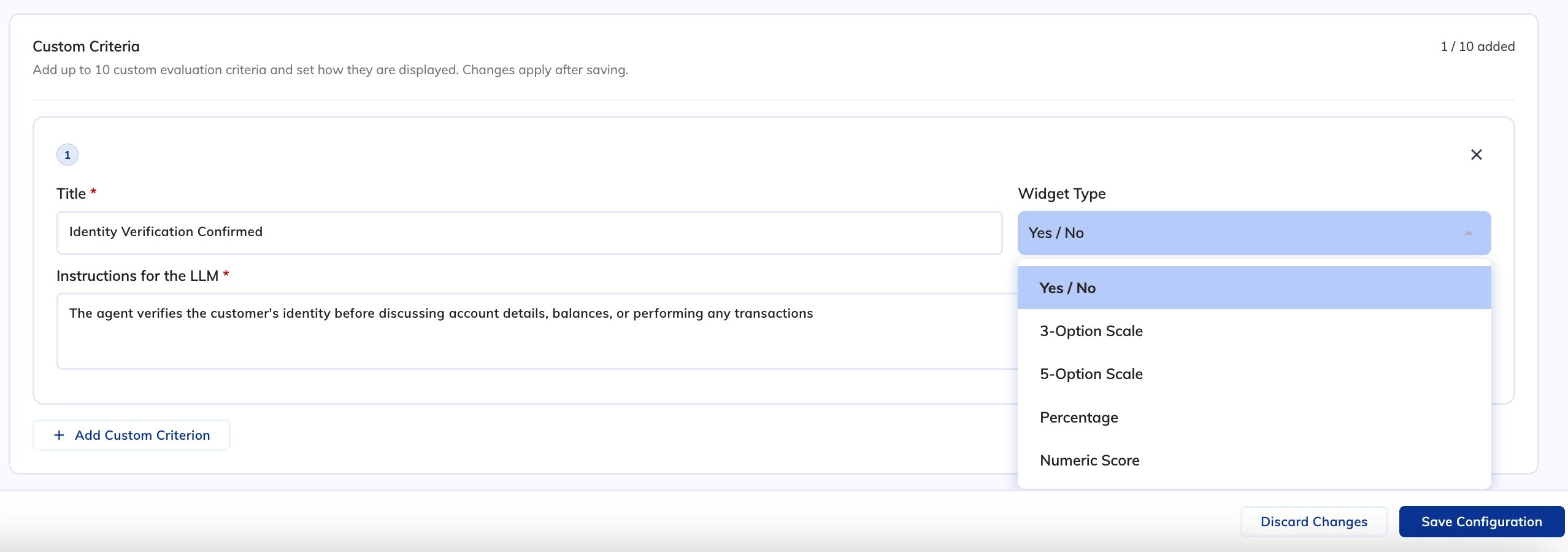
2. In the **Custom Criteria** section, click **+ Add Custom Criterion** and select a widget from the **Widget Type** list:
A binary criterion with a pass or fail outcome. Use this for simple checks where you want to know whether a specific behavior occurred.
* **Title** — a short display name for the criterion. For example, `Accurate Product Information`.
* **Instructions for the LLM** — enter a statement that the LLM must evaluate and return as pass or fail. For example, `The agent provides accurate information about financial products, rates, fees, or terms without contradicting known product documentation`.
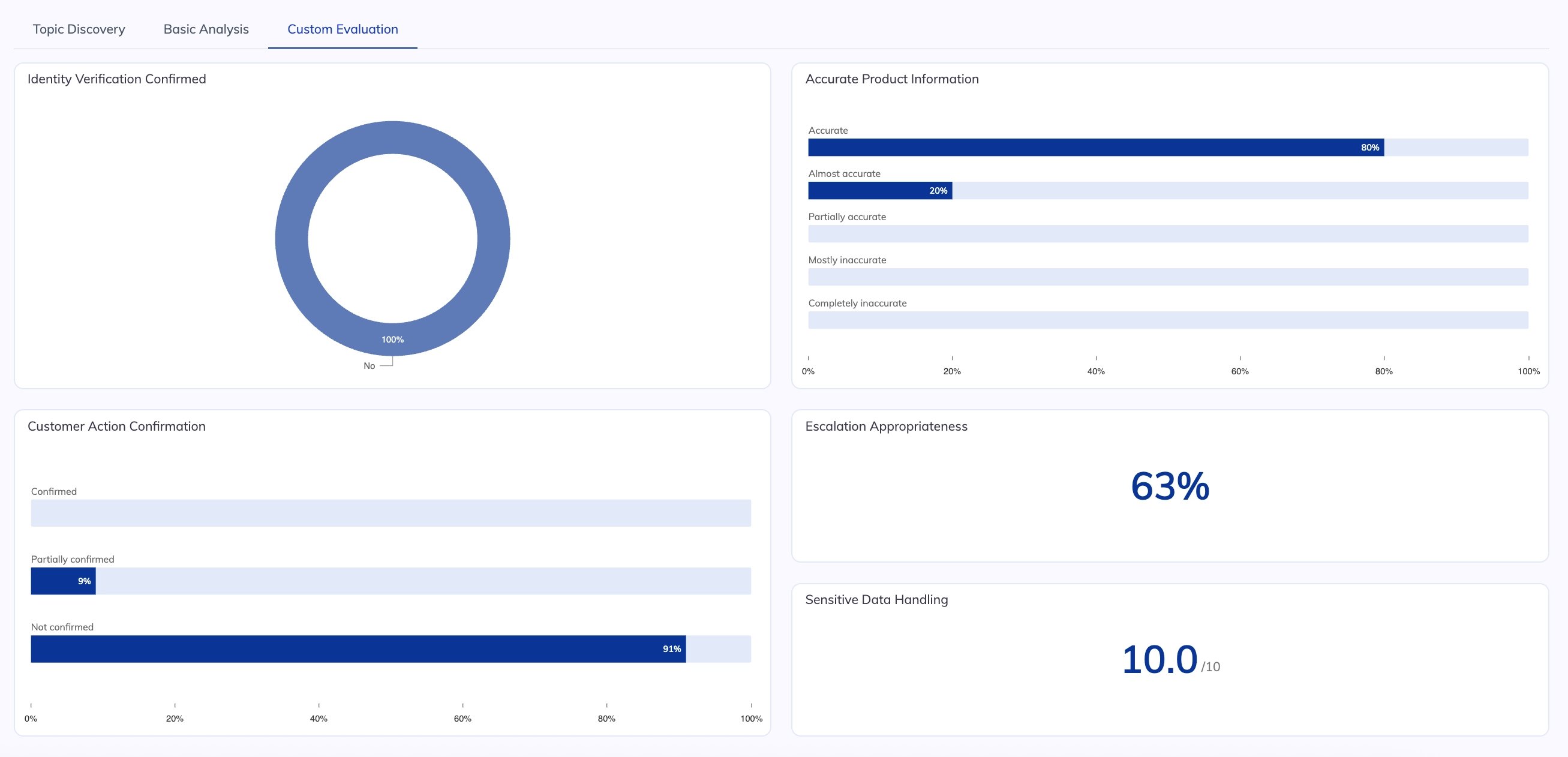
The widget will be rendered as a ring chart on the Custom Evaluation dashboard, showing the percentage of conversations that passed versus failed this criterion.
A scored criterion with three labeled outcome levels mapped to scores 1, 2, and 3. Score 1 is the lowest outcome, score 3 is the highest.
* **Title** — a short display name for the criterion. For example, `Regulatory Compliance`.
* **Instructions for the LLM** — enter a statement that the LLM must evaluate and return as a score from 1 to 3. For example, `The agent includes required regulatory disclosures appropriate to the financial topic discussed. Score 1 if no disclosures were made, 2 if disclosures were incomplete or misplaced, 3 if all required disclosures were provided correctly`.
* **Option Labels** — three labels for scores 1, 2, and 3. For example, `Not compliant / Partially compliant / Fully compliant`.
The widget will be rendered as a bar chart on the Custom Evaluation dashboard, showing the distribution of conversations across the three outcome levels.
A scored criterion with five labeled outcome levels mapped to scores 1 through 5. Use this when you need finer-grained scoring than the 3-option scale.
* **Title** — a short display name for the criterion. For example, `Accurate Product Information`.
* **Instructions for the LLM** — enter a statement that the LLM must evaluate and return as a score from 1 to 5. For example, `How accurately the agent describes financial products, rates, fees, or terms compared to known product documentation? Score 1 if completely wrong, 2 if mostly incorrect with some accurate details, 3 if roughly half accurate, 4 if mostly correct with minor errors, 5 if fully accurate evaluation`.
* **Option Labels** — five labels for scores 1 through 5. For example, `Completely inaccurate / Mostly inaccurate / Partially accurate / Mostly accurate / Fully accurate`.
The widget will be rendered as a bar chart on the Custom Evaluation dashboard, showing the distribution of conversations across the five outcome levels.
A criterion scored as a value between 0 and 100%. Use this for proportional measures across multiple instances within a conversation.
* **Title** — a short display name for the criterion. For example, `Escalation Appropriateness`.
* **Instructions for the LLM** — enter a statement that the LLM must evaluate and return as a percentage. For example, `What percentage of escalation decisions in this conversation were appropriate? Consider whether escalations to a human advisor were justified and whether cases that could have been self-served were incorrectly escalated. Return a value between 0 and 100`.
The widget will be rendered as an indicator chart on the Custom Evaluation dashboard, showing the average percentage score across conversations.
A criterion scored as a number on a scale you define. Use this when you want a continuous score with maximum flexibility.
* **Title** — a short display name for the criterion. For example, `Sensitive Data Handling`.
* **Instructions for the LLM** — enter a statement that the LLM must evaluate and return as a numeric score. For example, `Rate how well the agent handled sensitive data on a scale of 0 to 10. Score 0 if sensitive data was mishandled, 5 if handling was adequate but inconsistent, 10 if sensitive data was managed correctly and securely throughout the entire conversation`.
The widget will be rendered as an indicator chart on the Custom Evaluation dashboard, showing the average numeric score across conversations.
3. Fill in the required fields for the selected widget type. Save changes.
## When to Use Custom Evaluation
* **When predefined criteria aren't enough** — evaluate business-specific behaviors not covered by Basic Analysis.
* **For compliance monitoring** — create criteria to track whether AI Agents follow regulatory or policy requirements specific to your industry.
* **After launching new products or services** — create criteria to measure how well the AI Agent handles new offerings.
* **During A/B testing** — compare AI Agent behavior across different prompt or instruction variants.
## Restrictions
* You can add up to 10 custom evaluation criteria.
## Configuration
1. In the left-side menu of the Insights interface, go to **Configuration**.
2. In the **Custom Criteria** section, click **+ Add Custom Criterion** and select a widget from the **Widget Type** list:
A binary criterion with a pass or fail outcome. Use this for simple checks where you want to know whether a specific behavior occurred.
* **Title** — a short display name for the criterion. For example, `Accurate Product Information`.
* **Instructions for the LLM** — enter a statement that the LLM must evaluate and return as pass or fail. For example, `The agent provides accurate information about financial products, rates, fees, or terms without contradicting known product documentation`.
The widget will be rendered as a ring chart on the Custom Evaluation dashboard, showing the percentage of conversations that passed versus failed this criterion.
A scored criterion with three labeled outcome levels mapped to scores 1, 2, and 3. Score 1 is the lowest outcome, score 3 is the highest.
* **Title** — a short display name for the criterion. For example, `Regulatory Compliance`.
* **Instructions for the LLM** — enter a statement that the LLM must evaluate and return as a score from 1 to 3. For example, `The agent includes required regulatory disclosures appropriate to the financial topic discussed. Score 1 if no disclosures were made, 2 if disclosures were incomplete or misplaced, 3 if all required disclosures were provided correctly`.
* **Option Labels** — three labels for scores 1, 2, and 3. For example, `Not compliant / Partially compliant / Fully compliant`.
The widget will be rendered as a bar chart on the Custom Evaluation dashboard, showing the distribution of conversations across the three outcome levels.
A scored criterion with five labeled outcome levels mapped to scores 1 through 5. Use this when you need finer-grained scoring than the 3-option scale.
* **Title** — a short display name for the criterion. For example, `Accurate Product Information`.
* **Instructions for the LLM** — enter a statement that the LLM must evaluate and return as a score from 1 to 5. For example, `How accurately the agent describes financial products, rates, fees, or terms compared to known product documentation? Score 1 if completely wrong, 2 if mostly incorrect with some accurate details, 3 if roughly half accurate, 4 if mostly correct with minor errors, 5 if fully accurate evaluation`.
* **Option Labels** — five labels for scores 1 through 5. For example, `Completely inaccurate / Mostly inaccurate / Partially accurate / Mostly accurate / Fully accurate`.
The widget will be rendered as a bar chart on the Custom Evaluation dashboard, showing the distribution of conversations across the five outcome levels.
A criterion scored as a value between 0 and 100%. Use this for proportional measures across multiple instances within a conversation.
* **Title** — a short display name for the criterion. For example, `Escalation Appropriateness`.
* **Instructions for the LLM** — enter a statement that the LLM must evaluate and return as a percentage. For example, `What percentage of escalation decisions in this conversation were appropriate? Consider whether escalations to a human advisor were justified and whether cases that could have been self-served were incorrectly escalated. Return a value between 0 and 100`.
The widget will be rendered as an indicator chart on the Custom Evaluation dashboard, showing the average percentage score across conversations.
A criterion scored as a number on a scale you define. Use this when you want a continuous score with maximum flexibility.
* **Title** — a short display name for the criterion. For example, `Sensitive Data Handling`.
* **Instructions for the LLM** — enter a statement that the LLM must evaluate and return as a numeric score. For example, `Rate how well the agent handled sensitive data on a scale of 0 to 10. Score 0 if sensitive data was mishandled, 5 if handling was adequate but inconsistent, 10 if sensitive data was managed correctly and securely throughout the entire conversation`.
The widget will be rendered as an indicator chart on the Custom Evaluation dashboard, showing the average numeric score across conversations.
3. Fill in the required fields for the selected widget type. Save changes.
 ## Tips for Writing LLM Instructions
The quality of your custom criteria results depends directly on how clearly you write the LLM instructions.
* **Be specific.** Vague instructions produce inconsistent scores. Instead of "Was the agent helpful?", describe exactly what behavior to look for and what each score level means.
* **Define the scale explicitly.** For numeric and scale-based criteria, always describe what the lowest and highest scores represent.
* **Use plain language.** Write instructions the way you would explain the task to a colleague, not in technical jargon.
* **One criterion, one thing.** Each criterion should evaluate a single, well-defined behavior. Combining multiple checks in one criterion makes scores harder to interpret.
* **Test with known conversations.** After adding a custom criterion, run a manual analysis on conversations where you already know the expected outcome to verify the scoring behaves as intended.
## Tips for Writing LLM Instructions
The quality of your custom criteria results depends directly on how clearly you write the LLM instructions.
* **Be specific.** Vague instructions produce inconsistent scores. Instead of "Was the agent helpful?", describe exactly what behavior to look for and what each score level means.
* **Define the scale explicitly.** For numeric and scale-based criteria, always describe what the lowest and highest scores represent.
* **Use plain language.** Write instructions the way you would explain the task to a colleague, not in technical jargon.
* **One criterion, one thing.** Each criterion should evaluate a single, well-defined behavior. Combining multiple checks in one criterion makes scores harder to interpret.
* **Test with known conversations.** After adding a custom criterion, run a manual analysis on conversations where you already know the expected outcome to verify the scoring behaves as intended.