> ## Documentation Index
> Fetch the complete documentation index at: https://docs.cognigy.com/llms.txt
> Use this file to discover all available pages before exploring further.
# Business Dashboard
Updated in 2026.1
Note that the Goals-related charts are available only if you have migrated to the new [Insights framework](/insights/data-management/pre-aggregation).
The *Business Dashboard* gives you a quick overview of your key session metrics through interactive charts and tables.
It includes location-based activity, active sessions by AI or human agents, and business outcomes, such as time and cost savings.
The summary of key metrics is represented in the following charts:
* [Interactive Map](#interactive-map)
* [Tables](#tables)
* [Bar Charts](#bar-charts)
* [Indicators](#indicators)
All charts display data based on the filter settings you've selected. The charts display data recorded within the last 15 minutes. Some charts refresh every 30 seconds.
## Prerequisites
If you have an on-premises installation, add the following feature flags to the `values.yaml` file:
* `FEATURE_INSIGHTS_USE_BUSINESS_DASHBOARD: "true"`
* `FEATURE_INSIGHTS_BUSINESS_DASHBOARD_DIRECT_POSTGRESQL: "true"`. Add this feature flag if you've migrated to the new Insights framework.
## Filters
In the top bar, unlike other reports and explorers, you can select multiple Projects to view their data on the dashboard. However, if you switch between Projects and then open reports or explorers, the **Time Span** filter will reset for them. This reset happens because of the 15-minute time window limitation for data display on the dashboard.
Additionally, you can use the following filters:
| Filter | Description |
| -------- | ---------------------------------------------------------------------------------------------------------------------------------------------------------------------------------------------------------------------------------------------------------------------- |
| Location | You can select one of the following options:
**City** – the default option, filters data by city.
**Country** – filters data by country.
|
| Channel | You can select one of the following filters:
**All** – the default filter, includes all sessions.
**Voice** – filters sessions created only via the Voice Gateway Endpoint.
**Chat** – filters sessions created via other Endpoints.
|
### Reset Filters
To reset all filters, at the top of the page, click the **Reset** button on the right side of the filter panel.
If the **Reset** button is not displayed,
click in the upper-right corner of the page.
## Interactive Map
Displays the number of sessions by country or city.
To view session data for a specific location, use the **Location** filter to select a country or city. Then, hover over a location on the globe to see the number of sessions.
You can navigate the globe using the following controls:
| Icon | Name | Description |
| ------------------------------------------------------------------------------------------------------------------------------------------------------------------------------------------------------------------------------------------------------------------------------------------------------------------------------------------------------------------------------------------------------------------------------------------------------------------------------------------------------------------------------------------------------------------------------------------------------------------------------------------------------------------------------------------------------------------------------------------------------------------------------------------------------------------------------------------------------------------------------------------------------------------------------------------------------------------------------------------------------------------------------------------------------------------------------------------------------------------------------------------------------------------------------------------------------------------------------------------------------------------------------------------------------------------------------------------------------------------------------------------------------------------------------------------------------------------------------------------------------------------- | ---------- | --------------------------------- |
| ️ | Play | Starts the animation. |
| | Stop | Stops the animation. |
| | Fullscreen | Expands the globe to full screen. |
| | Zoom out | Zooms out to show a wider area. |
| | Zoom in | Zooms in to show more detail. |
The chart shows changes within the last 15 minutes and updates every 30 seconds.
## Tables
### Top Sessions
Displays the total number of current sessions by country or city, including both ongoing sessions and those started in the last 15 minutes.
To view session data for a specific location, use the **Location** filter to switch between country and city views.
#### Unknown Locations
If a city or country is marked as `Unknown`, it means Insights couldn't determine where the session occurred.
In the city view:
* If the entry has a flag, the country is known, but the specific city isn't.
* If there's a question mark instead of a flag, both the city and country are unknown.
In the country view, all known countries will be listed. There will be only one `Unknown` entry to represent all sessions with unidentified locations.
### Top 5 Goals
Displays the top 5 goals completed in the last 15 minutes, allowing you to track recent performance quickly.
## Bar Charts
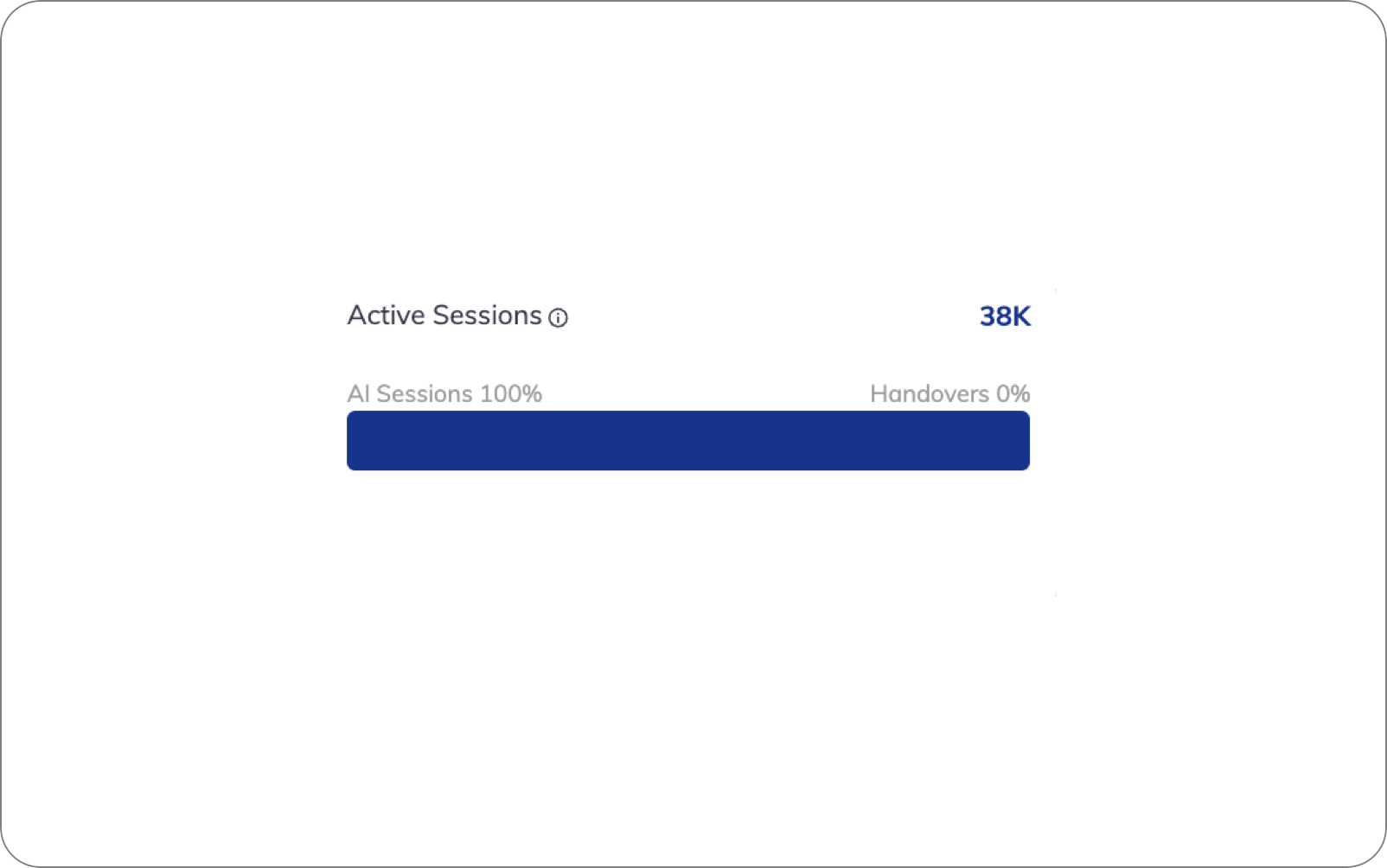
### Active Sessions
Displays the total number of sessions started within the last 15 minutes, refreshed every 30 seconds.
The chart breaks down sessions handled by AI Agents versus those escalated to human agents, enabling you to track how many sessions AI Agents resolved independently.
## Indicators
### Time Saved
Displays the total time saved by summing the time saved from completed and partially completed goals in the last 15 minutes.
### Cost Savings
Displays the total cost savings for completed and partially completed goals in the last 15 minutes.
### Revenue Earned
Displays the total revenue earned for completed and partially completed goals in the last 15 minutes.
## More Information
* [Time Zone with Pre-aggregation](/insights/data-management/time-zone-with-pre-aggregation)
 in the upper-right corner of the page.
## Interactive Map
Displays the number of sessions by country or city.
To view session data for a specific location, use the **Location** filter to select a country or city. Then, hover over a location on the globe to see the number of sessions.
in the upper-right corner of the page.
## Interactive Map
Displays the number of sessions by country or city.
To view session data for a specific location, use the **Location** filter to select a country or city. Then, hover over a location on the globe to see the number of sessions.
 ️ | Play | Starts the animation. |
|
️ | Play | Starts the animation. |
|  | Stop | Stops the animation. |
|
| Stop | Stops the animation. |
|  | Fullscreen | Expands the globe to full screen. |
|
| Fullscreen | Expands the globe to full screen. |
|  | Zoom out | Zooms out to show a wider area. |
|
| Zoom out | Zooms out to show a wider area. |
|  | Zoom in | Zooms in to show more detail. |
The chart shows changes within the last 15 minutes and updates every 30 seconds.
| Zoom in | Zooms in to show more detail. |
The chart shows changes within the last 15 minutes and updates every 30 seconds.
 ## Indicators
### Time Saved
Displays the total time saved by summing the time saved from completed and partially completed goals in the last 15 minutes.
### Cost Savings
Displays the total cost savings for completed and partially completed goals in the last 15 minutes.
### Revenue Earned
Displays the total revenue earned for completed and partially completed goals in the last 15 minutes.
## More Information
* [Time Zone with Pre-aggregation](/insights/data-management/time-zone-with-pre-aggregation)
## Indicators
### Time Saved
Displays the total time saved by summing the time saved from completed and partially completed goals in the last 15 minutes.
### Cost Savings
Displays the total cost savings for completed and partially completed goals in the last 15 minutes.
### Revenue Earned
Displays the total revenue earned for completed and partially completed goals in the last 15 minutes.
## More Information
* [Time Zone with Pre-aggregation](/insights/data-management/time-zone-with-pre-aggregation)