> ## Documentation Index
> Fetch the complete documentation index at: https://docs.cognigy.com/llms.txt
> Use this file to discover all available pages before exploring further.
# Message Explorer
Updated in 2026.14
As of Cognigy.AI 2026.4.0, the [Step](/insights/explorers/step) and [Message](/insights/explorers/message) explorers in Insights are deprecated. These explorers will remain functional until their full removal in Cognigy.AI 2026.17.0.
The Message Explorer is an analytics tool in Cognigy Insights that helps you search for specific customer or AI Agent messages within a conversation. It shows messages the user has sent before and after the selected one to provide further context. It complements the [Conversations Explorer](/insights/explorers/conversations), which provides more session-related details and user profile data.
The Message Explorer shows the entire conversation as context around a specific message. This helps you understand user reactions and motivations. It can answer questions such as "What triggers specific types of responses?" and "How often do customers react similarly?"
To open the Message Explorer interface, use one of the following options:
1. In the left-side menu of the Cognigy.AI interface, select a Project.
2. Within the Project, navigate to Insights using one of the following options:
* In the left-side menu of the Project, select **Insights**.
* In the bottom-left corner, select **Insights** from the User Menu.
The Cognigy Insights Overview report will be displayed by default.
3. In the left-side menu of the Insights interface, select **Message Explorer**.
1. In the left-side menu of the Insights interface, select **Message Explorer**.
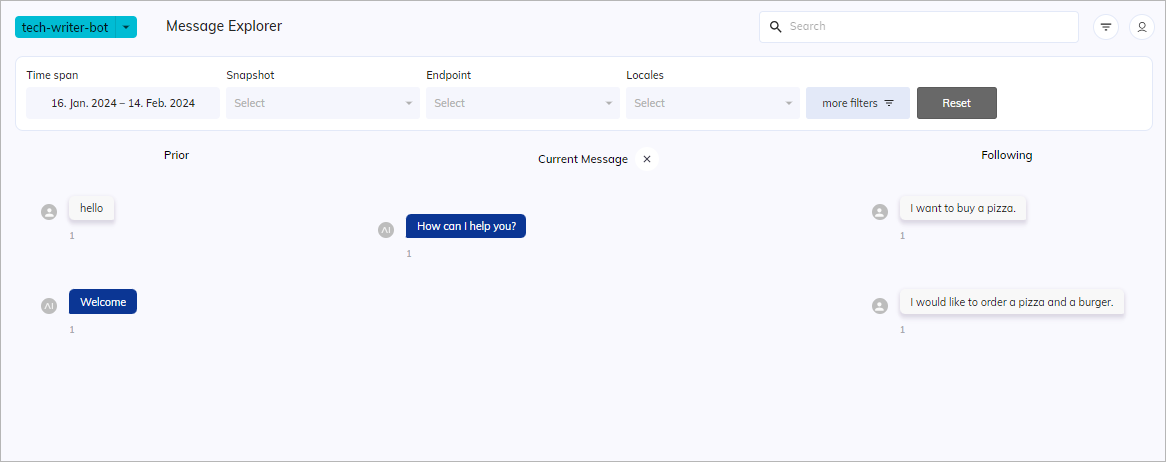
The Message Explorer interface will be displayed.
 ## Messages
Sessions with personal data masked using the [Delete Profile](/ai/agents/develop/node-reference/analytics/delete-profile) or [Deactivate Profile](/ai/agents/develop/node-reference/analytics/deactivate-profile) Nodes are excluded from the Message Explorer.
When you first open the Message Explorer with default filter settings,
it will scan all sessions of the currently selected AI Agent and display all messages for the selected time span.
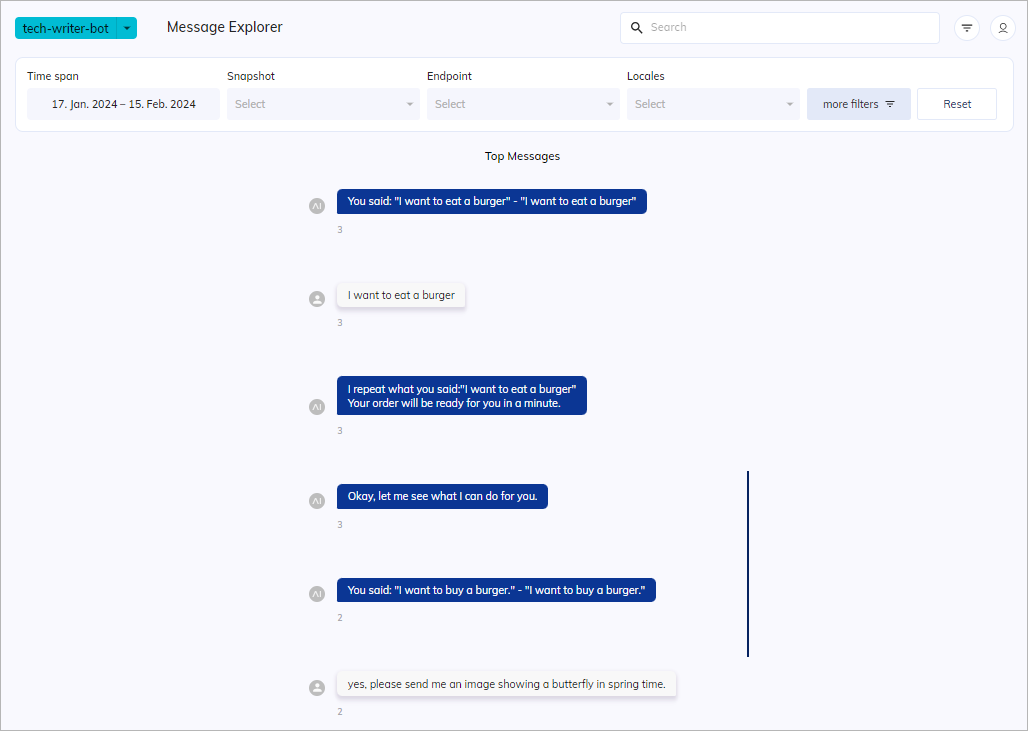
These messages are titled **Top Messages**, including user messages and responses from your AI Agent and human agents.
The top messages are the ones that are sent most frequently during the specified time span. By default, the only filter applied is the time span set to **Last 7 Days**. This means that the Message Explorer will first show you the most frequently sent messages from the period you have selected in descending order. The numbers displayed below each message indicate how many times the message has occurred in the selected time span.
## Messages
Sessions with personal data masked using the [Delete Profile](/ai/agents/develop/node-reference/analytics/delete-profile) or [Deactivate Profile](/ai/agents/develop/node-reference/analytics/deactivate-profile) Nodes are excluded from the Message Explorer.
When you first open the Message Explorer with default filter settings,
it will scan all sessions of the currently selected AI Agent and display all messages for the selected time span.
These messages are titled **Top Messages**, including user messages and responses from your AI Agent and human agents.
The top messages are the ones that are sent most frequently during the specified time span. By default, the only filter applied is the time span set to **Last 7 Days**. This means that the Message Explorer will first show you the most frequently sent messages from the period you have selected in descending order. The numbers displayed below each message indicate how many times the message has occurred in the selected time span.
 ## Explore Messages
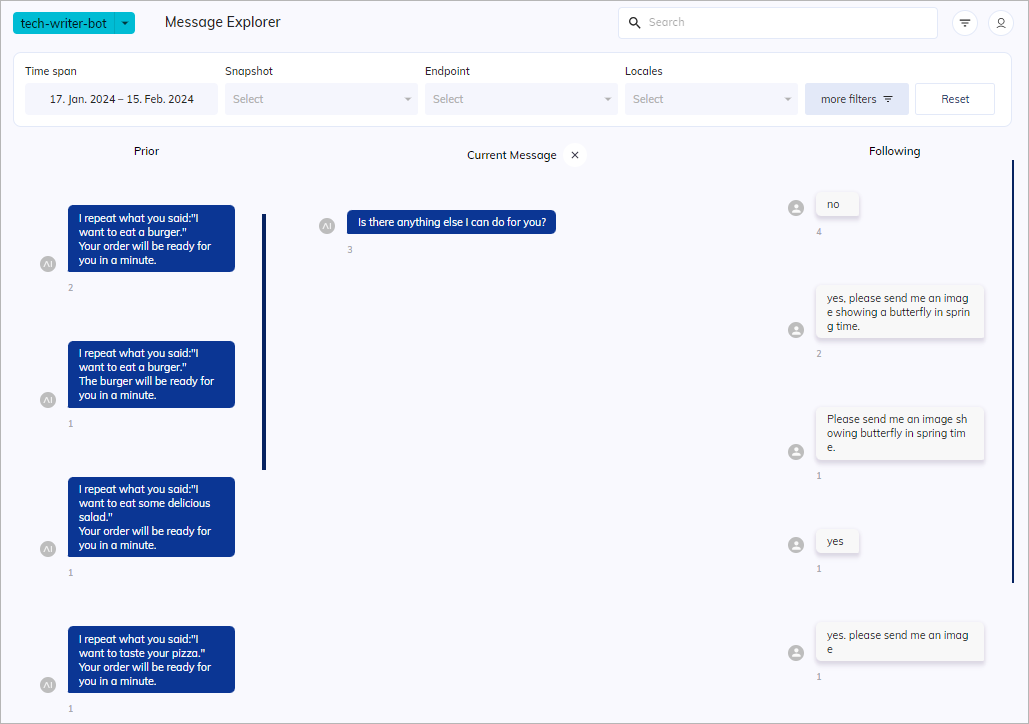
When you click a message from the list, the page view will change and split into three columns: **Prior**, **Current Message**, and **Following**. The message you have chosen will be displayed as the current message in the middle column. The message that came before the current message will be displayed in the **Prior** column, and the message that follows the current message will be displayed in the **Following** column.
Every time you click a message, it will be moved to the **Current Message** column, and the context messages before and after it will move accordingly to the **Prior** and **Following** columns. This allows you to navigate step by step through conversations to analyze the context of the situation, moving forward or backward.
If there are numerous messages, you can use the blue scroll bars located beside the **Prior**, **Current Message**, and **Following** message fields to view all of them.
If the selected message was sent multiple times and belongs to different conversations, all of the prior and following messages will be displayed so that you can view more than one message in these fields.
To go back to the filtered top messages again, click
## Explore Messages
When you click a message from the list, the page view will change and split into three columns: **Prior**, **Current Message**, and **Following**. The message you have chosen will be displayed as the current message in the middle column. The message that came before the current message will be displayed in the **Prior** column, and the message that follows the current message will be displayed in the **Following** column.
Every time you click a message, it will be moved to the **Current Message** column, and the context messages before and after it will move accordingly to the **Prior** and **Following** columns. This allows you to navigate step by step through conversations to analyze the context of the situation, moving forward or backward.
If there are numerous messages, you can use the blue scroll bars located beside the **Prior**, **Current Message**, and **Following** message fields to view all of them.
If the selected message was sent multiple times and belongs to different conversations, all of the prior and following messages will be displayed so that you can view more than one message in these fields.
To go back to the filtered top messages again, click  in the column title labeled with **Current Message**.
 ## Search for Messages
The Message Explorer interface has a search field that allows you to look for specific messages.
Your search will be filtered according to the settings you have configured.
Once you have set your global and local filters,
you can enter keywords in the **
## Search for Messages
The Message Explorer interface has a search field that allows you to look for specific messages.
Your search will be filtered according to the settings you have configured.
Once you have set your global and local filters,
you can enter keywords in the ** Search** field at the top of the page
to find messages that match your search criteria.
You will then get a list of all messages that match your search.
To find specific messages, follow these steps:
1. In the upper-right corner of the **Message Explorer** page, locate the search field.
2. In the search field, specify keywords or phrases.
The Message Explorer immediately updates the list of sessions according to the search results.
## Filter Messages
By default, the Message Explorer shows the **Filter Bar** section at the top of the page.
You can filter sessions by using the following options:
* [Global Filters](#global-filters)
* [Local Filters](#local-filters)
To hide the Filter menu, click
Search** field at the top of the page
to find messages that match your search criteria.
You will then get a list of all messages that match your search.
To find specific messages, follow these steps:
1. In the upper-right corner of the **Message Explorer** page, locate the search field.
2. In the search field, specify keywords or phrases.
The Message Explorer immediately updates the list of sessions according to the search results.
## Filter Messages
By default, the Message Explorer shows the **Filter Bar** section at the top of the page.
You can filter sessions by using the following options:
* [Global Filters](#global-filters)
* [Local Filters](#local-filters)
To hide the Filter menu, click  in the upper-right corner.
### Global Filters
For more information, read the [Global Filter](/insights/global-filters) documentation. Some additional filters become available when you click **more filters ** in the filter bar at the top of the **Message Explorer** page.
### Local Filters
You can use Local Filters to refine your research.
To open the **Local Filters** selection,
click **more filters ** in the **Filter Bar** section at the top of the **Message Explorer** page.
| Additional Filter | Description |
| ----------------- | ------------------------------------------------------------------------------------------------------------------------------------------------------------------------------------------------------------------ |
| Message Rating | Select the rating criteria:
in the upper-right corner.
### Global Filters
For more information, read the [Global Filter](/insights/global-filters) documentation. Some additional filters become available when you click **more filters ** in the filter bar at the top of the **Message Explorer** page.
### Local Filters
You can use Local Filters to refine your research.
To open the **Local Filters** selection,
click **more filters ** in the **Filter Bar** section at the top of the **Message Explorer** page.
| Additional Filter | Description |
| ----------------- | ------------------------------------------------------------------------------------------------------------------------------------------------------------------------------------------------------------------ |
| Message Rating | Select the rating criteria:
- **Positive** — messages perceived positively.
- **None** — messages with no sentiment.
- **Negative** — messages perceived negatively. |
| Source | Select one or more message sources:
- **AI Agent Messages** — messages sent by AI Agents.
- **User Messages** — messages sent by users.
- **Agent Messages** — messages sent by human agents. |
| Flow | Specify one or more Flows to filter messages generated during the selected Flow passing. |
| Show payload data | Include payload data. Payload is the part of transmitted data that conveys the intended message, such as rating results with comments and data files. |
### Exclude Filters
When you toggle the **Negate** option, all filters except the selected one will be analyzed.
For example, if you select only `Webchat`
in the **Endpoint** filter and **Negate**, all data except the Webchat Endpoint will be analyzed.
### Reset Filters
To reset all filters, at the top of the page, click the **Reset** button on the right side of the filter panel.
If the **Reset** button is not displayed,
click in the upper-right corner of the page.
## More Information
* [Cognigy Insights](/insights/overview)
* [Global Filters](/insights/global-filters)
* [Step Explorer](/insights/explorers/step)
* [Conversations Explorer](/insights/explorers/conversations)
* [Cognigy Insights Glossary](/insights/glossary)