> ## Documentation Index
> Fetch the complete documentation index at: https://docs.cognigy.com/llms.txt
> Use this file to discover all available pages before exploring further.
# Agent Copilot Whisper
> Configure Agent Copilot Whisper in Live Agent to provide human agents with AI-powered reply suggestions and next-action hints directly in the chat window.
Live Agent has been put in maintenance mode. The product will continue to be maintained in the foreseeable future. Users can continue to fully rely on Live Agent being available. In future releases, only security updates and bug fixes will be provided; no new features will be released.
## Set up Flows
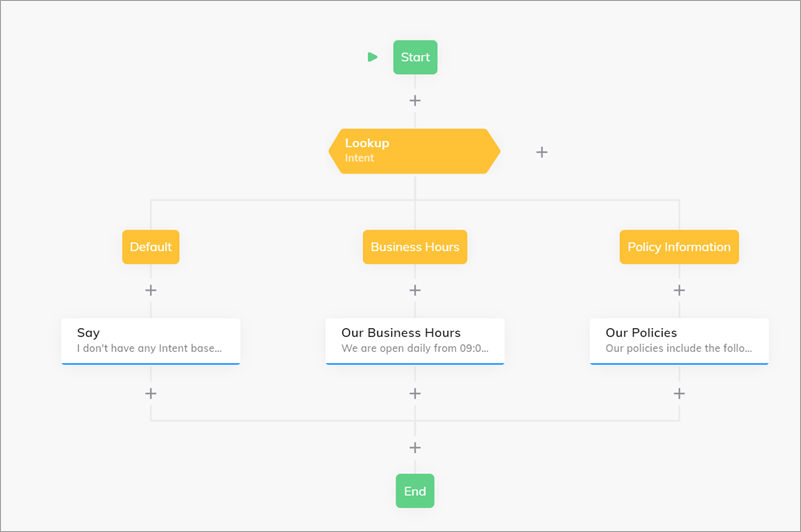
To provide additional real-time information to your agents, this assistant uses a Flow.
To set up an assistant, you need to have two separate flows:
* The Main Flow where the primary logic is defined.
* A Flow where the logic for your assistant will be implemented.
During an active Live Agent handover, this Flow will process all customer inputs and display the outputs as part of the conversation for the human agent.
Assistant's messages are only shown based on customer inputs received during an active handover after the human agent has initially responded.
You don't need to include the Handover Node in the assistant's Flow, as using the Handover to Human Agent Node in the main Live Agent Flow is enough for the configuration process.
To provide helpful information to your agents, create Intents and use Lookup Nodes with Say Nodes based on customer inputs.
 ### Supported Output Types
Agent Copilot Whisper supports all output types that can be selected in the [Say](/ai/agents/develop/node-reference/overview), [Question](/ai/agents/develop/node-reference/overview), or [Optional Question](/ai/agents/develop/node-reference/overview) Nodes.
## Set up an Endpoint
To configure your Endpoint:
1. Go to **Deploy > Endpoints**.
2. Go to your **Webchat** Endpoint.
3. Scroll down to **Handover Settings** and select **Cognigy Live Agent** from the list.
4. Go to the **Copilot** section.
5. In the **Copilot Config** field, select **None**.
6. In the **Copilot Flow** field, select the name of the Agent Copilot Flow you've created in the previous step.
7. Click **Save**.
The Endpoint setup is completed.
## Test Agent Copilot Whisper
To test Agent Copilot Whisper, follow these steps:
1. Start a Webchat session.
2. Complete the handover process to Live Agent.
3. Once the handover is complete, send a message as a human agent.
4. After that, send a message as the user in Webchat.
### Supported Output Types
Agent Copilot Whisper supports all output types that can be selected in the [Say](/ai/agents/develop/node-reference/overview), [Question](/ai/agents/develop/node-reference/overview), or [Optional Question](/ai/agents/develop/node-reference/overview) Nodes.
## Set up an Endpoint
To configure your Endpoint:
1. Go to **Deploy > Endpoints**.
2. Go to your **Webchat** Endpoint.
3. Scroll down to **Handover Settings** and select **Cognigy Live Agent** from the list.
4. Go to the **Copilot** section.
5. In the **Copilot Config** field, select **None**.
6. In the **Copilot Flow** field, select the name of the Agent Copilot Flow you've created in the previous step.
7. Click **Save**.
The Endpoint setup is completed.
## Test Agent Copilot Whisper
To test Agent Copilot Whisper, follow these steps:
1. Start a Webchat session.
2. Complete the handover process to Live Agent.
3. Once the handover is complete, send a message as a human agent.
4. After that, send a message as the user in Webchat.
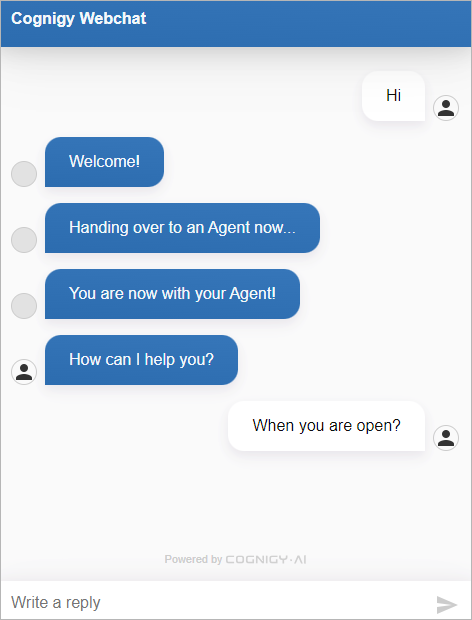 Once the human agent receives this message, the testing behavior will vary depending on how you configured the Endpoint beforehand:
1. The human agent will receive a dropdown menu **Agent Copilot**.
2. In this menu, the human agent will find the results from the Flow sent via Agent Copilot Whisper.
Once the human agent receives this message, the testing behavior will vary depending on how you configured the Endpoint beforehand:
1. The human agent will receive a dropdown menu **Agent Copilot**.
2. In this menu, the human agent will find the results from the Flow sent via Agent Copilot Whisper.
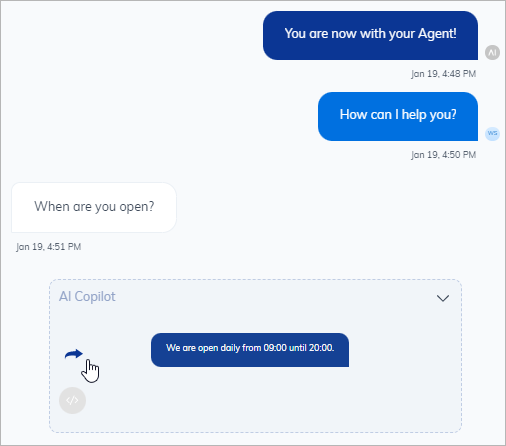 3. The human agent can click the blue arrow to forward content to the user.
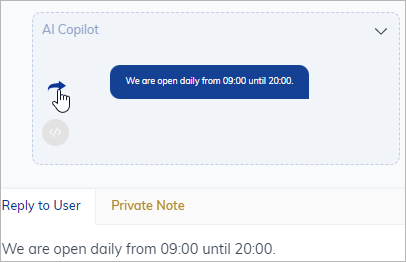
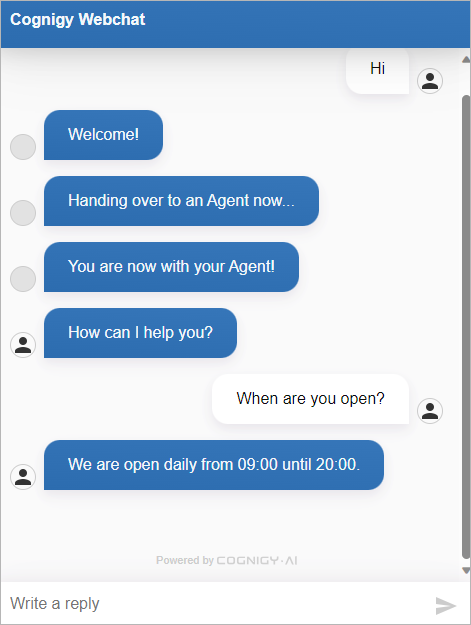 If the testing is successful, the Agent Copilot Whisper setup is complete.
## More Information
* [Agent Copilot in Live Agent](/live-agent/assistants/agent-copilot)
* [Agent Copilot Overview](/agent-copilot/overview)
If the testing is successful, the Agent Copilot Whisper setup is complete.
## More Information
* [Agent Copilot in Live Agent](/live-agent/assistants/agent-copilot)
* [Agent Copilot Overview](/agent-copilot/overview)