> ## Documentation Index
> Fetch the complete documentation index at: https://docs.cognigy.com/llms.txt
> Use this file to discover all available pages before exploring further.
# Supervisor Overview Report
> Monitor real-time conversation activity with the Live Agent Supervisor Overview Report, tracking agent status and key metrics for the past 24 hours.
Updated in 2026.1
Live Agent has been put in maintenance mode. The product will continue to be maintained in the foreseeable future. Users can continue to fully rely on Live Agent being available. In future releases, only security updates and bug fixes will be provided; no new features will be released.
This report is only visible with the [Supervisor Role](/live-agent/roles#supervisor).
This report offers an overview of all conversations related to a specific inbox,
including the number of conversations received within the last 24 hours.
All displayed data is relevant to this 24-hour time period.
Additionally, you will find an overview of Agent Status and conversation handling metrics.
At the bottom of the report, there is a list of conversations that indicate the agents' ongoing work.
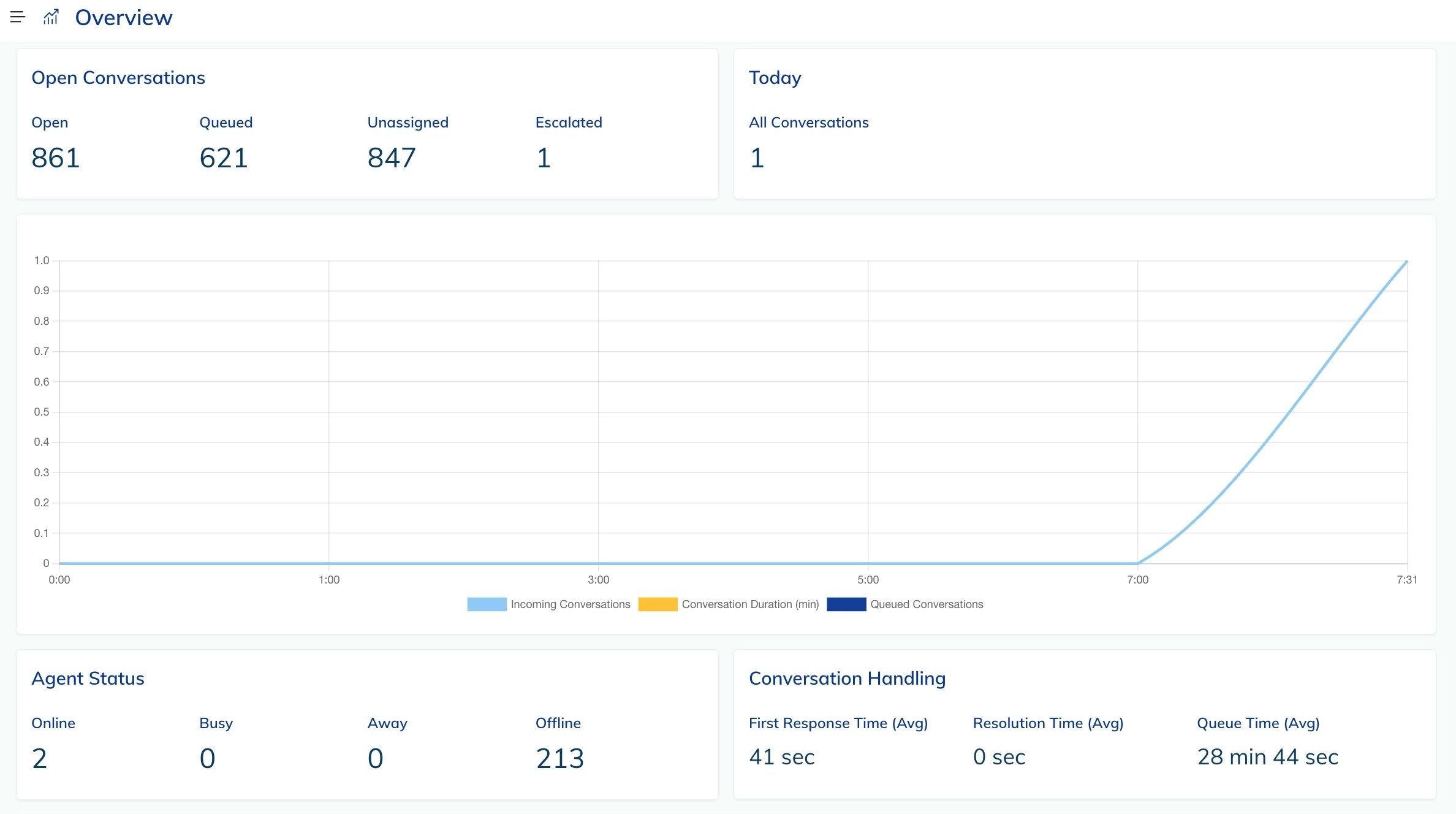
The summary of key metrics is represented in the following charts:
* [Indicators](#indicators)
* [Line Charts](#line-charts)
* [Tables](#tables)
 ## Indicators
### Open Conversations
Indicates the number of conversations that have the following statuses: `Open`, `Queued`, `Unassigned`, or `Escalated`.
The number of `Escalated` conversations changes only when the [Escalate Conversations to Supervisor](/live-agent/settings/inboxes#escalate-conversations-to-supervisors) feature is activated at the Inbox level and an agent clicks the **↑ Escalate to Supervisor** button in the [Conversation Actions](/live-agent/conversation/assign-conversations#assign-supervisors) section of the conversation chat.
### Today
Indicates the number of conversations that were handled on the current day.
### Agent Status
Indicates the number of agents who are currently `Online`, `Busy`, `Away`, or `Offline`.
### Conversation handling
Conversation handling indicates the following real-time metrics:
| Metrics | Description |
| ------------------------- | ---------------------------------------------------------------------------------------------------------------------------------------------------------------------------------------------------------------------------------------------------------------------------------------------------------------------------------------------------------------------------------------------------------------------------------------------------------------------------------------------------------------------------------------------------------------- |
| First Response Time (Avg) | The average time it takes for an agent to respond to a customer in a conversation. |
| Resolution Time (Avg) | The average time required to resolve conversations with a customer. |
| Queue Time (Avg) | The average time that an incoming conversation waits for assignment to a human agent.
## Indicators
### Open Conversations
Indicates the number of conversations that have the following statuses: `Open`, `Queued`, `Unassigned`, or `Escalated`.
The number of `Escalated` conversations changes only when the [Escalate Conversations to Supervisor](/live-agent/settings/inboxes#escalate-conversations-to-supervisors) feature is activated at the Inbox level and an agent clicks the **↑ Escalate to Supervisor** button in the [Conversation Actions](/live-agent/conversation/assign-conversations#assign-supervisors) section of the conversation chat.
### Today
Indicates the number of conversations that were handled on the current day.
### Agent Status
Indicates the number of agents who are currently `Online`, `Busy`, `Away`, or `Offline`.
### Conversation handling
Conversation handling indicates the following real-time metrics:
| Metrics | Description |
| ------------------------- | ---------------------------------------------------------------------------------------------------------------------------------------------------------------------------------------------------------------------------------------------------------------------------------------------------------------------------------------------------------------------------------------------------------------------------------------------------------------------------------------------------------------------------------------------------------------- |
| First Response Time (Avg) | The average time it takes for an agent to respond to a customer in a conversation. |
| Resolution Time (Avg) | The average time required to resolve conversations with a customer. |
| Queue Time (Avg) | The average time that an incoming conversation waits for assignment to a human agent.
This value is measurable in two scenarios:
- When [auto-assigning conversations](/live-agent/conversation/conversation-routing/automatic-mode#automatic-assignment) is turned off for the Inbox.
- When the [conversation limit per agent](/live-agent/settings/account-settings#conversation-limit-per-agent) is activated, and all agents in an Inbox with auto-assignment activated are at full capacity and unable to take on additional conversations. |
## Line Charts
### Conversation Metrics
Indicates conversation details in a 24-hour time grid, visualized with colored lines:
| Line graph | Description |
| --------------------------- | --------------------------------------------------------------- |
| Incoming Conversations | Number of conversations that were created in the last 24 hours. |
| Conversation Duration (min) | Minutes it took to solve a conversation from start to finish. |
| Queued Conversations | Number of conversations that are not assigned to a human agent. |
## Tables
### Conversations by Agents
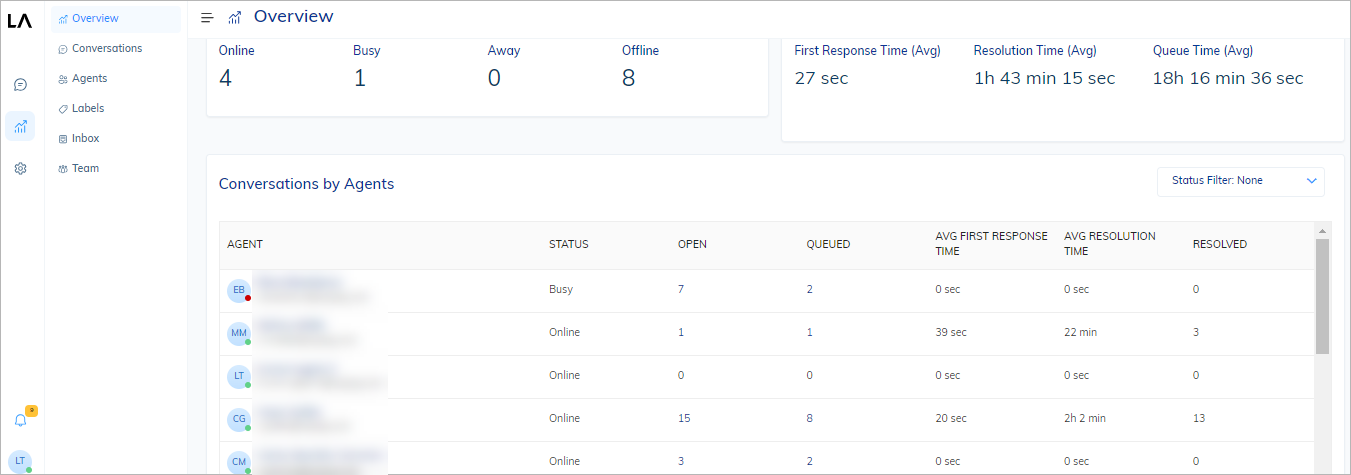
Provides information about the status and performance of agents:
| Title | Description |
| ----------------------- | ----------------------------------------------------------------------- |
| STATUS | Indicates the status of the Agent: `Away`, `Busy`, `Online`, `Offline`. |
| OPEN | Number of active conversations pending. |
| QUEUED | Indicates the number of assigned conversations waiting. |
| AVG FIRST RESPONSE TIME | Indicates the average value when an Agent responded first. |
| AVG RESOLUTION TIME | Indicates the average value when an Agent resolved a conversation. |
| RESOLVED | Indicates how many conversations were resolved by Agents. |
You can modify an agent's status when they are online by clicking an agent icon in the **Agent** column of the table.
You can set their status as `Busy` or `Away`.
However, if the agent is offline, any changes you attempt to make to their status will not be applied.
Additionally, you can filter the table data by agent status.
 ## View Reports
To view a report, do the following:
1. In the Live Agent interface, go to **Reports > Overview**.
2. At the top of the report, from the **Inbox** list, select an Inbox you want to inspect.
The report will be updated with the corresponding data related to the selected Inbox.
## More Information
* [Reports](/live-agent/reports/overview)
* [Admin reports](/live-agent/reports/admin/overview)
## View Reports
To view a report, do the following:
1. In the Live Agent interface, go to **Reports > Overview**.
2. At the top of the report, from the **Inbox** list, select an Inbox you want to inspect.
The report will be updated with the corresponding data related to the selected Inbox.
## More Information
* [Reports](/live-agent/reports/overview)
* [Admin reports](/live-agent/reports/admin/overview)