> ## Documentation Index
> Fetch the complete documentation index at: https://docs.cognigy.com/llms.txt
> Use this file to discover all available pages before exploring further.
# Webchat v3: Accessibility
> Implement WCAG 2.2 Level AA accessibility in Webchat v3, including UI element labels, media captions, text contrast settings, and accessible extension design.
Updated in 2025.14
Webchat v3 is designed to adhere to accessibility standards, specifically [WCAG 2.2 Level AA (Web Content Accessibility Guidelines)](https://www.w3.org/TR/WCAG22/). These guidelines offer detailed recommendations for making web content more accessible to people with various disabilities, including visual, auditory, physical, speech, cognitive, language, learning, and neurological impairments.
Cognigy encourages conversation designers to build solutions with accessibility in mind. Ensure that your Webchat is designed to be accessible to everyone, including individuals with varying accessibility needs.
This page outlines the following recommendations for implementing essential accessibility features:
* [Label UI elements](#label-ui-elements)
* [Add transcripts and captions for media files](#add-transcripts-and-captions-for-media-files)
* [Increase text visibility](#increase-text-visibility)
* [Revise extensions](#revise-extensions)
These measures are intended to make it easier for everyone to use your Webchat.
## Label UI Elements
Remember to label all UI elements in your Webchat to explain their purpose clearly.
Provide users with descriptive labels for each interactive element, including links, text on buttons, and forms.
Make sure the visible and [non-visible text](#aria-labels) is meaningful to help users navigate Webchat effectively.
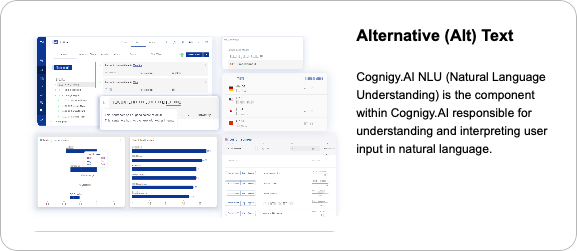
Include alternative (Alt) text to describe images for users who cannot see them. This text is pronounced by screen readers when hovering over the element. For example, include alternative text in the [Say](/ai/agents/develop/node-reference/basic/say), [Question](/ai/agents/develop/node-reference/basic/question), or [Optional Question](/ai/agents/develop/node-reference/basic/optional-question) Nodes for [images and other output types](/ai/agents/develop/node-reference/basic/say) that contain images.
 ### Aria Labels
Webchat v3 has aria labels to give access to screen readers or other assistive technologies to non-visible text. By default, the aria label texts are in English, but you can translate them to other languages or change them to other texts in the [embedding configuration](https://github.com/Cognigy/Webchat/blob/main/docs/embedding.md#aria-labels).
### Adaptive Cards
When you use the **Adaptive Card** output type in the [Say](/ai/agents/develop/node-reference/basic/say), [Question](/ai/agents/develop/node-reference/basic/question),
or [Optional Question](/ai/agents/develop/node-reference/basic/optional-question) Nodes,
ensure
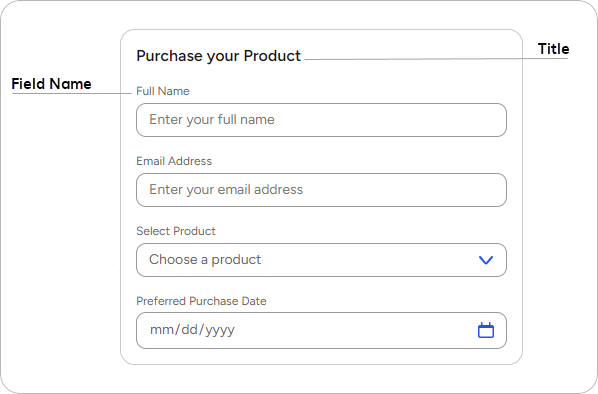
that each field in [Microsoft Adaptive Cards](https://adaptivecards.io/designer/) contains a title with meaningful text
and that the text has a hierarchical structure.
The following parameters need to be added to the JSON of the adaptive card:
* Add the `speak` parameter to ensure that screen readers announce a short summary adaptive card when it's received or focused on. Without this parameter, screen readers announce each element, which can be hard to follow.
* Each field contains the `label` parameter with meaningful text to title the field.
* Meaningful text blocks contain the `style` parameter with a value of `heading`. Headings help all users navigate and understand information more quickly as they create a hierarchical structure in an adaptive card. They improve content accessibility for visually impaired users, as screen readers announce them differently from a regular text.
### Aria Labels
Webchat v3 has aria labels to give access to screen readers or other assistive technologies to non-visible text. By default, the aria label texts are in English, but you can translate them to other languages or change them to other texts in the [embedding configuration](https://github.com/Cognigy/Webchat/blob/main/docs/embedding.md#aria-labels).
### Adaptive Cards
When you use the **Adaptive Card** output type in the [Say](/ai/agents/develop/node-reference/basic/say), [Question](/ai/agents/develop/node-reference/basic/question),
or [Optional Question](/ai/agents/develop/node-reference/basic/optional-question) Nodes,
ensure
that each field in [Microsoft Adaptive Cards](https://adaptivecards.io/designer/) contains a title with meaningful text
and that the text has a hierarchical structure.
The following parameters need to be added to the JSON of the adaptive card:
* Add the `speak` parameter to ensure that screen readers announce a short summary adaptive card when it's received or focused on. Without this parameter, screen readers announce each element, which can be hard to follow.
* Each field contains the `label` parameter with meaningful text to title the field.
* Meaningful text blocks contain the `style` parameter with a value of `heading`. Headings help all users navigate and understand information more quickly as they create a hierarchical structure in an adaptive card. They improve content accessibility for visually impaired users, as screen readers announce them differently from a regular text.
 ```json theme={null}
{
"type": "AdaptiveCard",
"speak": "Form for purchasing the product",
"$schema": "http://adaptivecards.io/schemas/adaptive-card.json",
"version": "1.6",
"body": [
{
"type": "TextBlock",
"size": "Medium",
"weight": "Bolder",
"text": "Purchase your Product",
"style": "heading"
},
{
"type": "Input.Text",
"label": "Full Name",
"placeholder": "Enter your full name"
},
{
"type": "Input.Text",
"label": "Email Address",
"placeholder": "Enter your email address"
},
{
"type": "Input.ChoiceSet",
"label": "Select Product",
"choices": [
{
"title": "AI Agent Standard",
"value": "Standard"
},
{
"title": "AI Agent Premium",
"value": "Premium"
},
{
"title": "AI Agent Enterprise",
"value": "Enterprise"
}
],
"placeholder": "Choose a product"
},
{
"type": "Input.Date",
"label": "Preferred Purchase Date",
"placeholder": "Select a date"
}
]
}
```
## Add Transcripts and Captions for Media Files
If you create an AI Agent that includes media content, such as a video clip or an audio track, try to support users with different accessibility needs in understanding this material.
For video and audio, provide the same content in an alternate format, such as a transcript and captions.
### Audio
An audio track should be provided along with the transcript for this track.
In the [Say](/ai/agents/develop/node-reference/basic/say), [Question](/ai/agents/develop/node-reference/basic/question),
or [Optional Question](/ai/agents/develop/node-reference/basic/optional-question) Nodes, for the **Audio** output type,
add the audio file and paste the transcript into the **Audio Alternative Text** field.
To convert your audio into text, you can use third-party tools such as [Transcriptor](https://transkriptor.com/),
[Sonix](https://sonix.ai/), and others.
The audio transcript can have the following format:
```txt theme={null}
[00:00] Background Music: Soft instrumental music begins playing.
[00:05] Speaker 1: How are you today?
[00:10] Speaker 2: I'm doing well, thank you. How about you?
[00:15] Speaker 1: I'm good, just busy with work. Have you seen the latest updates from Cognigy?
[00:20] Speaker 2: Yes, I checked them out! The new features look really promising.
[00:25] Speaker 1: I agree! I'm particularly excited about the NLU improvements.
[00:30] Speaker 2: Same here! I think it will really enhance our user experience.
[00:35] Speaker 1: Absolutely. Let’s plan a time to discuss how we can implement these changes.
[00:40] Speaker 2: Sounds great! I’ll send out a calendar invite.
```
The transcript should accurately reflect the number of speakers and their lines, include all the voice content present in the audio, and account for any background music.
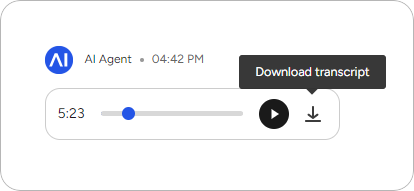
In Webchat, the transcript will be available in the audio widget under the **Download Transcript** button and accessible in `.txt` format.
```json theme={null}
{
"type": "AdaptiveCard",
"speak": "Form for purchasing the product",
"$schema": "http://adaptivecards.io/schemas/adaptive-card.json",
"version": "1.6",
"body": [
{
"type": "TextBlock",
"size": "Medium",
"weight": "Bolder",
"text": "Purchase your Product",
"style": "heading"
},
{
"type": "Input.Text",
"label": "Full Name",
"placeholder": "Enter your full name"
},
{
"type": "Input.Text",
"label": "Email Address",
"placeholder": "Enter your email address"
},
{
"type": "Input.ChoiceSet",
"label": "Select Product",
"choices": [
{
"title": "AI Agent Standard",
"value": "Standard"
},
{
"title": "AI Agent Premium",
"value": "Premium"
},
{
"title": "AI Agent Enterprise",
"value": "Enterprise"
}
],
"placeholder": "Choose a product"
},
{
"type": "Input.Date",
"label": "Preferred Purchase Date",
"placeholder": "Select a date"
}
]
}
```
## Add Transcripts and Captions for Media Files
If you create an AI Agent that includes media content, such as a video clip or an audio track, try to support users with different accessibility needs in understanding this material.
For video and audio, provide the same content in an alternate format, such as a transcript and captions.
### Audio
An audio track should be provided along with the transcript for this track.
In the [Say](/ai/agents/develop/node-reference/basic/say), [Question](/ai/agents/develop/node-reference/basic/question),
or [Optional Question](/ai/agents/develop/node-reference/basic/optional-question) Nodes, for the **Audio** output type,
add the audio file and paste the transcript into the **Audio Alternative Text** field.
To convert your audio into text, you can use third-party tools such as [Transcriptor](https://transkriptor.com/),
[Sonix](https://sonix.ai/), and others.
The audio transcript can have the following format:
```txt theme={null}
[00:00] Background Music: Soft instrumental music begins playing.
[00:05] Speaker 1: How are you today?
[00:10] Speaker 2: I'm doing well, thank you. How about you?
[00:15] Speaker 1: I'm good, just busy with work. Have you seen the latest updates from Cognigy?
[00:20] Speaker 2: Yes, I checked them out! The new features look really promising.
[00:25] Speaker 1: I agree! I'm particularly excited about the NLU improvements.
[00:30] Speaker 2: Same here! I think it will really enhance our user experience.
[00:35] Speaker 1: Absolutely. Let’s plan a time to discuss how we can implement these changes.
[00:40] Speaker 2: Sounds great! I’ll send out a calendar invite.
```
The transcript should accurately reflect the number of speakers and their lines, include all the voice content present in the audio, and account for any background music.
In Webchat, the transcript will be available in the audio widget under the **Download Transcript** button and accessible in `.txt` format.
 ### Video
A video clip should be provided along with the transcript and captions for this clip.
In the [Say](/ai/agents/develop/node-reference/basic/say), [Question](/ai/agents/develop/node-reference/basic/question),
or [Optional Question](/ai/agents/develop/node-reference/basic/optional-question) Nodes, for the **Video** output type,
add the video file, provide the alternative text (a downloadable transcript) and the URL for captions.
### Video
A video clip should be provided along with the transcript and captions for this clip.
In the [Say](/ai/agents/develop/node-reference/basic/say), [Question](/ai/agents/develop/node-reference/basic/question),
or [Optional Question](/ai/agents/develop/node-reference/basic/optional-question) Nodes, for the **Video** output type,
add the video file, provide the alternative text (a downloadable transcript) and the URL for captions.
 #### Transcript
In the [Say](/ai/agents/develop/node-reference/basic/say), [Question](/ai/agents/develop/node-reference/basic/question),
or [Optional Question](/ai/agents/develop/node-reference/basic/optional-question) Nodes, for the **Video** output type,
you need to paste a video transcript into the **Video Alternative Text** field.
To convert your video into text, you can use third-party tools such as [Transcriptor](https://transkriptor.com/),
[Sonix](https://sonix.ai/), and others.
The video transcript can have the following format:
```txt theme={null}
[00:00] Speaker 1: Welcome to our tutorial on video transcription.
[00:08] Speaker 2: In this video, we'll cover the basics of creating transcripts.
[00:16] Speaker 1: Transcripts help make your content accessible to a broader audience.
[00:21] Speaker 2: They are also useful for improving search engine optimization.
[00:25] Speaker 1: Now, let’s go over how to create a transcript step-by-step.
[00:33] Speaker 2: Be sure to check the description for links to the tools mentioned.
[00:37] Speaker 1: Thank you for watching, and don't forget to subscribe for more tutorials.
```
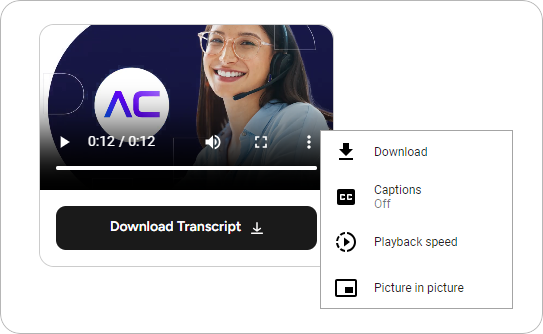
In Webchat, the transcript will be available in the video widget under the **Download Transcript** button and accessible in `.txt` format.
#### Captions
Captions are designed to make content accessible to people who are deaf or hard of hearing, and they include not only spoken dialogue but also relevant non-verbal audio cues.
In the [Say](/ai/agents/develop/node-reference/basic/say), [Question](/ai/agents/develop/node-reference/basic/question),
or [Optional Question](/ai/agents/develop/node-reference/basic/optional-question) Nodes, for the **Video** output type,
you need to paste a URL, which links to the captions, into the **Captions URL** field.
To create captions, you can use YouTube.
Upload a video, and once the captions are generated, go to **Subtitles** in YouTube Studio.
Click the video, and then select **Download** to export the captions in `.vtt` format.
Alternatively, you can use [Veed.io](https://www.veed.io/) and [Kapwing](https://www.kapwing.com/) to generate, edit, and export captions in `.vtt` format.
The file that includes captions should have the following `.vtt` format:
```txt theme={null}
1
00:00:01.000 --> 00:00:03.500
[Music playing]
2
00:00:03.600 --> 00:00:07.000
Welcome to our tutorial on video transcription.
3
00:00:07.100 --> 00:00:10.200
In this video, we'll cover the basics of creating transcripts.
4
00:00:10.300 --> 00:00:14.000
[Background noise: office sounds]
5
00:00:14.100 --> 00:00:18.000
Transcripts help make your content accessible to a broader audience.
6
00:00:18.100 --> 00:00:21.500
They are also useful for improving search engine optimization.
7
00:00:21.600 --> 00:00:25.000
Now, let's go over how to create a transcript step-by-step.
8
00:00:25.100 --> 00:00:28.000
[Background noise fades out]
9
00:00:28.100 --> 00:00:32.000
Be sure to check the description for links to the tools mentioned.
10
00:00:32.100 --> 00:00:35.500
Thank you for watching, and don't forget to subscribe for more tutorials.
11
00:00:35.600 --> 00:00:37.000
[Music fades out]
```
In Webchat, activate captions in the video widget by clicking
#### Transcript
In the [Say](/ai/agents/develop/node-reference/basic/say), [Question](/ai/agents/develop/node-reference/basic/question),
or [Optional Question](/ai/agents/develop/node-reference/basic/optional-question) Nodes, for the **Video** output type,
you need to paste a video transcript into the **Video Alternative Text** field.
To convert your video into text, you can use third-party tools such as [Transcriptor](https://transkriptor.com/),
[Sonix](https://sonix.ai/), and others.
The video transcript can have the following format:
```txt theme={null}
[00:00] Speaker 1: Welcome to our tutorial on video transcription.
[00:08] Speaker 2: In this video, we'll cover the basics of creating transcripts.
[00:16] Speaker 1: Transcripts help make your content accessible to a broader audience.
[00:21] Speaker 2: They are also useful for improving search engine optimization.
[00:25] Speaker 1: Now, let’s go over how to create a transcript step-by-step.
[00:33] Speaker 2: Be sure to check the description for links to the tools mentioned.
[00:37] Speaker 1: Thank you for watching, and don't forget to subscribe for more tutorials.
```
In Webchat, the transcript will be available in the video widget under the **Download Transcript** button and accessible in `.txt` format.
#### Captions
Captions are designed to make content accessible to people who are deaf or hard of hearing, and they include not only spoken dialogue but also relevant non-verbal audio cues.
In the [Say](/ai/agents/develop/node-reference/basic/say), [Question](/ai/agents/develop/node-reference/basic/question),
or [Optional Question](/ai/agents/develop/node-reference/basic/optional-question) Nodes, for the **Video** output type,
you need to paste a URL, which links to the captions, into the **Captions URL** field.
To create captions, you can use YouTube.
Upload a video, and once the captions are generated, go to **Subtitles** in YouTube Studio.
Click the video, and then select **Download** to export the captions in `.vtt` format.
Alternatively, you can use [Veed.io](https://www.veed.io/) and [Kapwing](https://www.kapwing.com/) to generate, edit, and export captions in `.vtt` format.
The file that includes captions should have the following `.vtt` format:
```txt theme={null}
1
00:00:01.000 --> 00:00:03.500
[Music playing]
2
00:00:03.600 --> 00:00:07.000
Welcome to our tutorial on video transcription.
3
00:00:07.100 --> 00:00:10.200
In this video, we'll cover the basics of creating transcripts.
4
00:00:10.300 --> 00:00:14.000
[Background noise: office sounds]
5
00:00:14.100 --> 00:00:18.000
Transcripts help make your content accessible to a broader audience.
6
00:00:18.100 --> 00:00:21.500
They are also useful for improving search engine optimization.
7
00:00:21.600 --> 00:00:25.000
Now, let's go over how to create a transcript step-by-step.
8
00:00:25.100 --> 00:00:28.000
[Background noise fades out]
9
00:00:28.100 --> 00:00:32.000
Be sure to check the description for links to the tools mentioned.
10
00:00:32.100 --> 00:00:35.500
Thank you for watching, and don't forget to subscribe for more tutorials.
11
00:00:35.600 --> 00:00:37.000
[Music fades out]
```
In Webchat, activate captions in the video widget by clicking  **> Captions**.
## Increase Text Visibility
### Text Resizing
Webchat supports relative font sizes to ensure that users can adjust the font size to their needs using their browser settings. If you want to customize the font size in your Webchat widget, you need to make sure that both the Webchat CSS customization and the HTML code of your website work properly with relative font sizes. To do this, you must:
* Use relative font size units, for example, `em` or `rem` instead of `px` in the [Webchat CSS customization](https://github.com/Cognigy/Webchat/blob/main/docs/css-customization.md) options.
* Avoid absolute pixel values in the HTML tag embedding the Webchat widget or set `font-size` to `100%`. These approaches allow font sizes to adapt to user preferences. For more details, refer to the [Webchat v3.25.0 release notes](https://github.com/Cognigy/Webchat/releases/tag/v3.25.0).
### Guarantee Color Contrast
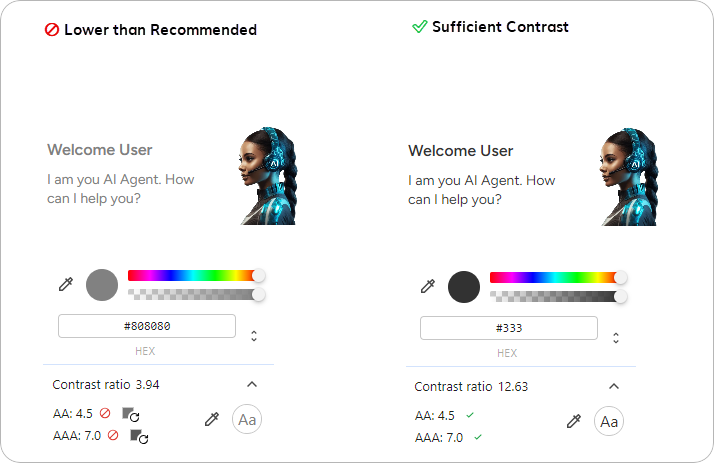
By default, Webchat v3 adheres to color contrast guidelines, ensuring a clear difference in brightness between a text and its background. This means that if a dark color is used as the primary background in Webchat, the text will automatically be light, and vice versa.
However, if you [customize the Webchat widget's home screen](/webchat/v3/configuration#home-screen), for example, with a colorful background image, ensure that the text and icons in the foreground remain visible. Use the **Color** section in the [Endpoint Settings](/webchat/v3/configuration#colors) or the [CSS customization](https://github.com/Cognigy/Webchat/blob/main/docs/css-customization.md) options to ensure color contrast.
To ensure color contrast for text, follow these guidelines:
* The minimum contrast ratio for normal text is 4.5:1. Avoid using text smaller than 12px.
* For larger text, the contrast ratio should be at least 3:1.
To verify the color contrast in your Webchat, use an online contrast checker, for example, the [WebAIM Contrast Checker](https://webaim.org/resources/contrastchecker).
You can determine the contrast ratio of your Webchat using the browser DevTools. For Chrome DevTools, follow these steps to check the color contrast ratio:
1. Open Chrome DevTools by right-clicking on the web page and select **Inspect**, or press Ctrl + Shift + I (Windows/Linux) or Cmd + Option + I (Mac).
2. In the **Elements** panel, hover over the HTML elements to highlight sections of the page or click the specific element you want to inspect.
3. In the **Styles** panel on the right, find the `color` property for the text or the `background-color` property for the background.
4. Click the color swatch next to the `color` or `background-color` value to open the color picker.
5. Look for the **Contrast Ratio** section below the color values in the color picker. The contrast ratio will be displayed, showing whether the colors meet the WCAG guidelines:
* **Passes** — shows a checkmark ✅ if the ratio meets AA or AAA standards for normal or large text.
* **Fails** — shows a prohibited symbol 🚫 if the ratio does not meet AA or AAA standards for normal or large text.
6. Use the color picker to adjust the color values. This tool updates the contrast ratio in real-time, helping you find a compliant color combination. Alternatively, to determine a color click the eyedropper icon, pick a color from anywhere on your screen and use [WebAIM Contrast Checker](https://webaim.org/resources/contrastchecker) to check the color compatibility.
**> Captions**.
## Increase Text Visibility
### Text Resizing
Webchat supports relative font sizes to ensure that users can adjust the font size to their needs using their browser settings. If you want to customize the font size in your Webchat widget, you need to make sure that both the Webchat CSS customization and the HTML code of your website work properly with relative font sizes. To do this, you must:
* Use relative font size units, for example, `em` or `rem` instead of `px` in the [Webchat CSS customization](https://github.com/Cognigy/Webchat/blob/main/docs/css-customization.md) options.
* Avoid absolute pixel values in the HTML tag embedding the Webchat widget or set `font-size` to `100%`. These approaches allow font sizes to adapt to user preferences. For more details, refer to the [Webchat v3.25.0 release notes](https://github.com/Cognigy/Webchat/releases/tag/v3.25.0).
### Guarantee Color Contrast
By default, Webchat v3 adheres to color contrast guidelines, ensuring a clear difference in brightness between a text and its background. This means that if a dark color is used as the primary background in Webchat, the text will automatically be light, and vice versa.
However, if you [customize the Webchat widget's home screen](/webchat/v3/configuration#home-screen), for example, with a colorful background image, ensure that the text and icons in the foreground remain visible. Use the **Color** section in the [Endpoint Settings](/webchat/v3/configuration#colors) or the [CSS customization](https://github.com/Cognigy/Webchat/blob/main/docs/css-customization.md) options to ensure color contrast.
To ensure color contrast for text, follow these guidelines:
* The minimum contrast ratio for normal text is 4.5:1. Avoid using text smaller than 12px.
* For larger text, the contrast ratio should be at least 3:1.
To verify the color contrast in your Webchat, use an online contrast checker, for example, the [WebAIM Contrast Checker](https://webaim.org/resources/contrastchecker).
You can determine the contrast ratio of your Webchat using the browser DevTools. For Chrome DevTools, follow these steps to check the color contrast ratio:
1. Open Chrome DevTools by right-clicking on the web page and select **Inspect**, or press Ctrl + Shift + I (Windows/Linux) or Cmd + Option + I (Mac).
2. In the **Elements** panel, hover over the HTML elements to highlight sections of the page or click the specific element you want to inspect.
3. In the **Styles** panel on the right, find the `color` property for the text or the `background-color` property for the background.
4. Click the color swatch next to the `color` or `background-color` value to open the color picker.
5. Look for the **Contrast Ratio** section below the color values in the color picker. The contrast ratio will be displayed, showing whether the colors meet the WCAG guidelines:
* **Passes** — shows a checkmark ✅ if the ratio meets AA or AAA standards for normal or large text.
* **Fails** — shows a prohibited symbol 🚫 if the ratio does not meet AA or AAA standards for normal or large text.
6. Use the color picker to adjust the color values. This tool updates the contrast ratio in real-time, helping you find a compliant color combination. Alternatively, to determine a color click the eyedropper icon, pick a color from anywhere on your screen and use [WebAIM Contrast Checker](https://webaim.org/resources/contrastchecker) to check the color compatibility.
 ## Revise Extensions
If you built a custom Node,
make sure that the Node
you created via the [Extension](/ai/for-developers/extensions) framework is developed according to accessibility standards.
## More Information
* [Webchat v3: Overview](/webchat/v3/overview)
* [Webchat v3: Features](/webchat/v3/features)
* [Webchat v3: Configuration](/webchat/v3/configuration)
* [Webchat v3: Embedding](/webchat/v3/embedding/hosted-script)
## Revise Extensions
If you built a custom Node,
make sure that the Node
you created via the [Extension](/ai/for-developers/extensions) framework is developed according to accessibility standards.
## More Information
* [Webchat v3: Overview](/webchat/v3/overview)
* [Webchat v3: Features](/webchat/v3/features)
* [Webchat v3: Configuration](/webchat/v3/configuration)
* [Webchat v3: Embedding](/webchat/v3/embedding/hosted-script)