> ## Documentation Index
> Fetch the complete documentation index at: https://docs.cognigy.com/llms.txt
> Use this file to discover all available pages before exploring further.
# Copilot: Knowledge Tile
Updated in 4.72
 ## Description
This Node provides potential answers to human agents regarding customer questions.
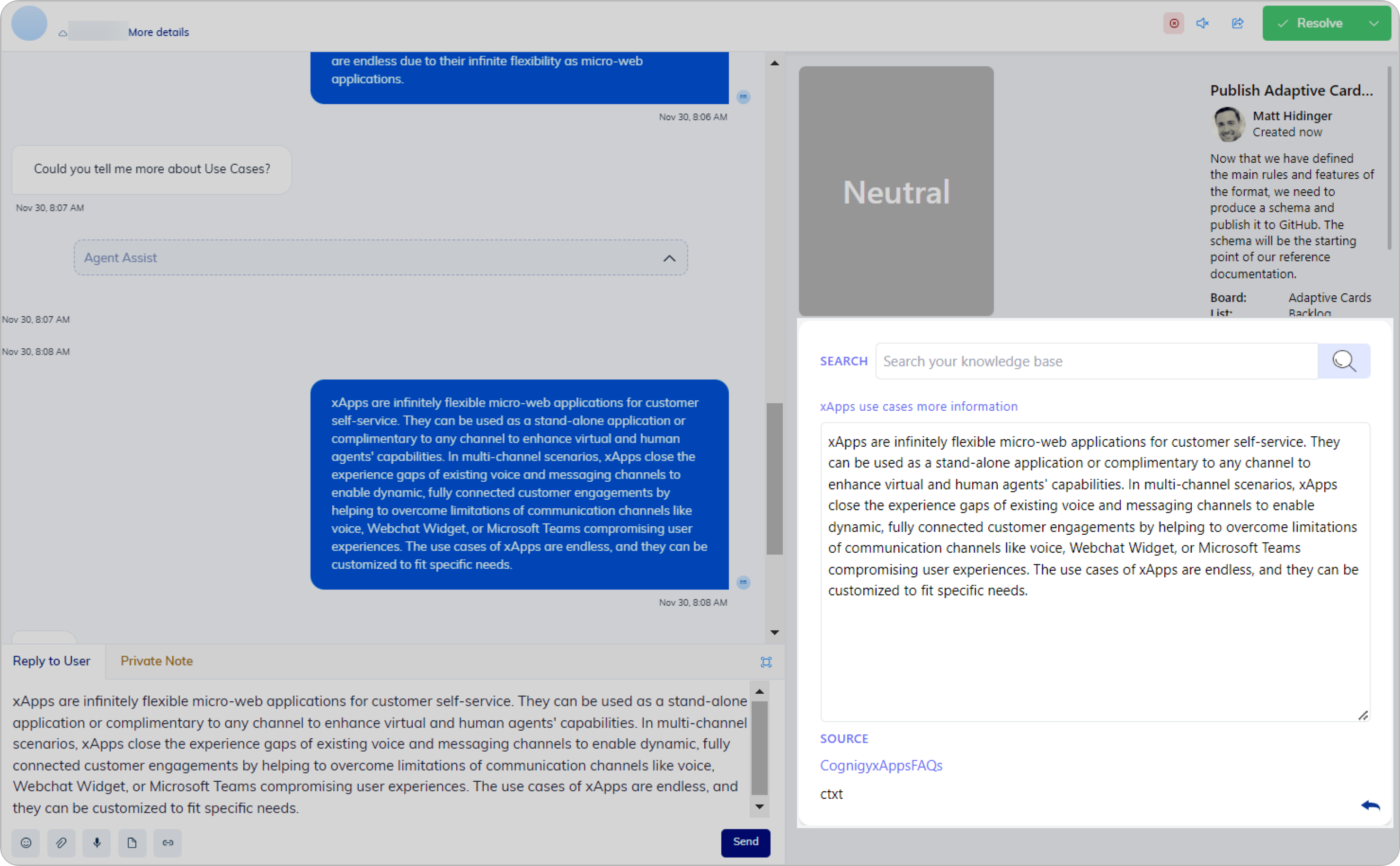
The Node creates an [Agent Copilot widget](/agent-copilot/configure/nodes) that consists of a search bar and a response form.
Additionally, it provides meta-source links,
information about the files from which knowledge was derived and hints for further questions.
The human agent uses the search bar to access a knowledge base and find information to respond to customer queries.
Responses are generated based on a Large Language Model (LLM) via Knowledge AI.
Before using the Copilot: Knowledge Tile Node, configure the LLM provider in the [Settings](/ai/agents/develop/gen-ai-and-llms/generative-ai) and select the appropriate model from the [supported model list](/ai/agents/develop/gen-ai-and-llms/model-support-by-feature).
This Node supports models with the LLM Prompt Node and the Search Extract Output Node features.
To set up the Copilot: Knowledge Tile Node, you need two Nodes for the Flow configuration: one to initiate the knowledge search process and the second one to execute it.
Additionally, to prevent the content of other widgets from updating during the Node's operation,
move the Nodes under the Else child Node of the If Node.
For more information, refer to the [Configuration](#configuration) section.
## Parameters
| Parameter | Type | Description |
| --------------- | ------------- | -------------------------------------------------------------------- |
| Tile ID | CognigyScript | The ID that you created in the Agent Copilot configuration. |
| Knowledge Store | Select | Select a store from the list to allow the Node to retrieve the data. |
If you are using Live Agent as a handover provider, you can forward information from the widget to the **Reply to User** section by clicking
## Description
This Node provides potential answers to human agents regarding customer questions.
The Node creates an [Agent Copilot widget](/agent-copilot/configure/nodes) that consists of a search bar and a response form.
Additionally, it provides meta-source links,
information about the files from which knowledge was derived and hints for further questions.
The human agent uses the search bar to access a knowledge base and find information to respond to customer queries.
Responses are generated based on a Large Language Model (LLM) via Knowledge AI.
Before using the Copilot: Knowledge Tile Node, configure the LLM provider in the [Settings](/ai/agents/develop/gen-ai-and-llms/generative-ai) and select the appropriate model from the [supported model list](/ai/agents/develop/gen-ai-and-llms/model-support-by-feature).
This Node supports models with the LLM Prompt Node and the Search Extract Output Node features.
To set up the Copilot: Knowledge Tile Node, you need two Nodes for the Flow configuration: one to initiate the knowledge search process and the second one to execute it.
Additionally, to prevent the content of other widgets from updating during the Node's operation,
move the Nodes under the Else child Node of the If Node.
For more information, refer to the [Configuration](#configuration) section.
## Parameters
| Parameter | Type | Description |
| --------------- | ------------- | -------------------------------------------------------------------- |
| Tile ID | CognigyScript | The ID that you created in the Agent Copilot configuration. |
| Knowledge Store | Select | Select a store from the list to allow the Node to retrieve the data. |
If you are using Live Agent as a handover provider, you can forward information from the widget to the **Reply to User** section by clicking  and then sending it to the end user.
For other providers, use the alternative option **Enable copy to clipboard button** to activate the Copy button on the tile.
For Salesforce, to activate the Copy button, update your Salesforce integration using [this guide](https://github.com/Cognigy/salesforce-integrations?tab=readme-ov-file#update).
| Parameter | Type | Description |
| ------------------------- | ------------- | ---------------------------------------------------------------------------------------------------------------------------------------------------------------------------------------------------------------------------------------------------------------------------------------------------------------------------------------------------------------------------------------------------------------------------------------------------- |
| Context-Aware Search | Select | Considering the transcript's context for the search. It allows an AI Agent to answer follow-up questions. You can select one of the following options:
and then sending it to the end user.
For other providers, use the alternative option **Enable copy to clipboard button** to activate the Copy button on the tile.
For Salesforce, to activate the Copy button, update your Salesforce integration using [this guide](https://github.com/Cognigy/salesforce-integrations?tab=readme-ov-file#update).
| Parameter | Type | Description |
| ------------------------- | ------------- | ---------------------------------------------------------------------------------------------------------------------------------------------------------------------------------------------------------------------------------------------------------------------------------------------------------------------------------------------------------------------------------------------------------------------------------------------------- |
| Context-Aware Search | Select | Considering the transcript's context for the search. It allows an AI Agent to answer follow-up questions. You can select one of the following options:- **On** — is the default option. When this parameter is enabled, it affects tokenization costs, which impact the amount of memory, computational power, and overall expenses needed for running an OpenAI or Azure OpenAI model.
- **Off** — the setting is turned off.
|
| Transcript Steps | Indicator | Number of prior transcript steps to use in a context-aware search. This parameter is active when the Context-Aware Search setting is enabled. |
| Where to store the result | Select | The storage for the search results. Select a storage:- **default** — the content will be stored in the Input object (`input.knowledgeSearch`).
- **Input** — the content will be stored in the Input object.
- **Context** — the content will be stored in the Context.
|
| String to search for | CognigyScript | The string to search for in the Knowledge Store. A default value is stored in `input.text`. |
| Source Tags | CognigyScript | The tags serve to refine the scope of your knowledge search, allowing you to include only the most pertinent sections of the knowledge base and, as a result, improve the accuracy of search outputs.
Before specifying tags, ensure that they were provided during the creation of the Knowledge Sources. Add tags by specifying each tag separately and pressing **enter**. The maximum number of tags is 5. |
* You can add CognigyScript within Source Tags.
* Source Tags are always lower-case, only alpha-numerics (a-z, 0-9), underscores, and hyphens are allowed.
* When using CognigyScript for Source Tags, it is important to lowercase them. For example, by using the following: `{{input.text.toLowerCase()}}`.
| Parameter | Type | Description |
| ------------------------------ | ------ | ------------------------------------------------------------------------------------------------------------------------------------------------------------------------------------------------------------------------------------------------------------------------------------------------------------------------------------------------------------------------------------------------------------------------ |
| Select Error Handling Approach | Select | You can select one of the Error Handling options:- **Stop Flow Execution** — terminate the current Flow execution.
- **Continue Flow Execution** — allow the Flow to continue executing, bypassing the error and proceeding to the next steps.
- **Go to Node** — redirect the workflow to a specific Node in the Flow, which can be useful for error recovery or customized error handling.
|
| Error Message (optional) | Text | Active when the **Continue Flow Execution** option is selected. Optional message to output if the Search or Extract service fails. |
| Select Flow | Select | Active when the **Go to Node** option is selected. Select a Flow from the available options. |
| Select Node | Select | Active when the **Go to Node** option is selected. Select a Node from the available options. |
## Configuration
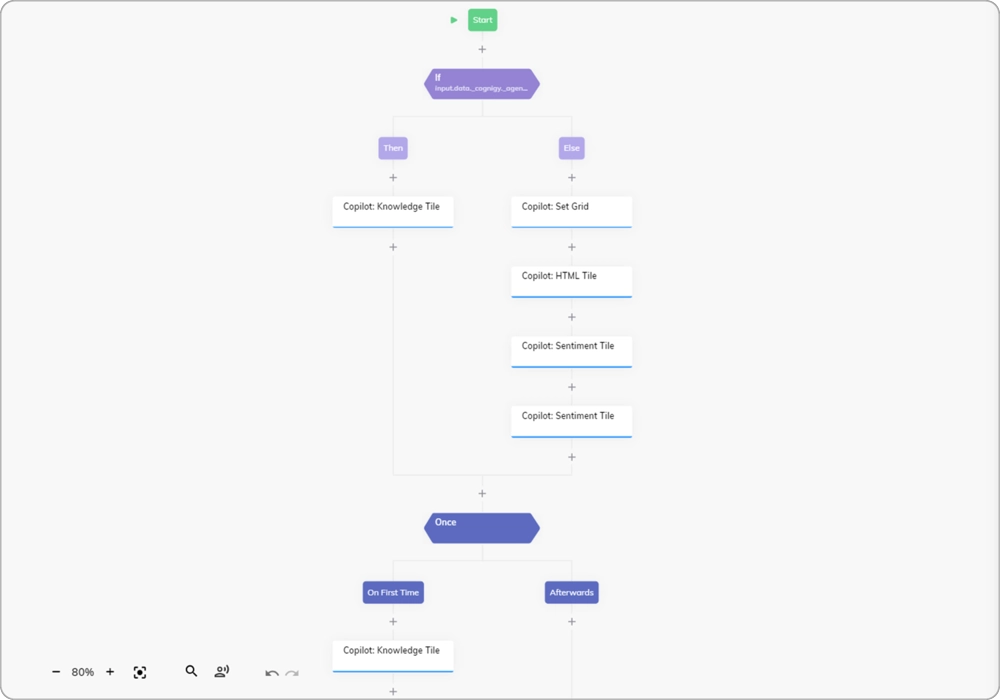
To use the Copilot: Knowledge AI widget, configure the following Flow:
1. Add an **If** Node.
2. Open the **If** Node editor.
3. In the **Condition** field, specify the following condition: `input.data._cognigy._agentAssist.payload.tileId === "tile-id"`, where `tile-id` is a Knowledge tile ID that you created in the Agent Copilot configuration via API.
4. In the **Knowledge Store** field, select the source that you want to use for searching knowledge.
5. Below the **Then** child Node, place the **Copilot: Knowledge Tile** Node.
6. Below the **Else** child Node, add the other Copilot tile Nodes. This step is necessary to ensure that the content of these Nodes does not get updated during the operation of the **Copilot: Knowledge Tile** Node.
7. Below the **Copilot: Knowledge Tile** Node and other tile Nodes, place the **Once** child Node.
8. Below the **On First Time** child Node, add a duplicate of the **Copilot: Knowledge Tile** Node.
If the Flow is not working or issues arise with the Knowledge Source, try creating a new Agent and running the Flow in it.
 Test your Flow by using a [Demo Webchat](/webchat/demo) in the Webchat Endpoint. You can use Live Agent as a handover provider or any other available provider.
 ## More Information
* [Copilot: Transcript Tile](/ai/agents/develop/node-reference/agent-copilot/transcript-tile)
* [Copilot: Sentiment Tile Node](/ai/agents/develop/node-reference/agent-copilot/sentiment-tile)
* [Copilot: Identity Tile](/ai/agents/develop/node-reference/agent-copilot/identity-tile)
* [Agent Copilot Nodes](/ai/agents/develop/node-reference/agent-copilot/overview)
* [Agent Copilot](/agent-copilot/overview)
## More Information
* [Copilot: Transcript Tile](/ai/agents/develop/node-reference/agent-copilot/transcript-tile)
* [Copilot: Sentiment Tile Node](/ai/agents/develop/node-reference/agent-copilot/sentiment-tile)
* [Copilot: Identity Tile](/ai/agents/develop/node-reference/agent-copilot/identity-tile)
* [Agent Copilot Nodes](/ai/agents/develop/node-reference/agent-copilot/overview)
* [Agent Copilot](/agent-copilot/overview)