> ## Documentation Index
> Fetch the complete documentation index at: https://docs.cognigy.com/llms.txt
> Use this file to discover all available pages before exploring further.
# Copilot: Transcript Tile
Updated in 4.60
 ## Description
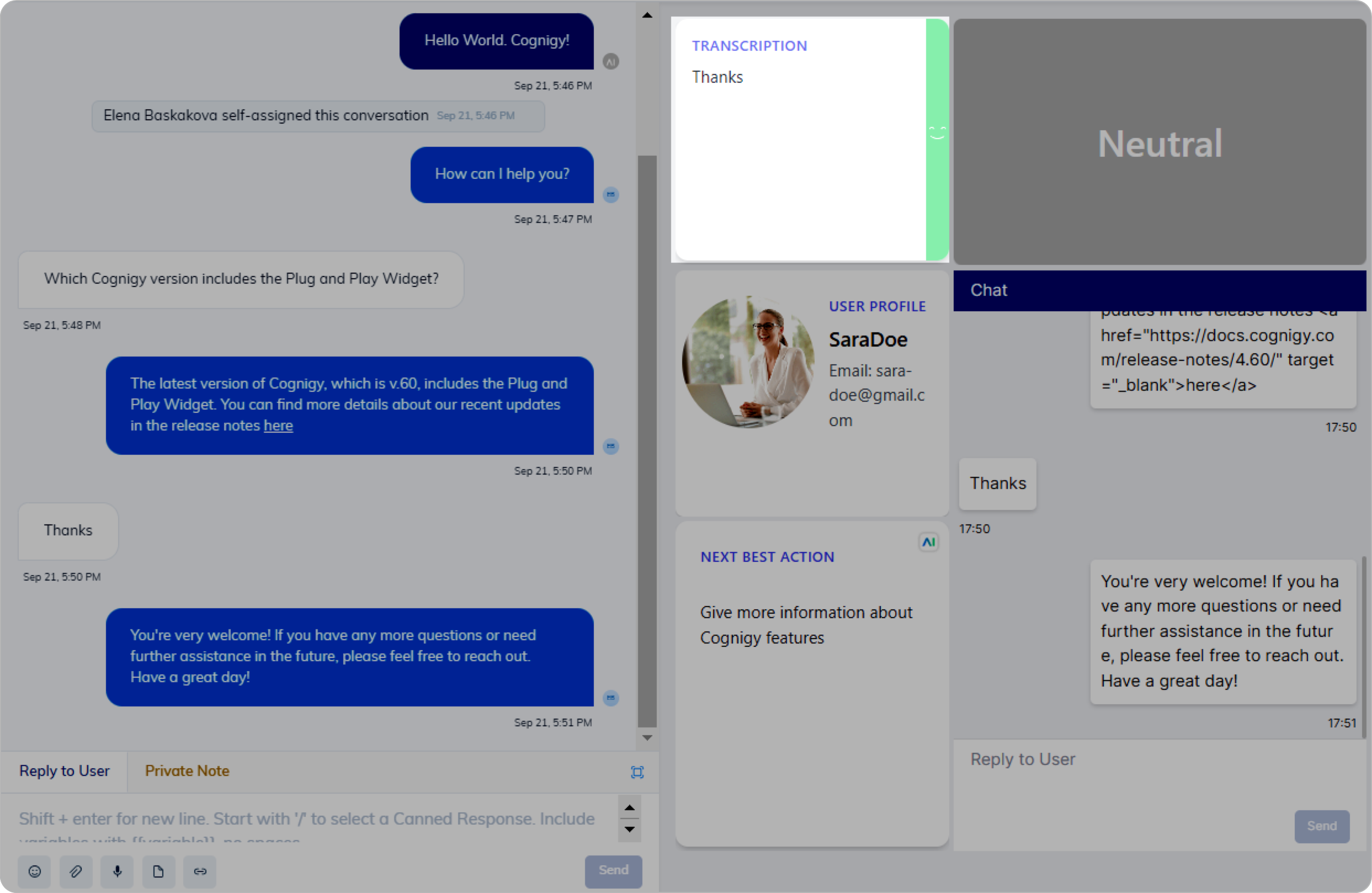
This Node captures the most recent customer response and displays it on a designated Widget within the Agent Copilot workspace.
Additionally, the Copilot: Transcript Tile offers the option to enable Sentiment Analysis,
which allows for assessing the user's speech tone.
This sentiment analysis can provide insights into whether the user's response is positive, negative, or neutral.
Before using this option,
set the LLM provider in the [Settings](/ai/agents/develop/gen-ai-and-llms/generative-ai)
and select the appropriate model in the [supported model list](/ai/agents/develop/gen-ai-and-llms/model-support-by-feature).
## Parameters
| Parameter | Type | Description |
| ---------------- | ------------- | ----------------------------------------------------------------------------------------------------------------------------------------------------------------------------------------------------------------------------- |
| Tile ID | CognigyScript | The ID that you created in the Agent Copilot configuration. |
| Enable sentiment | Toggle | This option allows you to decide if sentiment analysis should be applied to the customer's voice input. Enabling this option means that Cognigy.AI assesses the emotional tone (positive, negative, or neutral) of the input. |
## Use Case
This Node is well-suited for scenarios involving voice calls,
where a human agent needs to listen to the user's speech and make quick decisions.
In such cases, the Copilot: Transcript Tile plays a crucial role in recording and presenting the user's spoken responses.
This approach allows human agents to have immediate access to this information,
thereby facilitating more effective and efficient communication and decision-making during voice call interactions.
## Description
This Node captures the most recent customer response and displays it on a designated Widget within the Agent Copilot workspace.
Additionally, the Copilot: Transcript Tile offers the option to enable Sentiment Analysis,
which allows for assessing the user's speech tone.
This sentiment analysis can provide insights into whether the user's response is positive, negative, or neutral.
Before using this option,
set the LLM provider in the [Settings](/ai/agents/develop/gen-ai-and-llms/generative-ai)
and select the appropriate model in the [supported model list](/ai/agents/develop/gen-ai-and-llms/model-support-by-feature).
## Parameters
| Parameter | Type | Description |
| ---------------- | ------------- | ----------------------------------------------------------------------------------------------------------------------------------------------------------------------------------------------------------------------------- |
| Tile ID | CognigyScript | The ID that you created in the Agent Copilot configuration. |
| Enable sentiment | Toggle | This option allows you to decide if sentiment analysis should be applied to the customer's voice input. Enabling this option means that Cognigy.AI assesses the emotional tone (positive, negative, or neutral) of the input. |
## Use Case
This Node is well-suited for scenarios involving voice calls,
where a human agent needs to listen to the user's speech and make quick decisions.
In such cases, the Copilot: Transcript Tile plays a crucial role in recording and presenting the user's spoken responses.
This approach allows human agents to have immediate access to this information,
thereby facilitating more effective and efficient communication and decision-making during voice call interactions.
 ## More Information
* [Copilot: Next Action Tile](/ai/agents/develop/node-reference/agent-copilot/next-action-tile)
* [Copilot: Sentiment Tile](/ai/agents/develop/node-reference/agent-copilot/sentiment-tile)
* [Copilot: Identity Tile](/ai/agents/develop/node-reference/agent-copilot/identity-tile)
* [Agent Copilot Nodes](/ai/agents/develop/node-reference/agent-copilot/overview)
* [Agent Copilot](/agent-copilot/overview)
## More Information
* [Copilot: Next Action Tile](/ai/agents/develop/node-reference/agent-copilot/next-action-tile)
* [Copilot: Sentiment Tile](/ai/agents/develop/node-reference/agent-copilot/sentiment-tile)
* [Copilot: Identity Tile](/ai/agents/develop/node-reference/agent-copilot/identity-tile)
* [Agent Copilot Nodes](/ai/agents/develop/node-reference/agent-copilot/overview)
* [Agent Copilot](/agent-copilot/overview)