# Chat
 With *Chat* mode, you can chat with your AI Agent to test, [debug](#debug-mode), and improve it.
## How to Use Chat Mode
To open chat mode, click the
With *Chat* mode, you can chat with your AI Agent to test, [debug](#debug-mode), and improve it.
## How to Use Chat Mode
To open chat mode, click the  tab in the [Interaction Panel](/ai/agents/test/interaction-panel/overview). Chat mode works as a common chat interface that simulates your [Flows](/ai/agents/develop/projects-and-flows/overview) based on the [Interaction Panel settings](/ai/agents/test/interaction-panel/overview). You can also click
  to activate your device's microphone and record voice input.
Additionally, you can use the [debug mode](#debug-mode) to analyze the [natural language understanding](/ai/platform-features/nlu/overview) (NLU) results, Flow transitions, and specific Node outputs.
### Debug Mode
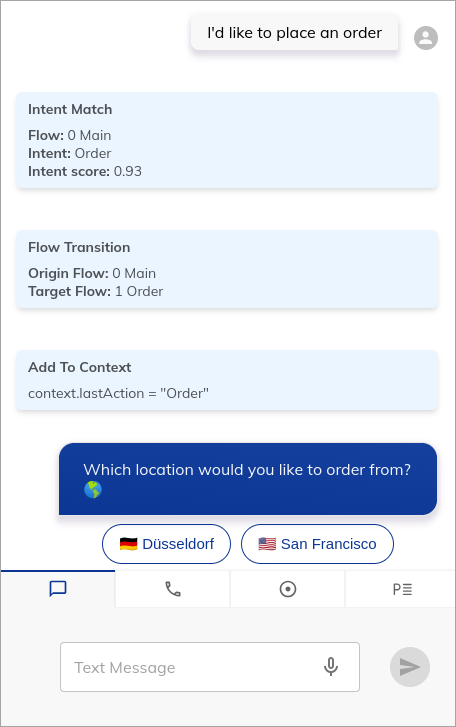
Debug mode displays more information about the Flow execution than just user and AI Agent messages for better understanding of the conversation. Debug mode is activated by default. With this mode, you can check:
* Triggered [Intents](/ai/platform-features/nlu/intents/overview) and their [scores](/ai/platform-features/nlu/intents/intent-analyzer)
* Triggered [Yes/No Intents](/ai/platform-features/nlu/intents/yes-no-intents) and their [scores](/ai/platform-features/nlu/intents/intent-analyzer)
* Matched [Slots](/ai/platform-features/nlu/slots/overview)
* Found [Lexicon Keyphrases](/ai/platform-features/nlu/slots/user-defined/lexicon)
* [State](/ai/agents/test/interaction-panel/state) changes
* Flow Transitions, for example, when executing a [Go To Node](/ai/agents/develop/node-reference/logic/go-to), an [Execute Flow Node](/ai/agents/develop/node-reference/logic/execute-flow), or triggering an [Attached Flow](/ai/platform-features/nlu/attachments)
* Node-specific output, for example, from an [HTTP Request Node](/ai/agents/develop/node-reference/service/http-request)
Some Nodes have settings that let you further configure their debug mode output. You can turn off node-specific outputs selectively in the [Interaction Panel settings](/ai/agents/test/interaction-panel/overview#configure-the-interaction-panel).
You can explicitly trigger debug messages either using the [Debug Message Node](/ai/agents/develop/node-reference/basic/debug-message) or [debug actions](/ai/for-developers/code/actions#actions) in the Code Node.
to activate your device's microphone and record voice input.
Additionally, you can use the [debug mode](#debug-mode) to analyze the [natural language understanding](/ai/platform-features/nlu/overview) (NLU) results, Flow transitions, and specific Node outputs.
### Debug Mode
Debug mode displays more information about the Flow execution than just user and AI Agent messages for better understanding of the conversation. Debug mode is activated by default. With this mode, you can check:
* Triggered [Intents](/ai/platform-features/nlu/intents/overview) and their [scores](/ai/platform-features/nlu/intents/intent-analyzer)
* Triggered [Yes/No Intents](/ai/platform-features/nlu/intents/yes-no-intents) and their [scores](/ai/platform-features/nlu/intents/intent-analyzer)
* Matched [Slots](/ai/platform-features/nlu/slots/overview)
* Found [Lexicon Keyphrases](/ai/platform-features/nlu/slots/user-defined/lexicon)
* [State](/ai/agents/test/interaction-panel/state) changes
* Flow Transitions, for example, when executing a [Go To Node](/ai/agents/develop/node-reference/logic/go-to), an [Execute Flow Node](/ai/agents/develop/node-reference/logic/execute-flow), or triggering an [Attached Flow](/ai/platform-features/nlu/attachments)
* Node-specific output, for example, from an [HTTP Request Node](/ai/agents/develop/node-reference/service/http-request)
Some Nodes have settings that let you further configure their debug mode output. You can turn off node-specific outputs selectively in the [Interaction Panel settings](/ai/agents/test/interaction-panel/overview#configure-the-interaction-panel).
You can explicitly trigger debug messages either using the [Debug Message Node](/ai/agents/develop/node-reference/basic/debug-message) or [debug actions](/ai/for-developers/code/actions#actions) in the Code Node.
 ## More Information
* [Interaction Panel](/ai/agents/test/interaction-panel/overview)
* [Intents](/ai/platform-features/nlu/intents/overview)
* [Slots](/ai/platform-features/nlu/slots/overview)
* [Lexicons](/ai/platform-features/nlu/slots/user-defined/lexicon)
* [State](/ai/agents/test/interaction-panel/state)
## More Information
* [Interaction Panel](/ai/agents/test/interaction-panel/overview)
* [Intents](/ai/platform-features/nlu/intents/overview)
* [Slots](/ai/platform-features/nlu/slots/overview)
* [Lexicons](/ai/platform-features/nlu/slots/user-defined/lexicon)
* [State](/ai/agents/test/interaction-panel/state)