> ## Documentation Index
> Fetch the complete documentation index at: https://docs.cognigy.com/llms.txt
> Use this file to discover all available pages before exploring further.
# Automatic Mode
Updated in 2025.16
Live Agent has been put in maintenance mode. The product will continue to be maintained in the foreseeable future. Users can continue to fully rely on Live Agent being available. In future releases, only security updates and bug fixes will be provided; no new features will be released.
*Automatic mode* includes two key features: Auto Assignment and Allow conversations to be reassigned, that allocate conversations to agents. Automatic assignment distributes conversations among online agents, while automatic reassignment reassigns conversations in real time based on agent availability changes. These features optimize conversation handling and improve customer support efficiency.
In automatic mode, conversations can be automatically assigned or reassigned to users with specific Live Agent roles within a specific inbox: `Agent`, `Supervisor`, or `Administrator`.
There are different scenarios for distributing conversations to human agents based on their online status and workload:
* **Online Agents**. When a conversation is created in the Inbox, and there are agents online with access to it, the system distributes the conversations evenly among them.
Unassigned conversations are automatically assigned to agents when the [limit threshold](/live-agent/settings/account-settings#conversation-limit-per-agent) is lower than the maximum value, and they take precedence over newly incoming conversations.
* **Offline Agents**. When a conversation is created in the Inbox, and there are no agents online with access to it, the system will leave all conversations unassigned.
## Restrictions
* You can't trigger automatic assignment and automatic reassignment manually. For example, if Agent 1 manually removes themselves from a conversation and Agent 2 has available capacity, the system won't reassign the conversation to Agent 2. Instead, reassignment will only occur when a triggering event, such as a logout/login action, takes place.
## Automatic Assignment
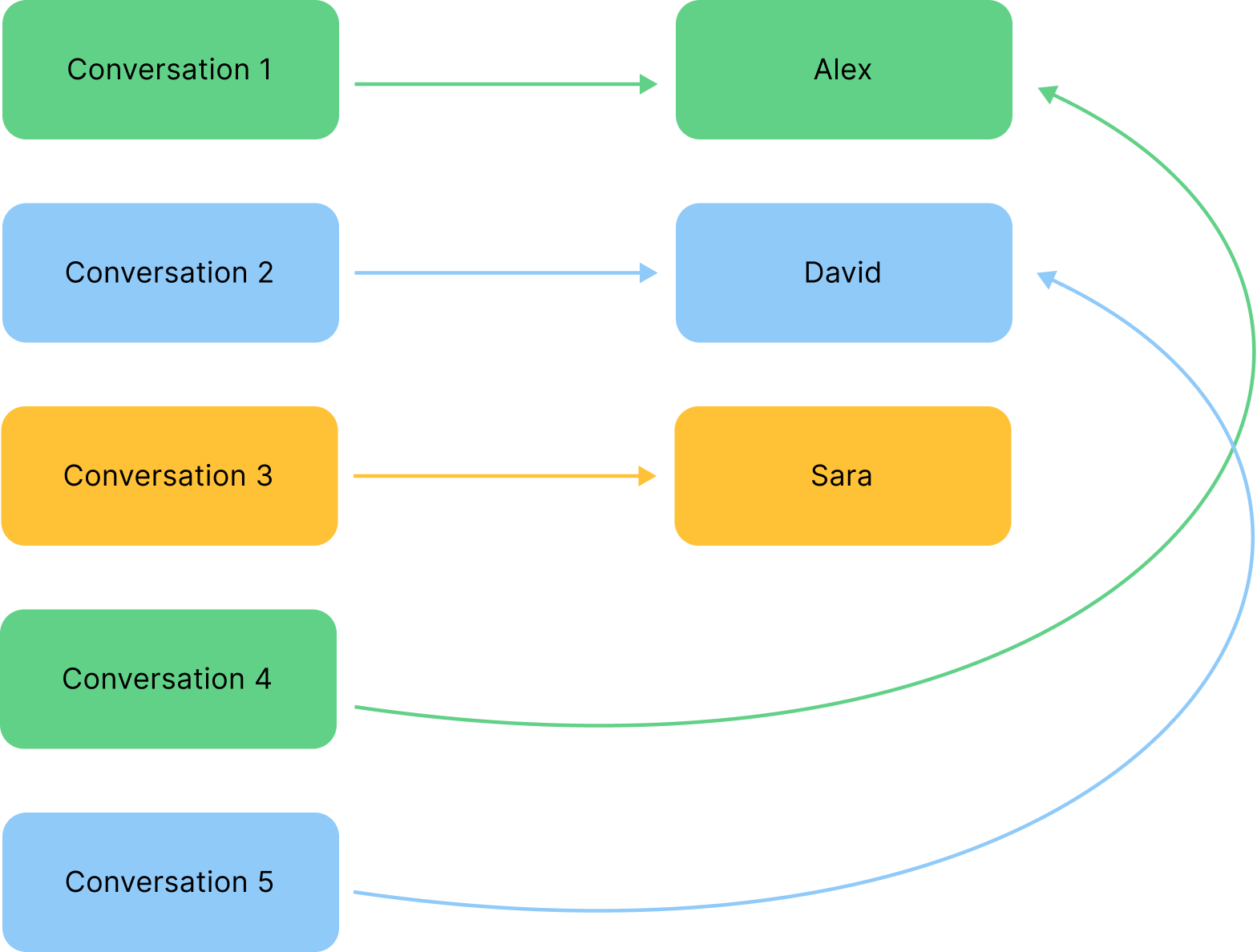
Live Agent provides an auto-assignment system for conversations based on *round-robin* logic by default. Using this logic, the system automatically distributes incoming conversations in a sequential manner among your human agents.
When set up, the action lists users and assigns conversations one by one. For example, if your Customer Support team consists of three users, the first conversation goes to Alex, the second to David, and the third to Sara. When the fourth conversation arrives, the cycle starts again, and it will be assigned to Alex.
 You can configure the auto-assignment system by using the **Auto Assignment** setting. This setting is activated by default for all Inboxes. You can change this behavior for a specific Inbox.
To configure auto assignment in your Inbox, follow these steps:
1. Go to **Settings > Inboxes**.
2. Select an Inbox from the list and click
You can configure the auto-assignment system by using the **Auto Assignment** setting. This setting is activated by default for all Inboxes. You can change this behavior for a specific Inbox.
To configure auto assignment in your Inbox, follow these steps:
1. Go to **Settings > Inboxes**.
2. Select an Inbox from the list and click  .
3. On the **Collaborators** tab, go to the **Conversation Assignment** section.
4. From the **Allow auto assignment** list, select one of the following options:
* Enable — allows the automatic assignment of agents to conversations. The setting is activated by default.
* Disable — allows the manual assignment of agents to conversations.
The changes will be applied.
### Additional Automatic Assignment Parameters
By default, [automatic assignment](#automatic-assignment) doesn't take into account additional parameters,
such as the number of conversations being handled by each agent, agent skills, or conversation priority.
In this case,
new conversations may be assigned to any available agent without considering their current workload, skills, or language.
You can control this behavior by using the following settings:
| Setting | Description | Example |
| ------------------------------- | ------------------------------------------------------------------------------------------------------------------------------------------------------------------------------------------------------------------------------------------------------------------------------------------------------------------------------------------------------------------------------------------------------------ | ------------------------------------------------------------------------------------------------------------------------------------------------------------------------------------------------------------------------------------------------------------------------------------------------------------------------------------- |
| Consider conversation count | When this setting is enabled, Live Agent takes into account the number of conversations that each agent is already handling before assigning new conversations to them. Using this setting, the system automatically distributes incoming conversations in a balanced manner among your human agents. It prevents your agents from becoming overwhelmed and ensures your customers receive prompt responses. | If Alex is currently handling three conversations, and Sara is handling one conversation, the system will assign new incoming conversations to Sara, as she has a lower workload. More examples of how this setting works can be found in [Scenario 6](#common-scenarios). |
| Consider conversation skills | When this setting is enabled, Live Agent considers an agent's proficiency in specific skills when assigning new conversations to ensure a more balanced workload distribution among agents with the relevant expertise | If a conversation requires expertise in the Billing skill, and if Alex possesses expertise in Technical Support while Sara specializes in Billing, the system will assign new conversations requiring the Billing skill to Sara. More examples of how this setting works can be found in [Scenario 6](#common-scenarios). |
| Consider conversation languages | When this setting is enabled, Live Agent takes into account the languages an agent is proficient in when assigning new conversations. This ensures that customer inquiries in different languages are directed to agents who can effectively communicate in those languages. | If a customer inquiry is in Spanish, and Alex is not fluent in Spanish while Sara is, the system will assign that conversation to Sara. More examples of how this setting works can be found in [Scenario 7](#common-scenarios). |
| Consider conversation priority | When this setting is enabled, Live Agent prioritizes conversations based on their urgency. The priority option is primarily applicable to reassigned or queued conversations, not to new incoming ones. | If there are both High priority and Urgent priority conversations in the Conversation Queue, the system will assign the Urgent conversation first to Alex. If Sara is online, the second High priority conversation will be assigned to her. More examples of how this setting works can be found in [Scenario 8](#common-scenarios). |
When agents have an equal number of active conversations, they'll be assigned the next conversation in order using standard round-robin logic. If online agents lack the necessary skill, the conversation will be directed to the nearest available agent through the standard round-robin logic.
To consider additional automatic assignment parameters within your Inbox, follow these steps:
1. Go to **Settings > Inboxes**.
2. Select an Inbox from the list and click .
3. On the **Collaborators** tab, go to the **Conversation Assignment** section.
4. Activate the following options:
* Consider conversation count — consider agent workload.
* Consider conversation skills — consider agent skills.
* Consider conversation languages — consider agent languages.
* Consider conversation priority — consider conversation urgency.
The changes will be applied.
## Automatic Reassignment
Live Agent provides an auto-reassignment system for conversations. This system follows a round-robin approach, similar to [automatic assignment](#automatic-assignment).
The auto-reassignment system operates in real-time, triggered by specific agent-related events. These events include:
* When a human agent changes their availability to `Offline` or `Away`.
* When a human agent logs out.
When one of these events is triggered, the conversations assigned to the human agent are automatically reassigned to other available human agents. If no human agents are currently online, the conversations are marked as unassigned.
You can configure the auto-reassignment system by using the **Allow conversations to be reassigned** setting. This setting is activated by default for all Inboxes. You can change this behavior for a specific Inbox.
To configure auto reassignment in your Inbox, follow these steps:
1. Go to **Settings > Inboxes**.
2. Select an Inbox from the list and click .
3. On the **Collaborators** tab, go to the **Conversation Assignment** section.
4. From the **Allow conversations to be reassigned** list, select one of the following options:
* Enable — allows the automatic reassignment of agents to conversations. The setting is activated by default.
* Disable — allows the manual reassignment of agents to conversations.
The changes will be applied.
## Automatic Assignment and Reassignment for Busy Agents
By default, human agents with `Busy` status can't be assigned or reassigned automatically.
If an agent is already assigned conversations before they become busy,
those assigned conversations will remain in the [Conversation Queue](/live-agent/conversation/conversation-queue/overview).
However, new conversations will not be assigned to that agent until they're no longer in the `Busy` status.
You can modify this behavior by enabling the [Auto Assign Conversations to a Busy Agent](/live-agent/settings/account-settings#auto-assign-conversations-to-busy-agents) option in **Account Settings**. Note that this setting is activated at the Live Agent installation level, and you can't modify the behavior for a specific Inbox.
When the setting is activated, busy agents will be treated as having an `Online` status and following the same assignment and reassignment rules as other available agents.
## Automatic Assignment and Reassignment of Snoozed Conversations
### Conversation is Snoozed
When a conversation is snoozed `until next reply`, the system evaluates the following conditions:
```text theme={null}
Is the agent at their conversation limit?
├─ Yes → Conversation is unassigned to free up the agent.
└─ No
├─ Agent is online or busy → Keep the conversation assigned
└─ Agent is away or offline → Unassign
```
The agent limitation check has the highest priority.
Snoozed conversations set to `until next day` and `until next week` automatically trigger reassignment. However, if the human agent who snoozed the conversation goes `offline` or becomes `away`, the system may unassign the conversation based on availability logic.
**Example:**
Agent Sara snoozes a conversation until the next day, expecting to pick it up during her next shift. However, she logs off shortly afterward. When she returns, the conversation is no longer assigned to her because the system unassigned it when she went offline.
This behavior follows standard availability logic and applies even to snoozed conversations.
### Reopen Snoozed Conversations
```text theme={null}
├─ Still assigned? → Status is updated to Open.
└─ Unassigned? → System searches for an available agent and reassigns.
```
* When reopened:
* Status is updated to `Open`.
* Reassignment will be attempted. If no available human agent is found, the conversation remains unassigned.
## Common Scenarios
The routing process depends on incoming data and the combination of settings you have configured at the Account Settings level and Inbox level.
There are various common scenarios or situations relevant to the automatic mode.
This is the default scenario where all conversations are assigned to the first available agent.
Source table:
```txt theme={null}
| Agent name | Status |
|------------|---------|
| Agent 1 | Online |
| Agent 2 | Online |
| Agent 3 | Online |
| Agent 4 | Offline |
```
Conditions:
* No [conversation limit](/live-agent/settings/account-settings#conversation-limit-per-agent) per agent.
* 4 conversations are created.
* Activated:
* Automatic Conversation Assignment.
* Automatic Conversation Reassignment.
* Deactivated:
* Auto Assign Conversations to a Busy Agent.
* Consider Conversation Count.
Result: Agent 1 receives the first and fourth conversations, Agent 2 receives the second, Agent 3 gets the third.
Source table:
```txt theme={null}
| Agent name | Limit | Status |
|------------|-------|---------|
| Agent 1 | 2 | Online |
| Agent 2 | 2 | Busy |
| Agent 3 | 2 | Away |
| Agent 4 | 2 | Offline |
```
Common conditions:
* The limit is 2 conversations per agent.
* 4 conversations are created.
**Example 1**
Additional conditions:
* Auto Assign Conversations to a Busy Agent is deactivated.
* Automatic Conversation Assignment is activated.
* Automatic Conversation Reassignment is activated.
Result: The first two will be assigned to Agent 1, and the next two remain unassigned.
**Example 2**
Additional conditions:
* Automatic Conversation Assignment is activated.
* Automatic Conversation Reassignment is activated.
* Auto Assign Conversations to a Busy Agent is activated.
Result: Agent 1 receives the first conversation, Agent 2 receives the second, Agent 1 gets the third, and Agent 2 gets the fourth.
**Example 3**
Additional conditions:
* Automatic Conversation Assignment is activated.
* Automatic Conversation Reassignment is deactivated.
* Auto Assign Conversations to a Busy Agent is deactivated.
* Agent 1 goes offline.
Result: The first two conversations will remain assigned to Agent 1, and the next two remain unassigned.
**Example 4**
Additional conditions:
* Automatic Conversation Assignment is deactivated.
* Automatic Conversation Reassignment is activated.
* Auto Assign Conversations to a Busy Agent is activated.
Result: All conversations remain unassigned.
Source table:
```txt theme={null}
| Agent name | Status |
|------------|--------|
| Agent 1 | Online |
| Agent 2 | Online |
| Agent 3 | Online |
| Agent 4 | Online |
```
Common conditions:
* Activated:
* Automatic Conversation Reassignment.
* Automatic Conversation Assignment.
* Deactivated:
* Consider Conversation Count.
* Auto Assign Conversations to a Busy Agent is activated or deactivated.
**Example 1**
Additional conditions:
* The limit is 2 conversations per agent.
* 4 conversations are created.
Result: Each agent receives one conversation.
**Example 2**
* The limit is 2 conversations per agent.
* 8 conversations are created.
* Agent 1 has changed the status to `Away` after the conversation assignment.
Result: Each agent has two ongoing conversations. However, when Agent 1 goes offline or is marked as away, their two conversations will remain unassigned.
Source table:
```txt theme={null}
| Agent name | Limit | Status |
|------------|-------|---------|
| Agent 1 | 2 | Offline |
| Agent 2 | 2 | Away |
| Agent 3 | 2 | Offline |
| Agent 4 | 2 | Busy |
```
Common conditions:
* The limit is 2 conversations per agent.
* 4 conversations are created.
* Activated:
* Automatic Conversation Reassignment.
* Automatic Conversation Assignment.
* Deactivated:
* Consider Conversation Count.
**Example 1**
Additional conditions:
* Auto Assign Conversations to a Busy Agent is deactivated.
Result: all conversations will be unassigned.
**Example 2**
Additional conditions:
* Auto Assign Conversations to a Busy Agent is deactivated.
* Agent 1 has changed the status to `Online`.
Result: When Agent 1 returns online, two conversations will be assigned to an agent, and two conversations will remain unassigned.
**Example 3**
Additional conditions:
* Auto Assign Conversations to a Busy Agent is activated.
Result: The first two conversations will be assigned to Agent 4, and the next two remain unassigned.
Source table:
```txt theme={null}
| Agent name | Limit | Status |
|------------|-------|---------|
| Agent 1 | 2 | Offline |
| Agent 2 | 2 | Offline |
| Agent 3 | 2 | Offline |
| Agent 4 | 2 | Offline |
```
Common conditions:
* The limit is 2 conversations per agent.
* Activated:
* Automatic Conversation Reassignment.
* Automatic Conversation Assignment.
* Deactivated:
* Consider Conversation Count.
**Example 1**
Additional conditions:
* 5 conversations are created.
* Auto Assign Conversations to a Busy Agent is activated or deactivated.
Result: All conversations are unassigned.
**Example 2**
Additional conditions:
* Auto Assign Conversations to a Busy Agent is deactivated.
* Agent 1 has changed the status to `Busy`.
Result: All conversations are unassigned.
**Example 3**
Additional conditions:
* Auto Assign Conversations to a Busy Agent is activated.
* Agent 1 has changed the status to `Busy`.
Result: When Agent 1 has changed the status from `Offline` to `Busy`, two conversations are assigned to this human agent.
Source table:
```txt theme={null}
| Agent name | Limit | Status | Conversations |
|------------|-------|---------|---------------|
| Agent 1 | 5 | Online | 2 |
| Agent 2 | 5 | Online | 3 |
| Agent 3 | 5 | Online | 1 |
| Agent 4 | 5 | Online | 4 |
```
Common conditions:
* The limit is 5 conversations per agent.
* Each agent has assigned conversations.
* Activated:
* Automatic Conversation Assignment.
* Automatic Conversation Reassignment.
* Consider Conversation Count.
**Example 1**
Additional conditions:
* 3 new incoming conversations.
* Deactivated: Auto Assign Conversations to a Busy Agent.
Result: The first conversation is assigned to Agent 3, while the second and third conversations are randomly assigned to either Agent 1 or Agent 3.
**Example 2**
Additional conditions:
* 4 new incoming conversations.
* Auto Assign Conversations to a Busy Agent is deactivated.
* Agent 3 has changed the status to `Offline`, `Away`, or `Busy`.
Result: The first conversation will be assigned to Agent 1. The second conversation will be assigned to either Agent 1 or Agent 2. The third conversation will be assigned to the Agent who is left with three conversations. The fourth conversation will be randomly assigned to one of the three agents.
Source table:
```txt theme={null}
| Agent name | Limit | Status | Conversations | Skills |
|------------|-------|--------|---------------|-------------------|
| Agent 1 | 5 | Online | 1 | Technical support |
| Agent 2 | 5 | Online | 1 | Billing |
| Agent 3 | 5 | Online | 1 | Customer Support |
| Agent 4 | 5 | Online | 1 | Technical support |
```
Common conditions:
* The limit is 5 conversations per agent.
* Each agent is assigned per conversation.
* Activated:
* Automatic Conversation Assignment.
* Automatic Conversation Reassignment.
* Consider Conversation Count.
* Consider Conversation Skills.
**Example 1**
Additional conditions:
* 1 new incoming conversation with the `Technical support` skill.
* 1 new incoming conversation with the `Technical support`, `Billing` skills.
* Deactivated: Auto Assign Conversations to a Busy Agent.
Result: The first conversation is assigned to either Agent 1 or Agent 4, both of whom possess the required skills. The second conversation is assigned to either Agent 2 or the agent left with one conversation from the previous assignment.
**Example 2**
Additional conditions:
* 1 new incoming conversation with the `Technical support` skill.
* 1 new incoming conversation with the `Technical support`, `Billing` skills.
* Agent 2 is going to be offline.
* Deactivated: Auto Assign Conversations to a Busy Agent.
Result: The first incoming conversation will be assigned to Agent 1,
the second to Agent 4.
**Example 3**
Additional conditions:
* 1 new incoming conversation with the `Technical support` skill.
* 1 new incoming conversation with the `Technical support`, `Billing` skills.
* Agent 1 and Agent 2 are going to be offline.
* Deactivated: Auto Assign Conversations to a Busy Agent.
Result: The first and the second incoming conversations will be assigned to Agent 4.
Source table:
```txt theme={null}
| Agent name | Limit | Status | Conversations | Skills | Languages |
|------------|-------|--------|---------------|-------------------|------------------|
| Agent 1 | 5 | Online | 1 | Technical support | English |
| Agent 2 | 5 | Online | 1 | Billing | Spanish |
| Agent 3 | 5 | Online | 1 | Customer Support | English, Spanish |
| Agent 4 | 5 | Online | 1 | Technical support | Greek |
```
Common conditions:
* The limit is 5 conversations per agent.
* Each agent is assigned to one conversation.
* Activated:
* Automatic Conversation Assignment.
* Automatic Conversation Reassignment.
* Consider Conversation Count.
* Consider Conversation Skills.
* Consider Conversation Languages.
**Example 1**
Additional conditions:
* 1 new incoming conversation with the `Technical support`, `English` skills.
* 1 new incoming conversation with the `Technical support`, `Billing`, `Spanish` skills.
* Deactivated: Auto Assign Conversations to a Busy Agent.
Result: The first incoming conversation will be assigned to Agent 1, the second conversation will be assigned randomly except Agent 1.
**Example 2**
Additional conditions:
* 3 new incoming conversations with the `Technical support`, `English` skills.
* Deactivated: Auto Assign Conversations to a Busy Agent.
Result: 3 incoming conversations will be assigned to Agent 1.
Source table:
```txt theme={null}
| Agent name | Limit | Status | Conversations | Skills | Languages |
|------------|-------|--------|---------------|-------------------|------------------|
| Agent 1 | 5 | Online | 1 | Technical support | English |
| Agent 2 | 5 | Online | 1 | Billing | Spanish |
| Agent 3 | 5 | Online | 1 | Customer Support | English, Spanish |
| Agent 4 | 5 | Online | 1 | Technical support | Greek |
```
Common conditions:
* The limit is 5 conversations per agent.
* Each agent is assigned per conversation.
* Activated:
* Automatic Conversation Assignment.
* Automatic Conversation Reassignment.
* Consider Conversation Count.
* Consider Conversation Skills.
* Consider Conversation Languages.
* Consider Conversation Priority.
**Example 1**
Additional conditions:
* 1 new incoming conversation with the `Technical support`, `English` skills, and **Low** priority.
* 1 new incoming conversation with the `Technical support`, `Billing`, `Spanish` skills, and **Urgent** priority.
* Deactivated: Auto Assign Conversations to a Busy Agent.
Result: The first incoming conversation will be assigned to Agent 1, while the second one will be randomly assigned to any available agent, except Agent 1.
**Example 2**
Additional conditions:
* 1 new incoming conversation with the **Low** priority.
* 1 new incoming conversation with the `Technical support`, `Billing`, `Spanish` skills, and **Urgent** priority.
* Deactivated: Auto Assign Conversations to a Busy Agent.
Result: The first conversation will be assigned randomly,
and the second one will also be assigned randomly between the remaining agents with skill and language matches.
Source table:
```txt theme={null}
| Agent name | Limit | Status | Conversations | Skills | Languages |
|------------|-------|--------|---------------|-------------------------------------|------------------|
| Agent 1 | 5 | Online | 5 | Technical support | English |
| Agent 2 | 5 | Online | 4 | Billing | Spanish |
| Agent 3 | 5 | Online | 4 | Customer Support, Technical support | English, Spanish |
```
Basic conditions:
* The limit is 5 conversations per agent.
* Each conversation is assigned to a single agent.
* Activated:
* Automatic Conversation Assignment.
* Automatic Conversation Reassignment.
* Consider Conversation Skills.
* Consider Conversation Languages.
* Deactivated: Auto Assign Conversations to a Busy Agent.
Additional conditions:
* Agent 1 snoozes the conversation until the next reply.
* Agent 1 has changed their status to `Busy`.
Result: the end user sends a reply, and the conversation is assigned to Agent 3, who shares the same skill and language as Agent 1.
## More Information
* [Manual Conversation Mode](/live-agent/conversation/conversation-routing/manual-mode)
* [Conversation Routing](/live-agent/conversation/conversation-routing/overview)
* [Inboxes](/live-agent/settings/inboxes)
* [Account Settings](/live-agent/settings/account-settings)
.
3. On the **Collaborators** tab, go to the **Conversation Assignment** section.
4. From the **Allow auto assignment** list, select one of the following options:
* Enable — allows the automatic assignment of agents to conversations. The setting is activated by default.
* Disable — allows the manual assignment of agents to conversations.
The changes will be applied.
### Additional Automatic Assignment Parameters
By default, [automatic assignment](#automatic-assignment) doesn't take into account additional parameters,
such as the number of conversations being handled by each agent, agent skills, or conversation priority.
In this case,
new conversations may be assigned to any available agent without considering their current workload, skills, or language.
You can control this behavior by using the following settings:
| Setting | Description | Example |
| ------------------------------- | ------------------------------------------------------------------------------------------------------------------------------------------------------------------------------------------------------------------------------------------------------------------------------------------------------------------------------------------------------------------------------------------------------------ | ------------------------------------------------------------------------------------------------------------------------------------------------------------------------------------------------------------------------------------------------------------------------------------------------------------------------------------- |
| Consider conversation count | When this setting is enabled, Live Agent takes into account the number of conversations that each agent is already handling before assigning new conversations to them. Using this setting, the system automatically distributes incoming conversations in a balanced manner among your human agents. It prevents your agents from becoming overwhelmed and ensures your customers receive prompt responses. | If Alex is currently handling three conversations, and Sara is handling one conversation, the system will assign new incoming conversations to Sara, as she has a lower workload. More examples of how this setting works can be found in [Scenario 6](#common-scenarios). |
| Consider conversation skills | When this setting is enabled, Live Agent considers an agent's proficiency in specific skills when assigning new conversations to ensure a more balanced workload distribution among agents with the relevant expertise | If a conversation requires expertise in the Billing skill, and if Alex possesses expertise in Technical Support while Sara specializes in Billing, the system will assign new conversations requiring the Billing skill to Sara. More examples of how this setting works can be found in [Scenario 6](#common-scenarios). |
| Consider conversation languages | When this setting is enabled, Live Agent takes into account the languages an agent is proficient in when assigning new conversations. This ensures that customer inquiries in different languages are directed to agents who can effectively communicate in those languages. | If a customer inquiry is in Spanish, and Alex is not fluent in Spanish while Sara is, the system will assign that conversation to Sara. More examples of how this setting works can be found in [Scenario 7](#common-scenarios). |
| Consider conversation priority | When this setting is enabled, Live Agent prioritizes conversations based on their urgency. The priority option is primarily applicable to reassigned or queued conversations, not to new incoming ones. | If there are both High priority and Urgent priority conversations in the Conversation Queue, the system will assign the Urgent conversation first to Alex. If Sara is online, the second High priority conversation will be assigned to her. More examples of how this setting works can be found in [Scenario 8](#common-scenarios). |
When agents have an equal number of active conversations, they'll be assigned the next conversation in order using standard round-robin logic. If online agents lack the necessary skill, the conversation will be directed to the nearest available agent through the standard round-robin logic.
To consider additional automatic assignment parameters within your Inbox, follow these steps:
1. Go to **Settings > Inboxes**.
2. Select an Inbox from the list and click .
3. On the **Collaborators** tab, go to the **Conversation Assignment** section.
4. Activate the following options:
* Consider conversation count — consider agent workload.
* Consider conversation skills — consider agent skills.
* Consider conversation languages — consider agent languages.
* Consider conversation priority — consider conversation urgency.
The changes will be applied.
## Automatic Reassignment
Live Agent provides an auto-reassignment system for conversations. This system follows a round-robin approach, similar to [automatic assignment](#automatic-assignment).
The auto-reassignment system operates in real-time, triggered by specific agent-related events. These events include:
* When a human agent changes their availability to `Offline` or `Away`.
* When a human agent logs out.
When one of these events is triggered, the conversations assigned to the human agent are automatically reassigned to other available human agents. If no human agents are currently online, the conversations are marked as unassigned.
You can configure the auto-reassignment system by using the **Allow conversations to be reassigned** setting. This setting is activated by default for all Inboxes. You can change this behavior for a specific Inbox.
To configure auto reassignment in your Inbox, follow these steps:
1. Go to **Settings > Inboxes**.
2. Select an Inbox from the list and click .
3. On the **Collaborators** tab, go to the **Conversation Assignment** section.
4. From the **Allow conversations to be reassigned** list, select one of the following options:
* Enable — allows the automatic reassignment of agents to conversations. The setting is activated by default.
* Disable — allows the manual reassignment of agents to conversations.
The changes will be applied.
## Automatic Assignment and Reassignment for Busy Agents
By default, human agents with `Busy` status can't be assigned or reassigned automatically.
If an agent is already assigned conversations before they become busy,
those assigned conversations will remain in the [Conversation Queue](/live-agent/conversation/conversation-queue/overview).
However, new conversations will not be assigned to that agent until they're no longer in the `Busy` status.
You can modify this behavior by enabling the [Auto Assign Conversations to a Busy Agent](/live-agent/settings/account-settings#auto-assign-conversations-to-busy-agents) option in **Account Settings**. Note that this setting is activated at the Live Agent installation level, and you can't modify the behavior for a specific Inbox.
When the setting is activated, busy agents will be treated as having an `Online` status and following the same assignment and reassignment rules as other available agents.
## Automatic Assignment and Reassignment of Snoozed Conversations
### Conversation is Snoozed
When a conversation is snoozed `until next reply`, the system evaluates the following conditions:
```text theme={null}
Is the agent at their conversation limit?
├─ Yes → Conversation is unassigned to free up the agent.
└─ No
├─ Agent is online or busy → Keep the conversation assigned
└─ Agent is away or offline → Unassign
```
The agent limitation check has the highest priority.
Snoozed conversations set to `until next day` and `until next week` automatically trigger reassignment. However, if the human agent who snoozed the conversation goes `offline` or becomes `away`, the system may unassign the conversation based on availability logic.
**Example:**
Agent Sara snoozes a conversation until the next day, expecting to pick it up during her next shift. However, she logs off shortly afterward. When she returns, the conversation is no longer assigned to her because the system unassigned it when she went offline.
This behavior follows standard availability logic and applies even to snoozed conversations.
### Reopen Snoozed Conversations
```text theme={null}
├─ Still assigned? → Status is updated to Open.
└─ Unassigned? → System searches for an available agent and reassigns.
```
* When reopened:
* Status is updated to `Open`.
* Reassignment will be attempted. If no available human agent is found, the conversation remains unassigned.
## Common Scenarios
The routing process depends on incoming data and the combination of settings you have configured at the Account Settings level and Inbox level.
There are various common scenarios or situations relevant to the automatic mode.
This is the default scenario where all conversations are assigned to the first available agent.
Source table:
```txt theme={null}
| Agent name | Status |
|------------|---------|
| Agent 1 | Online |
| Agent 2 | Online |
| Agent 3 | Online |
| Agent 4 | Offline |
```
Conditions:
* No [conversation limit](/live-agent/settings/account-settings#conversation-limit-per-agent) per agent.
* 4 conversations are created.
* Activated:
* Automatic Conversation Assignment.
* Automatic Conversation Reassignment.
* Deactivated:
* Auto Assign Conversations to a Busy Agent.
* Consider Conversation Count.
Result: Agent 1 receives the first and fourth conversations, Agent 2 receives the second, Agent 3 gets the third.
Source table:
```txt theme={null}
| Agent name | Limit | Status |
|------------|-------|---------|
| Agent 1 | 2 | Online |
| Agent 2 | 2 | Busy |
| Agent 3 | 2 | Away |
| Agent 4 | 2 | Offline |
```
Common conditions:
* The limit is 2 conversations per agent.
* 4 conversations are created.
**Example 1**
Additional conditions:
* Auto Assign Conversations to a Busy Agent is deactivated.
* Automatic Conversation Assignment is activated.
* Automatic Conversation Reassignment is activated.
Result: The first two will be assigned to Agent 1, and the next two remain unassigned.
**Example 2**
Additional conditions:
* Automatic Conversation Assignment is activated.
* Automatic Conversation Reassignment is activated.
* Auto Assign Conversations to a Busy Agent is activated.
Result: Agent 1 receives the first conversation, Agent 2 receives the second, Agent 1 gets the third, and Agent 2 gets the fourth.
**Example 3**
Additional conditions:
* Automatic Conversation Assignment is activated.
* Automatic Conversation Reassignment is deactivated.
* Auto Assign Conversations to a Busy Agent is deactivated.
* Agent 1 goes offline.
Result: The first two conversations will remain assigned to Agent 1, and the next two remain unassigned.
**Example 4**
Additional conditions:
* Automatic Conversation Assignment is deactivated.
* Automatic Conversation Reassignment is activated.
* Auto Assign Conversations to a Busy Agent is activated.
Result: All conversations remain unassigned.
Source table:
```txt theme={null}
| Agent name | Status |
|------------|--------|
| Agent 1 | Online |
| Agent 2 | Online |
| Agent 3 | Online |
| Agent 4 | Online |
```
Common conditions:
* Activated:
* Automatic Conversation Reassignment.
* Automatic Conversation Assignment.
* Deactivated:
* Consider Conversation Count.
* Auto Assign Conversations to a Busy Agent is activated or deactivated.
**Example 1**
Additional conditions:
* The limit is 2 conversations per agent.
* 4 conversations are created.
Result: Each agent receives one conversation.
**Example 2**
* The limit is 2 conversations per agent.
* 8 conversations are created.
* Agent 1 has changed the status to `Away` after the conversation assignment.
Result: Each agent has two ongoing conversations. However, when Agent 1 goes offline or is marked as away, their two conversations will remain unassigned.
Source table:
```txt theme={null}
| Agent name | Limit | Status |
|------------|-------|---------|
| Agent 1 | 2 | Offline |
| Agent 2 | 2 | Away |
| Agent 3 | 2 | Offline |
| Agent 4 | 2 | Busy |
```
Common conditions:
* The limit is 2 conversations per agent.
* 4 conversations are created.
* Activated:
* Automatic Conversation Reassignment.
* Automatic Conversation Assignment.
* Deactivated:
* Consider Conversation Count.
**Example 1**
Additional conditions:
* Auto Assign Conversations to a Busy Agent is deactivated.
Result: all conversations will be unassigned.
**Example 2**
Additional conditions:
* Auto Assign Conversations to a Busy Agent is deactivated.
* Agent 1 has changed the status to `Online`.
Result: When Agent 1 returns online, two conversations will be assigned to an agent, and two conversations will remain unassigned.
**Example 3**
Additional conditions:
* Auto Assign Conversations to a Busy Agent is activated.
Result: The first two conversations will be assigned to Agent 4, and the next two remain unassigned.
Source table:
```txt theme={null}
| Agent name | Limit | Status |
|------------|-------|---------|
| Agent 1 | 2 | Offline |
| Agent 2 | 2 | Offline |
| Agent 3 | 2 | Offline |
| Agent 4 | 2 | Offline |
```
Common conditions:
* The limit is 2 conversations per agent.
* Activated:
* Automatic Conversation Reassignment.
* Automatic Conversation Assignment.
* Deactivated:
* Consider Conversation Count.
**Example 1**
Additional conditions:
* 5 conversations are created.
* Auto Assign Conversations to a Busy Agent is activated or deactivated.
Result: All conversations are unassigned.
**Example 2**
Additional conditions:
* Auto Assign Conversations to a Busy Agent is deactivated.
* Agent 1 has changed the status to `Busy`.
Result: All conversations are unassigned.
**Example 3**
Additional conditions:
* Auto Assign Conversations to a Busy Agent is activated.
* Agent 1 has changed the status to `Busy`.
Result: When Agent 1 has changed the status from `Offline` to `Busy`, two conversations are assigned to this human agent.
Source table:
```txt theme={null}
| Agent name | Limit | Status | Conversations |
|------------|-------|---------|---------------|
| Agent 1 | 5 | Online | 2 |
| Agent 2 | 5 | Online | 3 |
| Agent 3 | 5 | Online | 1 |
| Agent 4 | 5 | Online | 4 |
```
Common conditions:
* The limit is 5 conversations per agent.
* Each agent has assigned conversations.
* Activated:
* Automatic Conversation Assignment.
* Automatic Conversation Reassignment.
* Consider Conversation Count.
**Example 1**
Additional conditions:
* 3 new incoming conversations.
* Deactivated: Auto Assign Conversations to a Busy Agent.
Result: The first conversation is assigned to Agent 3, while the second and third conversations are randomly assigned to either Agent 1 or Agent 3.
**Example 2**
Additional conditions:
* 4 new incoming conversations.
* Auto Assign Conversations to a Busy Agent is deactivated.
* Agent 3 has changed the status to `Offline`, `Away`, or `Busy`.
Result: The first conversation will be assigned to Agent 1. The second conversation will be assigned to either Agent 1 or Agent 2. The third conversation will be assigned to the Agent who is left with three conversations. The fourth conversation will be randomly assigned to one of the three agents.
Source table:
```txt theme={null}
| Agent name | Limit | Status | Conversations | Skills |
|------------|-------|--------|---------------|-------------------|
| Agent 1 | 5 | Online | 1 | Technical support |
| Agent 2 | 5 | Online | 1 | Billing |
| Agent 3 | 5 | Online | 1 | Customer Support |
| Agent 4 | 5 | Online | 1 | Technical support |
```
Common conditions:
* The limit is 5 conversations per agent.
* Each agent is assigned per conversation.
* Activated:
* Automatic Conversation Assignment.
* Automatic Conversation Reassignment.
* Consider Conversation Count.
* Consider Conversation Skills.
**Example 1**
Additional conditions:
* 1 new incoming conversation with the `Technical support` skill.
* 1 new incoming conversation with the `Technical support`, `Billing` skills.
* Deactivated: Auto Assign Conversations to a Busy Agent.
Result: The first conversation is assigned to either Agent 1 or Agent 4, both of whom possess the required skills. The second conversation is assigned to either Agent 2 or the agent left with one conversation from the previous assignment.
**Example 2**
Additional conditions:
* 1 new incoming conversation with the `Technical support` skill.
* 1 new incoming conversation with the `Technical support`, `Billing` skills.
* Agent 2 is going to be offline.
* Deactivated: Auto Assign Conversations to a Busy Agent.
Result: The first incoming conversation will be assigned to Agent 1,
the second to Agent 4.
**Example 3**
Additional conditions:
* 1 new incoming conversation with the `Technical support` skill.
* 1 new incoming conversation with the `Technical support`, `Billing` skills.
* Agent 1 and Agent 2 are going to be offline.
* Deactivated: Auto Assign Conversations to a Busy Agent.
Result: The first and the second incoming conversations will be assigned to Agent 4.
Source table:
```txt theme={null}
| Agent name | Limit | Status | Conversations | Skills | Languages |
|------------|-------|--------|---------------|-------------------|------------------|
| Agent 1 | 5 | Online | 1 | Technical support | English |
| Agent 2 | 5 | Online | 1 | Billing | Spanish |
| Agent 3 | 5 | Online | 1 | Customer Support | English, Spanish |
| Agent 4 | 5 | Online | 1 | Technical support | Greek |
```
Common conditions:
* The limit is 5 conversations per agent.
* Each agent is assigned to one conversation.
* Activated:
* Automatic Conversation Assignment.
* Automatic Conversation Reassignment.
* Consider Conversation Count.
* Consider Conversation Skills.
* Consider Conversation Languages.
**Example 1**
Additional conditions:
* 1 new incoming conversation with the `Technical support`, `English` skills.
* 1 new incoming conversation with the `Technical support`, `Billing`, `Spanish` skills.
* Deactivated: Auto Assign Conversations to a Busy Agent.
Result: The first incoming conversation will be assigned to Agent 1, the second conversation will be assigned randomly except Agent 1.
**Example 2**
Additional conditions:
* 3 new incoming conversations with the `Technical support`, `English` skills.
* Deactivated: Auto Assign Conversations to a Busy Agent.
Result: 3 incoming conversations will be assigned to Agent 1.
Source table:
```txt theme={null}
| Agent name | Limit | Status | Conversations | Skills | Languages |
|------------|-------|--------|---------------|-------------------|------------------|
| Agent 1 | 5 | Online | 1 | Technical support | English |
| Agent 2 | 5 | Online | 1 | Billing | Spanish |
| Agent 3 | 5 | Online | 1 | Customer Support | English, Spanish |
| Agent 4 | 5 | Online | 1 | Technical support | Greek |
```
Common conditions:
* The limit is 5 conversations per agent.
* Each agent is assigned per conversation.
* Activated:
* Automatic Conversation Assignment.
* Automatic Conversation Reassignment.
* Consider Conversation Count.
* Consider Conversation Skills.
* Consider Conversation Languages.
* Consider Conversation Priority.
**Example 1**
Additional conditions:
* 1 new incoming conversation with the `Technical support`, `English` skills, and **Low** priority.
* 1 new incoming conversation with the `Technical support`, `Billing`, `Spanish` skills, and **Urgent** priority.
* Deactivated: Auto Assign Conversations to a Busy Agent.
Result: The first incoming conversation will be assigned to Agent 1, while the second one will be randomly assigned to any available agent, except Agent 1.
**Example 2**
Additional conditions:
* 1 new incoming conversation with the **Low** priority.
* 1 new incoming conversation with the `Technical support`, `Billing`, `Spanish` skills, and **Urgent** priority.
* Deactivated: Auto Assign Conversations to a Busy Agent.
Result: The first conversation will be assigned randomly,
and the second one will also be assigned randomly between the remaining agents with skill and language matches.
Source table:
```txt theme={null}
| Agent name | Limit | Status | Conversations | Skills | Languages |
|------------|-------|--------|---------------|-------------------------------------|------------------|
| Agent 1 | 5 | Online | 5 | Technical support | English |
| Agent 2 | 5 | Online | 4 | Billing | Spanish |
| Agent 3 | 5 | Online | 4 | Customer Support, Technical support | English, Spanish |
```
Basic conditions:
* The limit is 5 conversations per agent.
* Each conversation is assigned to a single agent.
* Activated:
* Automatic Conversation Assignment.
* Automatic Conversation Reassignment.
* Consider Conversation Skills.
* Consider Conversation Languages.
* Deactivated: Auto Assign Conversations to a Busy Agent.
Additional conditions:
* Agent 1 snoozes the conversation until the next reply.
* Agent 1 has changed their status to `Busy`.
Result: the end user sends a reply, and the conversation is assigned to Agent 3, who shares the same skill and language as Agent 1.
## More Information
* [Manual Conversation Mode](/live-agent/conversation/conversation-routing/manual-mode)
* [Conversation Routing](/live-agent/conversation/conversation-routing/overview)
* [Inboxes](/live-agent/settings/inboxes)
* [Account Settings](/live-agent/settings/account-settings)