> ## Documentation Index
> Fetch the complete documentation index at: https://docs.cognigy.com/llms.txt
> Use this file to discover all available pages before exploring further.
# Recent Calls
> View and filter your Voice Gateway call history, including call duration, direction, SIP trunk data, PCAP traces, and call recording details.
Updated in 4.60
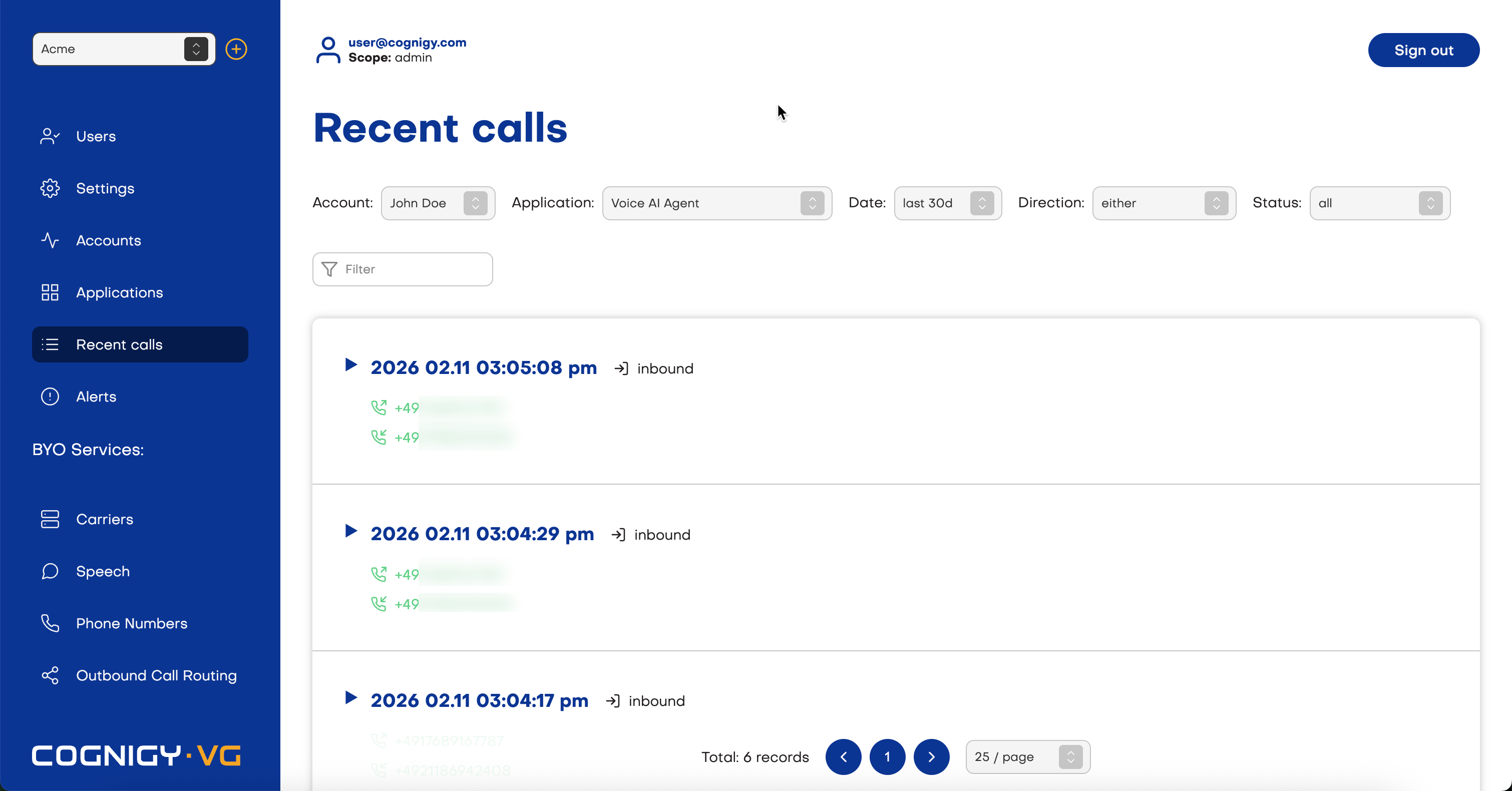
*Recent Calls* are calls of your [account](/voice-gateway/webapp/accounts). Voice Gateway provides general data about the calls, such as the Date, Direction, From, To, SIP Trunk, and Call Duration.
You can filter these calls by Account, Date, Direction, and Status. Note that you can only filter by a maximum of the last 30 days.
 ## Limitations
* The Time-To-Live (TTL) for PCAP files is 14 days.
## Call Details
To view detailed information about the call, click the **Details** tab.
### PCAP Fields
| Fields | Description |
| ---------------------- | --------------------------------------------------------------------------------------------------------------------------------------- |
| attempted\_at | The time of the attempt. |
| account\_sid | Identifies the account this phone belongs to. |
| answered | Determines whether a call was answered or not. |
| answered\_at | The time when an answer was given. |
| application\_sid | A unique identifier for the application. |
| call\_sid | A unique identifier for the call. Specific for the call SIP sessions. |
| direction | Determines whether a call was inbound or outbound. |
| duration | The duration of the call in seconds. |
| from | A phone number of the party who made the call. |
| host | An SBC SIP server that handled the incoming calls. |
| remote\_host | Displays the IP address of carrier/SIP trunk. |
| service\_provider\_sid | A unique identifier for the service provider. |
| sip\_callid | A unique session identifier that you can use for several purposes, including call logging and billing correlation. |
| sip\_status | A [SIP code response](https://en.wikipedia.org/wiki/List_of_SIP_response_codes). |
| terminated\_at | The time the call was ended. |
| termination\_reason | The reason why the call was ended. |
| to | A phone number of the party to whom the call was made. |
| trace\_id | A unique identifier for the call. Can be used to track any type of call or session as it passes through different parts of the network. |
| trunk | A [carrier](/voice-gateway/webapp/carriers) name. |
### Download PCAP Files
Additionally, Voice Gateway provides PCAP files, which can be downloaded in the detailed information overview.
## Call Tracing
This feature is in beta. The data displayed on the Tracing tab does not have persistent storage and may be lost at any time.
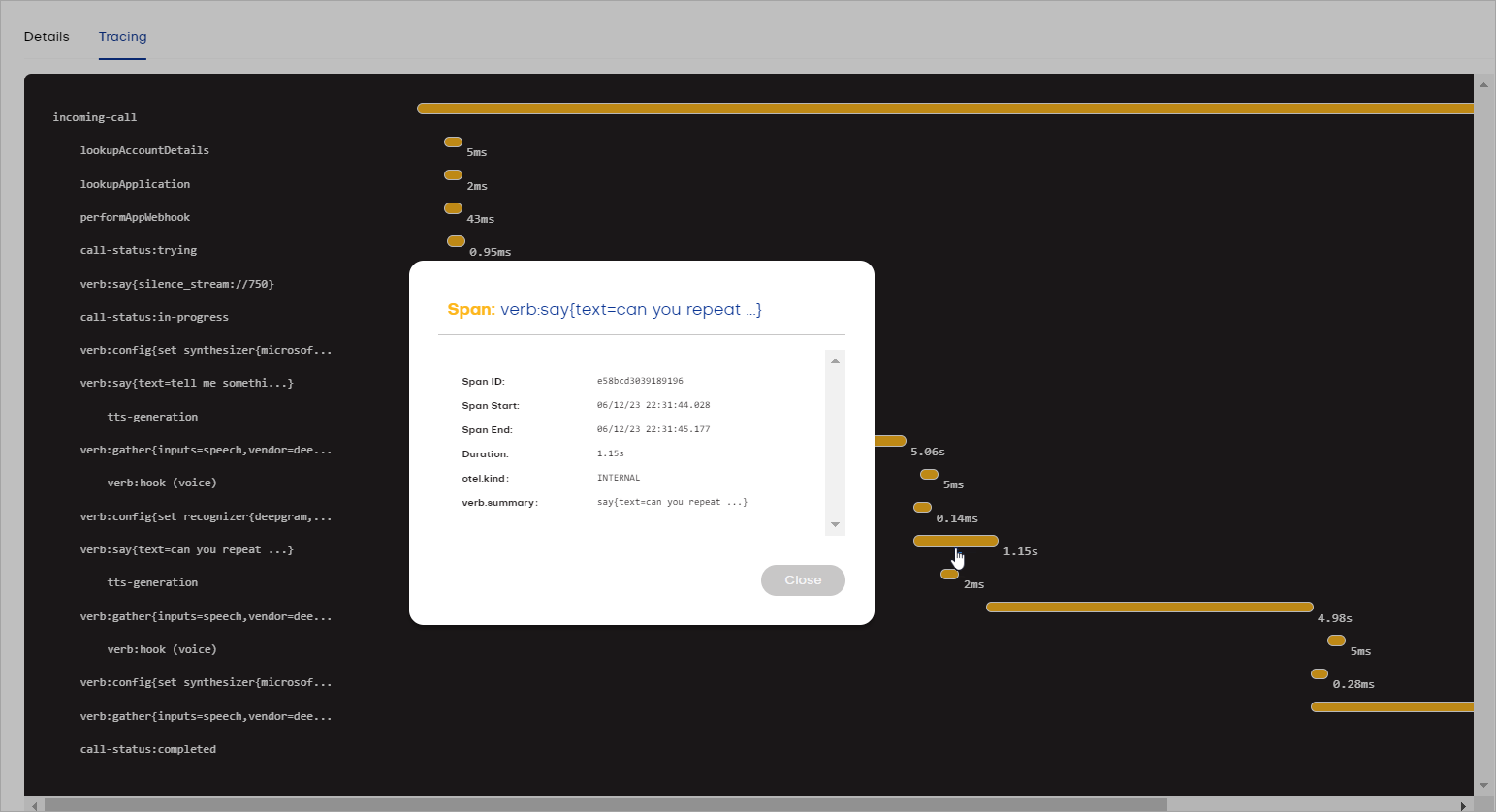
For inbound calls, you can analyze the captured media stream (log) to diagnose and troubleshoot voice quality issues by clicking the **Tracing** tab and viewing the report. This feature provides valuable insights into the duration of different actions during the call, such as speech recognition and connections. By reviewing the report, you can identify any delays or issues that occurred during these actions, helping you pinpoint potential areas of improvement in terms of performance and efficiency.
To view details of the log step, click the duration indicator of this log.
## Limitations
* The Time-To-Live (TTL) for PCAP files is 14 days.
## Call Details
To view detailed information about the call, click the **Details** tab.
### PCAP Fields
| Fields | Description |
| ---------------------- | --------------------------------------------------------------------------------------------------------------------------------------- |
| attempted\_at | The time of the attempt. |
| account\_sid | Identifies the account this phone belongs to. |
| answered | Determines whether a call was answered or not. |
| answered\_at | The time when an answer was given. |
| application\_sid | A unique identifier for the application. |
| call\_sid | A unique identifier for the call. Specific for the call SIP sessions. |
| direction | Determines whether a call was inbound or outbound. |
| duration | The duration of the call in seconds. |
| from | A phone number of the party who made the call. |
| host | An SBC SIP server that handled the incoming calls. |
| remote\_host | Displays the IP address of carrier/SIP trunk. |
| service\_provider\_sid | A unique identifier for the service provider. |
| sip\_callid | A unique session identifier that you can use for several purposes, including call logging and billing correlation. |
| sip\_status | A [SIP code response](https://en.wikipedia.org/wiki/List_of_SIP_response_codes). |
| terminated\_at | The time the call was ended. |
| termination\_reason | The reason why the call was ended. |
| to | A phone number of the party to whom the call was made. |
| trace\_id | A unique identifier for the call. Can be used to track any type of call or session as it passes through different parts of the network. |
| trunk | A [carrier](/voice-gateway/webapp/carriers) name. |
### Download PCAP Files
Additionally, Voice Gateway provides PCAP files, which can be downloaded in the detailed information overview.
## Call Tracing
This feature is in beta. The data displayed on the Tracing tab does not have persistent storage and may be lost at any time.
For inbound calls, you can analyze the captured media stream (log) to diagnose and troubleshoot voice quality issues by clicking the **Tracing** tab and viewing the report. This feature provides valuable insights into the duration of different actions during the call, such as speech recognition and connections. By reviewing the report, you can identify any delays or issues that occurred during these actions, helping you pinpoint potential areas of improvement in terms of performance and efficiency.
To view details of the log step, click the duration indicator of this log.
 ## Call Recordings
Record your calls while setting up your voice agents for debugging purposes.
This approach lets you troubleshoot your calls, identify where latencies are coming from,
and listen to your voice agent's outputs to ensure they are working seamlessly.
To enable call recording, use the [Account](/voice-gateway/webapp/accounts#call-recording-configuration) or [Application](/voice-gateway/webapp/applications#call-recording-configuration) settings.
When call recording is enabled, you can use the embedded media player to listen to recordings of calls. Note that the recording will consist of only the caller track and the agent track. The dub track for [Atmosphere Sounds](/ai/agents/develop/node-reference/voice/voice-gateway/parameter-details) will not be included in the recording.
With the included media player controls, scan the audio and download the recording locally.
## Call Recordings
Record your calls while setting up your voice agents for debugging purposes.
This approach lets you troubleshoot your calls, identify where latencies are coming from,
and listen to your voice agent's outputs to ensure they are working seamlessly.
To enable call recording, use the [Account](/voice-gateway/webapp/accounts#call-recording-configuration) or [Application](/voice-gateway/webapp/applications#call-recording-configuration) settings.
When call recording is enabled, you can use the embedded media player to listen to recordings of calls. Note that the recording will consist of only the caller track and the agent track. The dub track for [Atmosphere Sounds](/ai/agents/develop/node-reference/voice/voice-gateway/parameter-details) will not be included in the recording.
With the included media player controls, scan the audio and download the recording locally.
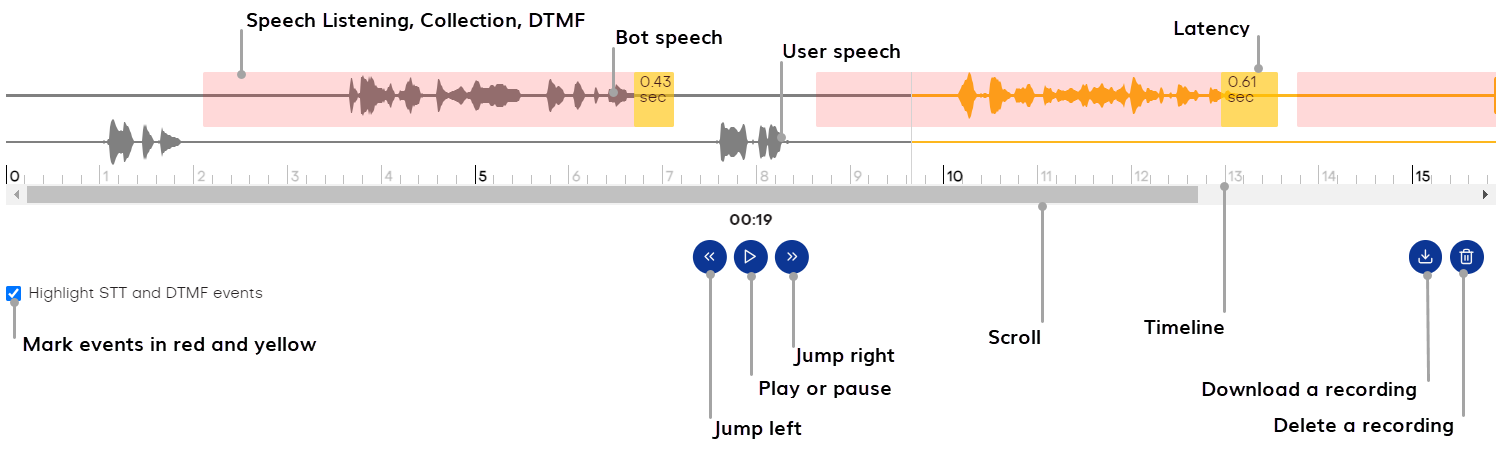 When you click highlighted STT and DTMF events, a new window will open, presenting the speech-to-text result along with specific parameters:
* **Vendor** — the STT provider used. For example, `deepgram`.
* **Confidence** — the confidence score associated with the transcription result. For example, `0.9760742`.
* **Language Code** — the language code for the transcript. For example, `en-US (American English)`.
* **Transcript** — the actual text generated from the speech. For example, `Today is Wednesday evening, ten-thirty PM`.
* **Latency** — the time delay in processing the speech and providing the transcription result. Voice Gateway is waiting for a response from the transcript server.
You can delete a call recording by clicking
When you click highlighted STT and DTMF events, a new window will open, presenting the speech-to-text result along with specific parameters:
* **Vendor** — the STT provider used. For example, `deepgram`.
* **Confidence** — the confidence score associated with the transcription result. For example, `0.9760742`.
* **Language Code** — the language code for the transcript. For example, `en-US (American English)`.
* **Transcript** — the actual text generated from the speech. For example, `Today is Wednesday evening, ten-thirty PM`.
* **Latency** — the time delay in processing the speech and providing the transcription result. Voice Gateway is waiting for a response from the transcript server.
You can delete a call recording by clicking  . Note that this action will delete your file both from Voice Gateway and remote storage, for example, Amazon S3.
To download a call recording, click
. Note that this action will delete your file both from Voice Gateway and remote storage, for example, Amazon S3.
To download a call recording, click  .
.