> ## Documentation Index
> Fetch the complete documentation index at: https://docs.cognigy.com/llms.txt
> Use this file to discover all available pages before exploring further.
# Webchat 3: Key Features
> Explore Webchat v3 key features including branding customization, Quick Replies, Conversation Ratings, Privacy Notices, adaptive cards, and rich media support.
Updated in 2025.10
The Webchat 3 key features offer comprehensive customization options, including branding elements, accessibility features, and tailored starting behaviors, ensuring a personalized and efficient user experience. Additionally, it introduces enhancements such as Quick Replies, Conversation Ratings, and Privacy Notices to elevate engagement and user feedback mechanisms, while features such as adaptive cards and media attachments enrich interactions by presenting structured content and media files seamlessly within the chat interface.
## Customization
Customization includes a comprehensive suite of features
that bolster your brand's presence and enhance user accessibility.
Customize the chat interface with your brand's title and logo,
alongside distinct avatars for both AI and human agents,
and adjust the color scheme across various elements.
Accessibility is prioritized with Text-to-Speech and Speech-to-Text functionalities.
Starting behavior customization sets the tone for engagement,
allowing for a tailored initial interaction, such as a greeting message or a start button.
Operational settings, including business hours, ensure users are clearly informed about the availability of support.
Collectively, these customization options create a personalized and efficient webchat experience
that aligns with your operational requirements and brand image.
For customization, refer to the [Webchat Layout](/webchat/v3/configuration#webchat-layout) and [Webchat Behavior](/webchat/v3/configuration#webchat-behavior) settings.
## Home Screen
The Webchat's Home screen offers a customizable and welcoming first impression for users,
facilitating immediate engagement. It includes a personalized Welcome Text to align with your brand's voice,
options to upload a Background Image for visual appeal, and settings to apply a background color to match your brand's style.
These elements work together to create an inviting and branded entry point for user interactions, ensuring a seamless and appealing start to the chat experience.
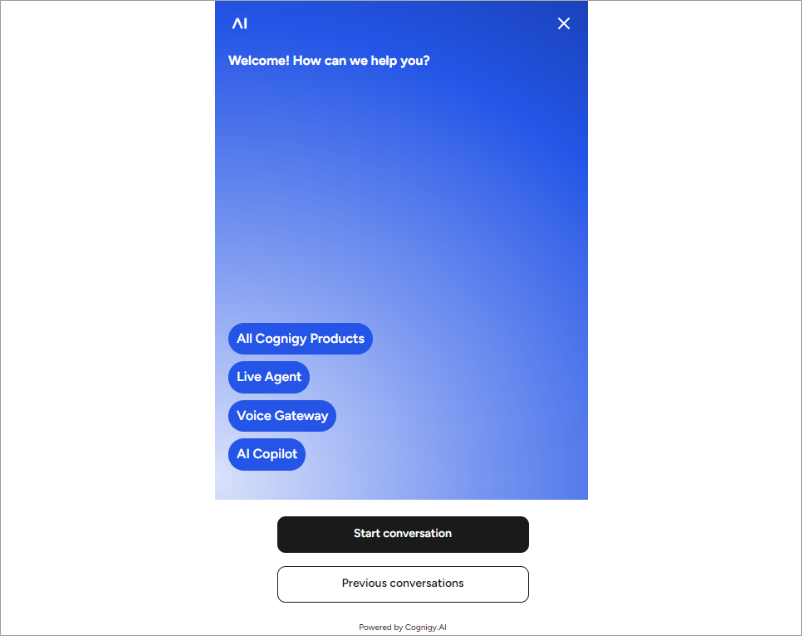 To configure the Home screen, refer to the [Home Screen](/webchat/v3/configuration#home-screen) settings.
### Conversation Starters
The Conversation Starters Feature can be enabled in the Home Screen Settings and allows users to initiate conversations through pre-defined messages.
It provides a user-friendly start with options to customize these messages and to set the tone for the interactions. With the ability to add up to five Conversation Starters and easy management through deletion, this feature streamlines initiating dialogue, showcasing AI capabilities, and ensuring a smooth and guided conversation start.
To configure the Home screen, refer to the [Home Screen](/webchat/v3/configuration#home-screen) settings.
### Conversation Starters
The Conversation Starters Feature can be enabled in the Home Screen Settings and allows users to initiate conversations through pre-defined messages.
It provides a user-friendly start with options to customize these messages and to set the tone for the interactions. With the ability to add up to five Conversation Starters and easy management through deletion, this feature streamlines initiating dialogue, showcasing AI capabilities, and ensuring a smooth and guided conversation start.
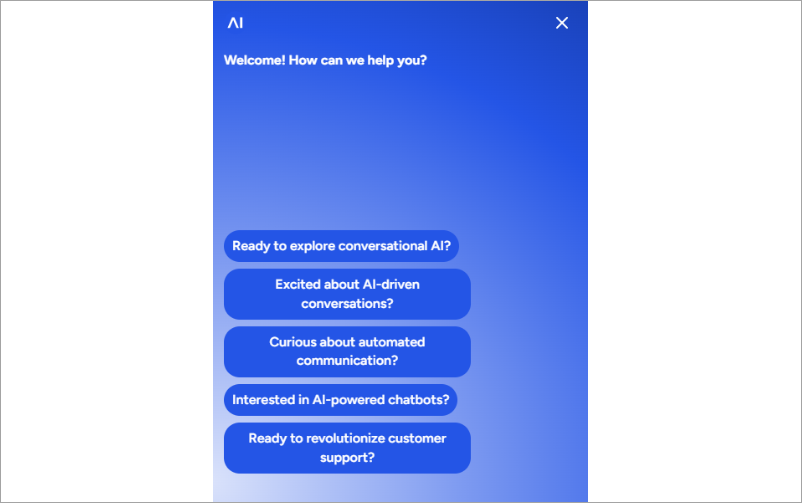 To configure the conversation starters, refer to the [Home Screen](/webchat/v3/configuration#conversation-starters) settings.
### Previous Conversations
The Previous Conversations feature offers a straightforward way for users to access their past dialogues with the AI Agent directly from the Webchat home screen. It includes options to customize the Previous Conversations button text, and the header of the conversation screen, enriching user experience by ensuring continuity and easy reference to previous interactions.
To configure the conversation starters, refer to the [Home Screen](/webchat/v3/configuration#conversation-starters) settings.
### Previous Conversations
The Previous Conversations feature offers a straightforward way for users to access their past dialogues with the AI Agent directly from the Webchat home screen. It includes options to customize the Previous Conversations button text, and the header of the conversation screen, enriching user experience by ensuring continuity and easy reference to previous interactions.
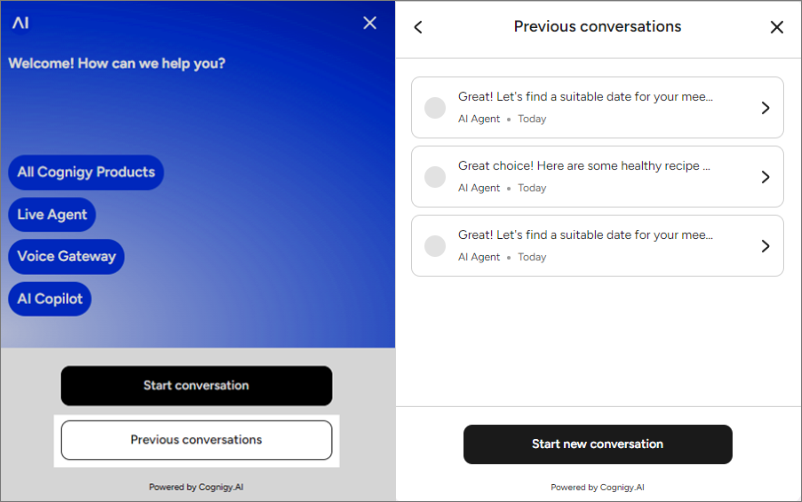 To configure the Previous Conversations screen, refer to the [Previous Conversations](/webchat/v3/configuration#previous-conversations) settings.
## Teaser Message
The Teaser Message feature enhances user engagement by displaying pre-defined messages beside the Webchat icon, aimed at sparking interest and encouraging chat initiation. This feature helps create a seamless and engaging user experience from the first interaction.
To configure the Previous Conversations screen, refer to the [Previous Conversations](/webchat/v3/configuration#previous-conversations) settings.
## Teaser Message
The Teaser Message feature enhances user engagement by displaying pre-defined messages beside the Webchat icon, aimed at sparking interest and encouraging chat initiation. This feature helps create a seamless and engaging user experience from the first interaction.
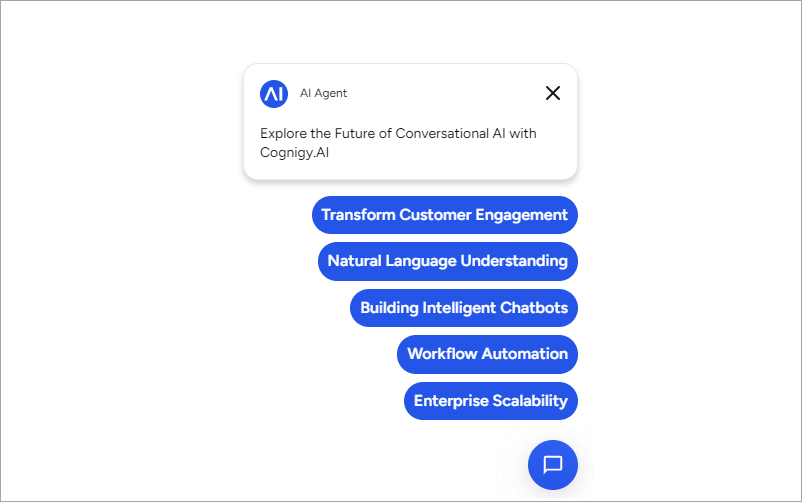 To configure the teaser message, refer to the [Teaser Message](/webchat/v3/configuration#teaser-message) settings.
## Chat Options
Enabling Chat Options unlocks additional interactive capabilities within the chat interface,
such as Quick Replies for streamlined responses, Conversation Rating for user feedback, text-to-speech options, and a customizable Footer for further information.
This collective enhancement of features under the Chat Options settings enriches the engagement
by offering users more ways to interact and give feedback, elevating the overall chat experience.
To configure the teaser message, refer to the [Teaser Message](/webchat/v3/configuration#teaser-message) settings.
## Chat Options
Enabling Chat Options unlocks additional interactive capabilities within the chat interface,
such as Quick Replies for streamlined responses, Conversation Rating for user feedback, text-to-speech options, and a customizable Footer for further information.
This collective enhancement of features under the Chat Options settings enriches the engagement
by offering users more ways to interact and give feedback, elevating the overall chat experience.
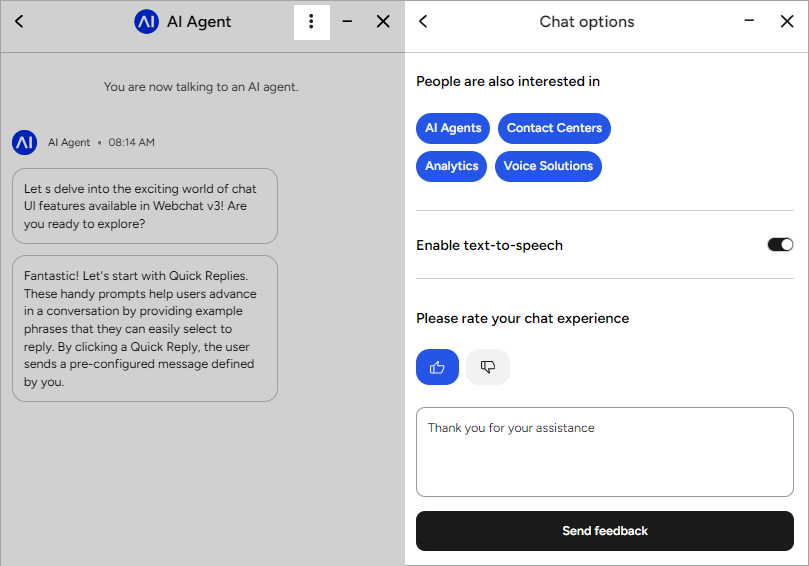 To configure the Chat Options page, refer to the [Chat Options](/webchat/v3/configuration#chat-options) settings.
### Quick Replies
The Quick Replies feature at the top of the Chat Option screen simplifies interactions by offering instant responses or directing users to more information. Users can easily choose from these options to address common questions or navigate to additional resources.
To configure the quick replies, refer to the [Quick Replies](/webchat/v3/configuration#quick-replies) settings.
### Text-to-Speech
The Text-to-Speech feature on the Chat Options screen is helpful for users who prefer or require listening over reading.
The feature enables the chat AI Agent to speak messages aloud.
Users can choose whether to use this option, allowing them to tailor their chat experience to their preferences.
To configure the text-to-speech feature, refer to the [Text-to-Speech](/webchat/v3/configuration#text-to-speech) settings.
### Conversation Rating
The Conversation Rating feature on the Chat Options screen allows users to rate and give feedback on their chat experience, crucial for improving assistant performance. It offers customizable settings including the invitation to rate, placeholder for comments, submit button text, and a confirmation banner message. This streamlined feedback mechanism engages users directly, making it easier to gather and act on valuable user insights.
To configure the conversation rating, refer to the [Conversation Rating](/webchat/v3/configuration#conversation-rating) settings.
## Privacy Notice
The Privacy Notice feature ensures user trust and compliance by prompting consent to a privacy notice before chatting with the AI Agent. It includes customization of the title, detailed message, and submit button text, as well as a direct link to the full Privacy Policy, transparently informing users about data handling practices and securing their informed consent.
Cognigy.AI automatically records user acceptance of the Privacy Notice in the [Contact Profile](https://docs.cognigy.com/ai/analyze/contact-profiles/#profile-schema).
To configure the Chat Options page, refer to the [Chat Options](/webchat/v3/configuration#chat-options) settings.
### Quick Replies
The Quick Replies feature at the top of the Chat Option screen simplifies interactions by offering instant responses or directing users to more information. Users can easily choose from these options to address common questions or navigate to additional resources.
To configure the quick replies, refer to the [Quick Replies](/webchat/v3/configuration#quick-replies) settings.
### Text-to-Speech
The Text-to-Speech feature on the Chat Options screen is helpful for users who prefer or require listening over reading.
The feature enables the chat AI Agent to speak messages aloud.
Users can choose whether to use this option, allowing them to tailor their chat experience to their preferences.
To configure the text-to-speech feature, refer to the [Text-to-Speech](/webchat/v3/configuration#text-to-speech) settings.
### Conversation Rating
The Conversation Rating feature on the Chat Options screen allows users to rate and give feedback on their chat experience, crucial for improving assistant performance. It offers customizable settings including the invitation to rate, placeholder for comments, submit button text, and a confirmation banner message. This streamlined feedback mechanism engages users directly, making it easier to gather and act on valuable user insights.
To configure the conversation rating, refer to the [Conversation Rating](/webchat/v3/configuration#conversation-rating) settings.
## Privacy Notice
The Privacy Notice feature ensures user trust and compliance by prompting consent to a privacy notice before chatting with the AI Agent. It includes customization of the title, detailed message, and submit button text, as well as a direct link to the full Privacy Policy, transparently informing users about data handling practices and securing their informed consent.
Cognigy.AI automatically records user acceptance of the Privacy Notice in the [Contact Profile](https://docs.cognigy.com/ai/analyze/contact-profiles/#profile-schema).
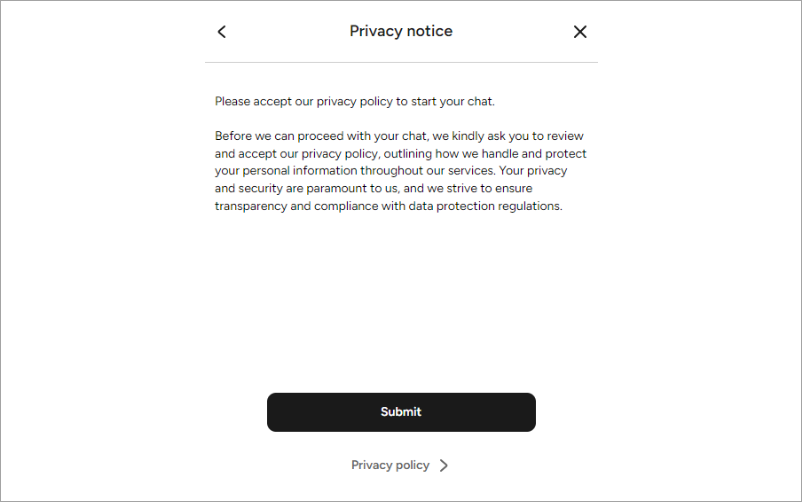 To configure the Privacy Notice page, refer to the [Privacy Notice](/webchat/v3/configuration#privacy-notice) settings.
## Chat UI
When you use message Nodes such as [Say](/ai/agents/develop/node-reference/basic/say), [Question](/ai/agents/develop/node-reference/basic/question), or [Optional Question](/ai/agents/develop/node-reference/basic/optional-question) Nodes, the following output types can be used within these nodes to display different message formats in the chat.
### Quick Replies
With Quick Replies, you can guide users through conversations by offering example phrases for replies. When users click a Quick Reply, they'll send a pre-configured message defined by you, facilitating smoother interactions.
To configure the Privacy Notice page, refer to the [Privacy Notice](/webchat/v3/configuration#privacy-notice) settings.
## Chat UI
When you use message Nodes such as [Say](/ai/agents/develop/node-reference/basic/say), [Question](/ai/agents/develop/node-reference/basic/question), or [Optional Question](/ai/agents/develop/node-reference/basic/optional-question) Nodes, the following output types can be used within these nodes to display different message formats in the chat.
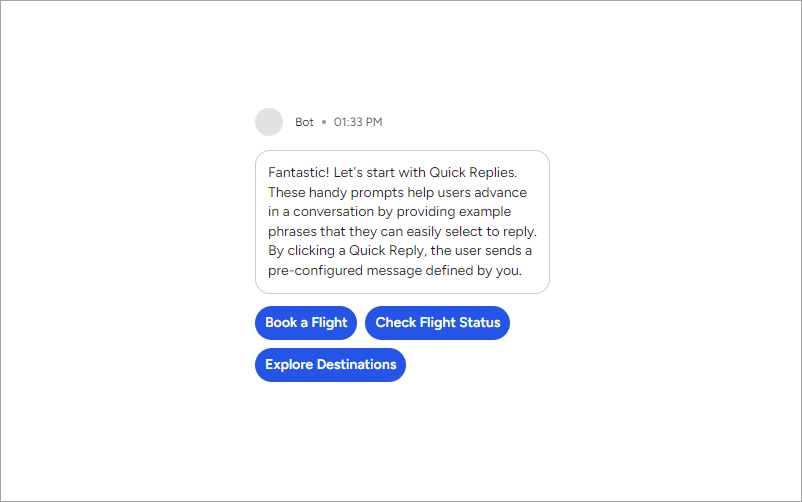
### Quick Replies
With Quick Replies, you can guide users through conversations by offering example phrases for replies. When users click a Quick Reply, they'll send a pre-configured message defined by you, facilitating smoother interactions.
 ### Adaptive Cards
Customizable Adaptive Cards are a valuable feature in the chat interface, especially for gathering user information. These interactive elements can be customized to collect specific details or preferences from users in a structured and user-friendly manner. Their adaptability ensures seamless integration with the chat's design, maintaining brand consistency while enhancing the user experience.
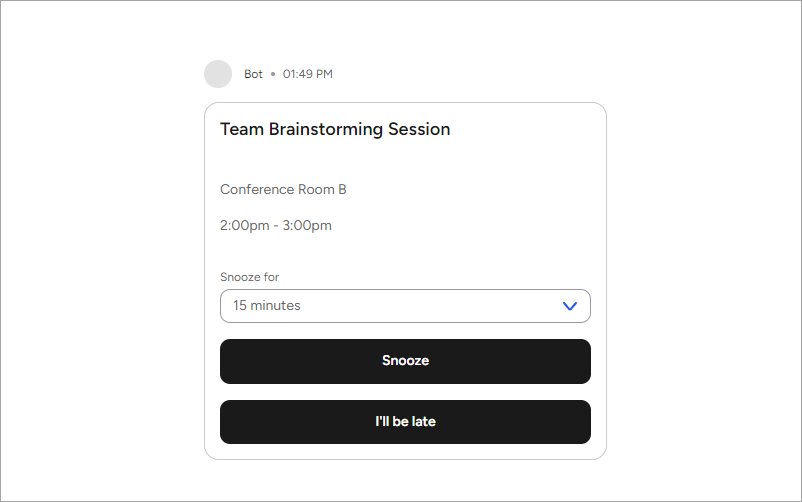
### Adaptive Cards
Customizable Adaptive Cards are a valuable feature in the chat interface, especially for gathering user information. These interactive elements can be customized to collect specific details or preferences from users in a structured and user-friendly manner. Their adaptability ensures seamless integration with the chat's design, maintaining brand consistency while enhancing the user experience.
 ### Gallery
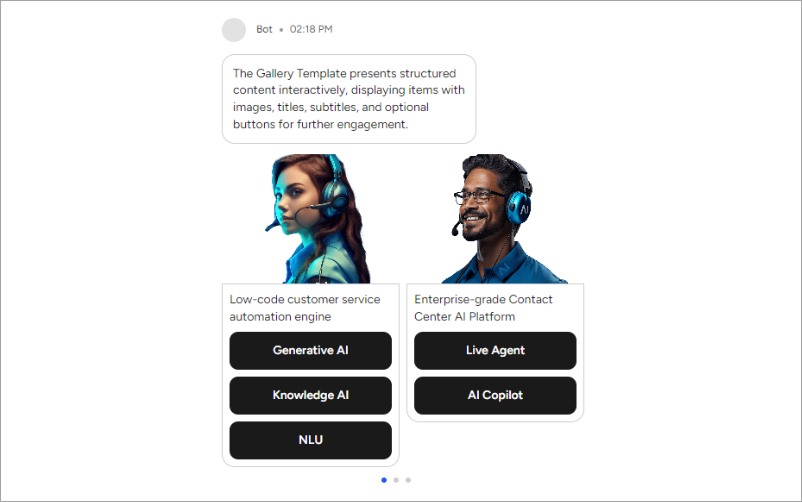
To present structured content interactively, use the Gallery. It allows you to showcase one or more items with an image, a title, a subtitle, and optional buttons containing links or pre-configured messages.
### Gallery
To present structured content interactively, use the Gallery. It allows you to showcase one or more items with an image, a title, a subtitle, and optional buttons containing links or pre-configured messages.
 ### List
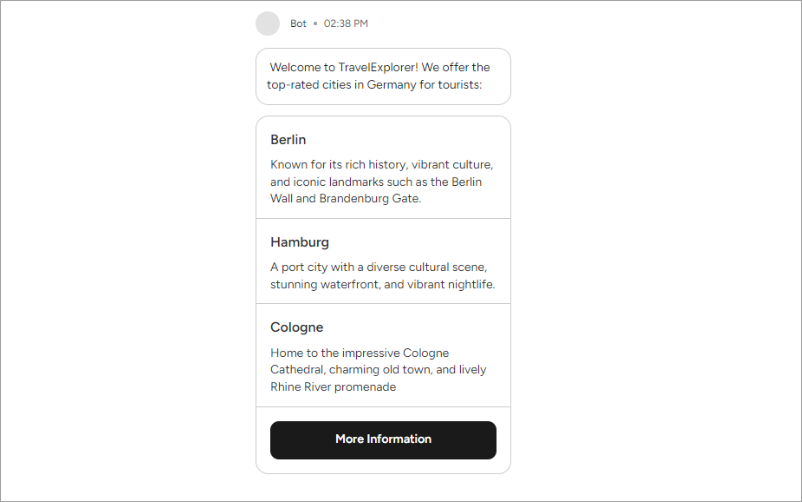
The List feature enables you to present 2-4 list options to users, ideal for scenarios where users need to view all options at once. It's a preferred alternative to the Gallery for such cases.
### List
The List feature enables you to present 2-4 list options to users, ideal for scenarios where users need to view all options at once. It's a preferred alternative to the Gallery for such cases.
 ### Audio
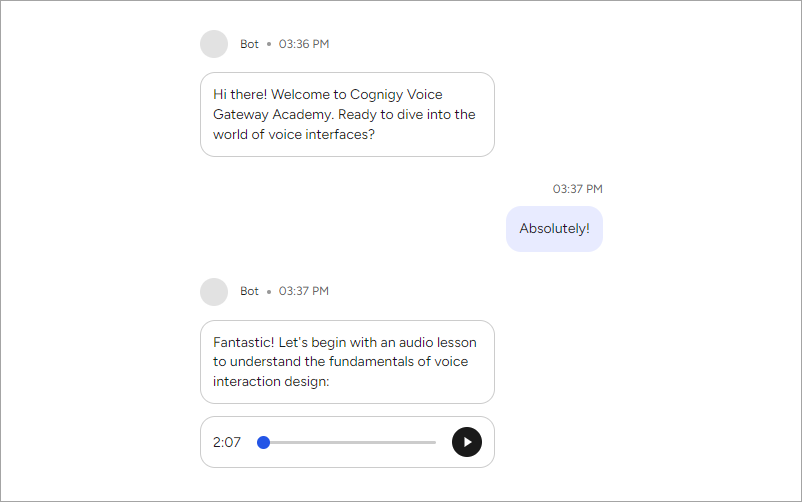
The Audio feature enables you to send audio files. Users will see a web player and can play the file instantly.
### Audio
The Audio feature enables you to send audio files. Users will see a web player and can play the file instantly.
 ### Image
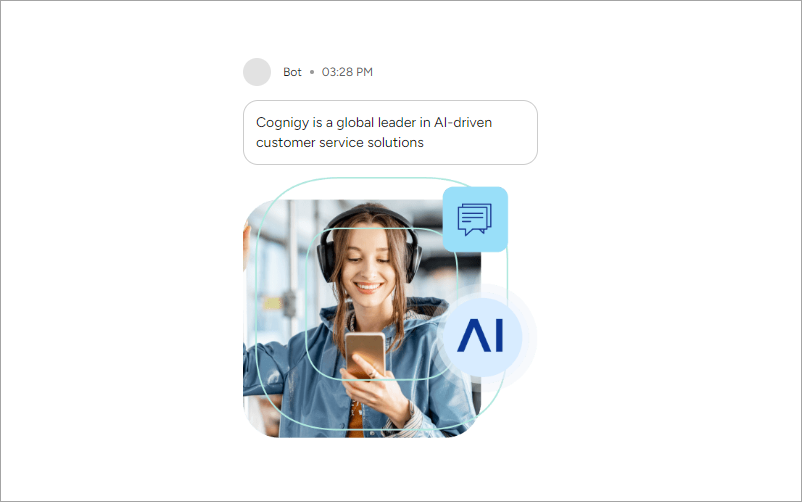
The Image feature enables you to send image files. Users will view the image in a fixed aspect ratio.
### Image
The Image feature enables you to send image files. Users will view the image in a fixed aspect ratio.
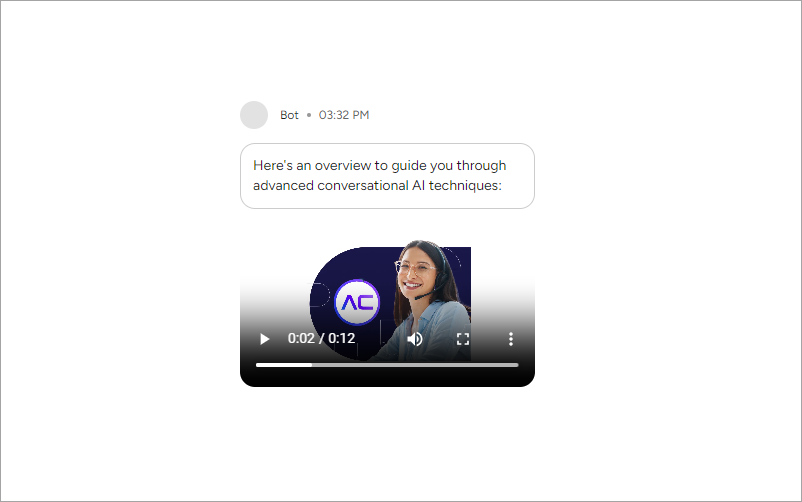
 ### Video
The Video feature enables you to send video files. Users will see a web player and can play the file instantly.
### Video
The Video feature enables you to send video files. Users will see a web player and can play the file instantly.
 ### Text with Buttons
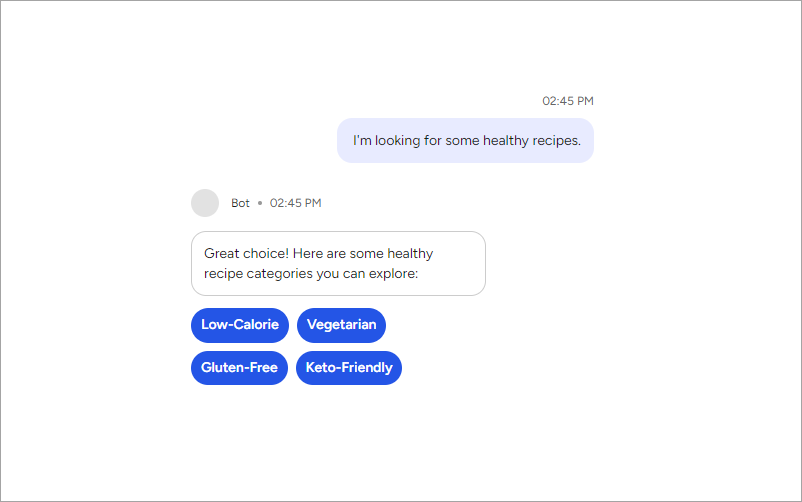
If you require navigation options for users without the need for rich structuring, as the Gallery, you can use the Text with Buttons.
### Text with Buttons
If you require navigation options for users without the need for rich structuring, as the Gallery, you can use the Text with Buttons.
 ## Persistent Menu
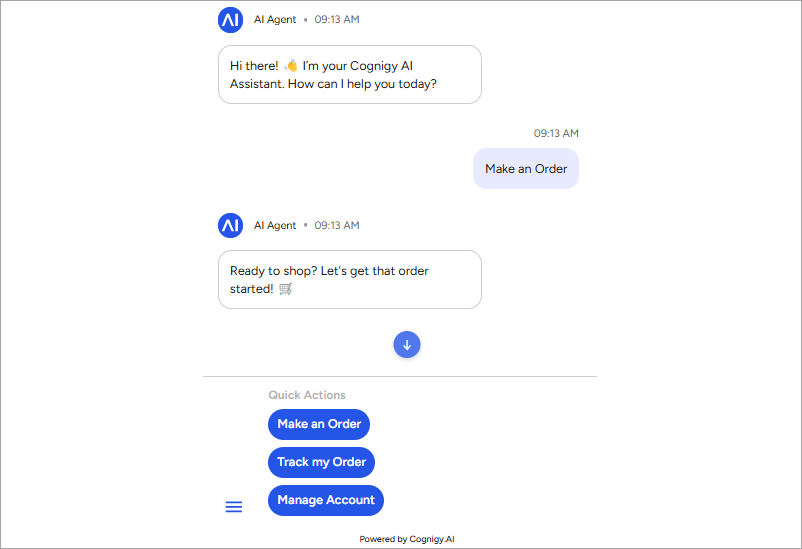
The Persistent Menu feature guides end users through the conversation by offering quick actions,
allowing for easy navigation between different conversation stages directly within the Chat screen.
## Persistent Menu
The Persistent Menu feature guides end users through the conversation by offering quick actions,
allowing for easy navigation between different conversation stages directly within the Chat screen.
 To configure the Persistent Menu, refer to the [Webchat Layout](/webchat/v3/configuration#webchat-layout) settings.
## Controlling the Chat Window
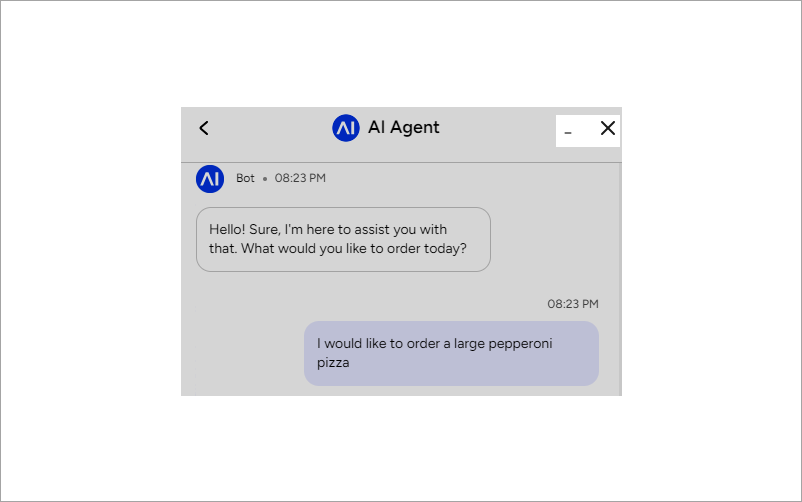
The Chat screen provides buttons for minimizing or closing the chat window:
* **Minimize** — this button collapses the window without ending a conversation. Users can return to the chat by expanding the window again. The `webchat/minimize` event is triggered when users click the **Minimize** button.
* **Close** — this button collapses the window without ending a conversation. Users can return to the chat by expanding the window again. The `webchat/close` event is triggered when users click the **Close** button.
If you want the **Close** button to end the conversation and close the window, extend the [embedding file](/webchat/v3/embedding/hosted-script) with the following code:
```js theme={null}
webchat.registerAnalyticsService(event => {
if (event.type === "webchat/close") {
webchat.endSession();
}
});
```
For more information, read [Analytics API](https://github.com/Cognigy/Webchat/blob/main/docs/analytics-api.md) on GitHub.
To configure the Persistent Menu, refer to the [Webchat Layout](/webchat/v3/configuration#webchat-layout) settings.
## Controlling the Chat Window
The Chat screen provides buttons for minimizing or closing the chat window:
* **Minimize** — this button collapses the window without ending a conversation. Users can return to the chat by expanding the window again. The `webchat/minimize` event is triggered when users click the **Minimize** button.
* **Close** — this button collapses the window without ending a conversation. Users can return to the chat by expanding the window again. The `webchat/close` event is triggered when users click the **Close** button.
If you want the **Close** button to end the conversation and close the window, extend the [embedding file](/webchat/v3/embedding/hosted-script) with the following code:
```js theme={null}
webchat.registerAnalyticsService(event => {
if (event.type === "webchat/close") {
webchat.endSession();
}
});
```
For more information, read [Analytics API](https://github.com/Cognigy/Webchat/blob/main/docs/analytics-api.md) on GitHub.
 ## Attachment Upload
To send certain media files to users, use the Attachment Upload feature.
## Attachment Upload
To send certain media files to users, use the Attachment Upload feature.
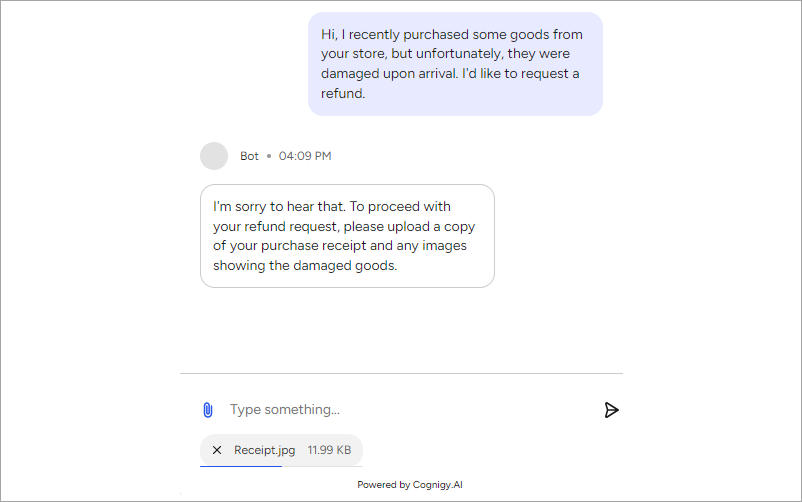 For enabling attachment uploads, refer to the [Attachment Upload](/webchat/v3/configuration#attachment-upload) settings.
## Date Picker
Whenever your AI Agent prompts for a date input via the Webchat, users can select the date using an interactive Date Picker.
After clicking the Date Picker button, a full-screen overlay will appear in the Webchat, allowing the user to choose a date within the constraints defined by the AI Agent.
For enabling attachment uploads, refer to the [Attachment Upload](/webchat/v3/configuration#attachment-upload) settings.
## Date Picker
Whenever your AI Agent prompts for a date input via the Webchat, users can select the date using an interactive Date Picker.
After clicking the Date Picker button, a full-screen overlay will appear in the Webchat, allowing the user to choose a date within the constraints defined by the AI Agent.
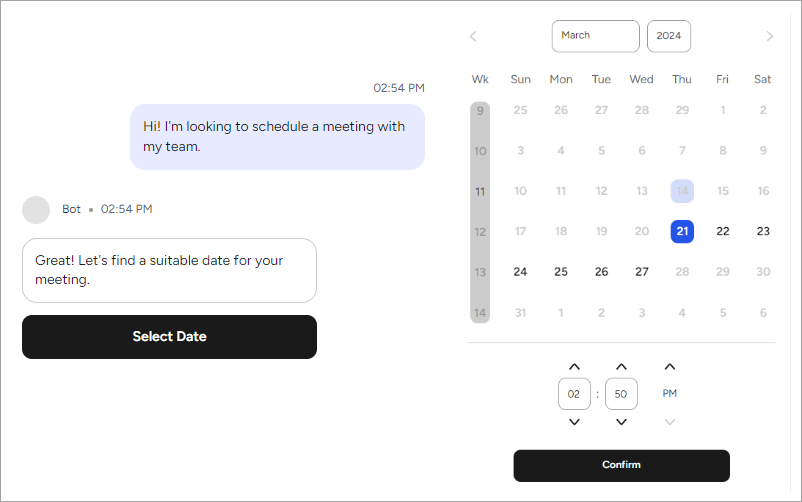 To use a Date Picker, add the [Date Picker](/ai/agents/develop/node-reference/data/datepicker) Node within your Flow.
## xApp Overlay
By default, an xApp page opens in a separate browser tab.
In Webchat v3, you can change this behavior by opening xApp pages directly within the Webchat v3 interface.
This means that each xApp page will be displayed on its own dedicated screen.
This approach helps end users to focus solely on the content of that page without distractions from other parts of the interface.
The design of xApp screens is consistent with other Webchat v3 screens such as [Home](#home-screen), [Chat Options](#chat-options), [Previous Conversations](#previous-conversations), and more.
To use a Date Picker, add the [Date Picker](/ai/agents/develop/node-reference/data/datepicker) Node within your Flow.
## xApp Overlay
By default, an xApp page opens in a separate browser tab.
In Webchat v3, you can change this behavior by opening xApp pages directly within the Webchat v3 interface.
This means that each xApp page will be displayed on its own dedicated screen.
This approach helps end users to focus solely on the content of that page without distractions from other parts of the interface.
The design of xApp screens is consistent with other Webchat v3 screens such as [Home](#home-screen), [Chat Options](#chat-options), [Previous Conversations](#previous-conversations), and more.
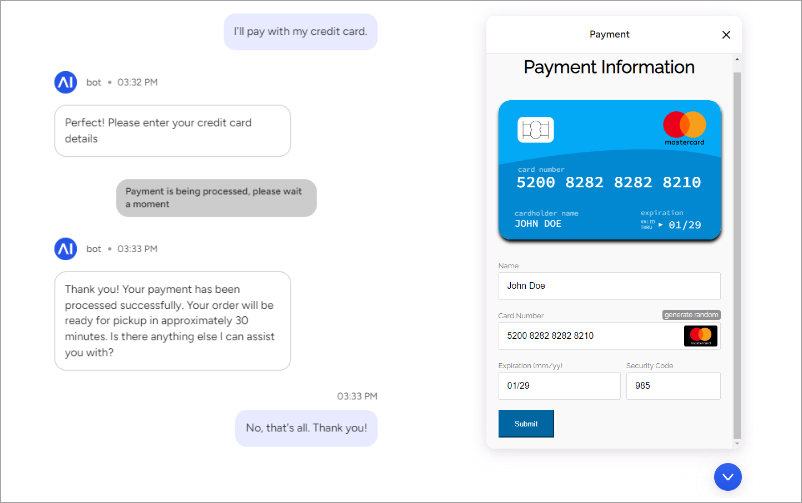 To configure this behavior for pages with HTML and Adaptive Cards, use the following Nodes:
* [xApp: Show HTML](/ai/agents/develop/node-reference/xApp/set-html-xApp-state)
* [xApp: Show Adaptive Card](/ai/agents/develop/node-reference/xApp/set-AdaptiveCard-xApp-state)
## RTL Language Support
Alongside the traditional left-to-right (LTR) layout, Webchat v3 supports right-to-left (RTL). This feature is especially beneficial for languages such as Arabic,
Persian (Farsi), Hebrew, Urdu, and other languages that use this writing direction. Supporting RTL layouts lets users from various regions interact with the Webchat widget in their native languages that enhances the user experience
and leads to more effective and personalized interactions with the AI Agent.
All elements of the Webchat widget are aligned for RTL, including the positioning of the widget itself, which now appears in the bottom-left corner of the web page. This adjustment ensures that users who speak languages with a right-to-left writing direction can easily interact with the chat, as it aligns with their usual reading and writing patterns.
To configure this behavior for pages with HTML and Adaptive Cards, use the following Nodes:
* [xApp: Show HTML](/ai/agents/develop/node-reference/xApp/set-html-xApp-state)
* [xApp: Show Adaptive Card](/ai/agents/develop/node-reference/xApp/set-AdaptiveCard-xApp-state)
## RTL Language Support
Alongside the traditional left-to-right (LTR) layout, Webchat v3 supports right-to-left (RTL). This feature is especially beneficial for languages such as Arabic,
Persian (Farsi), Hebrew, Urdu, and other languages that use this writing direction. Supporting RTL layouts lets users from various regions interact with the Webchat widget in their native languages that enhances the user experience
and leads to more effective and personalized interactions with the AI Agent.
All elements of the Webchat widget are aligned for RTL, including the positioning of the widget itself, which now appears in the bottom-left corner of the web page. This adjustment ensures that users who speak languages with a right-to-left writing direction can easily interact with the chat, as it aligns with their usual reading and writing patterns.
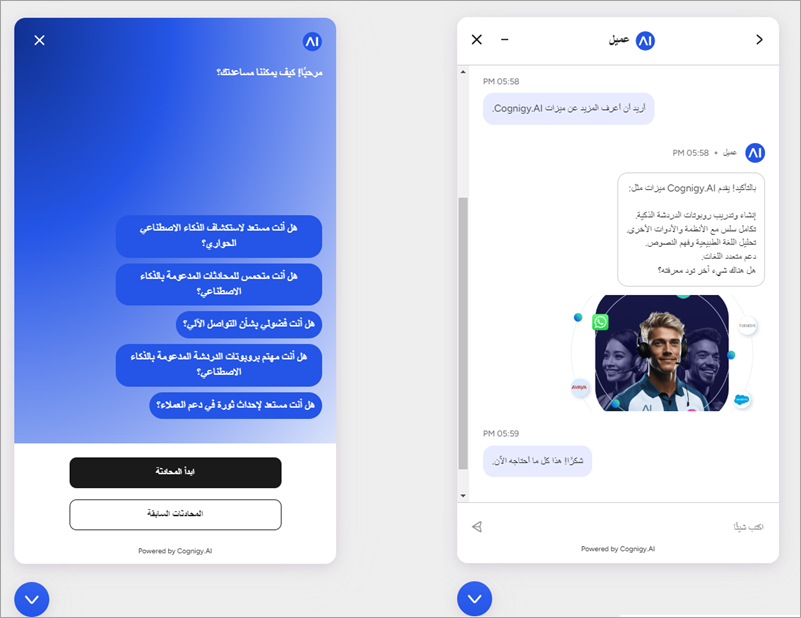 To use RTL, add the attribute `dir="rtl"` to the `` tag, which is placed at the beginning of the HTML-page.
For more information, read [RTL Configuration](/webchat/v3/embedding/hosted-script#rtl-configuration). To test this feature, [build Webchat v3 locally](https://github.com/Cognigy/Webchat/blob/main/README.md#development).
## More Information
* [Webchat v3: Overview](/webchat/v3/overview)
* [Webchat v3: Configuration](/webchat/v3/configuration)
* [Webchat v3: Embedding](/webchat/v3/embedding/hosted-script)
To use RTL, add the attribute `dir="rtl"` to the `` tag, which is placed at the beginning of the HTML-page.
For more information, read [RTL Configuration](/webchat/v3/embedding/hosted-script#rtl-configuration). To test this feature, [build Webchat v3 locally](https://github.com/Cognigy/Webchat/blob/main/README.md#development).
## More Information
* [Webchat v3: Overview](/webchat/v3/overview)
* [Webchat v3: Configuration](/webchat/v3/configuration)
* [Webchat v3: Embedding](/webchat/v3/embedding/hosted-script)