

Test with the keyboard
- Open your web page and press Tab until the Webchat launcher is focused. Press Enter. Focus must move into the chat window.
- Press Tab through the whole chat, send a message, select a Quick Reply, and open and close the Chat Options. Focus must always be visible.
- Open a Datepicker, a full-size image, or the delete confirmation and press Esc. Focus must return to the element you came from.
- Close Webchat. Focus must return to the launcher.
Test with a screen reader
- Use NVDA with Chrome or Firefox on Windows, VoiceOver with Safari on macOS, VoiceOver on iOS, or TalkBack on Android.
- Check that all control names are in your language, that message headers are announced as
You saidand{name} said, and that status messages are announced when a reply arrives, the connection is lost, or an upload finishes. - Send every message type that your Flows use and check that the image descriptions, transcripts, and captions match the content you provided.
Run an automated scan
Install the free axe DevTools browser extension, open Webchat, and scan each screen: Home Screen, chat with messages, Chat Options, and Previous Conversations. Fix every violation reported within the Webchat container. Automated tools find only part of the issues, so they complement the manual tests.Check color contrast
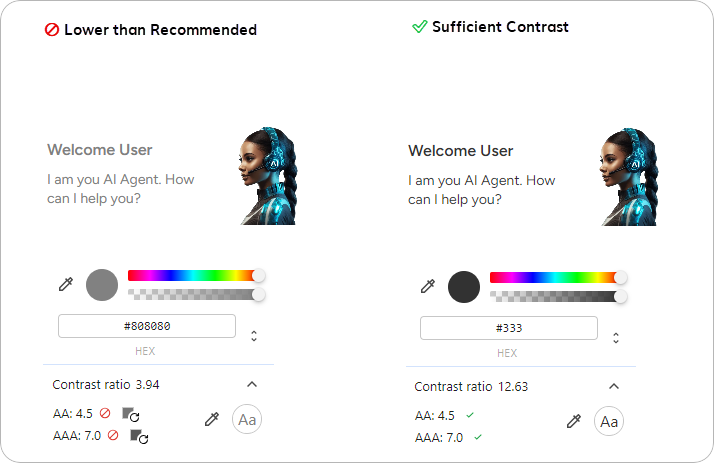
To verify the color contrast in your Webchat, use an online contrast checker, such as the WebAIM Contrast Checker. Check the chat background against the AI Agent and user message bubbles, the primary color against its button text, the link text against the bubble, and the Home Screen text against its background.Check the contrast ratio in Chrome DevTools
Check the contrast ratio in Chrome DevTools
- Open Chrome DevTools by right-clicking on the web page and selecting Inspect, or press Ctrl + Shift + I (Windows, Linux) or Cmd + Option + I (Mac).
- In the Elements panel, click the element you want to inspect.
- In the Styles panel, find the
colororbackground-colorproperty and click the color swatch next to the value. - In the Contrast Ratio section of the color picker, check whether the ratio meets the AA standard. A checkmark means pass, and a prohibited symbol means fail.
- Adjust the color in the color picker until the ratio passes. The contrast ratio updates in real time.
Test text resizing and reduced motion
- Zoom the browser to 200%. All content and controls must remain usable without horizontal scrolling.
- Enable Reduce motion in your operating system and reload the page. The launcher animation and the typing indicator animation must stop.