

Audio
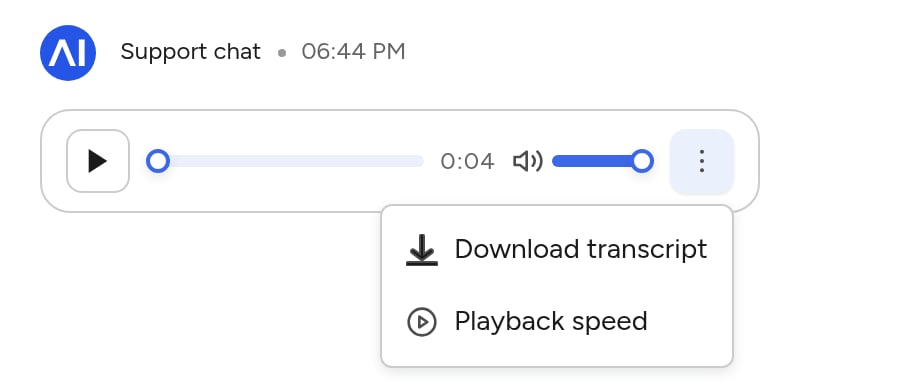
Provide an audio track along with the transcript for this track. In the Say, Question, or Optional Question nodes, for the Audio output type, add the audio file and paste the transcript into the Audio Alternate Text field. To convert your audio into text, you can use third-party tools such as Transkriptor and Sonix. The transcript must accurately reflect the number of speakers and their lines, include all the voice content present in the audio, and account for any background music. The audio transcript can have the following format:Audio transcript sample
Audio transcript sample

.txt format. Screen readers announce the message as An audio message with transcript.
Video
Provide a video clip along with the transcript and captions for this clip. In the Say, Question, or Optional Question nodes, for the Video output type, add the video file, provide the alternate text (a downloadable transcript), and the URL for captions.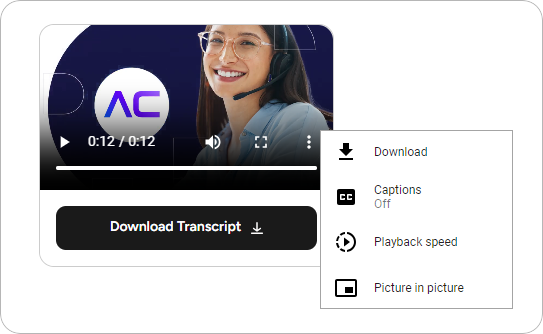
Transcript
Paste the video transcript into the Video Alternate Text field. To convert your video into text, you can use third-party tools such as Transkriptor and Sonix. The video transcript can have the following format:Video transcript sample
Video transcript sample
.txt format.
Captions
Captions are designed to make content accessible to people who are deaf or hard of hearing, and they include not only spoken dialogue but also relevant non-verbal audio cues. Paste a URL that links to the captions into the Video Captions Url field. The captions file must be in.vtt (WebVTT) format.
To create captions, you can use YouTube. Upload a video, and once the captions are generated, go to Subtitles in YouTube Studio, click the video, and select Download to export the captions in .vtt format. Alternatively, you can use Veed.io or Kapwing to generate, edit, and export captions in .vtt format.
The file that includes captions must have the following .vtt format:
Video captions sample
Video captions sample