

Description
The Say Node sends a message to the user. This message can have different formats, ranging from a simple text to rich media such as galleries, adaptive cards, videos, and audio. Additionally, you can enhance the existing output with Generative AI and control who can receive messages when the conversation is handed over to a contact center.Parameters
Channels
Depending on the current channel, additional rich media formats are available. Add a new channel output by clicking the
Default Cognigy Channel
The default Cognigy channel allows for the configuration of different output types. Not all Endpoints can correctly convert your content to the desired output type. Before configuration, check the compatibility of the output type with the Endpoint.Output Type
Text
Text
The Text output type renders text and emojis, if supported by the channel. The text field also supports CognigyScript and Tokens that can be added by clicking 
OptionsWhen you send text responses, you can control how the text is delivered and attach additional data to the message.
When configuring the Linear and Loop parameters, the message delivery behavior differs:
Text with Quick Replies
Text with Quick Replies
The Text with Quick Replies output type can be used to show the user a number of configurable quick replies.
Quick replies are pre-defined answers that are rendered as input chips.
Gallery
Gallery
The Gallery output type consists of powerful visual widgets that are ideal for displaying a list of options with images. They are typically used to showcase a variety of products or other items that can be browsed.A gallery can be configured with multiple cards. Each card contains an image, a title, and a subtitle, and can be configured with optional buttons.Card
Button
List
List
The List output type allows a customized list of items to be displayed, with many configuration options such as a header image, buttons, images, and more.The first list item can optionally be converted into a header that includes the list title, subtitle, and button. Each additional list item can have a title, subtitle, image, and button. A button can also be added at the bottom of the list.Item
Item ButtonEach item can have a separate button.
To configure it, hover the mouse over the Empty Title and click + icon.
You can add only one button per item.
ButtonYou can add only one button at the bottom of the list.
Audio
Audio
The Audio output type plays audio when supported by the channel. It is configured by providing a URL to the audio file and includes controls to play, pause, and stop the audio.
Image
Image
The Image output type displays an image.
Video
Video
The Video output type allows you to add a video clip.
It takes a URL as an input parameter and automatically starts playing the video if supported by the Endpoint.
Adaptive Card
Adaptive Card
The Adaptive Card output type allows you
to add Microsoft Adaptive Cards.
They offer customization options, support for rich media (images, video, and audio),
ease of use with a simple JSON schema,
and the ability to create dynamic content for users to match their specific needs and branding.
Create an Adaptive Card with Generative AIYou can also use Generative AI to create a new adaptive card or improve an existing one. Before using it, ensure that you are connected to one of the LLM Providers.To use this feature, follow these steps:


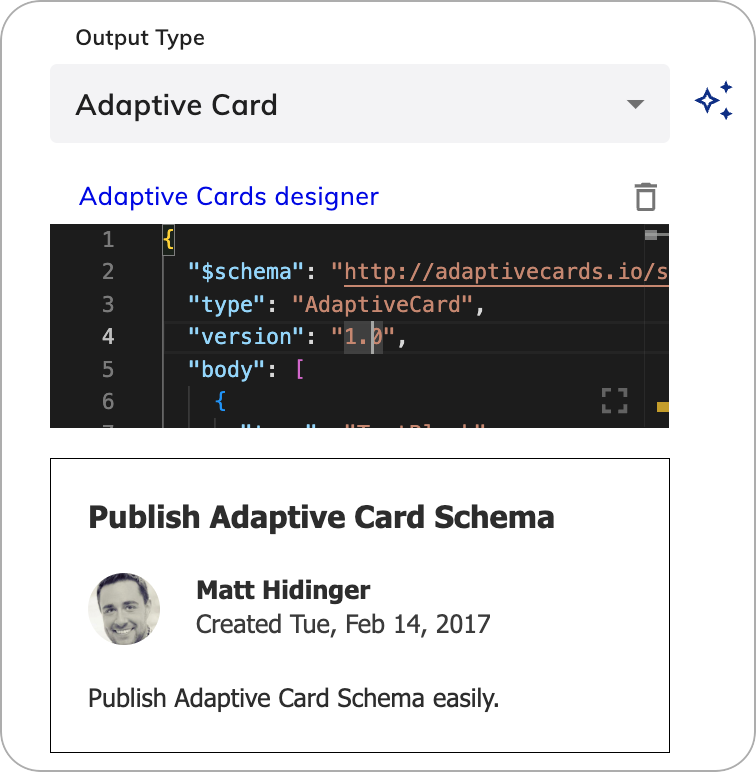
Adaptive Card JSON example
Adaptive Card JSON example
- Select the Adaptive Card output type.
- On the right side of the Output type list, click

- In the Generate Node Output section, instruct the Generative AI model how to improve the current adaptive card. For example,
Create a form with a customer name field and a date input field. - Click Generate. The adaptive card will be generated.
- Iteratively improve the resulting adaptive card by giving further instructions in the Generate Node Output section. For example,
Add a flight number field. - Click Generate. The existing adaptive card will be updated.
Generative AI Adaptive Card JSON example
Generative AI Adaptive Card JSON example
AI-Enhanced Output
To use AI-enhanced output rephrasing, read the Generative AI article.Handover Settings
When using a handover to a contact center, you can choose who receives the message from the AI Agent:- User and Agent — by default, both the end user and the human agent will receive the message.
- User only — the end user will receive the message.
- Agent only — the responsible human agent will receive the message.