

This feature is in beta. We encourage you to try it out and provide us with feedback.
Prerequisites
To build and test agents, you need:- A language model for agents in your project. If there is none, the Language Model field shows the message
No language models configured for this project. Configure one in Project Settings to enable AI agents.To add a model, see Language models. - An embedding model, if your agents use knowledge. Configure it in the project settings under Generative AI > Knowledge Search. To learn more, see Knowledge AI.
Components
You create the brand persona, the tools, and the skills once at the project level, and you reuse them in as many agents as you need. The knowledge, guardrails, and voice settings belong to each agent.Brand persona
A brand persona provides the shared voice of your agents: their tone, level of detail, and formality. It’s a project resource that you attach to agents. Each agent uses one brand persona, and many agents can share the same one. This keeps the tone of your agents consistent, and a tone change applies to every agent that uses the persona.Knowledge
Knowledge lets an agent base its answers on your own content, and not only on the general training data of the language model. You ingest your content into a knowledge store. On the Knowledge tab of an agent, the Search setting defines when the knowledge store is searched: Never, Always before the language model answers, or Agent decides. This helps customers get answers based on your content. The tab also has a switch to turn knowledge on or off, a Context text that tells the agent when to use the knowledge, and the If search fails setting. It defines what the agent does when the search fails: Answer anyway or Decline with a generic error.Skills
A skill is a reusable capability that you attach to an agent, for example, checking an order status. A skill combines instructions with the tools that the skill uses. Cognigy loads the instructions in a skill only when the skill is used. By using skills, you give an agent many capabilities without making its core prompt longer.Tools
Tools let an agent perform actions. A tool is an action that an agent can run, such as an HTTP request, a knowledge store search, an email, or routing to a Flow. You create a tool once at the project level, and then attach it to one or more agents or bundle it in a skill. You can also import tools from a Model Context Protocol (MCP) server.Guardrails
Guardrails limit which data an agent can use and add safety instructions for its replies. On the Guardrails tab, you set two things:- Data Privacy. Which contact profile information the agent can use: all fields, no fields, only profile memories, or selected fields. The default is No Profile Fields, so the agent receives no contact profile information.
- Safety Settings. Four safety instructions: avoid harmful content, avoid ungrounded content, avoid copyright infringements, and prevent jailbreak and manipulation. For new agents, all four are on. You can turn each one off.
Voice
Voice settings let an agent handle customer calls. On the Configuration tab, the Voice panel sets the speech provider, the language, the voice, and the recognizer. Voice Studio sets turn taking, sounds, and session parameters. Voice tools let an agent end a call, transfer it, or play audio during a call. This enables you to use the same agent for chat and for voice.How an agent works
The agent instructions, the brand persona, and the guardrails define the role and behavior of the language model. Skills, tools, and knowledge give it capabilities and information.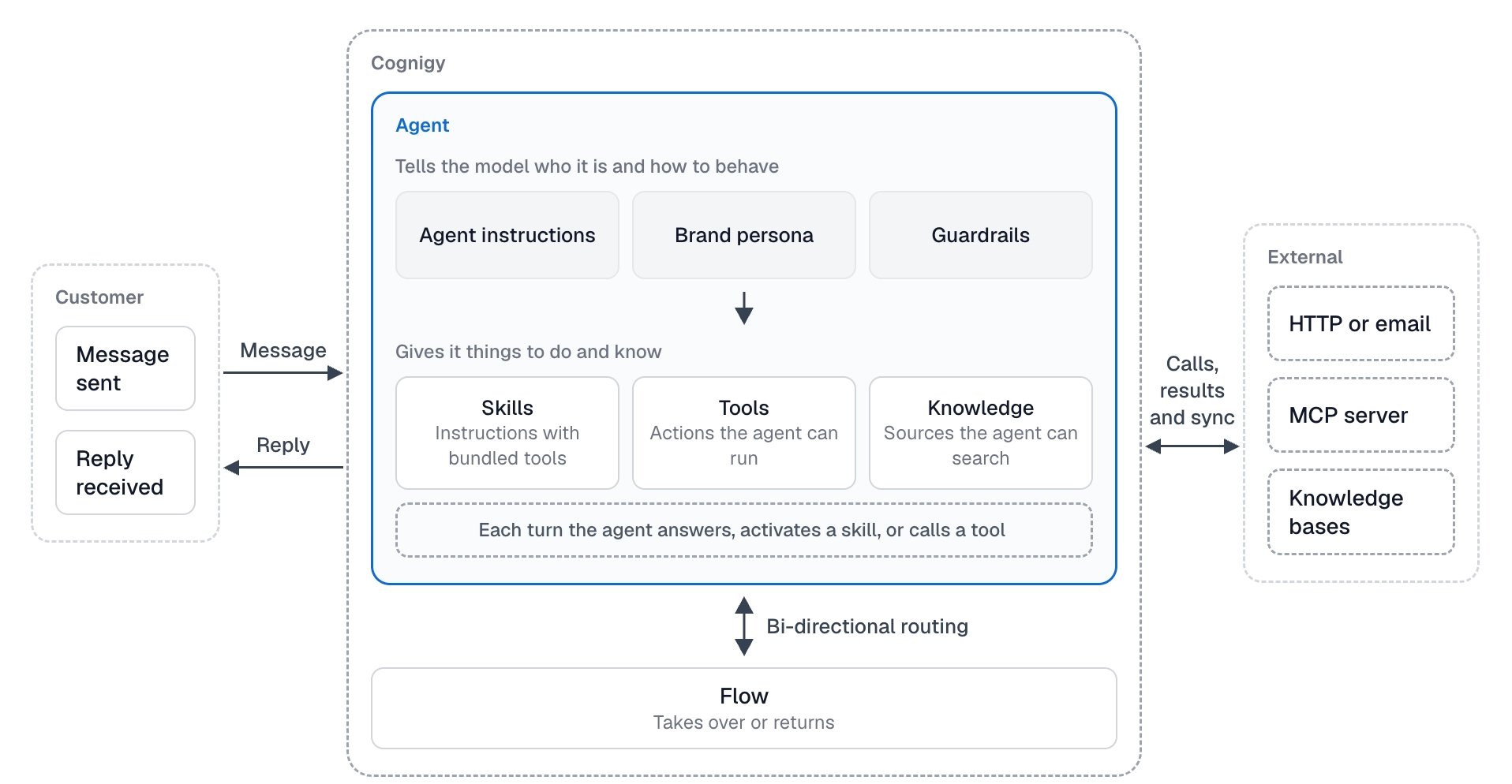
- Search knowledge. If Search is set to Always, Cognigy searches the knowledge store before the agent answers. If Search is set to Agent decides, the agent searches when needed.
- Activate a skill. The tools in the skill become available to the agent.
- Call a tool. Cognigy runs the tool and returns the result to the agent. The agent then continues with the result. A tool can connect to external systems, such as HTTP services, email, and MCP servers.
Create an agent
- GUI
- API
- In your project, go to Design > Agent. The AI Agents page opens.
- Click Add Agent. The Create New Agent form opens.
- Enter the Agent Name. The name is required and must be unique in the project. It can’t contain
\ / : * ? " < > | ¥and can have up to 200 characters. - (Optional) Enter the Job, the role of the agent. It appears next to the agent name.
- Enter the Instructions. They are required. Describe what the agent does and which information it requests first.
- In Language Model, select a model. If the list is empty, add a model first. See Language models.
- In Brand Persona, check the selected persona or select another one. A brand persona is required. If your project has none, Cognigy creates a brand persona named
Defaultwhen the form opens. - Click Save.
Manage agents
The agent list shows your agents in the Card or List view. You can search by name or description. In the agent menu, you can edit the agent, copy its reference ID, or delete it. You can export and import agents, brand personas, tools, skills, and MCP servers with Packages.Example
This example shows the configuration of an agent for customer service at Acme Express, a fictional company. The agent tracks shipments, changes deliveries, answers questions, and routes the customer to a human advisor when needed.Agent configuration
The instructions refer to tools and skills. You add them on the other tabs. Examples are Check Shipment Status, Get Delivery Options, and Knowledge Search.
Instructions
Instructions