By the end of this guide, you will have learned how to set up a Click To Call widget that includes a selector field. The selector field will be displayed as an alternative to the voice input field to select predefined options. A selector field can be useful during voice conversations when the end user needs to select from a set of options, for example, when choosing a menu in a cantina setting.

Prerequisites

Setup Overview

  1. Configure a Flow with an AI Agent Node and a Question Node. The Flow handles the conversation and opens the selector field on the Click To Call widget.
  2. Configure a Voice Gateway Endpoint. The Voice Gateway Endpoint connects the Flow to Voice Gateway and activates the Click To Call widget.
  3. Embed and test the widget. Add the widget script to your page and see the Click To Call widget working.

Set Up Click To Call Widget with Selector Field

1

Create a Flow

  1. Go to Build > Flows and click + New Flow.
  2. On the New Flow panel, configure the following:
    • Name — add a unique name, for example, Click To Call Assistant.
    • (Optional) Description — add a relevant description, for example, This Flow supports a Click To Call widget and a selector field.
2

Configure an AI Agent Node

  1. In the Flow editor, add an AI Agent Node and configure the following:
    • AI Agent — select the AI Agent you’ve previously created, for example, Cantina Assistant.
    • Job NameCantina Specialist. Save the Node.
  2. Next to the AI Agent Node, click + and select Tool.
  3. Configure the Tool Node as follows:
    • Tool ID — enter select_menu.
    • Description — enter Trigger this tool as soon as the customer needs help selecting a menu. Save the Node.
3

Configure a Say Node to Open the Selector

  1. Below the select_menu child Node of the AI Agent Node, add a Say Node.
  2. Configure the Say Node as follows:
    • In the Options section, add the following code in the Data field:
    {
      "openInput": true
    }
    
    • In the Settings section, enter Open selector in the Label field. This label allows you to better identify the function of this Node.
    This Node triggers the event to open the selector field on the Click To Call widget.
  3. Add a Wait for Input Node to wait for the user to select or say an option.
4

Configure a Say Node to Close the Selector

  1. Below the Wait for Input Node, add a Say Node and configure the following:
    • In the Options section, add the following code in the Data field:
    {
      "closeInput": true
    }
    
    • (Optional) In the Settings section, enter Close selector in the Label field.
    This Node closes the selector field on the widget after the user has answered.
5

Add a Resolve Tool Node to Return the Result to the AI Agent

Below the Wait for Input Node, add a Resolve Tool Node and configure the following:
  • Answer Text — enter The user selected the following menu: {{ci.text}}.
This Node returns the user’s menu to the AI Agent.
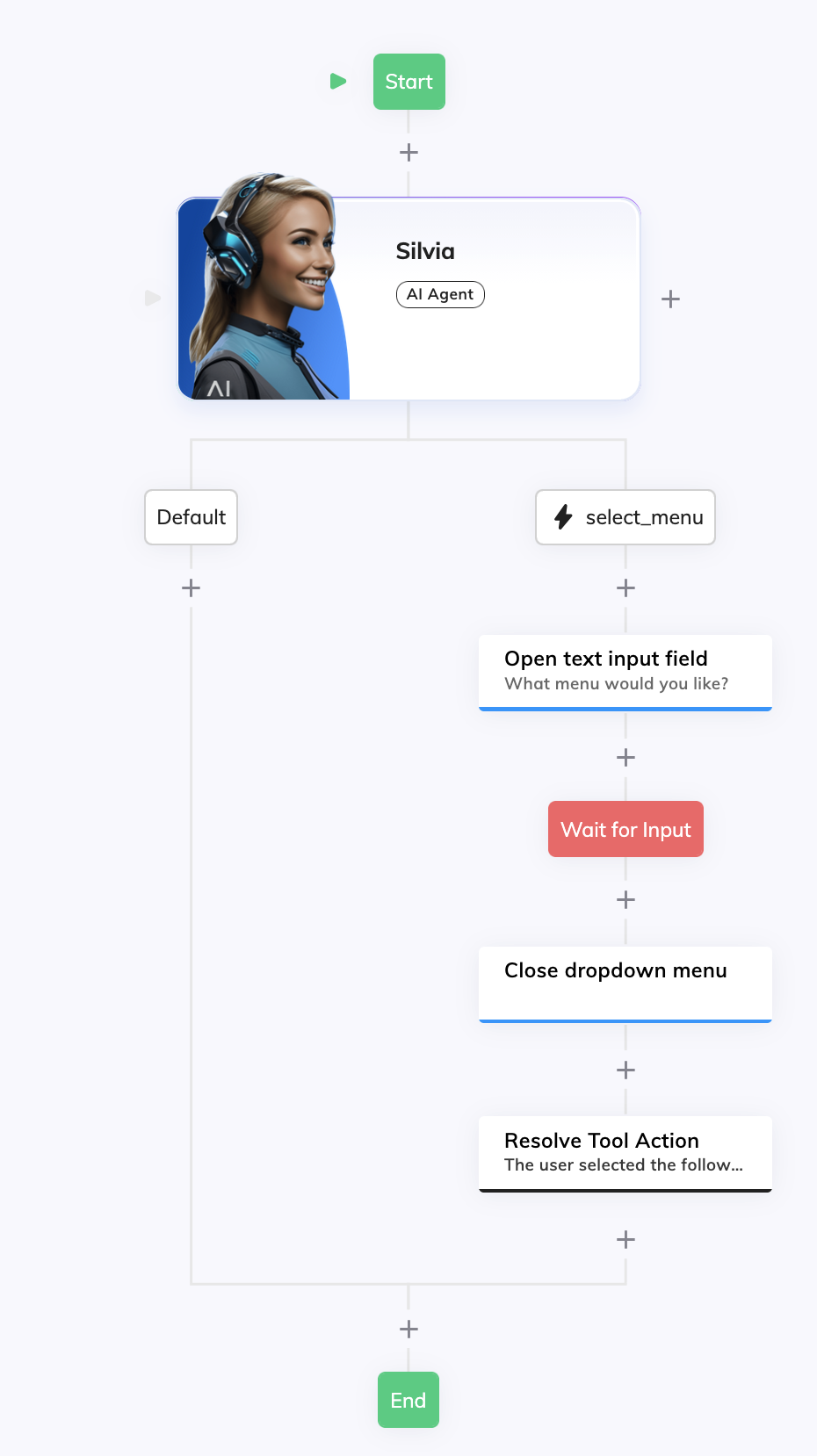
After completing these steps, your Flow should look like the following:

Configure a Voice Gateway Endpoint

1

Create a Voice Gateway Endpoint

  1. Go to Deploy > Endpoints.
  2. Click + New Endpoint, select Voice Gateway and configure the following:
    • Name — for example, Click To Call Cantina Support.
    • Flow — Select the Flow you previously configured, in this example, Click To Call Assistant.
  3. Click Save.
2

Generate the Click To Call Embedding Code

  1. In the Endpoint settings, find Click To Call Embedding HTML.
  2. Click the Set Up Click To Call Integration button in that field to generate the embedding code in the code editor. Hover over the code editor and click the Copy to clipboard button. You will use this code to embed the Click To Call widget in your website.
3

Enable and Configure the Click To Call Widget

  1. In Click To Call Widget Settings:
    • Enable Click To Call Widget — activate the toggle.
    • AI Agent Name — Name shown on the widget, for example, Cantina Support.
    • Tagline — Short text under the name, for example, Let me know what you want to eat!.
    • (Optional) AI Agent Avatar Logo URL — Add a URL of the image shown on the widget, for example, https://www.<domain>.com/logo.png. If empty, the Cognigy.AI logo is used.
    • (Optional) Theme — select the color theme of the widget.
  2. Save the Endpoint.

Embed and Test Widget

1

Embed the Widget in your Website

  1. Paste the code you copied previously from the Endpoint settings into your page’s <body> or before </body>. The code looks similar to the following:
<script src="https://github.com/Cognigy/click-to-call-widget/releases/latest/download/webRTCWidget.js"></script>
<script>
    addEventListener("load", (event) => {
        if (window.initWebRTCWidget) {
            window.initWebRTCWidget(
                "<ENDPOINT_URL>/<YOUR_ENDPOINT_CONFIG_TOKEN>"
            )
        }
    });
</script>
Where <ENDPOINT_URL> and <YOUR_ENDPOINT_CONFIG_TOKEN> are the URL and the Endpoint configuration token, respectively. For example, https://endpoint-dev.cognigy.ai/ab8b929039b427fed7ee84bb799acd7f254fc9254be27c87a78fc8a70fb048ec for the development environment or https://endpoint.cognigy.ai/ab8b929039b427fed7ee84bb799acd7f254fc9254be27c87a78fc8a70fb048ec for the production environment.
  1. Make sure the actual Endpoint configuration URL is the same as the one you copied from Click To Call Embedding HTML in the Voice Gateway Endpoint.
  2. Edit the widget script to add the dropdown menu and events to open and close the selector when the Flow sends openInput: true or closeInput: true in the Say Nodes. The following code is an example of how to do this:
<script src="https://github.com/Cognigy/click-to-call-widget/releases/latest/download/webRTCWidget.js"></script>
<script>
    addEventListener("load", function () {
        if (typeof window.initWebRTCWidget !== "function") return;
        var token = "<ENDPOINT_URL>/<YOUR_ENDPOINT_CONFIG_TOKEN>";
        window.initWebRTCWidget(token).then(function (widget) {

            var currentSession = null;

            // Returns the widget container element (tries vc_, voice_connect_, and webrtc_ class names).
            function getWidgetContainer() {
                return document.querySelector(".vc_widget_container") ||
                    document.querySelector(".voice_connect_widget_container") ||
                    document.querySelector(".webrtc_widget_container") ||
                    document.querySelector("[class*='widget_container']");
            }

            // Creates and shows a selector (dropdown) inside the transcript container or below the widget. Options: Mediterranean, Light, Comfort, Vegetarian. On Submit, sends the value via session.sendInfo() and hides the selector.
            function showSelectorField(session) {
                currentSession = session;
                var wrap = document.getElementById("widget-selector-wrap");
                if (wrap) {
                    wrap.style.display = "block";
                    return;
                }
                var widgetEl = getWidgetContainer();
                if (!widgetEl) widgetEl = document.body;
                wrap = document.createElement("div");
                wrap.id = "widget-selector-wrap";
                wrap.style.cssText = "width:100%;max-width:460px;margin-top:8px;margin-bottom:8px;box-sizing:border-box;display:block;";
                var select = document.createElement("select");
                select.id = "widget-menu-select";
                select.style.cssText = "width:100%;padding:8px 12px;font-size:14px;border:1px solid #ccc;border-radius:6px;box-sizing:border-box;margin-bottom:8px;";
                select.setAttribute("aria-label", "Choose a menu");
                var placeholder = document.createElement("option");
                placeholder.value = "";
                placeholder.textContent = "Select your menu";
                select.appendChild(placeholder);
                [{ value: "Mediterranean", label: "Mediterranean" }, { value: "Light", label: "Light" }, { value: "Comfort", label: "Comfort" }, { value: "Vegetarian", label: "Vegetarian" }].forEach(function (opt) {
                    var option = document.createElement("option");
                    option.value = opt.value;
                    option.textContent = opt.label;
                    select.appendChild(option);
                });
                var btn = document.createElement("button");
                btn.type = "button";
                btn.textContent = "Submit";
                btn.style.cssText = "width:100%;padding:8px 12px;font-size:14px;border:1px solid #ccc;border-radius:6px;box-sizing:border-box;cursor:pointer;";
                btn.setAttribute("aria-label", "Submit");
                function submitSelection() {
                    var value = select.value ? select.value.trim() : "";
                    if (!value) return;
                    if (currentSession && typeof currentSession.sendInfo === "function") currentSession.sendInfo(value);
                    hideSelectorField();
                }
                select.addEventListener("change", function () { btn.disabled = !select.value; });
                btn.disabled = true;
                btn.addEventListener("click", submitSelection);
                wrap.appendChild(select);
                wrap.appendChild(btn);
                if (widgetEl === document.body) {
                    widgetEl.appendChild(wrap);
                } else {
                    var transcriptContainer = document.querySelector(".vc_transcript_container") ||
                        document.querySelector(".voice_connect_transcript_container") ||
                        document.querySelector(".webrtc_transcript_container") ||
                        document.querySelector("[class*='transcript_container']");
                    if (transcriptContainer) {
                        transcriptContainer.appendChild(wrap);
                    } else {
                        var stack = widgetEl.parentElement;
                        var transcriptWrapper = stack && (stack.querySelector(".vc_widget_transcript_wrapper") ||
                            stack.querySelector(".voice_connect_widget_transcript_wrapper") ||
                            stack.querySelector(".webrtc_widget_transcript_wrapper"));
                        if (transcriptWrapper) {
                            transcriptWrapper.insertAdjacentElement("afterend", wrap);
                        } else {
                            var contentContainer = widgetEl.querySelector(".vc_widget_content_container") ||
                                widgetEl.querySelector(".voice_connect_widget_content_container") ||
                                widgetEl.querySelector(".webrtc_widget_content_container");
                            if (contentContainer) {
                                contentContainer.insertAdjacentElement("afterend", wrap);
                            } else {
                                widgetEl.appendChild(wrap);
                            }
                        }
                    }
                }
            }

            // Hides the selector and clears the current session reference.
            function hideSelectorField() {
                currentSession = null;
                var wrap = document.getElementById("widget-selector-wrap");
                if (wrap) wrap.style.display = "none";
            }

            // Returns true if the INFO body contains openInput: true (Flow asks to show the selector).
            function hasOpenInput(body) {
                if (body == null) return false;
                if (typeof body === "string") {
                    try { body = JSON.parse(body); } catch (e) { return false; }
                }
                var infoBody = typeof body === "object" ? body : null;
                if (!infoBody) return false;
                if (infoBody.openInput === true) return true;
                if (infoBody.data && infoBody.data.openInput === true) return true;
                if (infoBody.data && infoBody.data.data && infoBody.data.data.openInput === true) return true;
                return false;
            }

            // Returns true if the INFO body contains closeInput: true (Flow asks to close the selector).
            function hasCloseInput(body) {
                if (body == null) return false;
                if (typeof body === "string") {
                    try { body = JSON.parse(body); } catch (e) { return false; }
                }
                var infoBody = typeof body === "object" ? body : null;
                if (!infoBody) return false;
                if (infoBody.closeInput === true) return true;
                if (infoBody.data && infoBody.data.closeInput === true) return true;
                if (infoBody.data && infoBody.data.data && infoBody.data.data.closeInput === true) return true;
                return false;
            }

            // Runs when a new call (RTC session) starts.
            widget.on("newRTCSession", function (session) {

                // Runs when the Flow sends a SIP INFO: show the selector if openInput: true, hide it if closeInput: true.
                session.on("newInfo", function (ev) {
                    if (ev.originator !== "remote") return;
                    var info = ev.info || ev;
                    var body = info && (info.body !== undefined ? info.body : info.request && info.request.body);
                    if (body === undefined && typeof ev.body !== "undefined") body = ev.body;
                    if (body == null) return;
                    try {
                        if (hasCloseInput(body)) { hideSelectorField(); return; }
                        if (hasOpenInput(body)) showSelectorField(session);
                    } catch (e) {}
                });

                // Runs when the call ends normally; hide the selector.
                session.on("ended", hideSelectorField);

                // Runs when the session is terminated; hide the selector.
                session.on("terminated", hideSelectorField);
            });
        });
    });
</script>
2

Test the Widget

  1. Open the page in a browser, allow microphone access when prompted, and click start-voice-call on the widget to start a voice conversation with your AI Agent.
  2. After the AI Agent greets you, say you want to select a menu. The selector field opens on the widget.
  3. Try answering the question using the dropdown (Mediterranean, Light, Comfort, Vegetarian) and by voice.

See Also