

Prerequisites
- Configured Flow with Voice Gateway Nodes.
- To route your contact center or phone number to your Voice Gateway Endpoint, contact Cognigy support.
Generic Endpoint Settings
Learn about the generic Endpoint settings available for this Endpoint on the following pages:- Endpoints Overview
- Data Protection & Analytics
- Transformer Functions
- NLU Connectors
- Session Management
- Real-Time Translation Settings
- Copilot
Specific Endpoint Settings
Click To Call Widget Settings
Click To Call Widget Settings
The Voice Gateway Endpoint includes the Click To Call embedding HTML code and the Click To Call Widget Settings section for configuring Click To Call. Click To Call lets you embed a multimodal widget into your website, customer portal or mobile app so customers can be connected through one click to your voice AI Agent.
Customization
Customization
Generic Settings
Generic Settings
These settings will be valid for every session of this Endpoint.
As with all Speech Provider settings, there are certain differences in the use of this feature. Refer to your Speech Provider’s documentation first to understand which values to add. An example would be the difference between Microsoft Azure and Google. For Microsoft Azure, users need to specify the
% by which they would like to increase or decrease from the default settings. For instance, an example value could be Output Speed -20%, indicating a 20% reduction from the default output speed of 100%, resulting in a new output speed of 80%. To achieve the same effect with Google, users need to add the final output speed in % to the Prosody Settings. For example, Output Speed 80% directly displays the new output speed, as with Google; the final output speed is directly added to the settings.AudioCodes Compatibility Mode
AudioCodes Compatibility Mode
Allows using both AudioCodes Nodes and Voice Gateway Nodes simultaneously in a Flow.
When this mode is enabled, the system treats Flows with AudioCodes Nodes as if they were Flows with Voice Gateway Nodes.
This mode helps ensure that voice AI Agents operate smoothly without interruptions during the transition from AudioCodes to Cognigy Voice Gateway.To activate the AudioCodes Compatibility Mode section, add the
FEATURE_VG_AC_COMPATIBILITY_MODE feature flag to the Cognigy values.yaml file.For more information, read Migration from AudioCodes to Voice Gateway.Call Events
Call Events
Allows activating call events for a Flow.
Select a call event from the Voice Gateway Events list.
This event will trigger the action.If you have configured the same call event in both the Endpoint and the Lookup Node, the Endpoint settings will overwrite the Node settings.Call Event Settings
As with all other Endpoint settings, you can’t test the Call Events settings within the Interaction Panel.
Call Failover
Call Failover
The Call Failover section is intended to handle runtime and speech provider authentication errors that occur on the Cognigy side during the execution of a Flow.
For 2026.14.1 or earlier versions:
- If you use a SaaS Cognigy installation, contact the support team to activate this feature.
- If you use an on-premises Cognigy installation, activate this feature by adding
FEATURE_ENABLE_ENDPOINT_CALL_FAILOVERinvalues.yaml.
For Voice Gateway 2025.19 and later, the Anchor Media parameter has been renamed to Media Path and includes more options. The previously available options correspond to:
- Full Media — the toggled on Anchor Media parameter in earlier versions.
- Partial Media — the toggled off Anchor Media parameter in earlier versions.
FEATURE_DISABLE_VG_MEDIA_PATH, with a default value of false. It is available only in environments where the feature flag is set to false.Changing the Media Path during an Active Call
Besides setting the media path in the Flow, you can also change the media path during an active transferred call using the Voice Gateway API.This approach is useful for PCI compliance. For example, when a caller shares sensitive payment information, Voice Gateway, as an intermediate system, must be removed from the media stream. Audio is then routed directly between the caller and the contact center, bypassing Voice Gateway, reducing PCI data exposure and helping protect sensitive data.To remove Voice Gateway from the media path, send the PUT /Accounts//Calls/ API request with{ "media_path": "noMedia" } from the contact center to Voice Gateway after the call has been transferred. With this setting, Voice Gateway stops processing the call’s audio and DTMF entirely, including for call transcription. After Voice Gateway confirms the API request with a 200 or 202 response, you can’t revert to processing media for the transferred call. A 400, 404, or 422 response means the request failed, which keeps the call on its previous media path, and Voice Gateway continues processing audio and DTMF.Capture the call SID before the transfer takes place. During a transfer, a new call SID is created for the new call leg, but the original call SID remains unchanged. Pass the original call SID along during the transfer, for example, in SIP headers. This way, the contact center can reference the original call when triggering the API request at the correct moment.Additional Information
SIP Headers
SIP Headers
The SIP headers, including any custom headers, are available within the Input object.
You can find them in
input.data or input.data.payload.sip.headers.Call Metadata
Call Metadata
Handover
Handover
You can use any handover provider within the Voice Gateway integration.
Handover enables your voice agent to route calls to the contact center, ensuring efficient communication and swift access to human assistance.In contrast to chatting, communication between actors during a voice call occurs using speech recognition technologies (text-to-speech and speech-to-text).
Using speech-to-text technology, the voice agent sends the conversation script from the end user to the human agent.
Once the script is received, the human agent can respond using text.
After that, the voice agent converts the human agent’s message to speech using text-to-speech technology.
Finally, the converted message is sent to the end user.ConfigurationTo enable handover, add a Handover to Human Agent Node in your voice Flow. This Node transfers the conversation from the voice agent to the human agent.In this example, an end user seeks billing assistance and interacts with agents in a customer service system via text-to-speech and speech-to-text technologies.End User: Calls the customer service line. Speaks to the voice agent. Example:
Voice Agent: Transcribes user’s speech into text using speech-to-text technology. Example:
Voice Agent: Determines the need for human assistance. Initiates handover to the human agent via handover provider.
Human Agent: Receives a conversation script containing user’s query.
Human Agent: Types response on interface. Example:
Voice Agent: Receives human agent’s typed response. Converts the text message into speech using text-to-speech technology.
End User: Hears human agent’s response spoken by voice agent. Example:
End User / Human Agent: The conversation between the end user and the human agent continues until the issue is resolved or the interaction is concluded.Multilingual SupportDuring a handover, you can use translation into other languages. Use the translation feature to overcome language barriers between end users and support staff. This feature is particularly useful in situations where there are no support staff proficient in the end user’s language, and urgent issue resolution is necessary.For example, if a user communicates in German, the voice agent responds accordingly. However, after transferring the call to the contact center, the dialogue is translated into English. The human agent responds in English, and the response is translated into German for the end user via text-to-speech technology. This method ensures seamless communication despite language differences.Note that depending on the language and provider selected, translations may experience delays while they reach the contact center. If the speech-to-text fails to recognize speech for any reason, the message won’t appear on the contact center’s side. Plan for such scenarios within your Flow and configure the voice agent’s behavior accordingly. This approach will ensure that the end user is aware that their message may not be delivered. You can achieve this by adjusting timeout settings and error handling policies.To set up a multilingual Flow for the handover use case, follow these steps: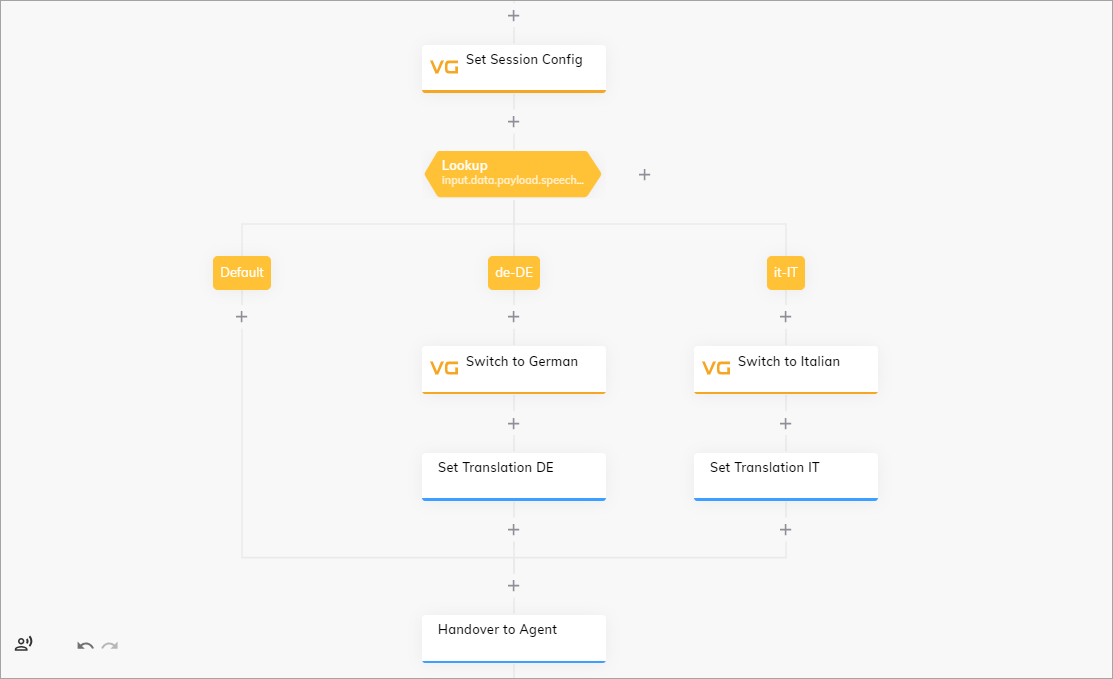
Voice Agent: Determines the language and answers using the same language. Example:
Voice Agent: Transcribes user’s speech into text using speech-to-text technology. Example:
Voice Agent: Determines the need for human assistance and initiates the handover to the human agent via the handover provider.
Human Agent: Receives a conversation script containing user’s query.
Human Agent: Types response on interface. Example:
Voice Agent: Receives human agent’s typed response. Converts the text message into speech using text-to-speech technology.
End User: Hears human agent’s response spoken by voice agent. Example:
End User/Human Agent: The conversation between the end user and the human agent continues until the issue is resolved or the interaction is concluded.
Hello, I need assistance with my billing inquiry.Voice Agent: Transcribes user’s speech into text using speech-to-text technology. Example:
Hello, I need assistance with my billing inquiry.Voice Agent: Determines the need for human assistance. Initiates handover to the human agent via handover provider.
Human Agent: Receives a conversation script containing user’s query.
Human Agent: Types response on interface. Example:
Hello, thank you for reaching out. Let me check your billing details.Voice Agent: Receives human agent’s typed response. Converts the text message into speech using text-to-speech technology.
End User: Hears human agent’s response spoken by voice agent. Example:
Hello, thank you for reaching out. Let me check your billing details.End User / Human Agent: The conversation between the end user and the human agent continues until the issue is resolved or the interaction is concluded.Multilingual SupportDuring a handover, you can use translation into other languages. Use the translation feature to overcome language barriers between end users and support staff. This feature is particularly useful in situations where there are no support staff proficient in the end user’s language, and urgent issue resolution is necessary.For example, if a user communicates in German, the voice agent responds accordingly. However, after transferring the call to the contact center, the dialogue is translated into English. The human agent responds in English, and the response is translated into German for the end user via text-to-speech technology. This method ensures seamless communication despite language differences.Note that depending on the language and provider selected, translations may experience delays while they reach the contact center. If the speech-to-text fails to recognize speech for any reason, the message won’t appear on the contact center’s side. Plan for such scenarios within your Flow and configure the voice agent’s behavior accordingly. This approach will ensure that the end user is aware that their message may not be delivered. You can achieve this by adjusting timeout settings and error handling policies.To set up a multilingual Flow for the handover use case, follow these steps:
- In your voice Flow, navigate to the Set Session Config Node.
- In the Node editor, go to the Recognizer STT section and activate the Recognize Language toggle.
- From the Alternative Language list, select the additional languages, for example,
GermanandItalian. - Below the Set Session Config Node, add a Lookup Node.
- In the parent Lookup Node, select CognigyScript from the Type list and specify
input.data.payload.speech.language_codein the Operator field. - In the case Nodes of the Lookup Node, specify the language codes, for example,
de-DE,it-IT. - Below each case Node, add the second Set Session Config Nodes.
- Configure the TTS and STT settings for each of the Set Session Config Nodes. This means that one Node should have German language selected, while the other should have Italian. These Nodes will manage the voice agent’s communication in the end user’s language. If you use an AWS voice, you can also select a TTS Engine. For more information, see Parameter Details.
- Below each Set Session Config Node, add the Set Translation Nodes. These Nodes will perform translation of a text from the end user’s language to the human agent’s language.
- In the Set Translation Node, activate the Translation Enabled toggle.
- In the User Input Language field, specify the language of the user input, for example,
de,it. - In the Flow Language field, specify the language to translate to, for example,
en. - At the end of the Flow, place the Handover to Human Agent Node.
Hallo, ich brauche Hilfe bei meiner Rechnungsanfrage.Voice Agent: Determines the language and answers using the same language. Example:
Danke für die Informationen. Ich werde Sie an einen menschlichen Agenten weiterleiten, der Ihnen weiterhelfen kann.Voice Agent: Transcribes user’s speech into text using speech-to-text technology. Example:
Hello, I need assistance with my billing inquiry.Voice Agent: Determines the need for human assistance and initiates the handover to the human agent via the handover provider.
Human Agent: Receives a conversation script containing user’s query.
Human Agent: Types response on interface. Example:
I've found the issue. It seems there was an error in the billing statement. I'll correct it for you.Voice Agent: Receives human agent’s typed response. Converts the text message into speech using text-to-speech technology.
End User: Hears human agent’s response spoken by voice agent. Example:
Ich habe das Problem gefunden. Es scheint, dass es einen Fehler in der Rechnungsstellung gab. Ich werde es für dich korrigieren.End User/Human Agent: The conversation between the end user and the human agent continues until the issue is resolved or the interaction is concluded.