

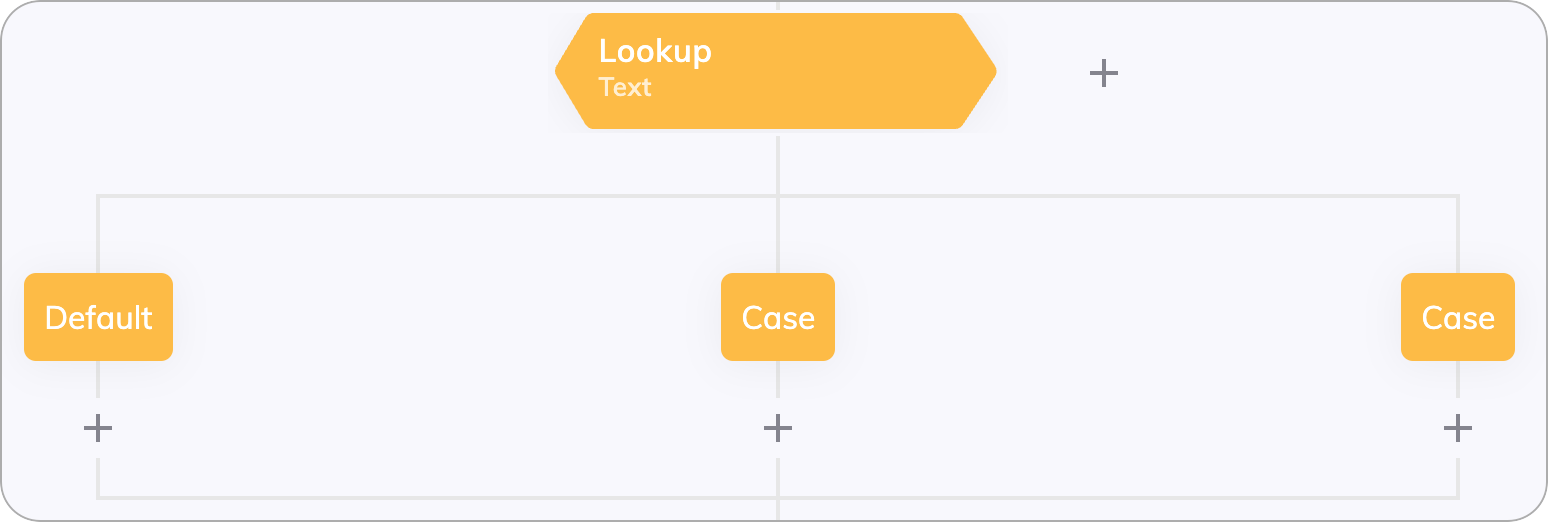
Description
A Lookup Node creates different Flow paths based on a chosen operand. The operand, also called lookup type, can be set to Intent, State, Type and Mode, or custom CognigyScript. In the child Case Nodes, the specific values for the selected operand are entered. The operand is evaluated during the execution of the Flow, and the result is compared with the values of each case. If there is a match, the Flow path of the matched case is executed. If there is no case match, the Default Node is executed.Parameters
Case Sensitivity
Case Sensitivity
Lookup Case Nodes are case-sensitive. Ensure that you use the correct upper or
lower case spelling in the Value field of your Case Nodes.
Type
Intent
Intent
This is the default setting for the Lookup Node, and it allows you to easily look up the Intent that has been triggered.By default, the Intent at the most detailed Intent Hierarchy level is matched. In this case, the Intents of all three levels are selectable in the Intent dropdown menu of the Case Nodes.However, you can also select a level via the Intent Level list if Intents should be matched only on a certain hierarchy level. In this case, only the Intents of the chosen level are selectable in the Intent list of the Case Nodes.For more information about building Flows with Intents, refer to the NLU Overview page.
Text
Text
By changing the lookup type to Text, the Flow selects a case that matches
the value of
input.text. The case values must manually be written for this
type of lookup.State
State
By changing the lookup type to State, the Flow selects a case that matches the value of
input.state. The case values must manually be written for this type of lookup.States allow limitations to be placed on a conversation that restrict the valid Intents that the NLU has access to. You can use Intent Conditions as an alternative for controlling Intent recognition.Type
Type
By changing the lookup type to Type, the Flow selects a case that matches the value of
input.type. The case values must manually be written for this type of lookup.The Type is defined as a classification of the last user message as determined by the NLU. The type is an Input variable that can be one of the following values: Statement, Command, Greeting, BGreeting, whQuestion, howQuestion, ynQuestion, pAnswer or nAnswer.
Mode
Mode
By changing the lookup type to Mode, the Flow selects a case that matches the value of
input.mode. The case values must manually be written for this type of lookup.The Mode provides information on what was contained in the last user message. The type is an Input variable that can be one of the following values: TextOnly or TextData. (Data only messages have an implicitly defined text that includes
DATA_ONLY_MESSAGE_ followed by a randomly generated string of 20 characters)Handover Status
Handover Status
By changing the lookup type to Handover Status,
the Flow selects a case that matches the value of
input.handover.status.
The case values must manually be written for a type of lookup.You can now receive Status and queue update messages from Genesys Cloud using the Handover Status Node. To learn how to do that, go to Genesys Status and Bot Messages. If you wish to use RingCentral Engage instead, go to RingCentral Engage for more information.The table below shows handover statuses that you can configure in the Case Node.CognigyScript
CognigyScript
If you choose CognigyScript as the operand, use CognigyScript without
{{ }}. You can also select to parse the CognigyScript as a string or not.input, context or profile. The case values must manually be written for this type of lookup.To learn more, read the CognigyScript page.Call Event Status
Call Event Status
By changing the lookup type to Call Event Status, the Flow selects a case that matches the value of
input.data.event. The case values must manually be written for this type of lookup.In the Case Node, you can handle various Voice Gateway events, including Recognized Speech, Recognized DTMF, Call Created, Answering Machine Detection, and more.More information about these events you can find in the Voice Gateway Events reference.Advanced
Strict Mode
By default, the Strict Mode setting is inactive, which lets the Lookup Node accept values of any data type from the Input, Context, or Profile objects. For instance, if you use CognigyScript to retrieve a value in integer format (for example,2024), it is considered equal to the string format (for example, "2024")
in the Value field of the Case Node.
In Strict Mode, value types must be identical.
For example, the integer 2024 and the string "2024" aren’t considered equal.
This mode is useful when strict type matching is necessary to ensure data is processed correctly.
When Strict Mode is enabled, the value retrieved from the Input, Context, or Profile objects must match the type of the value specified in the Case Node.
To achieve this result, in the Value field of the Case Node, convert the string to the required format using JavaScript.
For example, to convert the string "2024" to the integer 2024, use {{ Number("2024") }} or CognigyScript to retrieve the value: {{ Number(input.currentTime.year) }}.
An Alternative to Nested If Nodes
Lookup Nodes are useful when the number of possible options becomes too large for If Nodes. Rather than using a series of conditional statements like ifinput.intent === "orderFood", else if input.intent === "orderDrink", else if input.intent === "askHelp", and so on, you can simplify the process by using a Lookup on the Intent with multiple cases (orderFood, orderDrink, askHelp) and a default option.