


Prerequisites
- Access to Genesys Cloud.
- Create an Endpoint compatible with Genesys Cloud Open Messaging.
- Activate Genesys Cloud Open Messaging on the Cognigy side:
- If you have a SaaS installation, contact Cognigy technical support.
- If you have an on-premises installation, specify the following feature flags:
FEATURE_ENABLE_GENESYS_CLOUD_OM="true",FEATURE_ENABLE_GENESYS_CLOUD_OM_WHITELIST="organization1,organization2",FEATURE_USE_GENESYS_BOT_CONNECTOR_ENDPOINT_WHITELIST="organization1,organization2". To enable the Genesys Cloud Open Messaging handover provider for all organizations in your installation, use*instead of a list of organizations.
- To detect handover completion in Genesys:
- Starting from Cognigy 4.100, migrate to Amazon EventBridge using the Amazon EventBridge Genesys connector to send requests to Cognigy.
- For Cognigy 4.99 and earlier versions, you have two options:
- By default, Cognigy 4.99 and earlier use a WebSocket connection via the Notifications API to detect handover completion in Genesys. However, this approach has limitations and may not always be reliable.
- As an alternative, you can configure HTTP webhooks using Triggers and Web Services Data Actions to send requests to Cognigy.
Configuration on the Handover Provider Side
Before starting the integration with Cognigy, build the Genesys Cloud Open Messaging configuration on the Genesys Cloud CX side.1. Create a Platform
1. Create a Platform
To create a platform config for Genesys Cloud Open Messaging, follow these steps:
- In the Genesys Cloud interface, click Menu in the upper-left corner and go to Digital and Telephony > Message > Platform Configurations.
- In the upper-right corner, click + Create Profile.
- In the Create a configuration profile window, enter a unique name for the platform configuration and click Create.
- In the left-side menu, select Platform Integrations.
- On the Messaging Platforms page, click + Create New Integration and select Open Messaging.
- On the Open Messaging page, fill in the following fields:
- Name — enter a name without spaces for your integration. Copy and save this name. You need to specify this name in the Deployment name field on the Cognigy side.
- Outbound Notification Webhook URL — enter
https://endpoint-<your-environment>/handover/genesysCloudOM. For example,https://endpoint-app.cognigy.ai/handover/genesysCloudOM, where environment isapp.cognigy.ai. - Outbound Notification Webhook Signature Secret Token — enter the secret into the X-Hub-Signature-256 header generation for webhook requests sent to the outbound notification webhook URL. For the secret, you can choose any arbitrary but sufficiently random string that you want. The external service should use the secret and signature to validate the message originating from Genesys Cloud. This validation is optional but recommended. For more information about validation, see Validate webhook notifications in the Genesys Cloud Developer Center. Copy and save this token for future use in Cognigy. Note that if you don’t copy and save this token, you will need to recreate it after saving the platform configuration.
- Click Save.
- From the Platform Config list, select the config that you created in Platform Configurations.
- From the Supported Content Profile list, select
default. Save changes.
2. Create a Queue
2. Create a Queue
To create a Queue, follow these steps:
- In the left-side menu, select User Management > Queues.
- On the Queues page, click + Create Queue. The Create Queue panel opens on the right side.
- In the Create Queue panel, fill in the following fields:
- Name — enter a unique name of the queue. Save and copy this name for later use.
- Division — select
Home.
- Click Save. Your queue will appear in the queue list.
- Open the queue settings by selecting the queue from the list.
- In your browser’s address bar, find and copy the queue ID from the URL. The ID is located between
/queues/and/general. For example, in the URL,https://apps.mypurecloud.de/directory/#/admin/organization/queues/d59d0280-6664-4896-ad42-1a2715b7178e/general, copy the IDd59d0280-6664-4896-ad42-1a2715b7178e. - Save the queue ID for later use in Cognigy.
3. Create an Inbound Message Flow
3. Create an Inbound Message Flow
To create an Inbound Message flow, follow these steps:
- In the left-side menu, select Orchestration > Architect.
-
Hover over the

- Click + Add in the upper-left corner. The Create ‘Inbound Message Flow’ dialog box opens.
- In the Name field, enter a unique name for the inbound message flow.
- From the Divisions list, select the division to assign the flow to.
- Click Create Flow. The flow’s configuration page opens.
-
In the Search Toolbox field, enter
Send Responseand drag the action below the Start action in the messaging flow editor. -
In the Message Body field of the Send Response action, enter
Connectedand select Literal from the list next to the field. - (Optional) Below the Send Response action, add the Get Participant Data action.
-
(Optional) In the Get Participant Data editor, click + and add the following attributes:
- (Optional) For debugging purposes, you can send this data to the human agent within a conversation. To do that, below the Get Participant Data action, add a second Send Response action. In the message body, enter the attributes in a message sequence with the String Builder.
- Below the Send Response action, place the Transfer to ACD action to transfer an interaction to a queueing system.
- In the Queue field of the Transfer to ACD action, select the queue to which you want to transfer the interaction.
- In the upper-left corner, click Save, then Publish.
4. Set up Message Routing
4. Set up Message Routing
To set up Message Routing, follow these steps:
- Go to the Genesys Cloud interface, click Menu in the upper-left corner and select Orchestration > Routing > Message Routing.
- In the upper-right corner, click + Attach New Addresses to a Flow. The Attach New Addresses page opens.
- From the Select Flow list, select the Inbound Message Flow you created.
- From the Select Addresses section, choose the Open Messaging platform you created and click Attach Address. Save changes.
5. Configure Credentials
5. Configure Credentials
To configure credentials, follow these steps:
- In the left-side menu, select IT and Integrations > OAuth, then click + Add Client.
- On the Add New Client page, configure the following:
- App Name — enter a unique name for the client.
- Grant Types — select Client Credentials. Click Next.
- In the Roles list, activate the corresponding role for the client. The role must include at least the following permissions:
messaging-platform:readonly(View messaging platform integrations)conversations(Create, edit, and delete conversation data)analytics:readonly(Query aggregate conversation data and view conversation details)
- Click Next.
- In the Token Duration in seconds field, enter the token expiration time. Click Next.
- Click Generate New Client Secret, then Confirm.
- Copy the Client ID and Client Secret, save them for future use, and click Finish. Confirm that you copied the Client ID and Client Secret in the dialog box.
- In the left-side menu, select Authorized Applications.
- In the upper-right corner, click + Authorize a Client.
- In the Authorize Client window, enter the Client ID that you copied previously and click Authorize Client.
- (Optional) In the Users that can use this application section, select the roles of the users who can use this application.
- In the Scope section, select the minimum scope of the application, as listed in step 3. Click Authorize.
Configuration on the Cognigy Side
1. Create a Handover Provider
1. Create a Handover Provider
- Go to Deploy > Handover Providers.
- Click + New Handover Provider and select Genesys Open Messaging from the list.
- Scroll down to Handover Settings and select Genesys Cloud Open Messaging from the list.
- Fill in the following fields:
- Host — enter the login URL for Genesys Cloud customers, which varies by region, such as
mypurecloud.defor Germany. You can use the base domain likemypurecloud.comorcac1.pure.cloud, omitting theapps.orlogin.part. For more on Genesys Cloud regions, refer to AWS regions for deployment. - Deployment Name — specify the Open Messaging platform name that you created on the Genesys Cloud CX side.
- Queue ID — enter the Queue ID that you copied when you created a queue on the Genesys Cloud CX side.
- Webhook Secret — specify the Outbound Notification Webhook Signature Secret Token that you created on the Genesys Cloud CX side.
- Client ID — enter the Client ID that you generated on the Genesys Cloud CX side.
- Client Secret — enter the Client Secret that you generated on the Genesys Cloud CX side.
- Host — enter the login URL for Genesys Cloud customers, which varies by region, such as
- (Optional) Activate the Send Profile information setting if you want to display human agent information, such as the first and last name, to the user. Save changes.
2. Configure Handover Settings
2. Configure Handover Settings
In the Handover to Human Agent Node, select Genesys Open Messaging in the Handover Provider list, and configure the following fields:Before sending to Genesys, Cognigy flattens nested objects, joins or indexes arrays, converts booleans to 1/0, and skips unsupported types.
To test the connection, click Open Demo Web Chat in your Endpoint.
- Language — specify a language for the conversation. For example,
english,spanish,german. - Skills — define skills for the conversation. For example,
escalation. - Priority — set the priority for the conversation. For example,
1. If a priority is set, it triggers a flow in Genesys to prioritize or de-prioritize the conversation within the queue. Note that this functionality requires the appropriate flow to be set up in Genesys. - Enable User Connects Message — notify human agents when an end user reconnects to the chat. The parameter is enabled by default. When the parameter is enabled, the message
User joined the conversationappears in the chat as soon as the end user returns to the chat tab by clicking the ← (back arrow) at the top bar in the browser, after having opened a new URL on the same tab as the chat. - Enable User Disconnects Message — notify human agents when an end user disconnects from the chat. The parameter is enabled by default. When the parameter is enabled, the message
User left the conversationis sent as soon as the end user closes the tab with the chat or switches to a new URL address within the current tab. - Display Agent Details — display the human agent’s name and avatar from Genesys in the chat for the end user. The parameter is disabled by default.
- Get Estimated Wait Time — retrieve the estimated wait time for the end user. End users then receive wait time updates while they wait to be connected to a human agent. The parameter is inactive by default. It requires an active Amazon EventBridge Source integration. Genesys Cloud Open Messaging doesn’t provide a queue position. Estimated wait time is the only queue parameter available. For more information, read Real-Time Queue Notifications.
- Custom Attributes — add custom attributes, which allows you to include additional information. When sending custom attributes from Cognigy to Genesys Cloud, you can enter them in two ways:
Additional Configuration
Send Genesys Bot Messages to End Users
Send Genesys Bot Messages to End Users
Before using this feature, add the
GENESYS_CLOUD_OM_HANDLE_BOT_MESSAGE: "true" feature flag.- When the conversation status or wait time information is relevant to the end user.
- To provide the end user with updates and transparency throughout the interaction.
- To allow the end user to make informed decisions while waiting for a human agent, such as requesting a callback.
- In your handover Flow, set a Lookup Node below the Handover to Human Agent Node. Set the Lookup Node as your Entrypoint.
- For the Type field within the Lookup Node, select Handover Status.
- For the child Case Node, specify
genericHandoverUpdatein the Value field. - Add your Say Node under the Case Node to display the messages to the end user. Select Text from the Output Type list, and in the Text field enter the following CognigyScript:
{{ input.data.request.text }}. The script will then query Genesys for the relevant data, such as a queue position. - In the Handover Settings of the Say Node, select User Only from the Handover Output Destination list.
- To display all incoming Genesys Status or Bot messages, add a Go To Node below the Say Node.
- Open the Go To Node. From the Select Node list, choose Lookup. Scroll down to the Advanced section. From the Execution Mode list, select Go to Node and wait for Input.
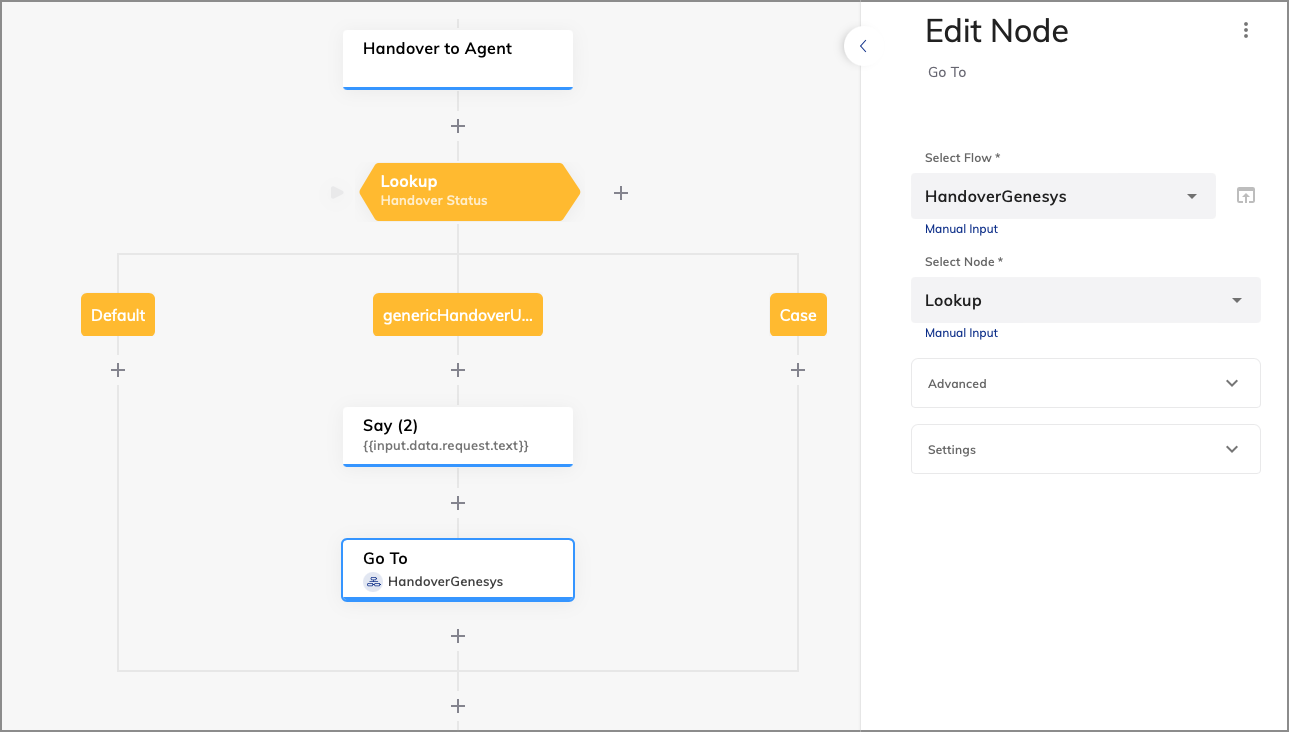
Filter Transcript Messages
Filter Transcript Messages
By default, Cognigy sends the full conversation transcript as a single message once the handover to Genesys occurs. Additionally, you can filter out empty or unsupported messages to keep the transcript relevant and concise:
- Filter unsupported messages — if the system detects a message in an unsupported format, such as
UNSUPPORTED_STRUCTURE_DATA, the system will exclude the message from the conversation transcript. To activate this feature, use theFEATURE_FILTER_UNSUPPORTED_MESSAGES_HANDOVER_PROVIDER: "true"feature flag. - Filter empty messages — if a user sends a blank message with no text or content, the system will exclude the message from the conversation transcript. To activate this feature, use the
FEATURE_FILTER_EMPTY_MESSAGES_HANDOVER_PROVIDER: "true"feature flag.
Configure Attachments
Configure Attachments
When using a Webchat v3 or WhatsApp Endpoint with the Genesys Cloud Open Messaging handover provider, end users can send and receive file attachments during a handover session.End users can upload, share, and receive the following file types:
To activate attachment uploads, configure File Storage in the Webchat v3 or WhatsApp Endpoint settings.
Agent Copilot Workspace
Within the Genesys integration, you can use the Agent Copilot workspace as an assistant for your human agents. By default, two versions of the application are provided:Standalone
Standalone
Agent Copilot will be available as a standalone application via the following link:
https://${AgentCopilotBaseUrl}/?userId=${userId}&sessionId=${sessionId}&URLToken=${URLToken}Where:AICopilotBaseUrl— the base URL used to access the Agent Copilot workspace.sessionId— the Cognigy session ID. A session represents the interaction between the human agent and the Agent Copilot workspace.userId— the Cognigy user ID. It helps Agent Copilot associate the interaction with a specific user.URLToken— the Endpoint token from Cognigy. The Endpoint must be linked to the Handover Flow. To find this token, go to the Endpoint that you created previously. In the Endpoint URL field, copy the token afterhttps://endpoint-trial.cognigy.ai/. For example, in the URLhttps://endpoint-trial.cognigy.ai/f38791ae20d4961acf0e97d9f377c4fe3df92894e1eff1c7a774a8ed089a4590, the token isf38791ae20d4961acf0e97d9f377c4fe3df92894e1eff1c7a774a8ed089a4590. Only authorized users can access the Agent Copilot system through this URL.
Embedded
Embedded
By default, you can use the embedded version of the Agent Copilot workspace, but it will overlap part of the screen with the conversation. To place the workspace to the right of the chat with the conversation, follow these steps:
1. Create a Script
1. Create a Script
To create a script, follow these steps:
- In Cognigy, go to Endpoint Settings > Copilot.
- Copy the Agent Copilot Embedding URL by clicking on it.
- In Genesys Cloud, open the Admin tab.
- Under Contact Center, click Scripts, then Create. Type a name for the script.
- Select the Blank Script template and click + Create.
- On the script page, go to the Add Components tab.
- Under the Components section, select Web Page. In the Web Page Source field, enter the Agent Copilot Embedding URL that you copied before.
- In the Layout section, change the size of width and height by clicking the Stretch button.
- In the upper-right corner, go to the Variables tab.
- On the Variables tab, go to the Basic Types section and click String.
- Create a new variable:
- In the Name field, enter
userId. - In the Description field, enter
Cognigy variable. - Enable the Input toggle and click Apply.
- In the Name field, enter
- In the upper-left corner of the script page, click Script > Properties.
- In the Script Properties section, activate the Inbound and Message features.
- In the upper-left corner of the script page, click Script > Save, then Publish.
2. Add the Script to the Inbound Message Flow
2. Add the Script to the Inbound Message Flow
To add the Script to the Inbound Message Flow, follow these steps:
- In the Genesys Cloud interface, go to Orchestration > Architect.
- Click or hover over the
- From the flow list, select a flow that you created before.
- In the Toolbox section, enter
Get Participant Datain the search field and drag the action to the arrow coming out of the Start Node in the messaging flow editor. - In the flow editor, ensure that both the Send Response and the Get Participant Data actions have been added. If you haven’t done so already, refer to steps 7-11 in the Create an Inbound Message Flow section of the handover reference.
- Below the Get Participant Data action, place a Set Screen Pop action. The Set Screen Pop action must be positioned above the Transfer to ACD action.
- From the Message Script list of the Set Screen Pop action, select the script you previously created.
- In the Inputs action, enter
userIdin the userId field. - In the upper-left corner, click Save, then Publish.