

Advanced · 20 min · Cognigy
What a pre-turn flow does
A pre-turn flow is a flow that runs on the customer’s message before the agent sees it. The flow can check the message, change it or add information, and then hand the result to the agent. The agent answers the version that the flow hands back, not the original. The flow uses ordinary nodes, such as Code, HTTP Request, If, and Lookup. This lets you add logic that runs the same way every time, without changing the agent’s instructions or relying on the model to follow them.
The flow hands its result back with the Continue to AI Agent node, which has three fields:
- Text: the message the agent reads. By default,
{{input.text}}, the original message unchanged. - Data: structured data passed to the agent.
- Turn context: up to 20 labelled entries that the agent receives as background information for this turn.
What you will build
In this tutorial, you use a pre-turn flow for the first use: cleaning the message. You add a pre-turn flow to Klara, the customer service agent for the fictional company ACME Express. The flow replaces email addresses with[EMAIL] and card numbers with [CARD]. The masked text replaces the original message in Klara’s prompt and conversation history, so the agent never receives the original values. This is true only when the flow runs and hands back its result. See the warning at the top of this page.
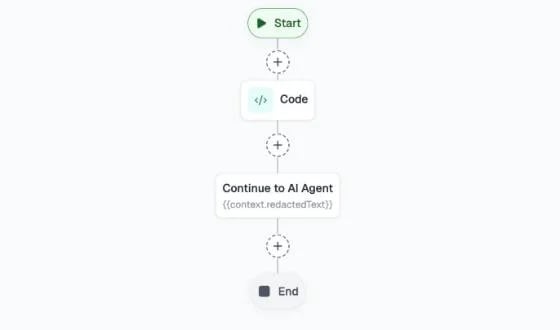
The pre-turn flow has the following nodes:
Before you start
Complete the following prerequisites:- The project Klara Tutorial with the agent Klara. To create them, follow Build Klara, a customer service agent.
- Pre-turn flows are available for your organization. If you don’t see Hooks on the Advanced tab, contact your administrator.
Steps
1
Find the pre-turn flow setting
- In the left-side menu of the project, go to Design > Agent and open Klara.
- Go to the Advanced tab. Under Hooks, find Pre-Turn Flow. The description reads “Runs before every agent turn.” An agent can have one pre-turn flow.

2
Create the pre-turn flow
- Open the Pre-Turn Flow list and click Create new flow. A message confirms that the pre-turn flow is created.
- Check that the list shows Klara pre-Turn Flow. Cognigy created the flow and selected it for Klara.
Create the flow from this list. A flow that you create on the Flows page doesn’t appear in the Pre-Turn Flow list.
3
Open the flow
Click Open Flow. The flow chart opens with the following nodes:
- Start
- Continue to AI Agent, which passes
{{input.text}}to the agent unchanged - End
4
Add the code node
-
Click the plus icon below the Start node. In the search field, enter
Codeand select Code. - Click the Code node. The Edit Node panel opens.
-
In the Code field, enter the following code:
- Click Save Node.
[EMAIL] and each card-like number with 13 to 16 digits, with or without spaces or hyphens, with [CARD]. Other long numbers, such as phone numbers, are masked too. The result goes to context.redactedText.The patterns are examples. For example, the card pattern also masks phone numbers with 13 or more digits. Before you use the patterns with real customer data, test them with your own data and adjust them.
5
Pass the masked text to the agent
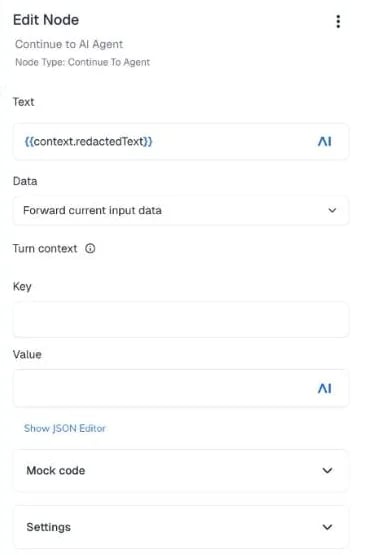
- Click the Continue to AI Agent node. In the Node menu, this Node is called Continue to Agent.
- In the Text field, replace
{{input.text}}with{{context.redactedText}}. The Text field holds the message that the agent receives. If the flow doesn’t reach this node, for example because the Code node throws an error, Klara doesn’t answer the message. The agent never falls back to the original message. For details, see Hooks. - Keep Data set to Forward current input data. This passes the structured input data to the agent along with the text.
- Click Save Node.
6
Test the pre-turn flow
- Go back to the Advanced tab of Klara. Check that Pre-Turn Flow shows Klara pre-Turn Flow.
- In the upper-right corner, click the chat icon to open the Interaction Panel.
- Select Chat.
- Enter
My email is jane.doe@example.com. What email address did I just give you? - Read Klara’s answer. Klara can answer in different ways, for example by repeating
[EMAIL]or by saying that it can’t repeat the address. The answer alone doesn’t prove that the masking worked.

- In the header of the Interaction Panel, click Advanced mode (the flask icon).
- Send the message again. Under Klara’s answer, click Full tracing view and select the Pre-Turn Flow span. The span shows the original text and the final text. In the final text,
[EMAIL]replaces the email address. This is the text that Klara received.

What you built
You added a pre-turn flow to Klara that masks email addresses and card numbers in customer messages. The Code node creates the masked text, and the Continue to AI Agent node passes it to the agent. You tested the result in the Interaction Panel. You can extend the same flow for the other uses: add account details or opening hours as turn context, or turn button clicks into text. An agent has one pre-turn flow, so put all of these steps in the same flow.More information
- Hooks. The Flow itself still records the original message in the project log, the transcript, and Insights. To redact data everywhere, use an Endpoint Input Transformer.
- Build Klara, a customer service agent
- Hand over between an agent and a flow