

Prerequisites
- You have activated Knowledge AI.
- You have created a Project in Cognigy.
- You have added a Large Language Model (LLM) to your Project that supports Knowledge Search and Answer Extraction. For more details on how to add a model, read the Generative AI documentation.
Set up Knowledge Store
Set up Knowledge Store involves three steps in the Knowledge AI wizard:- Configure Store — enter the details of your Knowledge Store.
- Upload Knowledge — upload files to create your first Knowledge Source.
- Configure Flow — configure an Answer Extraction model and create a simple Knowledge AI Flow.
Configure Knowledge Store
Select your embedding model. You will need the following information to configure the Knowledge Store as follows according to your LLM Provider:- Microsoft Azure OpenAI
- OpenAI
- Aleph Alpha
Upload Knowledge
For this step, download this Cognigy text (CTXT) file about xApps. To use a CTXT file as a Knowledge Source, select Cognigy CTXT from the Type list and upload the downloaded CTXT file.Configure Flow
In this step, proceed as follows:- Configure an Answer Extraction model in the Configure Answer Extraction Model section. The Answer Extraction model generates the AI Agent’s answer based on the Knowledge Search results.
- Create a simple Flow with a Search Extract Output Node for testing Knowledge AI by clicking Create Flow. Cognigy creates a Flow named Knowledge AI followed by a number.
Test your Agent
In Build > Flows, select the Flow you created in the Knowledge Store Wizard.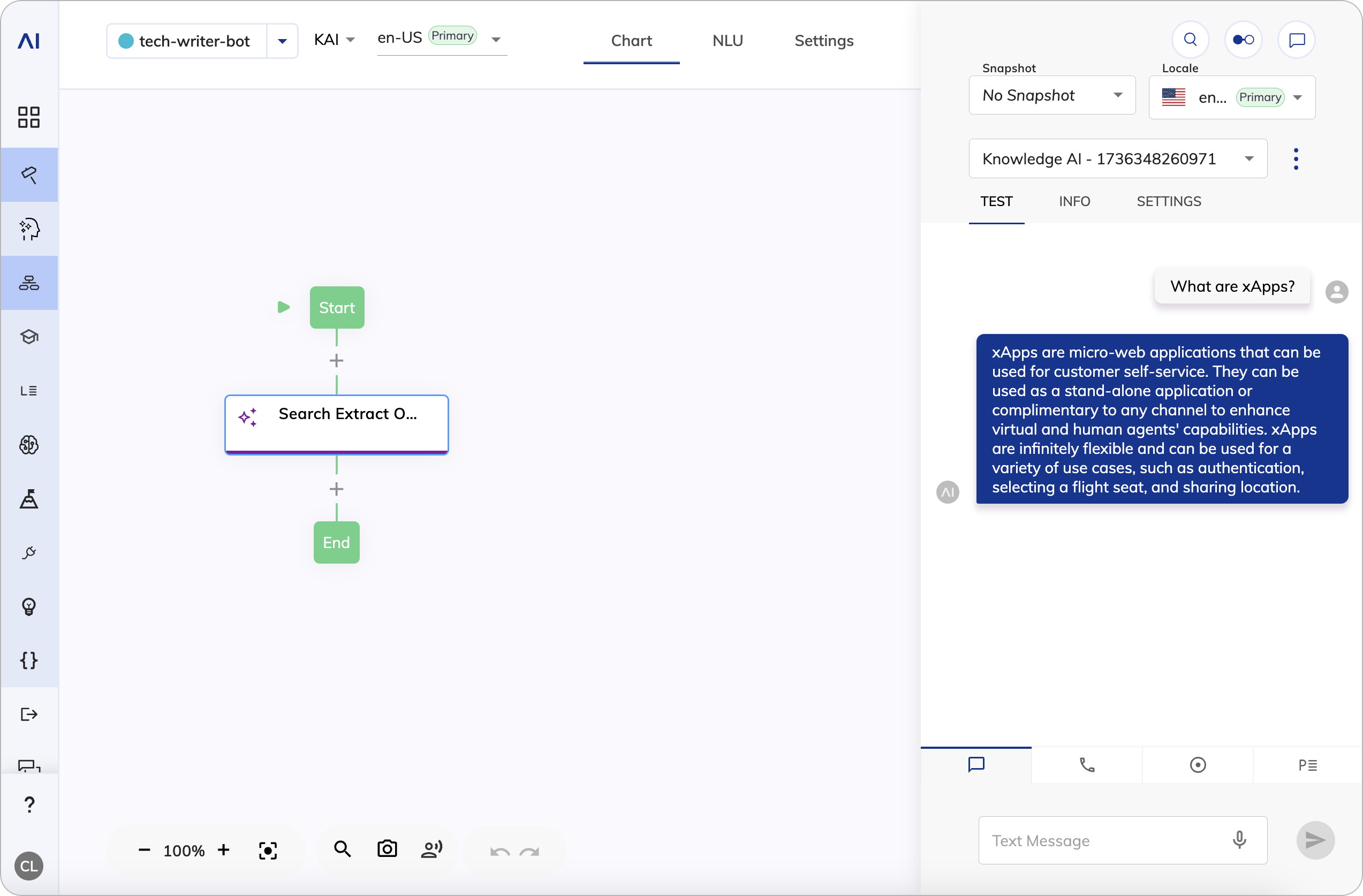
- Open the Interaction Panel by clicking

- Ask the AI Agent
What are xApps?. The AI Agent will search the Knowledge Store and generate an answer in the chat.
What’s Next?
- Try creating a Knowledge Store with Knowledge Sources relevant to your business needs.
- Add Knowledge AI to your Flow with a Search Extract Output Node and refine the Node settings to cater to your needs.