Key Benefits
- Flexible Sources. Ingest data from databases, APIs, document libraries, or Confluence, or crawl websites with Diffbot.
- Customizable. Modify prebuilt Knowledge Connectors or create your own from scratch.
- Centralized Management. Keep all external knowledge structured and accessible in your Flows.
- Automated Synchronization. Schedule regular imports from external sources to keep the AI Agents’ knowledge up to date.
Restrictions
Knowledge Synchronization Restrictions
Knowledge Synchronization Restrictions
- Extensions that support knowledge synchronization aren’t compatible with Cognigy 2026.4 and earlier versions. Using an Extension with knowledge synchronization in Cognigy 2026.4 and earlier versions can lead to unexpected behavior. If you update an Extension from the Marketplace to a version that supports knowledge synchronization, you can’t revert the Extension to an earlier version. If needed, use Snapshots to back up your AI Agent with an Extension compatible with earlier versions of Cognigy.
- Knowledge Sources imported with Knowledge Connectors that don’t support knowledge synchronization can’t be synchronized. To use knowledge synchronization, make sure you delete the previously imported Knowledge Sources and re-import them with a Knowledge Connector that supports knowledge synchronization.
- If you import a Package that includes a Knowledge Connector, the knowledge synchronization is deactivated by default. To activate it, go to the Connector Configuration tab in Build > Knowledge, click
 next to the Knowledge Connector and set the synchronization schedule.
Working with Knowledge Connectors
Install a Knowledge Connector
Select how you want to install a Knowledge Connector:- Install from the Marketplace
- Modify Existing Knowledge Connectors
- Create from Scratch
Install a prebuilt Extension that includes a Knowledge Connector from the Marketplace. To do so, follow these steps:
- Go to Manage > Extensions.
- In the Marketplace section, select an Extension that includes a Knowledge Connector, for example, the Confluence Extension 6.0.0 or Diffbot Extension 2.0.0, and click Install.
Set up the Knowledge Connector
- After the installation, go to Build > Knowledge and select the Knowledge Store to which you want to import knowledge.
- On the Knowledge Sources page, click + Add Knowledge.
- In the Add Knowledge window, select a Knowledge Connector from the Type list and fill in the required fields for the connection.
- (Optional) In the Schedule Sync section, select one or more weekdays and set the sync time to schedule automatic knowledge synchronization. Click Save and Sync.
- Knowledge Sources — displays the imported knowledge files.
- Connector Configuration — displays the Knowledge Connector configuration. On this tab, you can edit the configuration by clicking , or trigger a manual synchronization by clicking
 .
.
Scheduled Synchronizations
When you set up a schedule, you select the weekdays and the time of day for automatic knowledge synchronization (sync). The sync time is displayed in the time zone configured in your Project settings. If you configure sync, any changes to the external source, including adding and deleting files, are imported into Cognigy on the scheduled day and at the scheduled time.Imports might be delayed depending on system resources.
Use Ingested Knowledge in your Flow
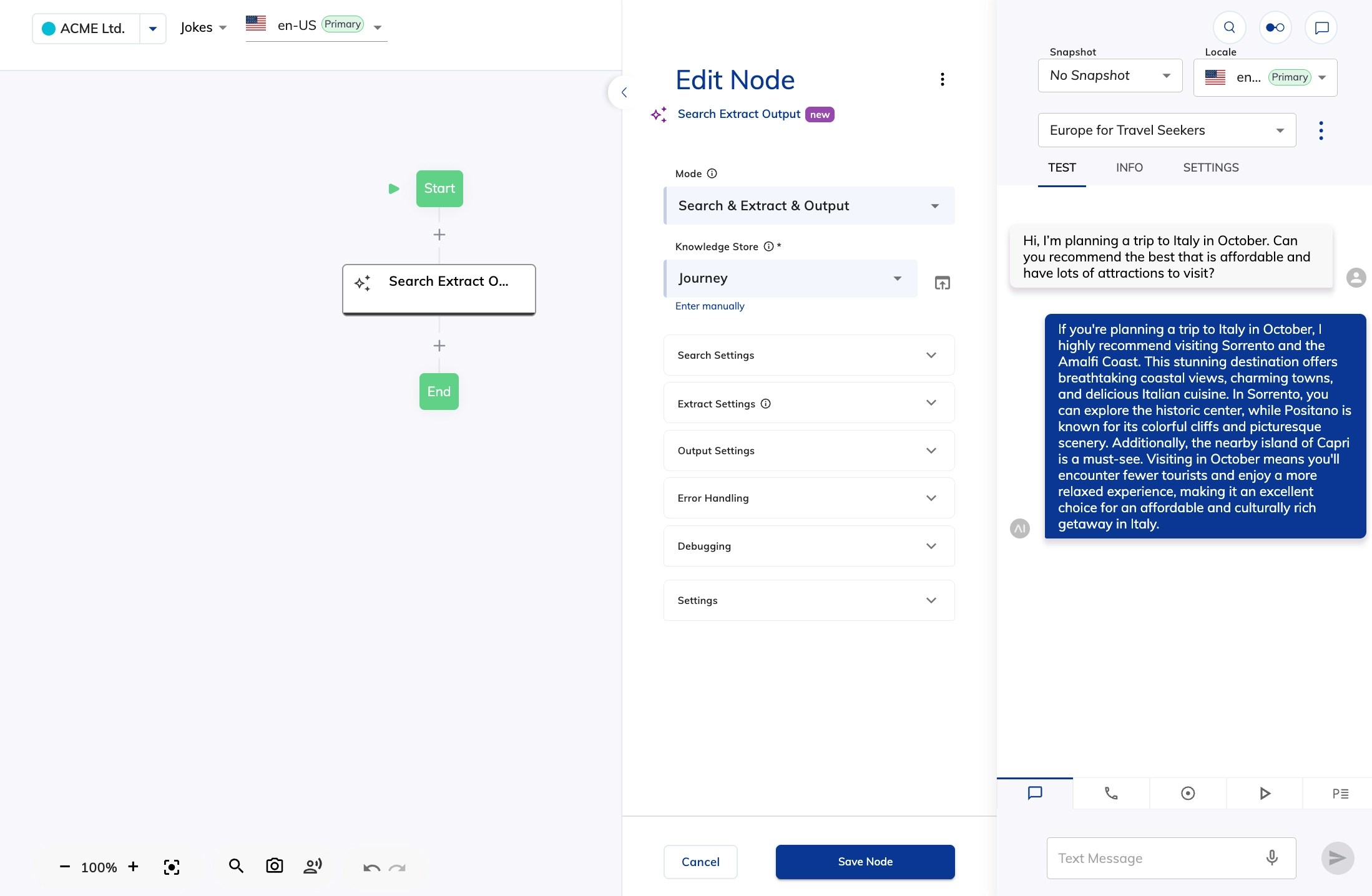
You can now use the ingested knowledge in your Flow in the following ways:- Add a Search Extract Output Node.
- Add an AI Agent Node with Grounding Knowledge selected.
- Select a Knowledge Store when creating an AI Agent persona.
- Add a Copilot: Knowledge Tile Node to use the knowledge in the Agent Copilot dashboard for human agents.