

Key Benefits
- Improved Recognition of User Inputs. Lexicon Slots allow the AI Agent to recognize variations of Keyphrases (Synonyms), enabling flexible user input handling without requiring exact matches.
- Consistency Across Conversations. Lexicon Slots ensure uniform interpretation of terms across different Flows, improving reliability.
- Easier Maintenance. Centralized Lexicon management makes it easy to update Lexicon Slots, reducing errors.
Limitations
- Maximum of 250 Lexicon Slots per Lexicon.
- Maximum of 30 characters per Lexicon Slot name.
- Maximum of 1 Keyphrase and 199 Synonyms per Lexicon entry (row).
- Maximum of 100K entries per Lexicon.
Key Components of a Lexicon
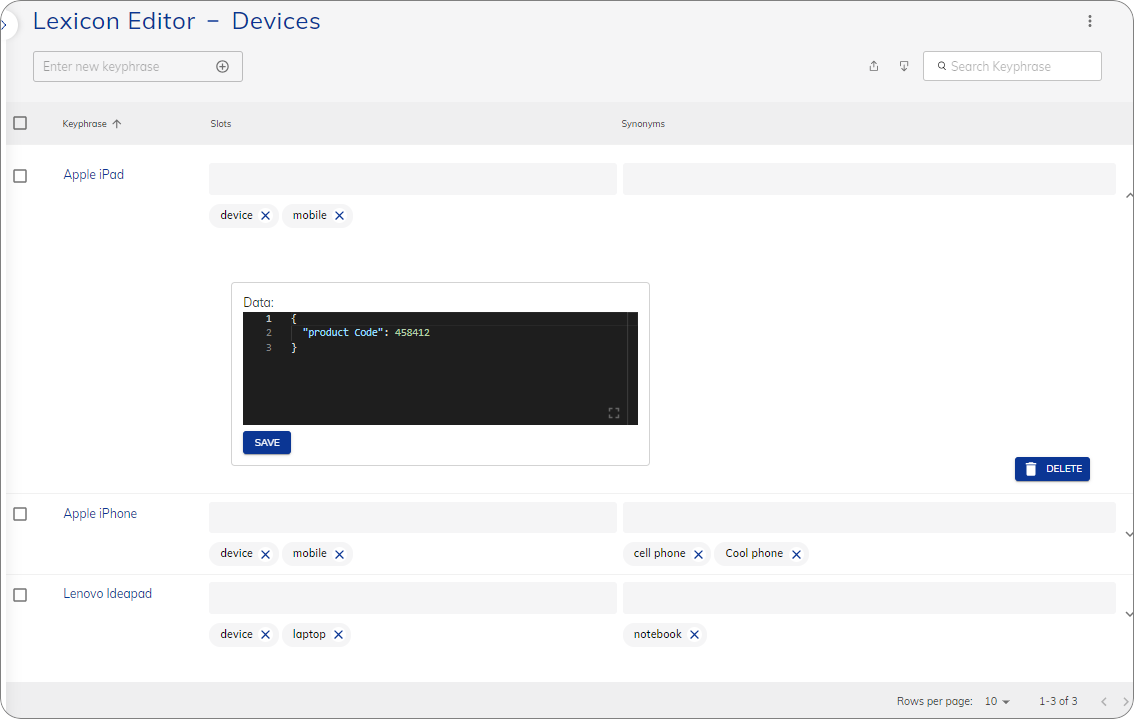
Working with Lexicon Slots
Lexicon Slots are managed within Lexicons, which you can create and configure in Cognigy to support conversational Flows.- GUI
- API
- CLI
You can create, download, and upload Lexicons in Build > Lexicons.
Also, you can generate Lexicons by using Generative AI.
Attach Lexicons for Slot Usage
Lexicon Slots aren’t automatically recognized by the NLU model. To use them in a Flow, you must manually attach a Lexicon to the Flow. Once the Lexicon is attached, Slots are populated when Keyphrases or their synonyms are detected in user input.Upload and Download Lexicons
For easy Slot management, you can upload and download Lexicons in CSV format.CSV File Requirements
CSV File Requirements
To upload the file, make sure your CSV file is UTF-8 encoded.The CSV file should have the following format:Example:Fields beginning with the characters
@, +, -, or = are not allowed.Upload Lexicons
Upload Lexicons
To upload Lexicons, follow these steps:
- In the upper-right corner of the Lexicon editor, click

- In the Import Lexicon CSV file window, select one of the following options:
- Skip importing duplicate Keyphrases — the option skips importing any Synonyms from the CSV file that already exist in the current Lexicon. If there are duplicate Synonyms in the CSV file, they will be ignored during the import process. Only new and unique Synonyms will be imported.
- Overwrite the current Keyphrases — the option replaces all the current Keyphrases in the Lexicon with the Keyphrases from the CSV file. If there are any existing keyphrases in the Lexicon, they will be completely overwritten, and only the Keyphrases from the CSV file will be retained.
- Merge Tags & Synonyms from the current and imported Keyphrases — the option allows merging the Synonyms of Keyphrases from both the current Lexicon and the CSV file. Only unique Synonyms will be merged. If a Synonym exists in both the current Lexicon and the CSV file, this Synonym will not be merged.
- Click Choose CSV file.
Download Lexicons
Download Lexicons
To download Lexicons, follow these steps:
- In the upper-right corner of the Lexicon editor, click

- When the task is completed, click
