

Beginner · 15 minutes · Voice
A voice agent talks to callers over the phone. This tutorial is for new Cognigy users who want to try a voice agent without any telephony setup.
In this tutorial, you create a voice agent named Nelly Voice that greets callers, answers short questions, and ends the call when the caller says goodbye. You talk to Nelly Voice in your browser by using the test panel. The test call doesn’t dial out, so you don’t need a phone number.
Prerequisites
- A Cognigy organization and a Project.
- A browser with microphone access allowed. The test call uses your microphone.
- (Optional) Your own large language model (LLM) or speech provider. A new agent includes both, so you don’t need to configure them for this tutorial. To use your own, see LLMs and Set up a speech provider.
Restrictions
- The test call runs in your browser and doesn’t dial out.
- If your project offers the experimental speech-to-speech option, keep it turned off for this tutorial. When it’s on, the Voice section shows different settings.
- Any action in voice mode ends the current session and starts a new one.
Steps for this process
1
Open the new agent form
- In the navigation menu of the Project, go to Design > Agent.
- In the upper-right corner, click Add agent. The Create new agent page opens.
2
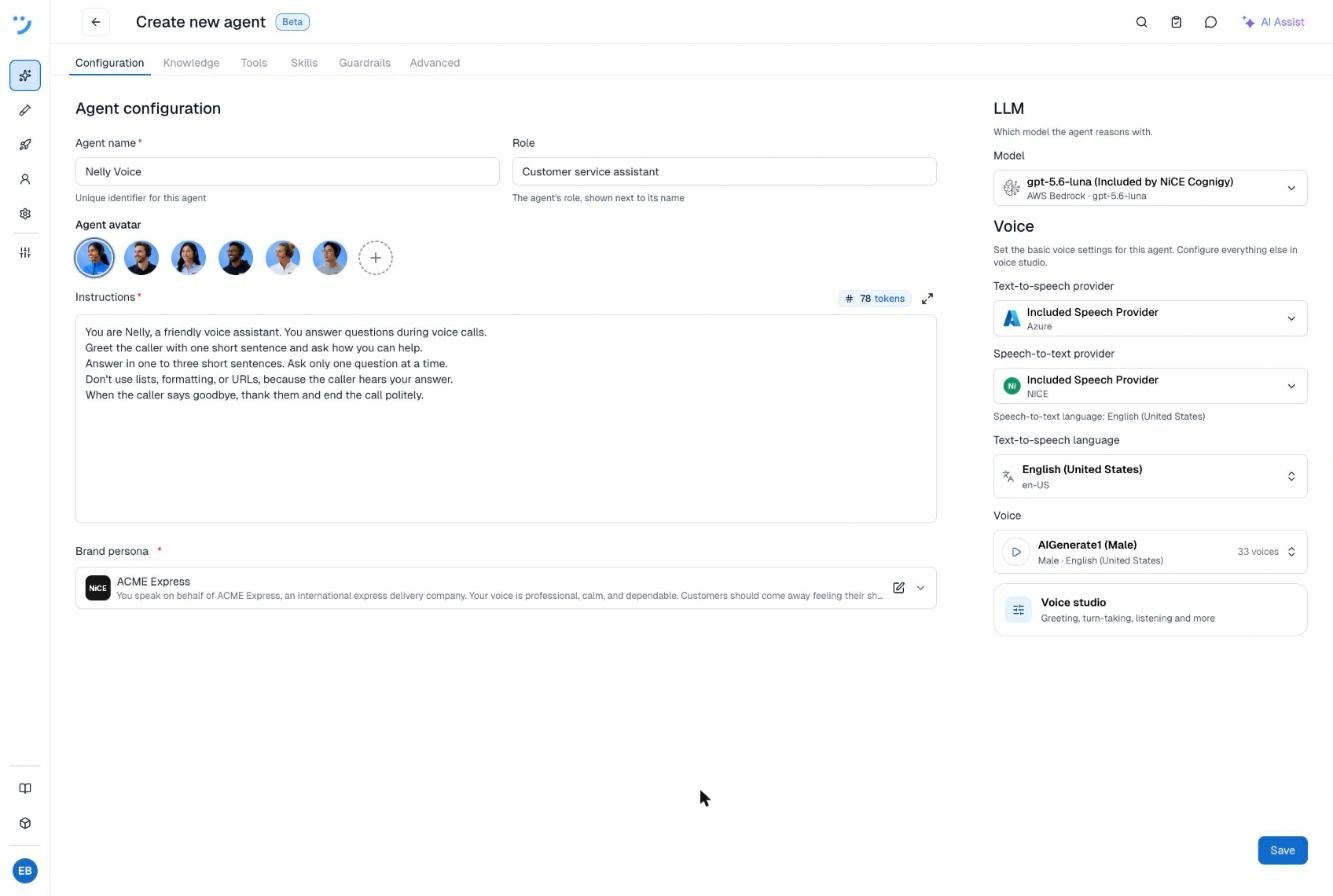
Describe the agent
-
In the Agent name field, enter
Nelly Voice. -
In the Role field, enter
Customer service assistant. - Select an avatar.
-
In the Instructions field, enter the following text:
- Under Brand persona, keep the preselected persona or select another one. Every agent needs a brand persona.
3
Set up the voice
On the right side of the page, go to the Voice section and check the following settings:
- Text-to-speech provider and Speech-to-text provider: Keep the included speech provider.
- Text-to-speech language: Select English (United States).
- Voice: Select a voice. To hear a sample, click Play voice sample next to the voice.
4
Save the agent
Click Save. A message confirms that the changes are saved, and the agent page stays open.
5
Add the hang up tool
A voice tool lets the agent act during a call. The Hang up tool lets Nelly Voice end the call when the caller says goodbye.
- Go to the Tools tab of the agent and click Add tool.
- In the Add to this agent dialog, select the Voice tools tab.
- Select Hang up.
- Click Save.
6
Test the agent with a voice call
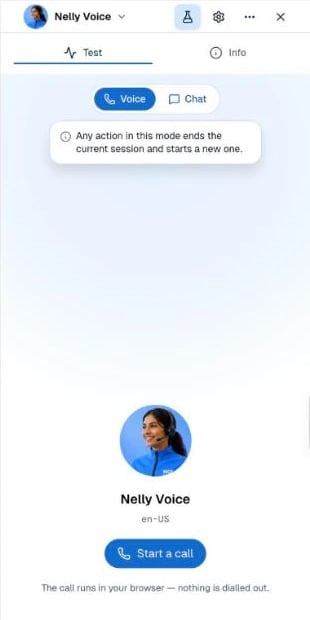
- In the upper-right corner, click the chat icon to open the test panel.
- At the top of the panel, select Voice.
- Click Start a call. If your browser asks for microphone access, allow it.
- Say “Hi, who are you?” Nelly Voice answers with a short greeting, such as “Hi, I’m Nelly Voice, a customer service assistant. How can I help you today?” The exact wording can differ.
- Keep talking to Nelly Voice to try out different questions.
- Say “Thanks, goodbye!” Nelly Voice says a short closing sentence and ends the call.
What’s next
You created a voice agent that answers in short spoken sentences and ends the call with the Hang up tool. You tested it with a voice call in your browser. Next, you can:- Set up your first voice number to take calls from a phone.
- Learn more about testing in Voice preview.
- Read Getting started with Voice.