

Description
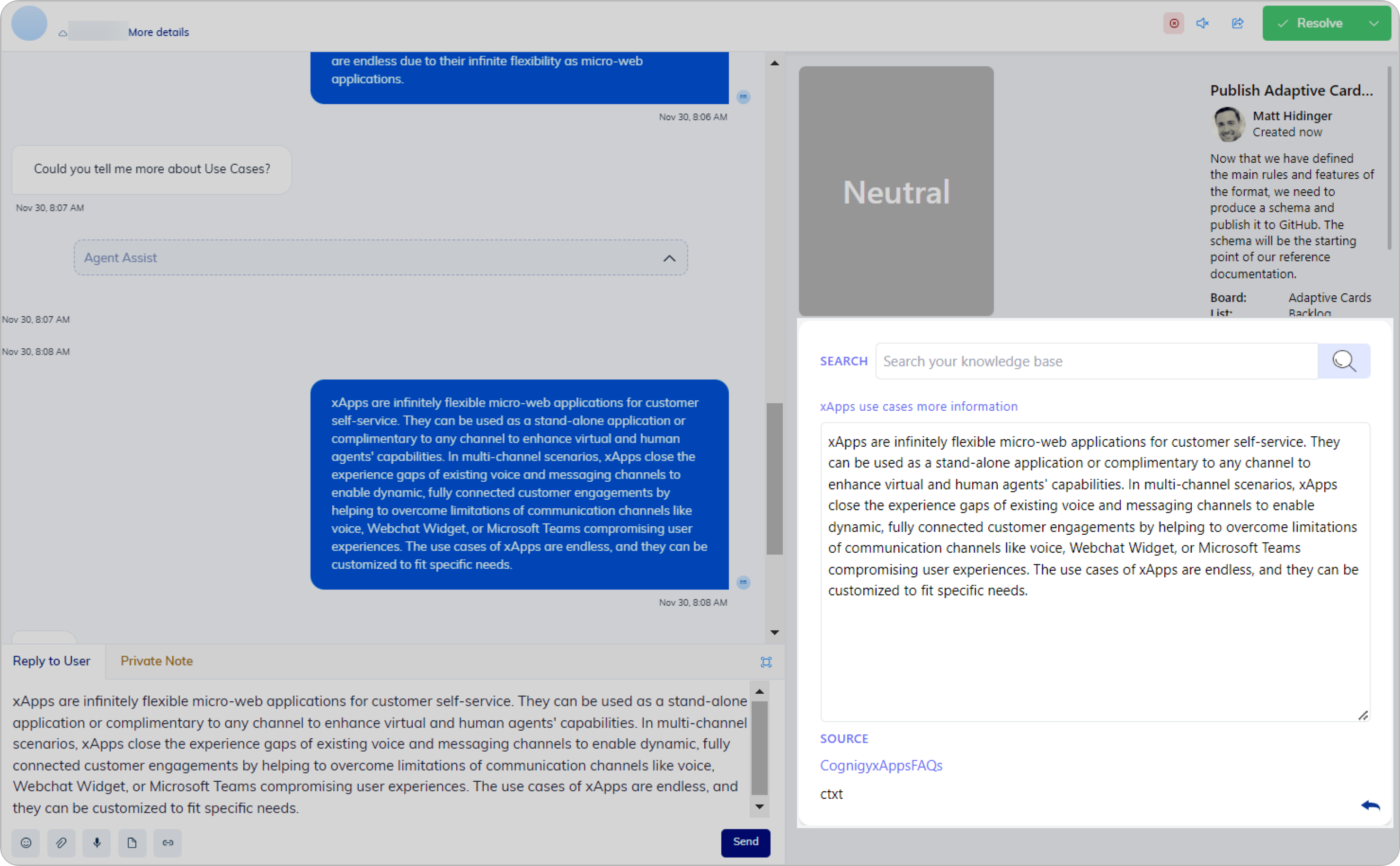
This Node provides potential answers to human agents regarding customer questions. The Node creates an Agent Copilot widget that consists of a search bar and a response form. Additionally, it provides meta-source links, information about the files from which knowledge was derived and hints for further questions. The human agent uses the search bar to access a knowledge base and find information to respond to customer queries. Responses are generated based on a Large Language Model (LLM) via Knowledge AI. The Node uses the inject API to update the widget. Before using the Copilot: Knowledge Tile Node, configure the LLM provider in the Settings and select the appropriate model from the supported model list. This Node supports models with the LLM Prompt Node and the Search Extract Output Node features. To set up the Copilot: Knowledge Tile Node, you need two Nodes for the Flow configuration: one to initiate the knowledge search process and the second one to execute it. Additionally, to prevent the content of other widgets from updating during the Node’s operation, move the Nodes under the Else child Node of the If Node. For more information, refer to the Configuration section.Restrictions
- The Copilot: Knowledge Tile Node doesn’t support the NiCE CXone AAH Endpoint. You can still add the Node to a Flow that uses this Endpoint, but the Node is skipped during Flow execution without breaking the Flow.
Parameters
General Settings
General Settings
If you are using Live Agent as a handover provider, you can forward information from the widget to the Reply to User section by clicking 
Search Settings
Search Settings
Error Handling
Error Handling
Configuration
Configure the Copilot: Knowledge Tile widget
Configure the Copilot: Knowledge Tile widget
To use the Copilot: Knowledge AI widget, configure the following Flow: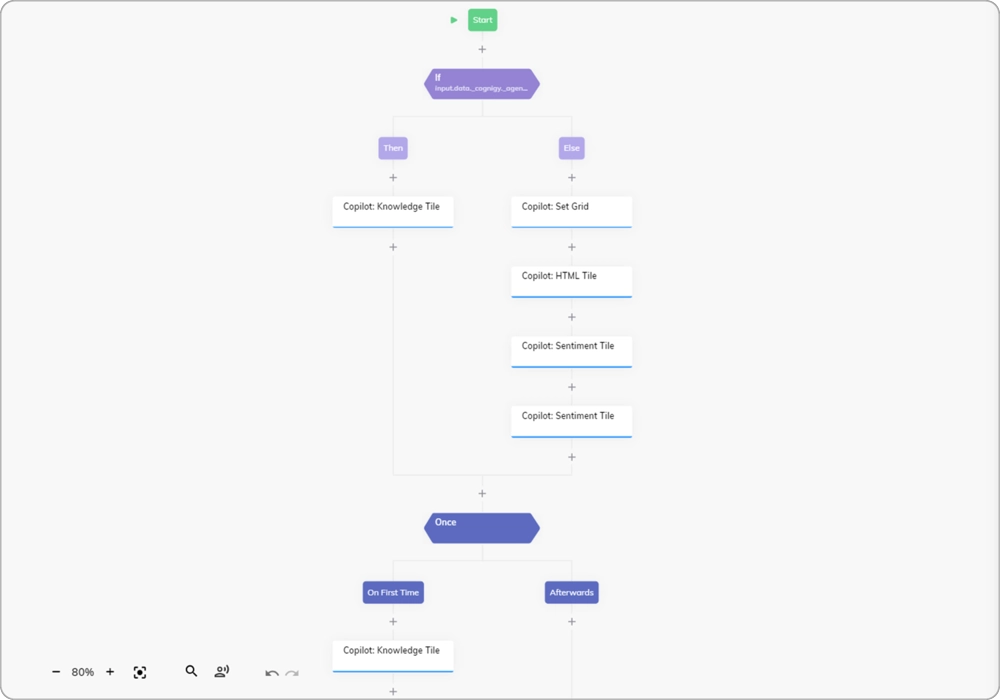
- Add an If Node.
- Open the If Node editor.
- In the Condition field, specify the following condition:
input.data._cognigy._agentAssist.payload.tileId === "tile-id", wheretile-idis a Knowledge tile ID that you created in the Agent Copilot configuration via API. - In the Knowledge Store field, select the source that you want to use for searching knowledge.
- Below the Then child Node, place the Copilot: Knowledge Tile Node.
- Below the Else child Node, add the other Copilot tile Nodes. This step is necessary to ensure that the content of these Nodes does not get updated during the operation of the Copilot: Knowledge Tile Node.
- Below the Copilot: Knowledge Tile Node and other tile Nodes, place the Once child Node.
- Below the On First Time child Node, add a duplicate of the Copilot: Knowledge Tile Node.
If the Flow is not working or issues arise with the Knowledge Source, try creating a new Agent and running the Flow in it.