

Description
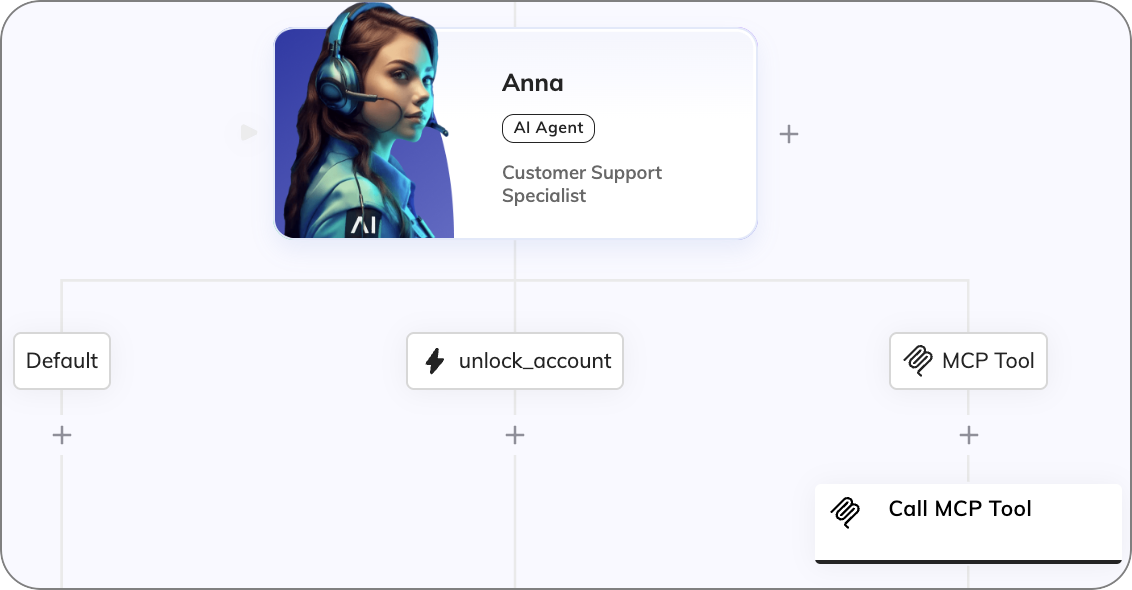
The AI Agent Node assigns a job to an AI Agent, provides instructions and tools for that job, and access to the knowledge the AI Agent can use when holding a conversation with a user. To configure this Node, follow these steps:Parameters
Parent Node
This configuration assigns a job to an AI Agent, defines its role and responsibilities, and provides additional instructions or context to guide its actions.AI Agent
AI Agent
| Parameter | Type | Description |
|---|---|---|
| AI Agent | Selector | Select the AI Agent. |
| Job Name | CognigyScript | Specify the name of the job. For example, Customer Support Specialist. |
| Job Description | CognigyScript | Provide a description of the job responsibilities to guide the AI Agent’s interactions. For example, Assist customers with product issues, escalate complex cases, and provide guidance on best practices. |
| Instructions and Context | Toggle | Add specific instructions or context as a system message to help the AI Agent better fulfill the job requirements. For example, Stay professional and friendly; focus on problem-solving and clarity. These instructions are considered in addition to those specified in the AI Agent creation settings. |
Memory Handling
Memory Handling
| Parameter | Type | Description |
|---|---|---|
| Long-Term Memory Injection | Selector | Allow the AI Agent to access Contact Profile information for the current user. Select one of the following options:
|
| Selected Profile Fields | Text | This parameter appears when the Inject selected Profile fields option is enabled. Enter specific fields from the Contact Profile for targeted data use. Specify the field using the Profile keys format and press Enter to apply it. |
| Short-Term Memory Injection | CognigyScript | Specify a static string or a dynamic value via CognigyScript to make available to the AI Agent in the current turn. |
Grounding Knowledge
Grounding Knowledge
| Parameter | Type | Description |
|---|---|---|
| Knowledge Injection | Selector | Use the Knowledge AI feature for the AI Agent. Select one of the following options:
|
| Use AI Agent Knowledge | Toggle | Appears when you select When Required or Once for Each User Input. Enable to use the Knowledge Store configured in the AI Agent. The Knowledge Store configured within the AI Agent creation settings will be used. |
| Use Job Knowledge | Toggle | Appears when you select When Required or Once for Each User Input. Enable this option to configure a specific Knowledge Store for this particular job, allowing the AI Agent to access job-specific data or resources. |
| Job Knowledge Store | Selector | Appears when you select When Required or Once for Each User Input and Use Job Knowledge is enabled. Select a specific Knowledge Store for this AI Agent’s job. |
| Top K | Slider | Appears when you select When Required or Once for Each User Input. Specify how many knowledge chunks to return. Providing more results gives the AI Agent additional context but may increase noise and token usage. |
| Source Tags | CognigyScript | Appears when you select When Required or Once for Each User Input. Tags refine the scope of your knowledge search, including only the most relevant sections of the knowledge base to improve accuracy. Before specifying tags, ensure they were provided during the creation of the Knowledge Sources. Add tags by entering each separately and pressing Enter. Max 5 tags. When multiple Source Tags are specified, the Search Extract Output Node defaults to the AND operator, meaning it only considers Sources that have all specified tags. To change this behavior, adjust the Match Type for Source Tags parameter. |
| Match Type for Source Tags | Select | Appears when you select When Required or Once for Each User Input. Defines the operator for filtering Knowledge Sources by tags:
|
| Generate Search Prompt | Toggle | Appears when you select Once for Each User Input. Enabled by default. Generates a context-aware search prompt before executing the knowledge search. May increase cost and latency. |
Storage and Streaming Options
Storage and Streaming Options
| Parameter | Type | Description |
|---|---|---|
| How to handle the result | Select | Determine how to handle the prompt result:
|
| Input Key to store Result | CognigyScript | Appears when Store in Input or Stream to Output is selected. The result is stored in input.aiAgentOutput by default. You can specify another value, but the AI Agent Output token will not work if the value is changed. |
| Context Key to store Result | CognigyScript | Appears when Store in Context is selected. The result is stored in context.aiAgentOutput by default. You can specify another key. |
| Stream Buffer Flush Tokens | Text Array | Appears when Stream to Output is selected. Defines tokens that trigger the stream buffer to flush to the output. Tokens can be punctuation marks or symbols, such as \n. |
| Output result immediately | Toggle | Appears when Store in Input or Store in Context is selected. Allows immediate output of results without using the Say Node and AI Agent Output token. |
| Store Copy in Input | Toggle | Appears when Stream to Output is selected. In addition to streaming the result, stores a copy in the Input object by specifying a value in the Input Key to store Result field. |
Voice
Voice
| Parameter | Type | Description |
|---|---|---|
| Voice Setting | Select | Configure the voice settings for the AI Agent Job. This parameter determines how the AI Agent selects the voice for text-to-speech (TTS) output. Select one of the following options:
|
| TTS Vendor | Dropdown | Select a TTS vendor from the list or add a custom one.Note: The AI Agent Node doesn’t support TTS Labels to distinguish configurations from the same vendor. To use TTS Labels, add a Set Session Config Node before the AI Agent Node in the Flow editor. |
| Custom (Vendor) | CognigyScript | Appears when Custom is selected in TTS Vendor. Specify the custom TTS Vendor. For preinstalled providers, use lowercase, for example, microsoft, google, aws. For custom providers, use the name defined on the Speech Service page in the Voice Gateway Self-Service Portal. |
| TTS Language | Dropdown | Define the language of the AI Agent output. Ensure it aligns with the preferred language of the end user. |
| Custom (Language) | CognigyScript | Appears when Custom is selected in TTS Language. Specify the output language. Format depends on the TTS vendor; check vendor documentation. Typical format: de-DE, fr-FR, en-US. |
| TTS Voice | Dropdown | Define the voice for AI Agent output. Customize tone, gender, style, and regional specifics to align conversations with your brand and audience. |
| Custom (Voice) | CognigyScript | Appears when Custom is selected in TTS Voice. Specify a custom voice, often required for region-specific voices. Format depends on TTS Vendor and typically follows language-region-VoiceName, for example, de-DE-ConradNeural, en-US-JennyNeural). |
| TTS Label | CognigyScript | Alternative name for the TTS vendor, as specified in the Voice Gateway Self-Service Portal. Use this when multiple speech services from the same vendor exist. |
| Disable TTS Audio Caching | Toggle | Disables TTS audio caching. By default, the setting is deactivated. In this case, previously requested TTS audio results are stored in the AI Agent cache. When a new TTS request is made and the audio text has been previously requested, the AI Agent retrieves the cached result instead of sending another request to the TTS provider. When the setting is activated, the AI Agent caches TTS results but doesn’t use them. In this case, each request is directly sent to your speech provider. Note that disabling caching can increase TTS costs. For detailed information, contact your speech provider. |
Tool Settings
Tool Settings
| Parameter | Type | Description |
|---|---|---|
| Tool Choice | Selector | If supported by your LLM Model, determines how tools should be selected by the AI Agent:
|
| Use Strict Mode | Toggle | When enabled, strict mode (if supported by the LLM provider) ensures that arguments passed to a tool call precisely match the expected parameters. This helps prevent errors but may slightly delay responses, especially during the first call after making changes. |
Image Handling
Image Handling
| Parameter | Type | Description |
|---|---|---|
| Process Images | Toggle | Enables the AI Agent to read and understand image attachments. Ensure that your LLM provider supports image processing (refer to your provider’s documentation). Also verify that attachments are supported and activated in your Endpoint, such as Webchat. |
| Images in Transcript | Selector | Configures how images older than the last turn are handled to reduce token usage:
|
Advanced
Advanced
| Parameter | Type | Description |
|---|---|---|
| LLM | Selector | Select a model that supports the AI Agent Node feature. The selected Default model is the one specified in Settings > Generative AI Settings of your Project. Choose the model you added earlier while configuring the Agentic AI feature. This model will manage your AI Agent. |
| AI Agent Base Version | Selector | Select the base version of the AI Agent to use:
|
| Timeout | Number | Define the maximum number of milliseconds to wait for a response from the LLM provider. |
| Maximum Completion Tokens | Slider | Set the maximum number of tokens that can be used during a process to manage costs. If the limit is too low, the output may be incomplete. For example, setting 100 tokens roughly corresponds to 100 words, depending on language and tokenization. |
| Temperature | Slider | Define the sampling temperature, ranging from 0 to 1. Higher values, for example, 0.8. make output more random; lower values, for example, 0.2, make it more focused and deterministic. |
| Include Rich Media Context | Toggle | Controls whether context is added to the prompt. In this case, context refers to text extracted from rich media such as Text with Buttons, Quick Replies, and other types. This text provides AI Agents with additional information, improving their responses. If the Textual Description parameter in the Say, Question, or Optional Question Node is filled, the context is taken only from this parameter. If the Textual Description parameter is empty, the context is taken from the button titles and alt text in the rich media. By default, the Include Rich Media Context parameter is active. When this parameter is inactive, no context is added. Examples:
|
Error Handling
Error Handling
| Parameter | Type | Description |
|---|---|---|
| Log to System Logs | Toggle | Log errors to the system logs. They can be viewed on the Logs page of your Project. This parameter is inactive by default. |
| Store in Input | Toggle | Store errors in the Input object. |
| Select Error Handling Approach | Select | Choose one of the Error Handling options:
|
| Select Flow | Select | Appears when Go to Node is selected. Choose a Flow from the available options. |
| Select Node | Select | Appears when Go to Node is selected. Choose a Node from the available options. |
| Error Message (optional) | CognigyScript | Add an optional message to the output if the AI Agent Node fails. |
Debug Settings
Debug Settings
| Parameter | Type | Description |
|---|---|---|
| Log Job Execution | Toggle | Send a debug message with the current AI Agent Job configuration. The message appears in the Interaction Panel when debug mode is enabled. The parameter is active by default. |
| Log Knowledge Results | Toggle | Send a debug message containing the result from a knowledge search. The message appears in the Interaction Panel when debug mode is enabled. The parameter is inactive by default. |
| Show Token Count | Toggle | Send a debug message containing the input, output, and total token count. The message appears in the Interaction Panel when debug mode is enabled. Cognigy.AI uses the GPT-3 tokenizer algorithm, so actual token usage may vary depending on the model used. The parameter is inactive by default. |
| Log System Prompt | Toggle | Send a debug message containing the system prompt. The message appears in the Interaction Panel when debug mode is enabled. The parameter is inactive by default. |
| Log Tool Definitions | Toggle | Send a debug message containing information about the configured AI Agent tools. The message appears in the Interaction Panel when debug mode is enabled. The parameter is inactive by default. |
| Log LLM Latency | Toggle | Send a debug message containing key latency metrics for the request to the model, including the time taken for the first output and the total time to complete the request. The message appears in the Interaction Panel when debug mode is enabled. The parameter is inactive by default. |
| Send request logs to Webhook | Toggle | Send the request sent to the LLM provider and the subsequent completion to a webhook service, including metadata, the request body, and custom logging data. With this parameter, you can use a webhook service to view detailed logs of the request to the LLM. The parameter is inactive by default. |
| Webhook URL | CognigyScript | Enter the URL of the webhook service to send the request logs to. |
| Custom Logging Data | CognigyScript | Enter custom data to send with the request to the webhook service. |
| Condition for Webhook Logging | CognigyScript | Enter the condition for the webhook logging. |
| Webhook Headers | Input fields | Enter the headers to send with the request to the webhook service. Use the Key and Value fields to enter a header. The Value field supports CognigyScript. After entering the header key, new empty Key and Value fields are automatically added, in case you need to add more headers. Alternatively, you can click Show JSON Editor and add input examples in the code field. |
Child Nodes
Tool
Tools are child Nodes of AI Agent Nodes. They define the actions the AI Agent can take. If an AI Agent wants to execute the tool, the branch below the child Node is executed. At the end of a tool branch, it is advisable to use a Resolve Tool Action Node to return to the AI Agent. Clicking the Tool Node lets you define a tool, set its parameters, and allows debugging by enabling detailed messages about the tool’s execution.Tool
Tool
| Parameter | Type | Description |
|---|---|---|
| Tool ID | CognigyScript | Provide a meaningful name as a Tool ID. This ID can contain only letters, numbers, underscores (_), or dashes (-). For example, update_user-1. |
| Description | CognigyScript | Provide a detailed description of what the tool does, when it should be used, and its parameters. |
Parameters
Parameters
| Parameter | Type | Description |
|---|---|---|
| Use Parameters | Toggle | Activate this toggle to add parameters in addition to the tool name and description. The AI Agent will collect all data it needs and call a Tool with these parameters filled as arguments. These values can be accessed directly in the input.aiAgent.toolArgs object. |
| Name | Text | Specify the name of the parameter. The name should be clear and concise, and describe the purpose of the parameter. |
| Type | Selector | Select a type of the parameter:
|
| Description | CognigyScript | Explain what the parameter means by providing a brief description of the parameter’s usage. |
| Enum (optional) | Enum | Define a set of values that the parameter can accept. The enum restricts the input to one of the specified values, ensuring only valid options are chosen. The enum is only available for string-type parameters in the Graphical editor. For other types, use the JSON editor. May not be supported by all LLM providers. |
| Add Parameter | Button | Add a new parameter. |
Debug Settings
Debug Settings
| Parameter | Type | Description |
|---|---|---|
| Debug Message when called | Toggle | Enable the output of a debug message when the tool is called to provide detailed information about the tool call. |
Advanced
Advanced
| Parameter | Type | Description |
|---|---|---|
| Condition | CognigyScript | The tool will be enabled only if the condition is evaluated as true. If false, the tool isn’t part of the AI Agent’s Tools within this execution. For example, when using the unlock_account tool, you can specify a condition like context.accountStatus === "locked". This checks the value in the context, and if it is missing or different, the tool will not be enabled. |
MCP Tool
MCP Tool Nodes are child Nodes of AI Agent Nodes. The MCP Tool Nodes connect to a remote MCP server to load tools that the AI Agent can execute. If an AI Agent wants to execute one of the loaded tools, the branch below the MCP Tool Node is triggered. Clicking the MCP Tool Node lets you define the connection, filter loaded tools, and allows debugging by enabling detailed messages about the tool’s execution.MCP Tool
MCP Tool
| Parameter | Type | Description |
|---|---|---|
| Name | CognigyScript | Provide a name for the MCP connection. This name helps you identify the source of the loaded tool. |
| MCP Server SSE URL | CognigyScript | Provide the URL to an SSE (Server-Sent Events) endpoint from a remote MCP server. Ensure that you connect only to trusted MCP servers. |
| Timeout | Slider | Set the timeout time for the MCP connection in seconds. |
Debug Settings
Debug Settings
| Parameter | Type | Description |
|---|---|---|
| Debug Loaded Tools | Toggle | Enable this parameter to display a debug message listing all tools loaded from the MCP server. The debug message also includes tools filtered out in the Advanced section. This parameter shows whether tools were loaded from the cache or directly from the MCP server. |
| Debug with Parameters | Toggle | Enable this parameter to include the Tool Parameters in the debug message. |
| Debug calling Tool | Toggle | Enable the output of a debug message when the tool is called to provide detailed information about the tool call. |
Advanced
Advanced
| Parameter | Type | Description |
|---|---|---|
| Cache Tools | Toggle | Disables caching of loaded tools while developing. Ensure that caching is enabled in production for performance reasons. The caching time is 10 minutes. In debug mode, you can verify whether the cache was used. To do this, make sure Debug Loaded Tools is enabled. For more information, see the Debug Settings section. |
| Condition | CognigyScript | Sets the condition under which the tool will be activated. If the condition is evaluated as false, the tool isn’t part of the AI Agent’s Tools during execution. For example, when using the unlock_account tool, you can specify a condition like context.accountStatus === "locked". This checks the value in the context, and if it is missing or different, the tool will not be enabled. |
| Tool Filter | Select | Controls if tools should be excluded from execution. You can select one of the following options:
|
| Blacklist | CognigyScript | This parameter appears if you select Blacklist in Tool Filter. Specify the tools that should be blocked from execution. Specify only one tool per field. |
| Whitelist | CognigyScript | This parameter appears if you select Whitelist in Tool Filter. Specify the tools you want to allow for execution. Specify only one tool per field. |
| Custom Headers | - | Sets custom authentication headers to send with the request to the MCP server. Use the Key and Value fields to enter a header. The Value field supports CognigyScript. After entering the header key, new empty Key and Value fields are automatically added, in case you need to add more headers. Alternatively, you can click Show JSON Editor and enter the headers in the code field. |
Call MCP Tool
In the Flow editor, when you add an MCP Tool Node, a Call MCP Tool Node is automatically created below it. These two Nodes work together to define and execute the chosen tool. The Call MCP Tool Node sets the actual execution point of the chosen tool. This way, you can verify or modify the tool call arguments in theinput.aiAgent.toolArgs object, or add a Say Node before the tool call. When the Call MCP Tool Node is executed, the tool call is sent to the remote MCP server, where the Tool is executed remotely with any arguments set by the AI Agent.
To return the tool result to the AI Agent, the Resolve Immediately setting can be enabled to send the full result returned from the remote MCP server to the AI Agent.
As an alternative, use a Resolve Tool Action Node to return a specific result to the AI Agent.
Call MCP Tool
Call MCP Tool
| Parameter | Type | Description |
|---|---|---|
| Resolve Immediately | Toggle | Enable this parameter to immediately resolve the tool action with the full result as the tool answer. |
Storage Options
Storage Options
| Parameter | Type | Description |
|---|---|---|
| How to handle the result | Select | Determine how to handle the MCP tool call result:
|
| Input Key to store Result | CognigyScript | The parameter appears when Store in Input is selected. The result is stored in the input.aiAgent.toolResult object by default. You can specify another value, but the MCP Tool Result Token won’t work if the value is changed. |
| Context Key to store Result | CognigyScript | The parameter appears when Store in Context is selected. The result is stored in the context.aiAgent.toolResult object by default. |
Debug Settings
Debug Settings
| Parameter | Type | Description |
|---|---|---|
| Debug Tool Result | Toggle | Enable the output of a debug message with the tool call result after a successful call. |
Knowledge Tool
The Knowledge Tool Node is a child Node of the AI Agent Node. It allows the AI Agent to directly access Knowledge Stores to provide context-aware responses. In the Knowledge Tool Node, you can select the Knowledge Store to search, Source Tags to refine the search, and allows for detailed debug messages about the tool’s execution.Knowledge Tool
Knowledge Tool
| Parameter | Type | Description |
|---|---|---|
| Knowledge Store | Selector | Select a Knowledge Store. |
| Tool ID | CognigyScript | Enter a name as a tool ID. This ID can contain only letters, numbers, underscores (_), or dashes (-). If you use more than one Knowledge tool, the tool ID provides context to trigger the correct Knowledge tool. In this case, enter a clear tool ID for each Knowledge tool, for example, search_appliances |
| Description | CognigyScript | Enter instructions to guide the AI Agent to call the Knowledge tool. The description field provides context to trigger the Knowledge tool. If you want to use more than one Knowledge tool, enter clear instructions for the cases when each Knowledge tool should be used. For example, Find the answer to prompts or questions about appliances by searching the attached data sources. Use this tool when a customer asks about appliance items such as washing machines, dryers, and other household appliances. Focus exclusively on a knowledge search and does not execute tasks like small talk, calculations, or script running. |
Debug Settings
Debug Settings
| Parameter | Type | Description |
|---|---|---|
| Debug Message when called | Toggle | Enable the output of a debug message when the tool is called to provide detailed information about the tool call. |
Advanced
Advanced
| Parameter | Type | Description |
|---|---|---|
| Top K | Slider | Set how many Knowledge Chunks to return. Providing more results gives the AI Agent additional context, but it also increases noise and token usage. |
| Store Location | Selector | Select whether and where to store the knowledge search results. Select one of the following options:
|
| Input Key to store result | CognigyScript | Appears when Store Location is set to Input. The property in the Input object where the result is stored. For example, input.knowledgeSearch. |
| Context Key to store result | CognigyScript | Appears when Store Location is set to Context. The property in the Context object where the result is stored. For example, context.knowledgeSearch. |
| Source Tags | CognigyScript | Enter Knowledge Source Tags to refine the scope of your knowledge search, including only the most relevant Knowledge Chunks in the Knowledge Store. Before entering tags, ensure they are included in the Knowledge Sources. Add tags by entering each separately and pressing Enter. Max 5 tags. When multiple Source Tags are specified, the Search Extract Output Node defaults to the AND operator, meaning it only considers Sources that have all specified tags. To change this behavior, adjust the Match Type for Source Tags parameter. |
| Match type for Source Tags | Selector | The operator to filter Knowledge Sources by Source Tags. Select one of the following options:
|
| Condition | CognigyScript | The Knowledge tool is activated only if the condition is evaluated as true. If false, the tool isn’t included in the current execution. For example, when using the Knowledge tool, you can enter a condition such as context.productCategory === "appliances". This checks the value in the context, and if it is missing or different, the tool isn’t activated. |
Send Email Tool
The Send Email tool lets your AI Agent send emails directly to users. The Send Email tool uses the same configuration and restrictions as the Email Notification Node but adds more flexibility. While the Email Notification Node sends emails at a fixed step in a Flow, the Send Email tool allows the AI Agent to send emails dynamically, based on user input, conversation context, or instructions. This tool makes automation more flexible and minimizes extra Flow steps.Tool
Tool
| Parameter | Type | Description |
|---|---|---|
| Tool ID | CognigyScript | Provide a meaningful name as a tool ID. This ID can contain only letters, numbers, underscores (_), or dashes (-). The default name is send_email. |
| Description | CognigyScript | Provide a detailed description of what the tool should do. The default description is Create and send a new email message. |
| Recipient TO Email Addresses | CognigyScript | A comma-separated list of email addresses to which the email will be sent. |
Debug Settings
Debug Settings
| Parameter | Type | Description |
|---|---|---|
| Debug Message when called | Toggle | Enable the output of a debug message when the tool is called to provide detailed information about the tool call. |
Advanced
Advanced
| Parameter | Type | Description |
|---|---|---|
| Condition | CognigyScript | The tool will be enabled only if the condition is evaluated as true. If false, the tool isn’t part of the AI Agent’s Tools within this execution. For example, when using the unlock_account tool, you can specify a condition like context.accountStatus === "locked". This checks the value in the context, and if it is missing or different, the tool will not be enabled. |
Handover to AI Agent Tool
The Handover to AI Agent tool lets you transfer a conversation to another AI Agent in the same or a different Flow. This approach ensures the conversation keeps its context, different AI Agents can handle specific tasks, and multi-step conversations run smoothly across Flows.Tool
Tool
| Parameter | Type | Description |
|---|---|---|
| Tool ID | CognigyScript | Provide a meaningful name as a tool ID. This ID can contain only letters, numbers, underscores (_), or dashes (-). The default name is handover_to_ai_agent. |
| Description | CognigyScript | Describe what the receiving AI Agent should do. For example: Handle product recommendations, Perform technical troubleshooting, or Assist with billing questions. Be specific so the handover rules clearly indicate when this AI Agent should take over. |
| Select Flow | Selector | Select the target Flow to hand over to. By default, all Flows in the Project are displayed in the list. The selected Flow must contain an AI Agent Node. |
| Select Node | Selector | Select the AI Agent Node to hand over to.. |
Debug Settings
Debug Settings
| Parameter | Type | Description |
|---|---|---|
| Debug Message when called | Toggle | Enable the output of a debug message when the tool is called to provide detailed information about the tool call. |
Advanced
Advanced
| Parameter | Type | Description |
|---|---|---|
| Condition | CognigyScript | The tool will be enabled only if the condition is evaluated as true. If false, the tool isn’t part of the AI Agent’s Tools within this execution. For example, when using the unlock_account tool, you can specify a condition like context.accountStatus === "locked". This checks the value in the context, and if it is missing or different, the tool will not be enabled. |
Examples
Tool
In this example, theunlock_account tool unlocks a user account by providing the email and specifying the reason for the unlocking.
Parameter configuration in JSON:
type— the type for a tool parameter schema, which must always beobject.properties— defines the parameters for the tool configuration:email— a required tool parameter for unlocking the account.type— defines the data type for the tool parameter.description— a brief explanation of what the property represents.
required— listsemailas a required parameter, ensuring that this value is always provided when the tool is called.additionalProperties— ensures that the input contains only theemailtool parameter, and no others are allowed.
MCP Tool and Call MCP Tool
Use Zapier’s Remote MCP server
You can create a custom MCP server with personalized tools by using one of the provided SDKs. For a quicker setup, you can use a third-party provider. For example, Zapier allows you to configure your MCP server, which can be connected to multiple application APIs. To use Zapier as a remote MCP server, follow these steps:- Log in to your Zapier account, go to the MCP settings page, and configure your MCP server.
- Copy the SSE URL and paste it into the MCP Server SSE URL field of your MCP Tool Node.
- In the Zapier MCP settings, create an action to connect to various APIs. For example, you can create a Zapier action to automatically generate a Google Doc.
Knowledge Tool
In this example, you have two Knowledge tools to search two different Knowledge Stores. Each Knowledge Store refers to a different product category, in this example, appliances and furniture. To guide the AI Agent to use the correct Knowledge tool, enter a clear tool ID and description:- Knowledge Tool 1:
- Tool ID:
search_appliances - Description:
Find the answer to prompts or questions about appliances by searching the attached data sources. Use this tool when a customer asks about appliance items such as washing machines, dryers, and other household appliances. Focus exclusively on a knowledge search and does not execute tasks like small talk, calculations, or script running.
- Tool ID:
- Knowledge Tool 2:
- Tool ID:
search_furniture - Description:
Find the answer to prompts or questions about furniture by searching the attached data sources. Use this tool when a customer asks about furniture items such as sofas, tables, and other items. Focus exclusively on a knowledge search and does not execute tasks like small talk, calculations, or script running.
- Tool ID:
Get AI Agent Jobs and Tools via API
You can retrieve all job configurations and associated tools for a specific AI Agent via the Cognigy.AI APIGET /v2.0/aiagents/{aiAgentId}/jobs request. The response includes each job’s configuration details and a list of available tools.